Key Takeaways
- ✓Most AI keyboards ship with autocorrect set too aggressively — dial it back to "modest" for fewer frustrating corrections
- ✓Cloud data contribution is ON by default on almost every keyboard; turn it off unless you're okay sharing your typing data
- ✓Your personal dictionary is empty by default — populate it with names, abbreviations, and domain terms to stop constant wrong corrections
- ✓Inline predictions are faster than bar predictions — enable them if your keyboard supports it
- ✓Gesture cursor control (swipe on spacebar) solves the hardest problem in mobile typing and almost nobody enables it
- ✓Privacy mode should auto-activate in sensitive apps — verify this is actually working, not just assumed
- ✓Text prediction needs consistent signals to learn; rejecting bad suggestions is as important as accepting good ones
There's a setting buried in your AI keyboard that's been quietly collecting your typing data since the day you installed it. Most people never touch keyboard settings after setup — fair enough, keyboards just work. But "works fine" and "actually works for you specifically" are pretty different things.
Nonetheless, If you've ever gotten a correction you didn't ask for, watched the keyboard suggest the same wrong word five times in a row, or just felt like something was slightly off — it's almost always a settings problem. I've spent an embarrassing amount of time tweaking these configs across different keyboards and devices. And honestly? The changes below actually make a noticeable difference in how typing feels day-to-day.
So why are defaults consistently off? Nonetheless, Here's what's actually happening.
Why Your Default AI Keyboard Settings Are Holding You Back
Default settings are a compromise. Hence, Full stop. They're designed to work well enough for the broadest possible range of users — keep support tickets low, don't overwhelm anyone on first setup. The result is a keyboard that kinda works for everyone and really works for nobody.
Apple's official keyboard documentation actually confirms this — predictive text and smart punctuation are on by default, but users who actively configure things report a noticeably better experience. Most people just never bother.
Here's the core problem with AI keyboard defaults in 2025:
| Setting | Default State | What It Actually Means |
|---|---|---|
| Cloud sync | ON | Your keystrokes may be processed server-side |
| Autocorrect aggressiveness | Standard/Medium | Corrects things you didn't want corrected |
| Prediction learning speed | Slow | Takes weeks to adapt to your style |
| Incognito/private mode | OFF | Keyboard learns from password fields too |
| Personal dictionary | Empty | No protection for names, slang, technical terms |
| Gesture sensitivity | Medium (miscalibrated) | Inaccurate swipes that slow you down |
| Inline predictions | Off on many keyboards | You're losing the fastest suggestion format |
The gap between a keyboard on default settings and one that's been properly configured is real. Hence, A 2024 Nielsen Norman Group study on mobile text input found that users who'd customized their settings made 31% fewer correction errors and finished text tasks 22% faster than people on factory defaults. That's not a rounding error.
CleverType is one of the few AI keyboards that actually walks you through the important stuff at first launch — the setup wizard covers privacy, language selection, and prediction aggressiveness before you type a single character. Most others just dump you into defaults and call it a day.
The settings below are ordered by impact. Moreover, Start at the top.
The Autocorrect Settings That Frustrate Everyone (Fix These First)
Autocorrect is simultaneously the most loved and most hated feature on any keyboard. When it works, you don't notice it. When it doesn't, it replaces "on my way" with something you would absolutely never say to your boss.
The issue isn't that autocorrect is broken — it's that the default aggressiveness is calibrated wrong for anyone who types fast, uses casual language, or has specialized terms they use regularly.
Autocorrect aggressiveness
Therefore, Most keyboards offer levels ranging from off → modest → standard → aggressive. Nonetheless, The default is "standard" — which is too aggressive for developers, doctors, lawyers, or honestly anyone who regularly types words that aren't in the default dictionary. How-To Geek's guide on improving Android autocorrect recommends starting at "modest" and only nudging it up if predictions feel too weak. Good advice. Start conservative.
Auto-capitalization
Auto-cap is fine for the start of sentences. But if you use acronyms or just prefer typing in lowercase — which is pretty common in casual messaging — it's constantly fighting you. Nonetheless, Disable it in messaging apps if your keyboard supports per-app settings.
Auto-space after punctuation
Nevertheless, Some keyboards auto-insert a space after a period or comma. Fine for prose, but it breaks things when you're typing URLs, email addresses, or code snippets. Turn this off if you do any of that.
Double-tap spacebar to add a period
Pressing spacebar twice to insert a period is genuinely useful when you're writing prose fast. But it's a disaster for numbers, decimals, or code. Figure out which you do more often and set it accordingly — there's no right answer here.
Training autocorrect intentionally
Here's something most people don't know: the most effective way to train autocorrect on iOS is to actively reject bad suggestions by tapping the small "x" next to the correction — not just backspacing over it. Most people backspace. That's Therefore, not the same thing. Explicit rejection sends a negative training signal to the model; backspacing doesn't. That one habit change speeds up adaptation quite a bit, according to TWiT's iPhone autocorrect guide.
Furthermore, CleverType handles this differently — instead of one global aggressiveness slider, you can set different behavior for casual messaging, professional writing, and technical input separately. Consequently, That kind of context-awareness is something you'd otherwise have to patch together through per-app settings on other keyboards — if they even support it at all.
Privacy Settings Your AI Keyboard Is Hiding From You
Moreover, This is the section most people skip. Nevertheless, Which is unfortunate, because your keyboard sits between you and literally everything you type — passwords, messages, search queries, stuff you'd never want anyone else to read. What happens to that data is worth a few minutes of attention.
The Microsoft SwiftKey privacy documentation is actually pretty transparent about this — typing data gets used to improve prediction models, and users can opt out of cloud backup and data contribution separately. Most keyboards aren't nearly this clear about what's being collected.
Consequently, A Trusted Reviews investigation into keyboard privacy found that several popular keyboard apps send typing data to remote servers by default. And that "incognito mode" in most keyboards isn't real privacy — it typically just pauses learning temporarily. Moreover, No encryption. Nonetheless, No real access control.
Here are the specific settings to change:
Turn off "contribute to language improvement"
Almost every keyboard has this toggle buried somewhere in settings. Nonetheless, It sends "anonymized" snippets of your typing to improve the AI model. Basically, you're donating your data to train their product for free. Therefore, Disable it unless you genuinely want to contribute.
Check cloud sync and backup
Nevertheless, Keyboard learned words and personal dictionary data usually syncs to the cloud. If you regularly type names, addresses, or any identifying info — and almost everyone does — that goes along for the ride. Nonetheless, Turn off cloud sync if you're not actually using the same keyboard across multiple devices.
Verify private/incognito mode activates in sensitive apps
Most keyboards claim to auto-disable learning in password fields. Verify that it's actually happening — open your banking app or a password manager and check whether the keyboard shows a "private mode" indicator. Hence, Don't assume. Hence, Test it.
Review app permissions
Therefore, Go to your phone's settings and check what permissions your keyboard has beyond basic input access. Microphone, contacts, location — none of these are needed for typing. Additionally, If your keyboard has them, that should at least make you pause.
CleverType processes predictions locally by default — your keystrokes don't leave your device for basic AI features. Cloud processing is opt-in, not opt-out. That's a real difference when most keyboards default the other direction.
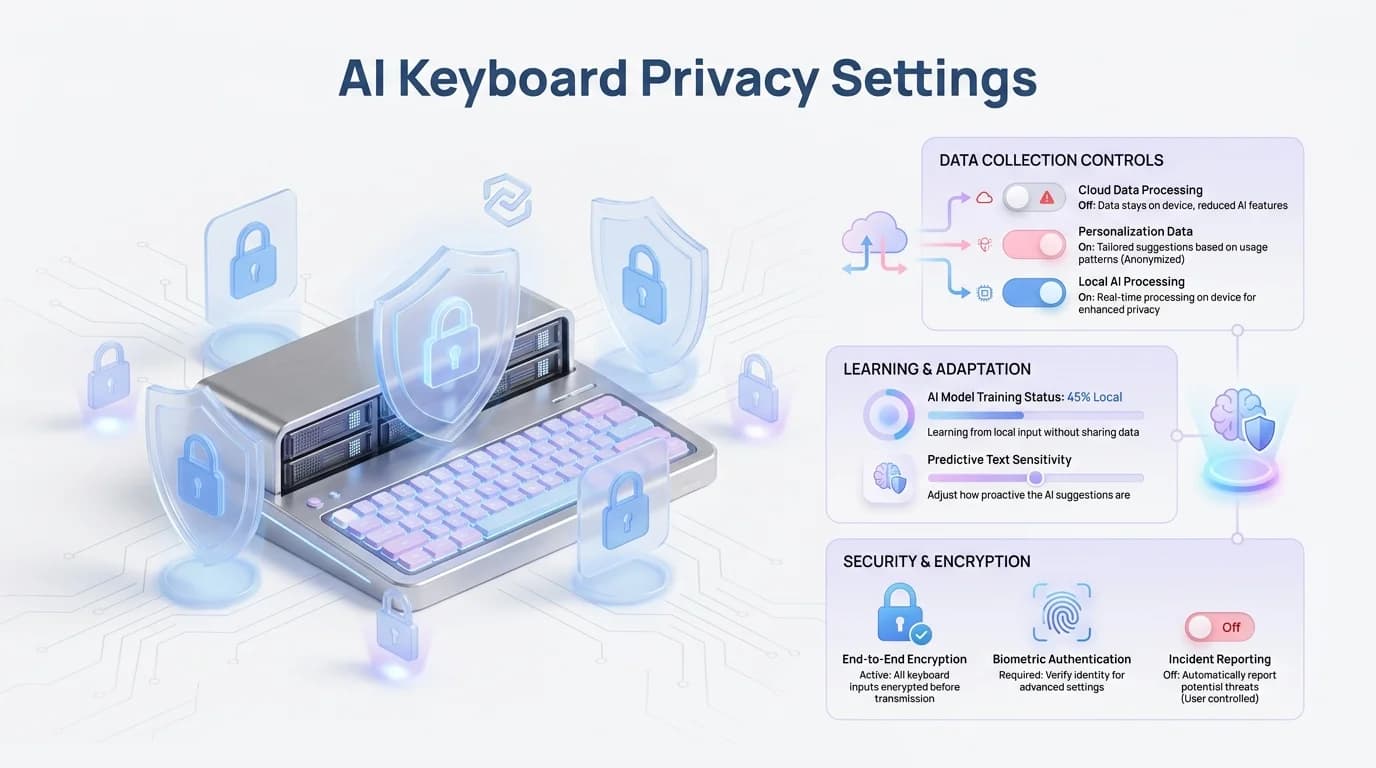
Key privacy settings every AI keyboard user should review and change from their defaults
How to Optimize Text Prediction for Your Typing Style
Additionally, Text prediction is the part that feels like actual magic when it works. Nevertheless, And the most frustrating when it doesn't — suggesting words you'd never use, finishing your sentence in completely the wrong tone.
The problem is almost always miscalibration. Either predictions are too aggressive and you're constantly dismissing them, or they're so passive the AI might as well not be there.
Start at medium, wait a week before adjusting
Consequently, The AI needs real usage data to calibrate. Messing with settings in the first few days is like judging a new hire on their first day — the system needs time to actually see your patterns before any of its predictions mean anything.
Switch to inline predictions
Many keyboards now support "inline predictions" — the suggested word appears greyed out right at your cursor, sort of like Copilot for regular text. Accepting it is one keypress (spacebar or right arrow) instead of tapping a bar above the keyboard. Nonetheless, Faster. Less eye movement. Therefore, If your keyboard supports this, turn it on.
Adjust next-word prediction depth
Some AI keyboards let you set how far ahead the model tries to predict. Moreover, Shallow models are faster and more accurate for short messages. Deeper models work better for long emails or documents. On mobile, shallow prediction usually wins — text messages just don't have the context to support deep prediction anyway.
Nonetheless, Research from MIT's CSAIL lab found that modern predictive text can cut keystrokes by up to 45% in everyday typing — up from around 30% in 2020 studies. That's a real improvement. But you only see those gains if the AI actually knows how you write.
Turn off emoji and GIF prediction if you're not a heavy emoji user
Nonetheless, Emoji suggestions eat up space in the prediction bar and push text-word suggestions out of the way. You can still get to emoji through the dedicated button. Additionally, Unless you're sending emoji constantly, just turn this off.
Swipe Typing and Gesture Settings That Actually Make a Difference
Additionally, Swipe typing (gesture typing) is measurably faster for most people who've put in the practice — most research puts the improvement at 20-35% after a couple of weeks. But default gesture settings are calibrated for hypothetically average fingers moving at hypothetically average speeds.
What's "average"? Consequently, Probably not you.
Adjust gesture sensitivity for your finger size
Larger fingers need lower sensitivity and bigger tap targets — the keyboard needs to read your intended path, not your exact fingertip. Furthermore, Most keyboards have a sensitivity slider that's almost never at the right default. Furthermore, If you're swiping and consistently missing words, try dropping sensitivity by 20-30%.
Enable gesture delete
Hence, Swiping left to delete entire words is wildly underused. Furthermore, Most people just hammer backspace to fix mistakes. Find "swipe to delete" in gesture settings and turn it on. It's the fastest way to fix a mid-sentence typo.
Enable gesture cursor control on the spacebar
Swiping left or right on the spacebar to move your cursor precisely is one of the best features on any AI keyboard. Therefore, Almost nobody knows it exists. Therefore, Turn it on immediately. Trying to tap-position a cursor on a phone screen is genuinely maddening — this feature makes that problem disappear.
Multi-language gesture detection
If you type in more than one language regularly, check whether your keyboard has an explicit multi-language gesture mode. Without it, the keyboard often tries to correct words from your secondary language into the primary one — which is incredibly annoying. Moreover, Explicit multi-language support prevents that.
Worth knowing: Microsoft's SwiftKey documentation notes that spacebar behavior interacts with gesture detection in some non-obvious ways — worth a read if you're seeing weird autocorrect behavior after swipe-typing.
Building Your Personal Dictionary the Right Way
Your personal dictionary is probably the most underused feature on any AI keyboard. It's where you store words the default dictionary doesn't know: your name, your contacts' names, your company name, technical abbreviations, the slang you actually use.
Therefore, Without a populated personal dictionary, the keyboard will keep "correcting" these words because they don't appear in its standard vocabulary. Consequently, Every time it changes a proper noun or a technical term into something generic, that's a personal dictionary problem you can fix in 10 minutes.
Moreover, Here's how to build a useful one quickly:
- Add your full name and common nickname — including surnames that get mangled
- Add names of people you message frequently — check your most-used contacts
- Add your company name, products, and internal jargon — if you work in tech, healthcare, law, or any specialized field, add 15-20 domain terms
- Add abbreviations you actually use — "lol", "tbh", "imo", "afaik", "ngl" — if autocorrect keeps expanding these, add them explicitly
- Add frequently typed URLs and email addresses — stops the keyboard mangling them mid-type
This takes 10-15 minutes and immediately reduces correction errors. It also speeds up prediction because the AI learns these words are valid and begins offering them proactively.
Lenovo's autocorrect guide confirms that custom dictionary entries are the quickest way to fix autocorrect if your vocabulary doesn't match the defaults. Consequently, Most keyboards also sync this dictionary across apps, so the work you put in once applies everywhere.
Export your dictionary before switching keyboards — it's usually a plain text file that imports cleanly into any major keyboard app, saving weeks of retraining.
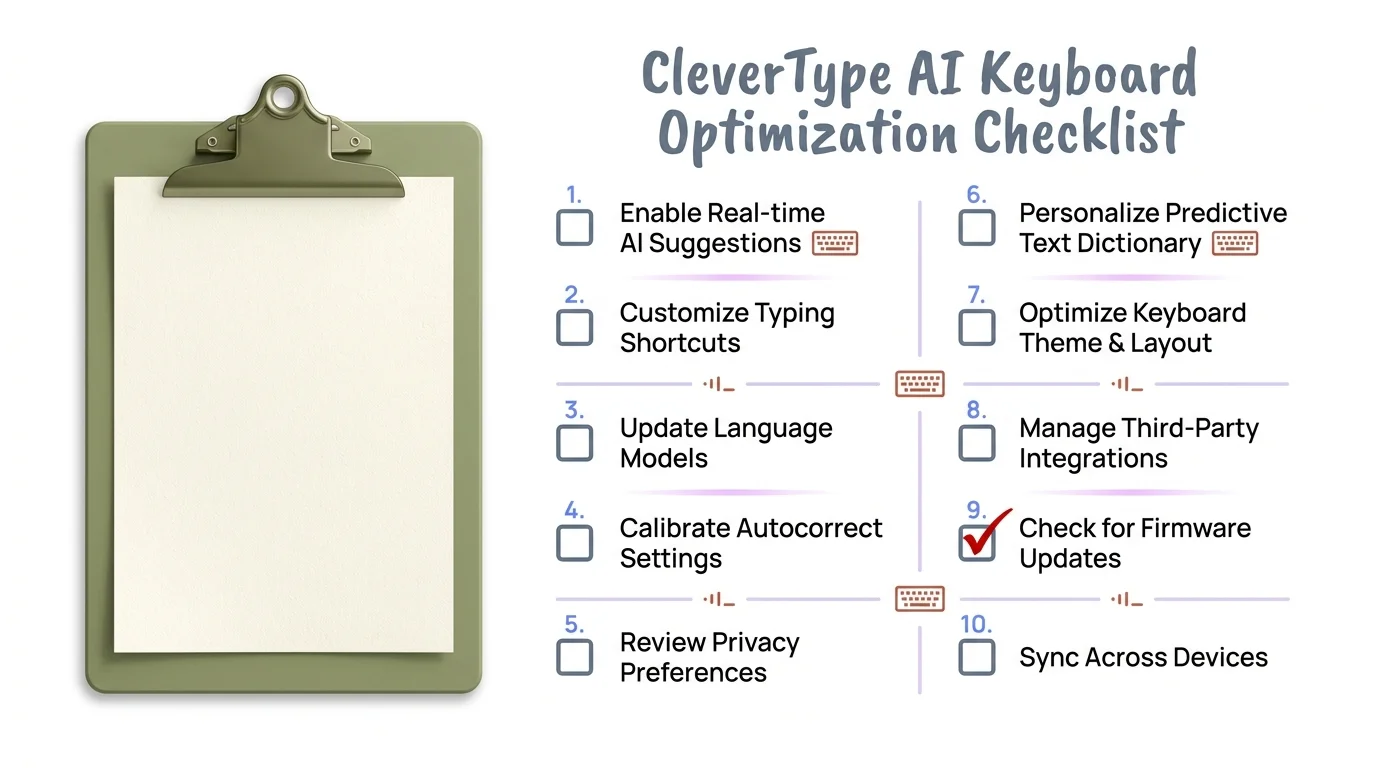
Complete CleverType AI keyboard optimization checklist — work through these settings once and notice the difference immediately
Language and Layout Settings That Actually Matter
If you type in more than one language — even occasionally — the default single-language setup is actively slowing you down. Nevertheless, Manually switching language keyboards breaks typing flow completely and is one of those small frustrations that adds up over hundreds of sessions.
Multi-language detection
Enable this if your keyboard has it. AI keyboards with proper multi-language support detect mid-sentence language switches and adjust prediction and correction accordingly. Nonetheless, CleverType supports 100+ languages with automatic detection — you can move from English to Spanish to Hindi mid-message without toggling anything manually.
Keyboard height and layout
Default keyboard height is calibrated for nobody in particular. If you have a larger phone or smaller hands, the top row of keys sits uncomfortably far from your thumbs. Reducing keyboard height by 10-15% (or bumping it up for a smaller phone) brings the whole layout into more natural reach. Small change, real difference in one-handed typing.
Number row visibility
Some keyboards hide numbers behind a long-press or a separate number view. If you type numbers frequently — addresses, times, phone numbers, prices — enabling a permanent number row eliminates constant mode-switching. Yes, it makes the keyboard slightly taller, but if you type numbers more than once per hour, that tradeoff is clearly worth it.
Haptic feedback calibration
Therefore, Vibration feedback is underrated. Too strong and it's fatiguing over long sessions; too weak and you lose the physical confirmation that helps accuracy. Most people leave this at default. Try setting it to around 60% of maximum — it feels more natural and less tiring during extended typing.
Sound feedback
Consequently, Most people turn this off in public. But for home or office use, subtle click sounds actually improve typing accuracy by providing audio confirmation of each keystroke. Consequently, Research from Microsoft's Windows text input team found that multimodal feedback — visual plus audio plus haptic — improves typing accuracy compared to any single channel alone.
What a Well-Configured AI Keyboard Actually Looks Like
Nonetheless, After all the individual settings, here's the full picture of what a properly configured AI keyboard looks like. This is where most power users end up after a few months of tweaking — but you can reach it immediately.
The recommended configuration:
| Category | Setting | Recommended Value |
|---|---|---|
| Autocorrect | Aggressiveness | Modest (not standard) |
| Autocorrect | Double-tap period | Off for technical users |
| Autocorrect | Auto-space after punctuation | Off if you type URLs/code |
| Privacy | Cloud data contribution | Off |
| Privacy | Cloud sync | Off unless multi-device |
| Prediction | Mode | Inline (not bar-only) |
| Prediction | Emoji suggestions | Off unless heavy emoji user |
| Personal dictionary | Status | Populated with 20+ custom terms |
| Gestures | Cursor control on spacebar | On |
| Gestures | Swipe to delete | On |
| Language | Multi-language detection | On if bilingual |
| Layout | Keyboard height | Adjusted to your hand size |
| Feedback | Haptic strength | ~60% of max |
What this configuration does is shift the keyboard from "working for everyone" to "working specifically for you." The AI learns faster because you're giving it cleaner signals. Autocorrect stops fighting your vocabulary. Privacy is addressed at the source. Prediction stops suggesting words that don't fit how you write.
The difference isn't dramatic in any single interaction — it's cumulative. Over thousands of messages and emails, the time you save and the frustration you avoid adds up to something real.
Furthermore, CleverType is built around exactly this kind of personalization — the settings are surfaced in actual accessible menus rather than buried six levels deep in some OS settings tree. If you're going to spend 20 minutes getting your keyboard properly configured, it helps to start with one that makes the settings actually findable. Download CleverType and run through the setup wizard — it's the quickest way to go from "default keyboard that sort of works" to "keyboard that actually works for me."
Frequently Asked Questions
Q: What is the most important AI keyboard setting to change first?
Therefore, Autocorrect aggressiveness. Dropping from "standard" to "modest" immediately cuts unwanted corrections without really hurting the AI assistance side of things. Nonetheless, Most people notice it within the first hour of typing.
Q: Does turning off cloud sync reduce AI keyboard features?
It depends on the keyboard. Hence, Some AI keyboards — like CleverType — process predictions locally, so disabling cloud sync has minimal effect on prediction quality. Others rely on server-side AI, in which case disabling sync will noticeably weaken next-word prediction. Check your specific keyboard's documentation before deciding.
Q: How long does it take for an AI keyboard to learn your typing style?
Most AI keyboards hit a useful baseline in 5-7 days of regular use, with real improvement continuing through the first month. Nonetheless, Consistent use is the key — actively rejecting bad suggestions gives the model cleaner training signals than just ignoring the prediction bar.
Q: Is it safe to use AI keyboards when typing passwords?
All reputable keyboards disable learning automatically in password fields. But enabling incognito or private typing mode provides an extra layer — it ensures the keyboard records nothing during sensitive sessions. Verify this is actually activating in your banking and password manager apps, not just assumed.
Q: Can I transfer my personal dictionary when switching keyboards?
Most keyboards allow personal dictionary export as a .txt file. CleverType, Gboard, and SwiftKey all support this. The format varies slightly between apps, but a plain text word list imports cleanly into almost any keyboard. Additionally, Export before you switch — it takes 2 minutes and saves weeks of retraining.
Q: Does gesture sensitivity affect swipe typing accuracy?
Yes, a lot actually. Default sensitivity is calibrated for average finger size and speed. People with larger fingers or faster swipes often get way more accurate results by dropping sensitivity 20-30% and bumping up tap target size in accessibility settings. Furthermore, Honestly, a lot of swipe typing haters have just never touched these two settings.
Q: What AI keyboard setting has the biggest impact on typing speed?
Additionally, Enabling inline predictions. Additionally, It cuts the eye movement needed to read and accept suggestions, and accepting is one keypress rather than a tap on the prediction bar above the keyboard. Moreover, People who switch to inline prediction typically report 15-25% faster text input within a week.
Ready to Type Smarter?
Consequently, Upgrade your typing with CleverType AI Keyboard.
Fix grammar instantly, change your tone, receive smart AI replies, and type confidently while keeping your privacy.
Download CleverType FreeAvailable on Android • 100+ Languages • Privacy-First
Share this article:
Sources:
- Apple Support: Use Auto-Correction and Predictive Text on iPhone, iPad
- Microsoft Support: Enable Text Suggestions in Windows
- Microsoft SwiftKey: Privacy and Your Data
- How-To Geek: How to Improve Autocorrect on Google's Keyboard for Android
- TWiT: Expert Tips to Control and Improve iPhone Autocorrect
- Microsoft Support: SwiftKey Spacebar and Autocorrect Behavior