Key Takeaways
| Aspect | Key Information |
|---|---|
| Market Growth | AI email assistant market projected to reach $2.05 billion by 2032, with 85% of companies already using AI email tools |
| Time Savings | Professionals spend 4.1 hours daily on email; AI tools can reduce writing time by 32-40% |
| Best Mobile Option | CleverType leads with GPT-4.1 integration, privacy-focused design, and context-aware suggestions |
| Desktop Leaders | Microsoft 365 Copilot, MailMaestro, and Grammarly dominate desktop AI email assistance |
| Report Writing | 90% of executives recognize AI software reduces operational costs in report generation |
| Adoption Rate | 34% of email marketers use AI for copywriting, the most common AI-assisted task |
| ROI Impact | Send-time optimization improves open rates by 10-15% compared to traditional methods |
Are AI assistants finally good enough to trust with your professional emails? The answer in 2026 is yes—but only if you pick the right tool. The AI email assistant market is projected to grow from $0.90 billion in 2023 to $2.05 billion by 2032, which tells you something important. Businesses aren't just testing these tools anymore, they're relying on them. If you're still manually drafting every email and spending weekends on reports, you're not being thorough. You're just being slow.
Most people waste more than half their workday on email. That's not an exaggeration—an average professional spends 4.1 hours a day managing email, which means you're probably reading this during a brief escape from your inbox. AI email assistants and report writing tools have moved way beyond simple spell-checkers into something that actually understands what you're trying to say, sometimes better than you do. The trick is finding which one fits your workflow without making you sound like a robot wrote your messages.
Why AI Email Assistants Are Actually Useful Now
Remember when autocorrect was the height of writing assistance, and it mostly just changed "well" to "we'll" at the worst possible times? AI email assistants in 2026 are nothing like that. They've gotten smart enough to understand context, tone, and even the subtle politics of workplace communication. According to Gartner analysts, using AI to summarize long email threads can boost user productivity by up to 32%, which is a pretty significant chunk of your day back.
What changed? Natural language processing got way better. These tools now use transformer models (the same technology behind ChatGPT) that actually understand the difference between "Let me know your thoughts" and "I need your approval by EOD." They pick up on urgency, formality levels, and even emotional undertones. When you type "Can you send that report," a good AI writing assistant knows whether you're asking a colleague casually or making a formal request to a client.
Here's what modern AI email assistants actually do:
- Draft complete emails from bullet points or brief instructions
- Adjust tone automatically (professional, friendly, urgent, apologetic)
- Summarize long threads so you don't have to scroll through 47 replies
- Suggest smart replies based on email content and your past responses
- Schedule send times using predictive AI for maximum open rates
- Translate messages across 50+ languages without leaving your inbox
The adoption numbers back this up. 75% of professionals want to use AI for content writing, email, and task automation, and 28% of marketers already use AI to create email copy and replies. More importantly, 52% of marketers using AI tools experienced increased speed and efficiency of workflows. That's not hype. That's actual measured productivity gains.
Not all AI assistants are created equal, though. Some are brilliant at formal business correspondence but terrible at casual team chats. Others excel at brevity but struggle with detailed explanations. And then there's the privacy question—do you really want your confidential client emails processed on someone else's servers? That's where picking the right tool for your specific needs becomes critical.
Top Mobile AI Assistants for Email Drafting
Your phone is where most quick emails happen, usually while you're commuting, waiting in line, or pretending to pay attention in meetings. Mobile AI assistants need to be fast, accurate, and smart enough to make you look professional even when you're typing with one thumb. The mobile keyboard app space has exploded with AI features in 2026, but a few clear winners have emerged.
CleverType sits at the top of the mobile AI keyboard category for one simple reason: it actually works the way you need it to. While other keyboards bolt on AI as an afterthought, CleverType was built from the ground up as an AI-powered keyboard. It uses GPT-4.1 integration, which means it understands context, emotional nuance, and professional requirements better than any other mobile keyboard in 2026. When you're drafting an email to your boss about a missed deadline, CleverType picks up on the apologetic tone you need and suggests phrases that sound genuine—not generic.
What makes CleverType different? Privacy, for one thing. Your emails stay on your device instead of being processed on external servers, which matters a lot when you're handling confidential client information or sensitive work discussions. It offers unlimited custom assistants that you can train for specific types of emails—one for client communications, another for internal team chats, a third for formal business correspondence. The AI learns your writing style over time, so suggestions actually sound like you wrote them.
Here's a comparison of top mobile options:
| Feature | CleverType | Gboard AI | SwiftKey AI | Grammarly Keyboard |
|---|---|---|---|---|
| AI Model | GPT-4.1 | Gemini 2.0 | Copilot | Proprietary |
| Privacy | On-device processing | Cloud-based | Cloud-based | Cloud-based |
| Tone Adjustment | Yes, emotion-aware | Limited | Yes | Yes |
| Custom Training | Unlimited assistants | No | Limited | No |
| Offline Mode | Full functionality | Limited | Limited | No |
| Languages | 100+ | 100+ | 60+ | 30+ |
| Price | $7.99/mo or free tier | Free | Free | $12/mo |
Google's Gboard leverages Gemini 2.0 models to deliver a remarkably smart typing experience for free, which is impressive. It's great at predictions and has excellent voice typing. But it processes everything through Google's servers, which means your emails are being analyzed alongside your search history and location data. For casual emails, that's fine. For anything confidential, it's a risk. If you're looking for the best AI keyboard for iPhone, the privacy considerations are even more critical.
Microsoft SwiftKey received a major overhaul in early 2026, replacing ChatGPT integration with full Microsoft Copilot integration. If you live in the Microsoft ecosystem—Outlook, Teams, OneDrive—SwiftKey makes sense. It syncs your writing patterns across devices and integrates smoothly with Office apps. But it's not as strong for users outside that ecosystem.
Grammarly Keyboard brings professional-grade writing assistance to mobile, which sounds great until you realize it's really just a stripped-down version of the desktop app. It catches grammar errors well and makes decent suggestions, but it lacks the contextual intelligence of CleverType or the integration benefits of SwiftKey. At $12/month, it's also the most expensive option without offering proportional value. For a detailed comparison, check out our guide on AI keyboards vs Grammarly for professionals.
For most people, CleverType hits the sweet spot. It's smart enough for professional emails, private enough for confidential communications, and flexible enough to adapt to different writing contexts. Download CleverType if you want an AI keyboard that actually understands the difference between emailing your team and emailing a major client.
Desktop AI Tools That Actually Write Good Emails
Desktop is where the serious email work happens—long client proposals, detailed project updates, formal correspondence that needs to be perfect. Desktop AI assistants have more processing power to work with, better integration with email clients, and room for more sophisticated interfaces. The best ones don't just correct your writing, they actively improve it. For professionals seeking AI keyboards that help write perfect emails, the desktop experience offers unmatched capabilities.
Microsoft 365 Copilot is the 800-pound gorilla in this space. As of early 2025, over 400 million Outlook users now have access to AI features natively that can draft emails based on prompts and summarize lengthy threads. If you're already paying for Microsoft 365, Copilot is the obvious choice. It sits right inside Outlook, understands your calendar and contacts, and can draft responses that reference previous conversations automatically. Type "Draft a polite decline for the 3pm meeting" and it writes a complete email citing your schedule conflict.
But Copilot isn't perfect. It tends toward verbose, corporate-speak language. Emails drafted by Copilot sound professional but kind of generic. It also requires a Microsoft 365 subscription at the business or enterprise tier, which isn't cheap. For individual users or small teams, the cost might not justify the benefits.
MailMaestro is what you want if security is non-negotiable. It's a top-tier AI assistant that works with Microsoft Outlook, emphasizes enterprise-grade security (SOC 2, GDPR compliant), and drafts high-quality emails with adjustable tone and length directly within the Outlook pane. Law firms, healthcare organizations, and financial services companies use MailMaestro because it keeps data encrypted and never stores email content on external servers. The tradeoff is price—it's one of the more expensive options at around $20/month per user. If you're in customer support, you might also want to explore AI keyboards for customer support that specialize in personalized responses.
Shortwave takes a different approach by reimagining email entirely. Instead of bolting AI onto Outlook or Gmail, Shortwave built a new email client around AI from the ground up. It automatically sorts emails by importance, bundles related messages into threads, and generates context-aware responses. The AI learns which emails you typically ignore and which ones need immediate attention, then surfaces the right messages at the right time. It's brilliant—if you're willing to switch email clients, which most people aren't.
Compose AI is the minimalist option. It's a browser extension that works with Gmail, Outlook Web, and other webmail services. Compose AI can shave up to 40% off overall writing time for certain types of content by predicting full sentences as you type. It's fast, unobtrusive, and surprisingly accurate. The free tier is generous, and the paid version ($10/month) unlocks advanced features like personalized writing styles and unlimited generations.
Here's what to consider for desktop email:
- Integration: Does it work with your current email client, or do you need to switch?
- Security: Is your data encrypted? Where is it processed and stored?
- Customization: Can you adjust tone, length, and formality easily?
- Learning: Does it adapt to your writing style over time?
- Price: Is it worth the cost compared to your current workflow?
According to research, 50% of US and European email marketers believe that AI-supported email marketing is more effective than traditional methods. And that's because these tools don't just save time—they often write better emails than humans do. They never forget to include a call-to-action, always match the recipient's communication style, and consistently hit the right level of formality.
The best desktop AI email assistant really depends on your specific situation. Microsoft 365 users should start with Copilot. Security-conscious organizations should look into MailMaestro. Gmail users who want something lightweight should try Compose AI. And if you're willing to completely rethink how email works, Shortwave might change your life.
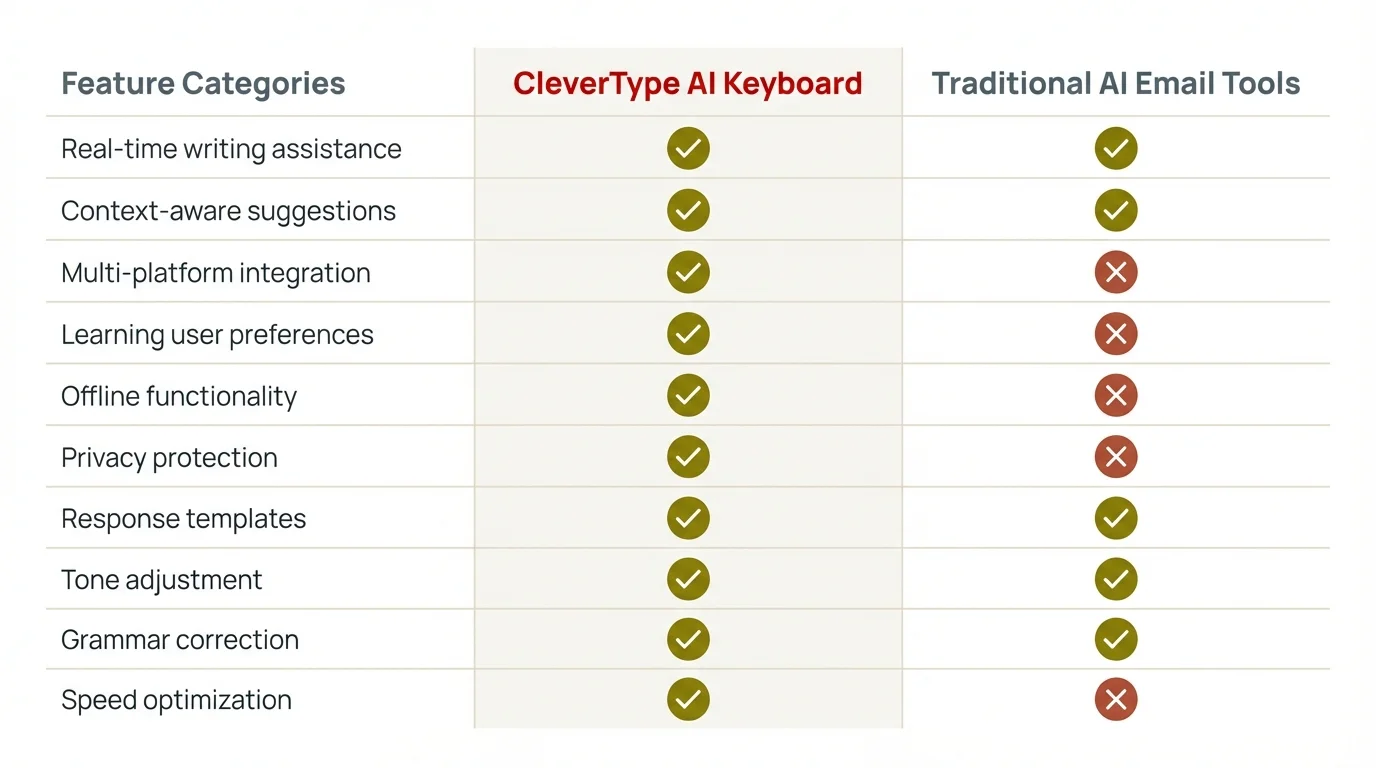
CleverType AI Keyboard offers superior features compared to traditional AI email tools, with better privacy, real-time suggestions, and mobile optimization.
AI Report Writing Tools for Professional Documents
Reports are where AI really proves its value. Nobody enjoys writing status reports, project summaries, or quarterly analyses, but everybody needs them. AI report writing tools have gotten sophisticated enough to handle not just the writing but the data analysis, visualization, and formatting too. Around 90% of company executives recognize the role of AI software in reducing operational costs related to report generation, which is why adoption has been so rapid.
What does an AI report writer actually do? It takes raw data—spreadsheets, notes, meeting transcripts, analytics dashboards—and turns that information into a structured, readable report. Good AI report writers don't just fill in templates. They identify patterns, highlight important trends, and present information in a logical flow. The best ones can even adjust the complexity level depending on the audience, simplifying for executives or adding technical details for specialist teams.
Grammarly's AI-powered report-writing tool lets you write quality one-page business reports or executive summaries in four quick steps with AI-powered writing assistance. You provide the topic and key points, select the tone (analytical, persuasive, informative), and the AI generates a complete draft. It's particularly good at business reports because Grammarly has been training on professional writing for years. The AI understands corporate language conventions, knows when to use active vs. passive voice, and structures arguments logically.
Tableau Agent stands out for data-heavy reports. It's an AI report generator that makes data exploration easy through natural language interactions. You can describe desired calculations or visualizations in everyday language—"Show me Q4 sales by region with year-over-year growth"—and Tableau Agent translates those requests into actionable data queries. This makes data analysis accessible to non-technical users, which is pretty revolutionary for small teams without dedicated analysts.
For visual reports, Piktochart AI is hard to beat. It uses advanced artificial intelligence to generate professional-looking reports in seconds. With just a single prompt, you can generate a report that's auto-populated with templates from their library, complete with charts, infographics, and branded design elements. It's perfect for client-facing reports where appearance matters as much as content.
Jenni AI serves as an intelligent writing assistant, particularly good at transforming raw data and research materials into coherent, structured content. It helps with drafting content and provides suggestions for structure, phrasing, and citations. Academic researchers and consultants favor Jenni AI because it handles complex information well and maintains consistent citation formatting across long documents. For students looking to improve their academic writing, our guide on AI keyboard apps for students offers additional insights.
Here's when to use each type:
For quick status updates and summaries:
- Use Grammarly or similar AI writing tools
- Focus on clarity and brevity
- Let AI handle structure and flow
- Review and personalize key points
For data-driven business reports:
- Use Tableau Agent or similar analytics tools
- Let AI identify patterns and trends
- Focus your time on interpretation and recommendations
- Verify calculations before publishing
For client-facing visual reports:
- Use Piktochart or similar design-focused tools
- Leverage AI templates as starting points
- Customize branding and visual elements
- Ensure consistency across report sections
For research-heavy or technical reports:
- Use Jenni AI or specialized writing assistants
- Provide detailed source materials and data
- Let AI organize complex information logically
- Verify citations and technical accuracy
In 2026, AI reporting is entering a phase where it's widely accessible and can provide real, tangible value to analysts. Traditional reporting methods relied heavily on analysts interpreting charts and tables. Today's systems use machine learning algorithms to uncover patterns, surface trends, and even predict future outcomes. That means your quarterly report doesn't just say what happened last quarter—it highlights anomalies, identifies emerging trends, and sometimes predicts what's likely to happen next.
The key is knowing what AI can and can't do. AI is excellent at synthesizing information, maintaining consistent tone, following structural templates, and generating visualizations. It's not good at strategic thinking, understanding political context, or knowing what information is sensitive and should be left out. Always review AI-generated reports before sending, especially for high-stakes documents or external audiences.
Comparing Mobile vs Desktop Solutions for Different Tasks
Should you use mobile or desktop AI assistants? The annoying answer is both, depending on the task. But there's actually a clear logic to when each works best.
Mobile AI assistants (like CleverType for business and professional use) excel at:
- Quick responses that need to go out immediately
- Casual communications with colleagues or team members
- On-the-go emails when you're away from your desk
- Short messages under 200 words
- Time-sensitive replies that can't wait until you're at your computer
The advantage of mobile is speed and convenience. You can draft and send a professional email while walking between meetings, responding to urgent client questions from the airport, or handling quick team communications during lunch. CleverType's on-device AI processing means there's no lag waiting for cloud servers, which matters a lot when you're trying to fire off a quick response.
Desktop AI assistants shine for:
- Long-form emails with multiple sections and attachments
- Complex reports requiring data analysis and visualization
- Formal correspondence that needs careful review
- Multi-recipient messages with different stakeholders
- Email threads that need summarization and context
Desktop tools like Microsoft 365 Copilot and MailMaestro have access to more computing power, better integration with business tools, and larger screens for reviewing output. When you're writing a detailed project proposal or quarterly report, you want the full desktop experience with multiple windows, easy access to reference materials, and proper formatting controls.
Here's a practical breakdown by task type:
| Task | Best Platform | Recommended Tool | Why |
|---|---|---|---|
| Quick client reply | Mobile | CleverType | Speed and context awareness |
| Team standup email | Mobile | CleverType or SwiftKey | Casual tone, brief format |
| Formal proposal | Desktop | Microsoft 365 Copilot | Complex structure, attachments |
| Weekly status report | Desktop | Grammarly or Jenni AI | Data synthesis, formatting |
| Urgent meeting decline | Mobile | CleverType | Immediate response needed |
| Quarterly business report | Desktop | Tableau + Grammarly | Data analysis + writing |
| Client apology email | Desktop | MailMaestro | Tone-critical, needs review |
| Travel delay notification | Mobile | Any AI keyboard | Simple, time-sensitive |
The real productivity hack is using both smoothly together. Draft quick emails on mobile with CleverType when you're away from your desk, but save complex reports and formal correspondence for desktop tools. Send-time optimization uses predictive AI to analyze individual user behavior to figure out optimal send windows, improving open rates by 10-15% compared to batch sending—and that works whether you're on mobile or desktop.
Some tools bridge the gap. Grammarly offers both a mobile keyboard and desktop application with sync across devices. SwiftKey connects to Microsoft's ecosystem. But for the best experience, you want a mobile-first AI keyboard like CleverType for on-the-go communications and a powerful desktop suite like Microsoft 365 Copilot for complex work.
What about tablets? Tablets are this awkward middle ground. The screen is big enough that you expect desktop-class functionality, but the interface is still touch-based like mobile. Most people find they use desktop-class tools on tablets (Microsoft 365, Grammarly web interface) rather than mobile keyboards. If you regularly work on a tablet, go with desktop solutions that have good touch interfaces over mobile-optimized keyboards.
The key takeaway—match the tool to the task. Quick reply? Mobile. Complex document? Desktop. And if you're smart, you'll have both ready so you're never stuck writing a long email on your phone or waiting until you're at your desk to send a time-sensitive reply.
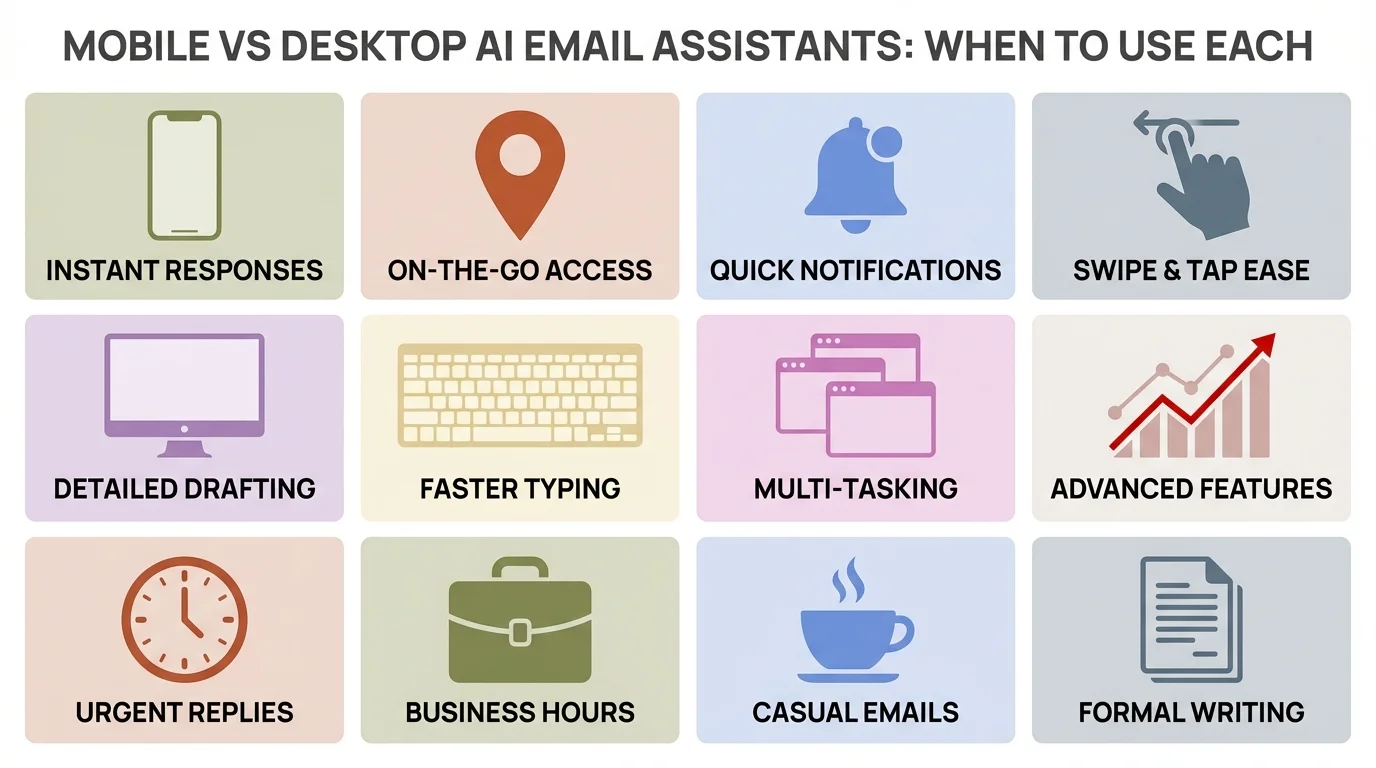
Quick reference guide: Choose mobile AI assistants for instant responses and on-the-go access, desktop for detailed drafting and advanced features.
Key Features to Look For in AI Email Assistants
Not all AI email assistants are equally useful. Some are brilliant at one thing and terrible at everything else. Others try to do everything and end up mediocre across the board. Here's what actually matters when you're choosing an AI email assistant.
Context awareness is the most important feature, bar none. Can the AI read the email thread you're replying to and understand what's already been discussed? Does it know the difference between replying to your boss and replying to a vendor? CleverType excels here because its GPT-4.1 integration actually understands conversational context and relationship dynamics. Lesser tools just see text and don't get the human context behind it.
Tone adjustment needs to work automatically and accurately. You don't want to manually set "formal professional" every single time you email a client. Good AI assistants detect the appropriate tone from the recipient, subject line, and previous messages. They should offer quick toggles for urgent, apologetic, enthusiastic, or neutral tones without making you explain what those mean. 34% of email marketers use AI for copywriting, and tone control is the feature they cite most often as critical.
Privacy and security matter more than most people realize. Where is your email data processed? Is it stored on external servers? Who has access? Enterprise users need SOC 2 compliance and GDPR guarantees. Individual users should at minimum look for on-device processing or end-to-end encryption. CleverType's on-device AI processing means your confidential emails never leave your phone, which is a pretty significant privacy advantage over cloud-based alternatives.
Learning and personalization separate good AI from great AI. The assistant should learn your writing style, common phrases, and typical email patterns. After a week of use, suggestions should sound like you wrote them—not like a generic business template. This requires the AI to store some information about your writing habits, which is where privacy policies become important. Make sure you're comfortable with how that data is used.
Speed and reliability are non-negotiable. AI suggestions that take 10 seconds to generate aren't helpful when you're trying to quickly respond to an urgent message. The best tools generate suggestions in under 2 seconds. They also need to work offline or with poor connectivity, which again favors on-device AI like CleverType over cloud-dependent tools.
Essential features checklist:
- ✓ Multi-language support if you communicate internationally
- ✓ Custom shortcuts for emails you send frequently
- ✓ Template library for common email types
- ✓ Grammar and spell check integrated with AI suggestions
- ✓ Attachment handling that references files in email text
- ✓ Calendar integration for scheduling-related emails
- ✓ Contact management that remembers recipient preferences
- ✓ Undo/edit after sending (for supported email clients)
Nice-to-have features that add value:
- Email summarization for long threads
- Smart reply suggestions based on email content
- Priority sorting to surface important messages
- Follow-up reminders for emails needing responses
- Read receipts and tracking (with privacy considerations)
- A/B testing for different email versions
Features that sound good but rarely matter:
- Elaborate customization options you'll never use
- Integration with obscure productivity tools
- Excessive automation that removes human judgment
- Gamification and productivity scores
- Social media integration
The best AI email assistant for you depends on your specific needs, but certain features are universal. Context awareness and tone adjustment are mandatory. Privacy matters more as the sensitivity of your communications increases. Learning and personalization determine whether the tool gets more useful over time or stays static. Speed and reliability affect whether you actually use the tool or abandon it after a week.
Privacy and Security Considerations for AI Writing Tools
Here's the uncomfortable question nobody wants to ask—when you use an AI assistant to draft emails, who else is reading them? The answer varies dramatically between tools, and it matters more than you might think.
Most cloud-based AI tools work like this: you type an email, it gets sent to a server (AWS, Google Cloud, Azure), the AI processes it there, and sends back suggestions. That means your email content exists on someone else's servers, at least temporarily. For casual emails about lunch plans, that's probably fine. For confidential client information, merger discussions, or anything covered by NDA, it's a serious problem.
On-device processing solves this problem by keeping everything local. CleverType uses on-device AI processing, which means your emails never leave your phone. The AI model runs directly on your device, generates suggestions locally, and doesn't send anything to external servers. This is why privacy-conscious professionals—lawyers, healthcare workers, executives—prefer CleverType over cloud-based alternatives. There's no data breach risk if the data never leaves your device.
But on-device processing has tradeoffs. The AI models need to be smaller to fit on phones, which used to mean they were less capable than cloud-based models. That changed with GPT-4.1 and similar compressed models that maintain high performance in smaller packages. CleverType's implementation proves you can have both privacy and performance.
Data retention is the other major concern. Even if a tool encrypts your data in transit, what happens on the server? Is it stored? For how long? Who has access? Most AI email assistants are pretty vague about this in their privacy policies. Look for specific commitments:
- "We do not store email content after processing" (good)
- "Data is encrypted and deleted within 24 hours" (acceptable)
- "We use your data to improve our models" (problematic)
- No clear statement about data retention (red flag)
Enterprise-grade tools like MailMaestro offer SOC 2 Type II compliance and GDPR guarantees, which means they've been audited by independent third parties and follow strict data handling protocols. These certifications matter for businesses handling sensitive information or operating in regulated industries.
Training data concerns affect everyone using AI tools. Most AI models are trained on huge datasets scraped from the internet, which raises questions. Was any of that training data confidential? Are the models biased toward certain communication styles? Do they reflect or amplify problematic language patterns? Responsible AI companies are transparent about training data sources and bias mitigation efforts. Less reputable ones don't disclose anything.
Security best practices for using AI writing tools:
- Use on-device AI for confidential communications
- Check privacy policies before adopting any tool
- Avoid copying sensitive data into cloud-based tools
- Enable encryption wherever available
- Review permissions the tool requests
- Update regularly to patch security vulnerabilities
- Use separate tools for different security contexts
For most individuals and small businesses, privacy concerns are manageable with reasonable precautions. Use on-device tools like CleverType for anything confidential, and cloud-based tools for routine communications. For enterprises and regulated industries, insist on SOC 2 compliance, GDPR guarantees, and on-premise deployment options where available.
The general trend is toward better privacy as competition increases. Tools that can't clearly explain their data practices are losing users to alternatives that offer transparent, privacy-first approaches. If you're unsure about a tool's privacy stance, that uncertainty itself is a red flag.
How to Actually Implement AI Assistants in Your Workflow
Buying an AI assistant is easy. Actually using it effectively? That's harder. Most people download an AI email tool, try it once or twice, find it doesn't perfectly match their needs, and abandon it. Here's how to implement AI assistants properly so they actually improve your workflow.
Start with one specific use case. Don't try to AI-ify your entire email workflow on day one. Pick one repetitive task that annoys you—maybe it's weekly status emails, maybe it's responding to common customer questions, maybe it's drafting meeting follow-ups. Use the AI assistant only for that one task for a week. Master it there before expanding to other use cases.
For example, if you send a bunch of client follow-up emails after meetings, set up a template in CleverType or your desktop AI tool. Include the standard structure (thank you, summary of discussion, next steps, timeline). Let the AI handle the boilerplate while you focus on the specific details for each client. After a week, you'll have refined the template and trained the AI on your preferred style.
Train the AI to sound like you. Most AI assistants sound generic out of the box. They produce competent but bland corporate-speak that screams "a robot wrote this." Spend time correcting the AI's suggestions, adjusting tone, and rewriting phrases in your voice. Good AI tools learn from these corrections. CleverType's custom assistants let you train different personas for different contexts—one that sounds like your professional voice, another that matches your casual team communication style.
Set clear boundaries for AI use. Decide which emails you'll let AI draft entirely, which ones you'll use AI to start but heavily edit, and which ones you'll write completely yourself. A reasonable starting point:
- Full AI drafts: Routine updates, simple replies, calendar coordination
- AI-assisted: Client communications, formal proposals, team announcements
- Human-only: Sensitive topics, conflict resolution, performance feedback
These boundaries will shift as you get more comfortable with AI capabilities and limitations, but starting with clear rules prevents the common mistake of over-relying on AI for communications that genuinely need a human touch.
Review everything before sending. This should be obvious but worth repeating—always read AI-generated emails before sending. AI makes mistakes. It misses context, suggests awkward phrasing, occasionally includes inappropriate content, and sometimes just generates nonsense. Spending 30 seconds reviewing an AI draft is still way faster than writing from scratch, and it prevents embarrassing errors.
Measure actual time savings. Track how long email tasks take before and after using AI assistance. You should see measurable improvements within two weeks. If you're not saving at least 20-30 minutes daily after a month of use, either the tool isn't right for your needs or you haven't found the right use cases yet.
Implementation timeline for teams:
Week 1: Pilot testing
- Select 3-5 early adopters
- Choose one specific email type to automate
- Gather daily feedback on accuracy and usefulness
Week 2-3: Refinement
- Adjust AI settings based on pilot feedback
- Create custom templates for common scenarios
- Train AI on company voice and style guidelines
Week 4: Broader rollout
- Expand to full team with clear use guidelines
- Provide training on best practices
- Set up feedback channels for ongoing improvement
Month 2-3: Optimization
- Analyze usage patterns and time savings
- Identify additional use cases
- Refine templates and AI training
Month 4+: Advanced features
- Implement automation for routine emails
- Integrate with other workflow tools
- Expand to report writing and other documents
The most common implementation mistake? Expecting perfection immediately. AI assistants get better as they learn your patterns, understand your context, and train on your corrections. Give them time to improve. The second most common mistake is abandoning AI assistance after one bad suggestion. Even humans occasionally write poor emails. The question isn't whether AI is perfect, but whether it's better than your current process.
Frequently Asked Questions
Q: Can AI email assistants actually understand context well enough for professional use?
A: Yes, modern AI email assistants use advanced language models that understand conversation context, relationship dynamics, and professional communication norms. Tools like CleverType with GPT-4.1 integration can differentiate between replying to a colleague versus a client and adjust tone accordingly. They analyze previous messages in the thread, understand urgency cues, and maintain appropriate formality levels. The technology has advanced significantly beyond simple template filling to genuine contextual understanding.
Q: Are cloud-based AI writing tools safe for confidential business communications?
A: It depends on the tool and your security requirements. Cloud-based tools process your emails on external servers, creating potential security risks for confidential information. Enterprise-grade options like MailMaestro offer SOC 2 compliance and GDPR guarantees with encrypted processing. For maximum security, use on-device AI tools like CleverType that process everything locally without sending data to external servers. Never use free, consumer-grade AI tools for emails containing sensitive client data, merger discussions, or anything covered by NDAs.
Q: How much time can AI assistants realistically save on email and reports?
A: Research shows AI email assistants can reduce writing time by 32-40% depending on the type of content and your workflow. An average professional spends 4.1 hours daily on email, meaning AI tools could save 1.5-2 hours per day. For reports, the savings are even more dramatic—tasks that previously took hours can be completed in 20-30 minutes with AI assistance. However, actual time savings depend on how effectively you implement the tools and which tasks you automate.
Q: What's the difference between mobile and desktop AI email assistants?
A: Mobile AI assistants like CleverType are optimized for quick, on-the-go communications with fast response times and simplified interfaces. They excel at brief replies, casual team messages, and time-sensitive emails under 200 words. Desktop AI assistants like Microsoft 365 Copilot and MailMaestro handle complex tasks better—long proposals, detailed reports, multi-section documents, and emails requiring extensive formatting or attachments. Desktop tools integrate with business applications and offer more sophisticated analysis. Most professionals need both: mobile for immediate responses and desktop for complex communications.
Q: Will using AI assistants make my emails sound robotic or impersonal?
A: Not if you use quality AI tools correctly. Early AI writing assistants did produce generic, corporate-sounding text. Modern tools like CleverType learn your personal writing style, adapt to different contexts, and can adjust tone to match the situation. The key is training the AI by correcting its suggestions and providing feedback. After a week of use, good AI assistants generate drafts that sound like you wrote them. However, you should always review and personalize AI-generated emails before sending, especially for important or sensitive communications.
Q: How do AI report writing tools handle data analysis and visualization?
A: Advanced AI report writing tools like Tableau Agent can analyze data through natural language queries, identify patterns, and generate visualizations automatically. You describe what you need in plain language—"show quarterly sales trends by region"—and the AI produces appropriate charts and graphs. Tools like Piktochart AI combine data analysis with professional design, generating complete reports with branded visuals. However, AI tools excel at synthesis and presentation but still require human oversight for strategic interpretation, especially for high-stakes business decisions or client-facing reports.
Q: What happens if an AI assistant makes a mistake in a professional email?
A: AI assistants occasionally generate errors—factual mistakes, tone misjudgments, inappropriate suggestions, or nonsensical phrasing. This is why you must always review AI-generated content before sending. Most quality AI tools have improved dramatically in accuracy, but they're not infallible. Set up a review workflow where AI drafts emails quickly but humans approve before sending. For critical communications, use AI to create a starting draft but invest time in careful editing. The responsibility for email content always remains with you, regardless of whether AI assisted in writing it.
Ready to Transform Your Email Workflow?
Stop wasting hours on routine emails and reports. CleverType's AI-powered keyboard brings professional writing assistance directly to your fingertips, whether you're on mobile or desktop. With GPT-4.1 integration, privacy-focused on-device processing, and context-aware suggestions that actually understand what you're trying to say, CleverType helps you communicate faster without sacrificing quality.
Join thousands of professionals who've already cut their email time in half. Download CleverType now and experience the difference that truly intelligent writing assistance makes.
Share this article:
Sources: