Key Takeaways
| Question | Quick Answer |
|---|---|
| What is the best AI keyboard dark theme overall? | CleverType — AI-powered, privacy-first, and fully customizable dark themes |
| Do dark mode keyboards actually reduce eye strain? | Yes — a 2025 PMC study found significantly fewer dry eye symptoms with dark mode |
| Which platforms support dark mode keyboards? | Android (API 29+), iOS, Windows 10+, and macOS Mojave and later |
| How many people use dark mode? | 82% of smartphone users actively use dark mode (2024 survey data) |
| Does dark mode save battery? | Yes — up to 63% battery savings on AMOLED screens at full brightness |
| Is CleverType available for free? | Yes — download free on Android and iOS |
Here's a stat that genuinely caught me off guard: 82% of smartphone users now actively use dark mode, according to a 2024 survey compiled by forms.app. That's not a niche preference anymore — it's basically just how most people use their phones. So why are so many folks still stuck with a keyboard that blasts blinding white the second they open a dark app?
This guide covers the best AI keyboards with dark mode support across every major platform. Android, iOS, Windows, Mac — there's a dark keyboard app that fits your setup. Some of them are way better than others, though. Hence, Especially when it comes to the AI features that actually save you time.
Why Dark Mode Keyboards Matter More Than You Think
Dark mode keyboards flip the usual setup — dark background, light text, instead of the standard blinding white. Moreover, Simple concept. Nevertheless, The impact, though? Bigger than most people expect.
Therefore, Most people turn it on because it looks good. Fair enough. Therefore, But there are actual practical reasons this matters:
- Eye strain: A 2025 clinical study published on PubMed Central found that dark mode produced significantly fewer dry eye symptoms compared to light mode (scores of 22.73 vs. 24.40, p < 0.05). Critical Flicker Frequency — a physiological measure of eye fatigue — was also significantly lower in dark mode.
- Battery life: On AMOLED and OLED screens (which cover the majority of mid-range and flagship Android phones), dark pixels are literally turned off. A fully dark screen can use up to 63% less power than a fully white screen at maximum brightness.
- Night usability: 82.7% of users specifically activate dark mode after 10 PM, according to the same survey. Typing on a glowing white keyboard in bed is genuinely unpleasant. A night mode keyboard that matches your dark system theme just makes sense.
Moreover, The American Academy of Ophthalmology actually recommends dark or night mode in the evenings. Moreover, Warm, dark displays are less likely to mess with your circadian rhythm — basically, they won't send the "stay awake" signal to your brain right before bed. Additionally, So this isn't just about your eyes. It's your sleep too.
Nevertheless, At this point, it's not really a question of whether to use a dark keyboard. It's which one.
One caveat worth knowing: dark mode works best in low-light. In bright daylight, light mode can actually be easier on your eyes because it reduces pupil dilation. And for roughly 50% of people with uncorrected astigmatism, white text on pure black can produce a halation effect — a kind of glow around letters that makes reading harder. If that sounds familiar, go with mid-tone dark grey themes instead of true black.
What to Look for in a Dark Mode AI Keyboard App
Not all dark keyboard apps are equal. Consequently, Some slap on one dark option and call it done. Others let you tweak everything — right down to individual key colors. Furthermore, And then there's the AI layer, which varies wildly from app to app.
Here's what actually matters:
Theme flexibility:
| Feature | Basic Dark Mode | Advanced Dark Theme |
|---|---|---|
| Background colour options | One fixed dark colour | Custom hex/RGB controls |
| Key colour control | Inherited from system | Independent per element |
| System sync | Usually yes | Yes + manual override |
| True black (AMOLED) option | Sometimes | Yes |
| Scheduled switching | Rarely | Yes |
AI features to evaluate alongside dark mode:
- Grammar correction and spell-check accuracy
- Predictive text quality
- Tone adjustment (formal vs. casual)
- Translation support
- Privacy — specifically, does the keyboard send your typing data to external servers?
Consequently, CleverType checks all of these. Custom dark themes, plus 30+ AI writing tools — grammar fix, rephrase, translate, summarize, smart reply — all running on-device. That's the gap between a genuinely great dark keyboard and one that just changed the background color and slapped "AI" on the label.
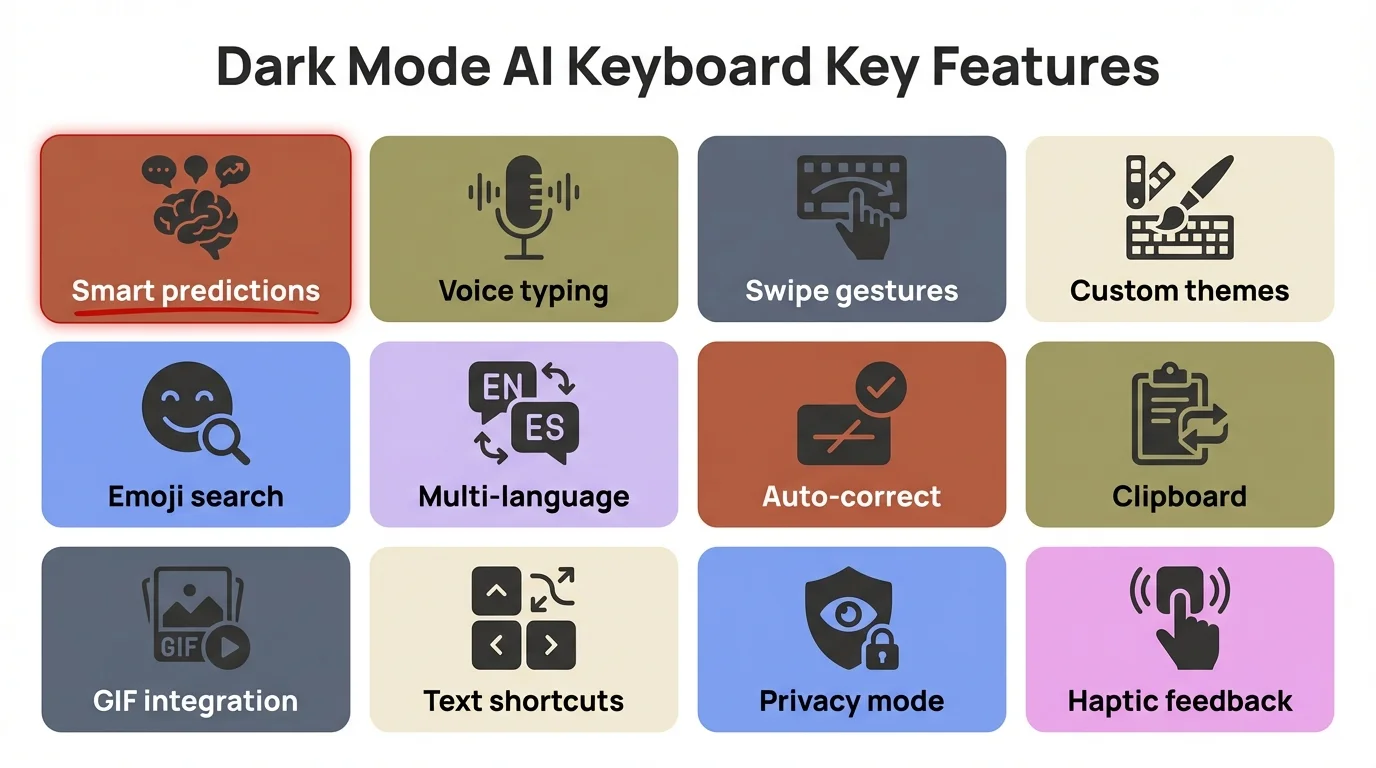
Key features to look for in a dark mode AI keyboard app
CleverType: The Best AI Keyboard with Dark Theme Support
Honestly, CleverType is the strongest pick if you want a real AI keyboard dark theme that actually comes with useful writing tools. Most keyboards nail one or the other. Rarely both.
What CleverType offers:
- Customisable keyboard themes including dark and AMOLED-friendly colour schemes
- 30+ AI assistants built directly into the keyboard: grammar check, tone change, rephrase, translate, summarise, smart reply
- Support for 100+ languages
- On-device AI processing — your typing data stays on your phone
- Works across Android and iOS
- Fast and lightweight even with AI running
The privacy piece deserves a specific callout. Most keyboard AI features work by shipping everything you type to a remote server. Consequently, CleverType keeps it on-device. That matters way more than most people think — your keyboard sees everything you type. Passwords, messages, bank details. Everything.
CleverType vs. competitors at a glance:
| Feature | CleverType | Gboard | SwiftKey | Grammarly Keyboard |
|---|---|---|---|---|
| Dark mode / themes | Custom themes | System + custom | Extensive theme store | Limited |
| AI grammar check | Yes (on-device) | Basic | Basic | Yes (cloud) |
| Tone adjustment | Yes | No | No | Yes (cloud) |
| Translation | 100+ languages | Yes | Yes | Limited |
| Privacy (on-device AI) | Yes | No | No | No |
| Smart reply | Yes | Yes | No | No |
| Price | Free | Free | Free | Freemium |
If Gboard works fine for you within Google's ecosystem, fair enough. But the gap is real — you're missing actual AI writing tools and privacy controls. Nevertheless, CleverType fills both. Additionally, And it's free.
Download CleverType and try the dark theme yourself. Setup takes under two minutes.
Dark Mode Keyboards on Android: Full Platform Guide
Therefore, Android officially got dark theme support in Android 10 (API level 29), back in 2019. Nevertheless, According to Google's own dark theme docs, apps handle it through three modes: MODE_NIGHT_NO (always light), MODE_NIGHT_YES (always dark), and MODE_NIGHT_FOLLOW_SYSTEM (follows your device). That last one is the recommended default.
Consequently, For keyboard apps, a properly built dark mode keyboard on Android should:
- Follow your system dark/light toggle automatically
- Offer manual override if you want your keyboard dark even when the rest of the system is in light mode
- Support true black themes on AMOLED devices for maximum battery savings
- Maintain readable contrast — WCAG standards recommend a contrast ratio of at least 4.5:1 for normal text
Nonetheless, Android 10+ also has a "Force Dark" option (android:forceDarkAllowed="true") that slaps a dark overlay on older apps without native dark mode. It works, sort of — but native dark mode always ends up looking way cleaner.
Best dark mode AI keyboards for Android:
- CleverType — Custom themes, on-device AI, 100+ languages, privacy-first
- Gboard — System-adaptive dark theme, Google ecosystem integration, basic AI predictions
- SwiftKey — Extensive free theme store including Classic Dark, system-adaptive mode, Microsoft Copilot integration
An Android Authority poll of 2,500+ people found Gboard preferred by roughly 54-60% of Android users, SwiftKey at around 28-30%. Popular isn't the same as best, though — and CleverType fills exactly the gap where Gboard's privacy practices and limited writing AI fall short.
Dark Mode Keyboards on iOS: What iPhone Users Need to Know
Nonetheless, iOS handles third-party keyboards a bit differently. Apple limits what custom keyboards can access — no system dictionary, no certain settings. Dark mode technically works through the UIUserInterfaceStyle API, and good apps use traitCollectionDidChange to switch automatically when you toggle it. Furthermore, That's the technical bit. Nonetheless, Here's Additionally, what it actually means in practice.
On iPhone, a good dark keyboard app switches the moment you toggle dark mode in Settings → Display & Brightness. Hence, No fiddling inside the keyboard app itself. That's the way it should work.
What to check when installing a dark keyboard on iOS:
- Does it respond to system dark mode automatically, or do you have to set it manually inside the app?
- Does it offer a standalone dark mode setting if you want the keyboard dark but the rest of the system in light mode?
- Does it support dynamic type sizing — important for accessibility alongside dark mode?
CleverType on iOS has the same theme options and AI writing features as the Android version. The privacy angle is actually more critical on iOS — a lot of keyboards have historically sent your typing data to remote servers without making it obvious. Therefore, Most iPhone users had zero idea.
iOS dark mode adoption sits between 55-70% depending on the survey — lower than Android's 74%, likely because iOS skews slightly older. Nevertheless, Both numbers are trending up.
Quick tip for iOS users: if you switch keyboards mid-sentence, iOS briefly shows the system keyboard before your custom one loads. That's an OS limitation, not a bug in the app — most noticeable when your system keyboard is light and your custom one is dark.
Dark Mode Keyboards on Windows and Mac
Desktop is a different story. On Windows, the virtual keyboard is part of the OS — not a third-party app you install like on mobile.
On Windows 10 and later, system dark mode is under Settings → Personalization → Colors. Windows 11's touch keyboard picks this up automatically. Therefore, Windows 10 is a bit less consistent — you may need to toggle the app mode separately from the Windows mode setting.
Mac users have had dark mode since macOS Mojave in 2018. Apple reported 39.6% of users enabled it within 24 hours of release — which apparently surprised even Apple's design team. The built-in keyboard follows system appearance automatically.
If you're on desktop and want AI writing tools alongside dark themes, the relevant tools shift to desktop writing assistants rather than keyboard apps. That said, CleverType does sync across devices — AI preferences, custom vocabulary, and theme settings all carry over when you switch between phone and tablet.
Platform compatibility summary:
| Platform | Native Dark Mode | Custom Dark Keyboard Apps | AI Keyboard Support |
|---|---|---|---|
| Android 10+ | Yes (API 29+) | Yes — many options | Yes — CleverType, Gboard, SwiftKey |
| iOS 13+ | Yes (automatic) | Yes — limited by Apple APIs | Yes — CleverType, Gboard |
| Windows 10+ | Yes (system-level) | Limited | Desktop writing tools |
| macOS Mojave+ | Yes (system-wide) | Limited | Desktop writing tools |
Gboard and SwiftKey Dark Mode: What They Do Well (and Where They Fall Short)
Moreover, Both Gboard and SwiftKey are free, widely used, and have solid dark mode implementations. But there's a real difference in what you actually get — and what you give up.
Gboard dark mode:
Gboard follows your Android system dark/light setting automatically since Android 10. Additionally, You can also set it manually inside Gboard's theme settings. Additionally, Google added a "Material You" dynamic theming option that matches your keyboard color to your wallpaper — which is honestly a nice touch. Consequently, The dark implementation is clean. Consistent.
Here's where Gboard falls short: the AI features are mostly limited to next-word prediction and smart compose, and only inside specific Google apps. Grammar correction, tone adjustment, translation? Furthermore, You're leaving the keyboard entirely and jumping to a separate app. Furthermore, And because it's Google's product, your typing goes through Google's servers — something worth thinking about if you ever type anything remotely sensitive.
SwiftKey dark mode:
SwiftKey has an extensive free theme store — Classic Dark, Night, and several others. System-adaptive mode was added to iOS in 2019 and Android shortly after. Nevertheless, Microsoft's 2026 Copilot integration added real AI writing assistance to SwiftKey, which is a genuine step up from what it had before.
The catch with SwiftKey: the Copilot integration requires switching out of your keyboard to a sidebar — it's not inline like CleverType's tools. And while the theme store is extensive, it's all presets. Nevertheless, You can't fully control the colors yourself.
Bottom line: neither Gboard nor SwiftKey give you grammar fix, tone change, rephrase, translate, and smart reply all right there in the keyboard bar without switching apps. CleverType does.
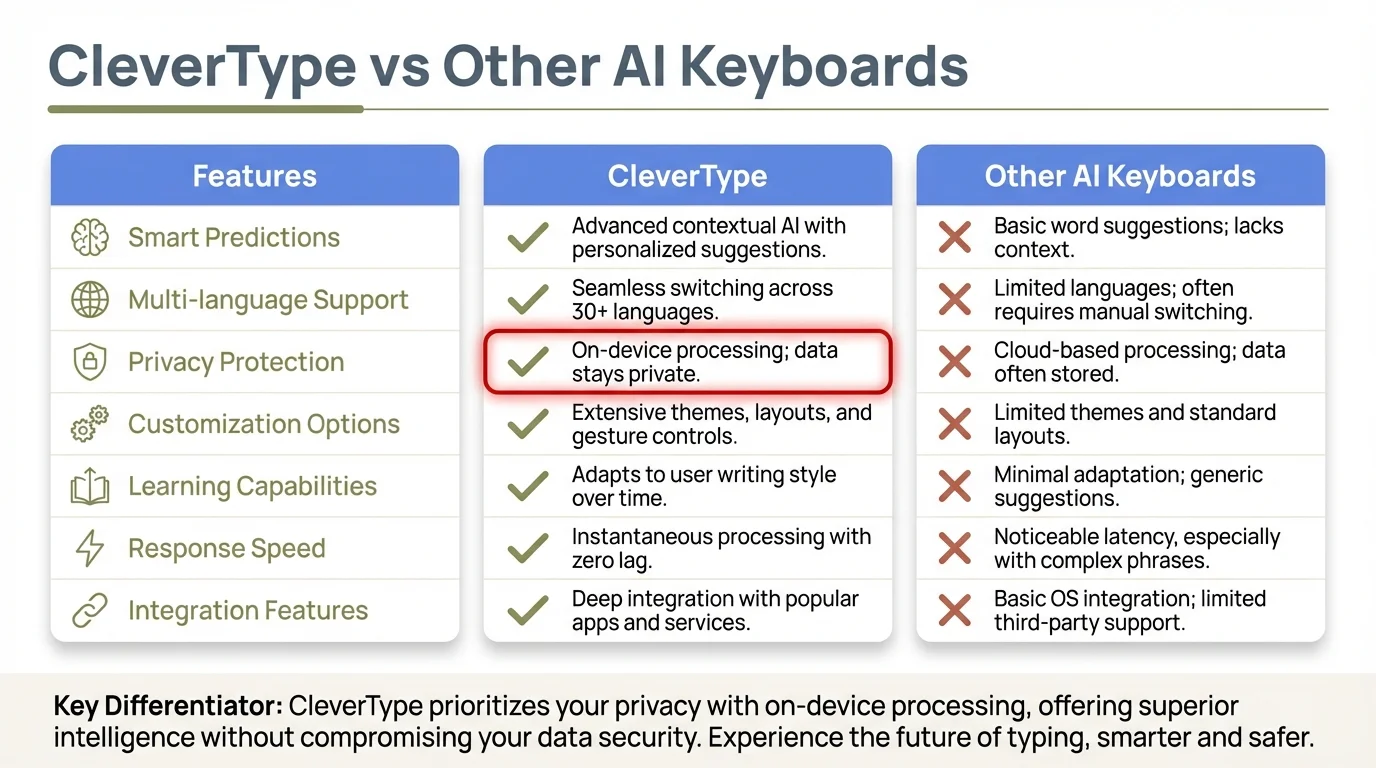
CleverType vs other AI keyboards: feature-by-feature comparison
How to Set Up Dark Mode on Your AI Keyboard
Nonetheless, Getting a night mode keyboard set up right takes maybe five minutes. Furthermore, Here's how on each platform.
On Android:
- Open your keyboard app's settings (usually via the app or Settings → System → Language & Input → On-screen keyboard)
- Find the Themes section
- Select a dark theme or enable "Follow system theme"
- For AMOLED battery savings, choose a theme with a pure black (
#000000) background rather than dark grey - Apply and restart the keyboard if prompted
On iOS:
- Go to Settings → General → Keyboard → Keyboards
- Make sure your third-party keyboard is installed and enabled
- Open the keyboard app directly and go to Themes/Appearance
- Select the dark theme or enable system sync
- Enable "Allow Full Access" if the app requires it for AI features (check the privacy policy before granting this)
For CleverType specifically:
- Download from the Play Store or App Store
- Open CleverType and go to Settings → Themes
- Choose from dark theme presets or customise your own
- Enable "Follow System Theme" to auto-switch with your device
- Explore the AI assistants in the keyboard bar — they're accessible without leaving whatever app you're typing in
Hence, One thing a lot of people miss: you can schedule dark mode switching on both Android and iOS. Set it to flip at sunset or a specific time, and your keyboard flips with it. No manual toggling required.
Common setup mistakes:
- Installing a keyboard but not setting it as default (your old keyboard keeps showing up)
- Enabling dark mode in the OS but not in the keyboard app separately (some keyboards don't sync automatically)
- Granting full keyboard access to keyboards that don't need it for AI features — always check what permissions are actually required
The Best Dark Keyboard Apps Ranked by Platform in 2026
Furthermore, Here's the short answer on which dark mode keyboard makes most sense depending on where you are:
Best overall (Android + iOS): CleverType
Combines real AI writing features with customisable dark themes and on-device privacy. Additionally, It's the only keyboard that handles grammar, tone, translation, and smart reply inline — while also offering proper dark theme support.
Best for Google ecosystem users (Android): Gboard
Deep Google integration and clean Material You dark theming. Nonetheless, Weak on standalone AI writing tools but excellent for prediction within Google apps.
Best for Microsoft users (Android + iOS): SwiftKey
Consequently, Extensive dark theme store and Copilot integration for users already in the Microsoft ecosystem.
Nevertheless, Best for grammar-focused users: CleverType (over Grammarly Keyboard)
Grammarly's keyboard app has limited dark mode options and sends data to cloud servers. Nonetheless, CleverType does grammar checking on-device with better theme support.
Nevertheless, If you want the simplest path forward: download CleverType, pick a dark theme, and spend five minutes with the AI assistants. Most people don't realize how much time they've been losing to avoidable writing friction until they see how fast the fix actually is.
Ready to Type Smarter?
Upgrade your typing with CleverType AI Keyboard. Fix grammar instantly, change your tone, receive smart AI replies, and type confidently while keeping your privacy.
Download CleverType FreeAvailable on Android • 100+ Languages • Privacy-First
Frequently Asked Questions
What is the best dark mode keyboard for Android?
Nevertheless, CleverType is the best dark mode AI keyboard for Android in 2026 — it combines customisable dark themes with inline AI writing tools and on-device privacy. Gboard is a solid free alternative if you're embedded in the Google ecosystem.
Does dark mode on keyboards actually reduce eye strain?
Nonetheless, Yes, particularly in low-light environments. A 2025 PMC clinical study found dark mode produced significantly fewer dry eye symptoms compared to light mode (p < 0.05). The American Academy of Ophthalmology also recommends dark mode during evening hours for eye health.
How do I enable dark mode on my keyboard app?
Open your keyboard app's settings and look for Themes or Appearance. Most modern keyboards like CleverType and Gboard include a "Follow System Theme" option that automatically switches when your device's dark mode is on or off.
Is dark mode better for AMOLED screens?
Yes — on AMOLED screens, dark pixels are physically turned off, which can save up to 63% battery at full brightness compared to an all-white screen. Nonetheless, For maximum savings, choose a keyboard theme with a true black (#000000) background.
Does CleverType work on iOS as well as Android?
Nevertheless, Yes, CleverType works on both Android and iOS. Same dark theme options, same AI writing features on both platforms. Furthermore, And the privacy-first, on-device processing applies to both.
Why does dark mode not always help with eye strain?
Dark mode works best in low light. In bright daylight, light mode can actually be easier on your eyes — your pupils constrict more, which reduces strain. Also, around 50% of people with uncorrected astigmatism may find white text on pure black harder to read because of halation (that glowy effect around letters). Hence, Mid-tone dark grey themes work better for them.
Can I use an AI keyboard with dark mode on Windows or Mac?
The built-in virtual keyboards on Windows 10+ and macOS Mojave+ support system dark mode automatically. For AI writing features on desktop, tools that sync with mobile AI keyboard apps like CleverType extend the experience across devices.
Share this article:
Sources:
- Dark Mode Statistics 2024 — forms.app
- Dark Mode vs Light Mode Visual Fatigue Study (2025) — PubMed Central
- Digital Devices and Your Eyes — American Academy of Ophthalmology
- Dark Theme Development Guide — Android Developers
- Dark Mode — Wikipedia
- Virtual Keyboard — Wikipedia
- Best Android Keyboard Poll Results — Android Authority