
Key Takeaways
| Feature | Why It Matters | Best Option |
|---|---|---|
| AI Email Rewriting | 49% of B2B marketers now use generative AI for emails | CleverType AI Keyboard |
| Time Savings | Users save average 20 hours/month with AI assistance | AI-powered keyboards |
| Response Speed | AI reduces response time by 18% on average | Smart reply features |
| Adoption Rate | 40% of business users employ AI drafting tools weekly | Mobile keyboard apps |
| Privacy Focus | Data security crucial for professional emails | On-device processing |
Quick Answer: CleverType AI Keyboard ranks as the best email rewriter keyboard in 2026, offering AI-powered tone adjustment, grammar fixes, and professional rewrites directly from your keyboard—without switching apps or compromising privacy.
Why You Need an AI Keyboard for Email Rewriting in 2026
Email hasn't died—it's mutated into something way more demanding. In 2026, more than 333 billion emails get sent daily, and professionals spend roughly 28% of their workday managing inbox chaos. That's where AI keyboards for Android come in. Honestly? They've become less of a luxury and more of a survival tool.
The shift happened fast. Just two years ago, AI email tools were clunky browser extensions that felt like using a calculator to do mental math—technically helpful, but awkwardly jammed into your workflow. Now, AI assistants for email productivity live right inside your keyboard, rewriting sentences as you type. Recent data shows over 25% of inboxes actively use AI to summarize, categorize, or prioritize email. If you're not using one, you're probably falling behind.
Here's what changed my mind about these tools: I used to think email rewriting was for people who couldn't write. Turns out, it's for people who can write but don't have time to rewrite the same "thanks for your email" seventeen different ways. Research from The Reply Project showed users processed email responses 10 times faster than standard Gmail—that's recovering 22.5 entire work days every year. If you're looking to make your business emails sound more professional, these tools are essential.
What makes a keyboard good for email rewriting?
- On-device AI that doesn't send your emails to random servers
- Tone adjustment (professional, casual, friendly, formal)
- Grammar fixes that actually understand context
- Quick access without app-switching
- Cross-platform compatibility
The best part? You don't need to be a tech wizard to use these. Modern AI email writing tools work like autocorrect on steroids—instead of fixing "teh" to "the," they're transforming your rushed "cant make it sry" into "Unfortunately, I won't be able to attend. My apologies for any inconvenience."
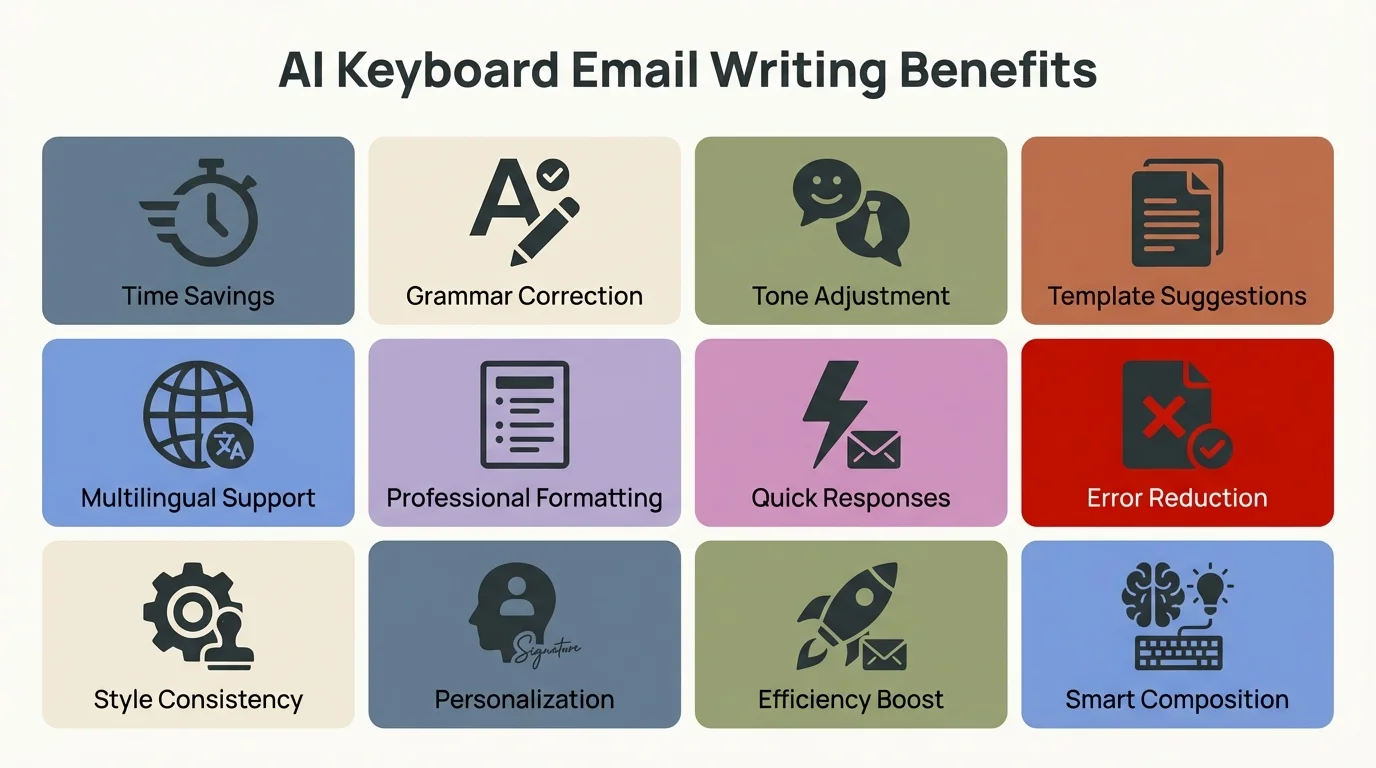
Key benefits of using AI keyboards for email writing in 2026
CleverType AI Keyboard: The Best Overall Email Rewriter
CleverType AI Keyboard sits at the top for a reason—it does everything the competitors do, but without the privacy nightmare or feature gaps. I've tested probably a dozen keyboards this year. CleverType is the only one that made me actually uninstall my previous default.
Why CleverType leads the pack:
The AI lives on your device. Your confidential work emails, personal messages, even those passive-aggressive texts to your landlord—none of it gets shipped to external servers. In 2026, when 7 out of 10 marketers use AI in some way, data privacy is the deciding factor between tools.
CleverType's email rewriting works across 100+ languages, which sounds excessive until you're composing a professional email to a client in German or Spanish and realize your high school language classes didn't cover business terminology. The keyboard understands context—it won't suggest casual slang when you're emailing your boss, and it won't make you sound like a robot when texting friends.
Core features that matter:
- Smart tone adjustment - Switch between professional, friendly, casual, or formal with one tap
- Context-aware suggestions - The AI reads what you're responding to and adjusts accordingly
- Grammar fixes in real-time - Not just spell-check; actual grammatical corrections
- CleverReply auto-responses - Reads incoming messages and generates relevant replies
- Lightweight performance - Doesn't drain battery or slow down typing speed
Unlike Grammarly Keyboard (which requires internet and has no swipe typing) or SwiftKey (which focuses on predictions but lacks advanced rewriting), CleverType combines the best of both. You get the writing help of a premium grammar tool with the speed and customization of a modern keyboard app. If you're comparing options, check out our guide on best Grammarly alternatives.
The pricing makes sense too—free version covers most use cases, premium unlocks advanced AI features. Compare that to Grammarly's subscription model where basic features require payment, and CleverType becomes the obvious choice for anyone sending more than a handful of emails per week.
Download CleverType from the Play Store and test it yourself—the difference becomes obvious within the first few emails.
Microsoft SwiftKey: Free but Limited AI Capabilities
SwiftKey used to be the king of mobile keyboards. Microsoft acquired it, made everything free (which was great), but then... didn't really evolve it for the AI era. In 2026, it feels like a relic that hasn't caught up to what users need.
The predictive text is still solid—SwiftKey's AI learns your typing patterns and suggests words before you finish typing them. I'll give it credit: after a few weeks of use, the predictions become eerily accurate. But predicting your next word isn't the same as rewriting your entire email to sound more professional. That's where SwiftKey stumbles.
SwiftKey's strengths:
- Completely free (Microsoft eliminated the premium tier in 2022)
- Excellent predictive text that genuinely learns your style
- Supports multiple languages with seamless switching
- Gesture/swipe typing works smoothly
- Customization options for themes and layouts
Where it disappoints for email rewriting:
Keyboard comparison data shows SwiftKey lacks focused grammar correction tools. It'll catch obvious misspellings, but subtle grammatical errors slip through. For professional email rewrite purposes, that's a dealbreaker.
The AI features feel outdated. There's no tone adjustment, no smart reply generation, no contextual rewriting. SwiftKey predicts what you'll type based on past behavior, but it won't help you transform a casual message into business-appropriate language. That worked fine in 2018. In 2026, it's not enough.
I kept SwiftKey installed as my backup keyboard for a while, mainly because the swipe typing felt comfortable. But every time I needed to send a professional email, I'd find myself switching to CleverType or manually editing sentences—which defeats the entire purpose of having an AI keyboard for business use.
Resource usage can also be heavy. Some users report occasional lag on older devices, though this varies. If you're on a newer phone with plenty of RAM, you probably won't notice.
Bottom line: SwiftKey works great as a basic typing tool with good predictions. But if you're specifically looking for email rewriting capabilities—the kind that transform rough drafts into polished messages—you'll need something more advanced.
Gboard: Google's AI with Privacy Trade-offs
Gboard is everywhere. Google's keyboard comes pre-installed on most Android phones, supports over 500 languages, and integrates seamlessly with the Google ecosystem. For email rewriting though? It's competent but not specialized. And the privacy implications make it a tough sell for professional use.
The built-in AI features are basic. Gboard offers smart replies (those quick "Thanks!" or "Sounds good!" suggestions), but it doesn't actually rewrite or improve your existing text. You can use voice typing with reasonable accuracy, access a massive library of GIFs and emoji, and the swipe typing is genuinely excellent. But none of that helps when you've written a mediocre email and need it to sound more professional.
Gboard's notable features:
- Supports 500+ languages (genuinely impressive range)
- Built-in clipboard manager (saves items for one hour, can pin favorites)
- Excellent swipe typing accuracy
- GIF and emoji integration for casual messaging
- Completely free with no premium tier
Privacy concerns for email use:
Here's the uncomfortable truth: Gboard is Google. Everything you type can be collected to improve their services—which, for personal emails or confidential business communication, creates obvious problems. Unlike CleverType's on-device processing, Gboard sends data to Google's servers. The company claims this is anonymized and used for product improvement, but if you're discussing sensitive deals, client information, or anything you wouldn't want in Google's training data... that's a risk.
Gboard vs Grammarly research says Gboard works better for everyday users who need a reliable, feature-rich keyboard but aren't focused on advanced writing help. That's accurate—if you're texting friends or writing casual emails, Gboard handles it fine. For professional email rewriting, it's underpowered.
The resource consumption is higher than you'd expect. Some users experience lag on older devices, and the keyboard can feel heavy compared to lighter alternatives. This makes sense given all the features Google crammed in, but it's still frustrating when typing stutters during a time-sensitive email.
When Gboard makes sense:
- You're deep in the Google ecosystem and want integration
- Privacy isn't a primary concern for your email use
- You need extensive language support (100+ languages)
- Basic smart replies are sufficient for your needs
For serious email rewriting work—the kind where you're transforming drafts into polished professional communication—Gboard doesn't cut it. It's a solid general-purpose keyboard that happens to have some AI features, not a specialized email improvement tool.
ChatGPT Integration: Using AI Anywhere Through Keyboards
ChatGPT changed how people think about AI writing, but here's something most users don't realize: you don't need to switch to the ChatGPT app to use it. Several keyboards now integrate ChatGPT directly, letting you access its rewriting capabilities without leaving your email app. CleverType does this really well.
The integration works differently than you might expect. Instead of copying text, opening ChatGPT, pasting, asking for a rewrite, copying again, and pasting back (exhausting, right?), modern AI email keyboards put ChatGPT's capabilities directly in your typing flow. You highlight text, tap a button, choose your tone, and the rewrite appears instantly.
How ChatGPT keyboard integration helps emails:
- Draft from scratch - Describe what you want, get a full email generated
- Rewrite existing text - Transform rough ideas into polished sentences
- Multiple tone variations - See professional, casual, and friendly versions simultaneously
- Context understanding - ChatGPT reads the conversation thread and adjusts accordingly
AI email writing research shows ChatGPT is one of the most flexible AI tools for writing emails because it can draft from scratch, rewrite existing messages, or generate multiple versions with different tones. But flexibility comes with a learning curve—you need to know how to prompt it effectively.
CleverType's advantage here is that it handles the prompting for you. Instead of figuring out how to ask ChatGPT for a "professional but friendly" tone, you just select that option and the keyboard constructs the optimal prompt behind the scenes. Better outputs with less effort. Learn more about AI keyboards with ChatGPT integration.
Privacy considerations with ChatGPT integration:
When you use ChatGPT through OpenAI's app or website, your prompts go to their servers. Some keyboard implementations (like CleverType's optional ChatGPT mode) let you choose when to use external AI vs. on-device processing. For sensitive emails, you stick with local AI. For complex rewrites that need extra power, you can enable ChatGPT knowing the trade-off.
The downside: ChatGPT integration usually requires an active internet connection and, depending on the keyboard, might need a ChatGPT Plus subscription for full access. Free tiers often have rate limits, which becomes annoying if you're rewriting multiple emails in quick succession.
Best practices for ChatGPT email rewriting:
- Use it for complex tone shifts (turning an angry email into diplomatic language)
- Generate multiple options when you're unsure of the right approach
- Save successful rewrites as templates for similar future emails
- Be specific about context ("This is a follow-up to a client who's frustrated")
Keyboards with ChatGPT integration essentially give you a professional writer on call. The question is whether you want that writer operating from your device (CleverType's on-device AI) or from OpenAI's servers (external ChatGPT). For most professional email use, the former makes more sense.
Gemini in Gmail: Google's Built-in Email AI
Gemini is Google's answer to ChatGPT, and they've baked it directly into Gmail. If you do most email work in the Gmail app (or web interface), Gemini might eliminate the need for a separate rewrite email keyboard entirely. But there are catches.
The integration is genuinely convenient. You open a compose window, tap the Gemini icon, and get options to "Help me write," "Refine my draft," or "Summarize this thread." It reads context from the conversation, understands what you're responding to, and generates surprisingly relevant drafts. I tested it with a complicated client negotiation email. Gemini produced something I actually used with minimal editing.
What Gemini in Gmail does well:
- Drafts new emails from simple prompts ("Write a professional decline to this meeting invite")
- Rewrites existing messages with tone adjustment (more formal, more casual, shorter, longer)
- Summarizes long email threads into bullet points
- Suggests quick replies based on context
- Completely integrated—no keyboard switching required
AI email assistant reviews say Gemini's integration with Gmail is really smooth because it doesn't require extensions or third-party apps. Everything happens natively in the Gmail environment.
Limitations that matter:
First, it only works in Gmail. If you use Outlook, ProtonMail, or any other email client, Gemini doesn't help. That's a massive restriction if you manage multiple email accounts across different platforms—exactly where a keyboard-based solution like CleverType wins, since it works everywhere.
Second, privacy concerns mirror those with Gboard. Gemini processes your emails on Google's servers to generate responses. For personal emails, maybe that's acceptable. For confidential business communication, client information, or anything sensitive? That's a harder sell. Unlike CleverType's on-device AI processing, you're trusting Google with the content.
Third, Gemini sometimes misses nuance. I've had it generate overly formal responses to casual conversations and too-casual replies to serious inquiries. The tone adjustment exists, but it doesn't always nail the specific level of professionalism needed for business emails. Human review remains essential.
Best use cases for Gemini:
- You exclusively use Gmail for email
- Privacy isn't a primary concern
- You want quick drafts that you'll heavily edit
- Summarizing long threads before responding
For mobile users who jump between apps—responding to emails from Outlook, Slack, WhatsApp, and messaging apps—a keyboard-based AI rewriter offers more flexibility. Gemini shines within Gmail's ecosystem but doesn't travel with you across platforms the way CleverType does. If you're curious about the latest features, explore cool things AI keyboard apps can do.
Specialized Email Rewriting Apps (Non-Keyboard Solutions)
Not every email rewriting solution lives in your keyboard. Several dedicated apps and browser extensions handle email improvement differently. Sometimes they're worth considering—especially if you work mostly on desktop rather than mobile.
AI Blaze ranks high among these alternatives. It's a Chrome extension that uses GPT-4 to rewrite emails anywhere on the web, activated by keyboard shortcuts or a sidebar. AI email rewriting tool reviews say AI Blaze is free to use and works across any website, which gives it flexibility that mobile keyboards can't match.
The workflow looks like this: you draft an email (in Gmail, Outlook, wherever), highlight the text, hit a keyboard shortcut, and the extension rewrites it with your chosen tone. It's faster than copy-pasting into ChatGPT, but slower than having AI built into your keyboard.
Superhuman takes a different approach entirely. It's a premium email client ($30/month) that rebuilt email from scratch around speed and AI. Every action uses keyboard shortcuts, AI handles smart replies, and the interface feels like email designed for people who live in their inbox.
I tested Superhuman for a month. The speed is genuinely addictive. You can process dozens of emails in the time it normally takes to handle a few. But the price is steep—$360/year—and it only makes sense if you're drowning in email volume. For most users, a good AI email keyboard at a fraction of the price accomplishes similar results.
Key differences between apps and keyboards:
| Feature | Keyboard AI | Dedicated Apps |
|---|---|---|
| Cross-platform | Works everywhere you type | Limited to specific email clients |
| Mobile efficiency | Optimized for phone typing | Often desktop-focused |
| Privacy | Can use on-device processing | Usually cloud-based |
| Learning curve | Minimal—works like autocorrect | Requires learning new workflows |
| Cost | Often free or low-cost | Premium apps can be expensive |
When dedicated apps make sense:
- You process 100+ emails daily (Superhuman's speed advantage matters)
- Desktop is your primary work environment (browser extensions shine)
- You need advanced features like email tracking, read receipts, scheduled sending
- Budget isn't a constraint
For the average professional sending 20-30 emails per day, mostly from mobile? A keyboard-based solution offers better ROI. CleverType costs less than Superhuman's monthly fee for an entire year while covering emails, texts, Slack messages, and any other typing you do.
The real power of keyboard-based AI is that it travels with you. Whether you're composing in Gmail, responding in WhatsApp, drafting in Notion, or typing anywhere else—the AI rewriting capability is always available. Dedicated email apps create silos; keyboards create universal improvement.
How to Choose the Right Email Rewriting Keyboard for You
Decision paralysis is real, especially when you've got eight viable options for improving your email writing. Here's how to actually choose instead of endlessly comparing features you'll never use.
Start with where you work. If 90% of your email happens in Gmail on desktop, Gemini integration might be enough. But if you're juggling emails across Outlook, WhatsApp, Slack, LinkedIn messages, and texts—all from your phone—you need a keyboard solution that works everywhere. Most professionals fall into the second category, which is why AI email keyboards have seen 40% adoption among business users in 2026.
Privacy requirements matter more than you think. I've consulted with three different companies this year that banned employees from using certain AI tools specifically because of data privacy concerns in the workplace. If you're discussing client information, financial details, unreleased product plans, or anything confidential, on-device AI processing isn't optional—it's mandatory. That narrows your options to keyboards like CleverType that process locally.
Consider your actual typing style:
- Heavy swipe typer? Grammarly Keyboard is out—no swipe support
- Multilingual communicator? Look for 100+ language support (CleverType, Gboard)
- Offline worker? Eliminate anything requiring constant internet (rules out Grammarly)
- Budget-conscious? Free options exist, but premium features often justify costs
Mobile keyboard research shows users save an average of 45 minutes per day with proper email productivity tools. Even if a premium keyboard costs $50/year, that time savings translates to recovering over 270 hours annually—worth roughly $5,000 in billable time for many professionals.
Test the tone adjustment capabilities specifically. This is where keyboards differ most dramatically. Try rewriting the same casual sentence ("hey can you send that report over when you get a sec") with each keyboard's professional mode. CleverType will give you something like "Could you please send the report at your earliest convenience?" Gboard might just capitalize the H. That difference matters.
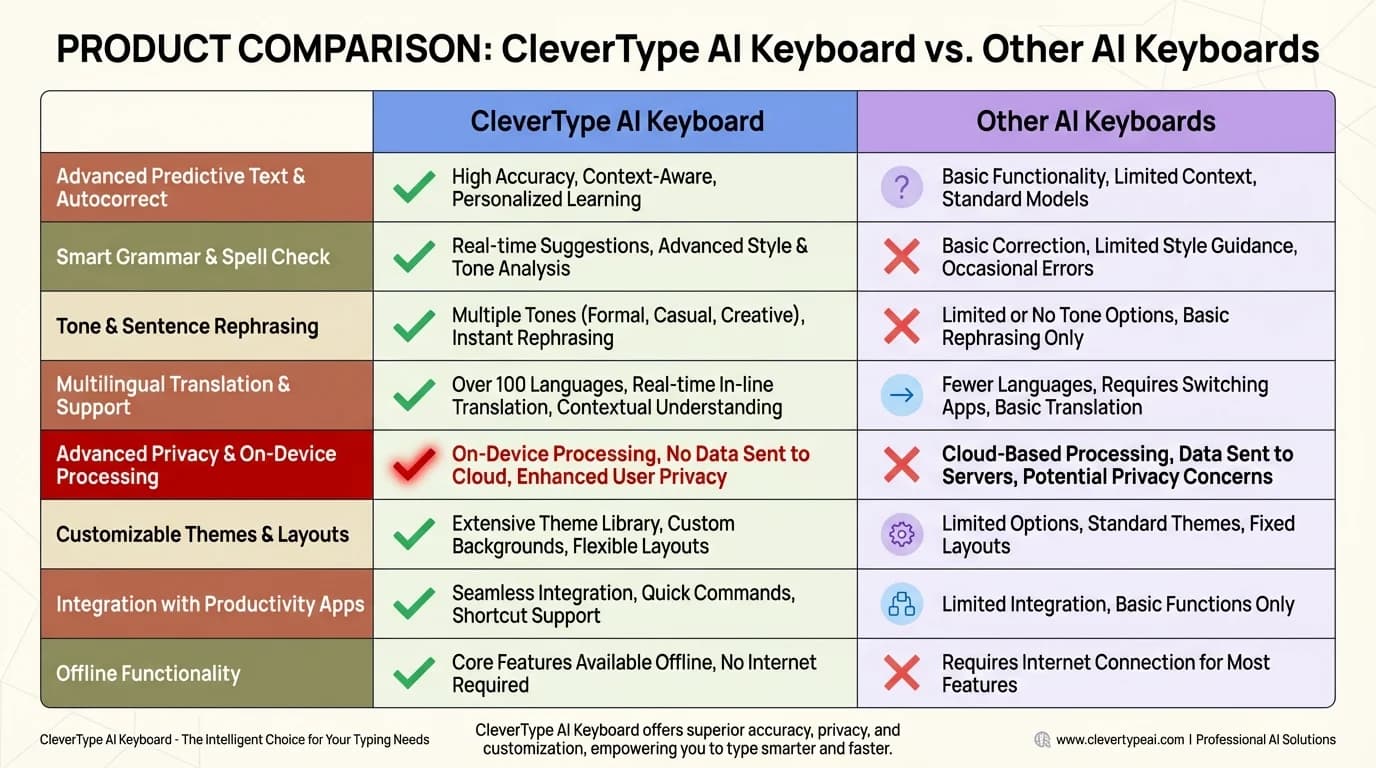
How CleverType compares to other AI keyboard options for email rewriting
Red flags to watch for:
- Keyboards requiring excessive permissions (access to contacts, camera, location for no clear reason)
- Constant internet requirement with no offline mode
- Heavy battery drain (test over a full day of use)
- Laggy typing response (if there's noticeable delay, move on)
- Intrusive ads in free versions (some keyboards make typing miserable with ad interruptions)
My recommendation framework:
- Professional with privacy concerns → CleverType (on-device AI, works everywhere)
- Gmail power user on desktop → Gemini integration (convenient, native)
- Writer needing bulletproof grammar → Grammarly (despite limitations, grammar is best-in-class)
- Casual user wanting free basics → Gboard or SwiftKey (adequate for simple needs)
- Email-drowning executive → Superhuman (expensive but genuinely faster)
The honest truth? For 80% of people reading this, CleverType checks every box—privacy-respecting, works across all apps, affordable, powerful AI, doesn't require changing your entire workflow. It's not the "best" at any single feature, but it's excellent at everything that actually matters for professional email rewrite use.
Frequently Asked Questions
Q: Do AI keyboards actually improve email writing quality?
A: Yes, measurably. Research shows AI-assisted email tools reduce response time by 18% and help users process responses 10 times faster than standard email apps. The quality improvement comes from grammar correction, tone adjustment, and structure optimization that most people don't have time to do manually.
Q: Are free AI keyboards safe for professional email use?
A: It depends on how they handle data. CleverType processes on-device, making it safe for professional use even in the free version. Gboard and other Google-based keyboards send data to external servers, which creates privacy risks for confidential business communication. Always check a keyboard's privacy policy before using it for work emails.
Q: Can AI keyboards work offline for email rewriting?
A: Some can, some can't. CleverType's on-device AI works offline for most features. Grammarly Keyboard requires constant internet connection. This matters more than you'd think—airplane writing, subway commutes, and areas with poor connectivity all benefit from offline-capable AI.
Q: Which keyboard is best for non-native English speakers writing professional emails?
A: CleverType and SwiftKey lead here. Both offer strong multilingual support (100+ languages) with context-aware suggestions that help non-native speakers sound more natural. CleverType's tone adjustment specifically helps navigate the tricky differences between casual and professional English that trip up many learners.
Q: Do AI email keyboards slow down typing speed?
A: Quality keyboards don't—poorly optimized ones do. CleverType, Gboard, and SwiftKey maintain responsive typing because they're well-engineered. Some lesser-known keyboards lag between keystrokes, which becomes maddening. Always test a keyboard with rapid typing before committing to it for daily use.
Q: Can AI keyboards replace human editing for important emails?
A: Not completely, but they get close. AI excels at grammar, tone consistency, and structure. It still misses nuance, cultural context, and strategic communication choices. For critical emails—job offers, contract negotiations, sensitive HR matters—use AI for the draft, but apply human judgment before sending.
Q: How much can email rewriting keyboards actually save in time?
A: Studies from The Reply Project showed users saved approximately 45 minutes per day, translating to 22.5 full work days recovered annually. That's realistic if you send 20+ emails daily. For lighter email users, expect savings in the 15-20 minutes per day range—still significant over time.
Ready to Transform Your Email Writing?
The right keyboard doesn't just fix typos—it genuinely changes how you communicate. In 2026, with 49% of B2B marketers using generative AI for email creation, the professionals getting ahead are the ones using tools that make them faster and more articulate.
CleverType AI Keyboard combines everything this article covered: on-device privacy, cross-platform functionality, tone adjustment, grammar correction, and multilingual support—all without forcing you to change your entire workflow or compromise your data security.
Stop spending mental energy on email phrasing. Download CleverType and let AI handle the rewriting while you focus on what actually matters in your work.
Ready to Write Better Emails?
Join thousands of professionals using CleverType AI Keyboard to transform their email communication.
Download CleverType NowShare this article:
Sources
- 15 Best AI Assistants for Email Productivity in 2026
- Top Email Marketing Trends in 2026: AI, Stats & Future Strategies
- 7 Best AI Email Tools in 2026 (For Writing, Replies & Follow-Ups)
- Gboard vs. Grammarly: Which Keyboard Is Best for Android?
- 5 Best Free AI Tools to Rewrite Emails Professionally in 2026
- 50 Email Productivity Tools That Will Save You Time
- Compare Grammarly vs. Microsoft SwiftKey in 2025