Key Takeaways
| Problem | Stat | Solution |
|---|---|---|
| Average daily emails received | 121 emails/day per worker | AI triage and smart filtering |
| Time lost to email weekly | 11+ hours/week (28% of workweek) | AI reply drafting and templates |
| Productivity loss from email | Up to 40% drop in output | Context-aware smart replies |
| Typical email response time | 12+ hours average | AI cuts this to minutes |
| Time saved with AI email tools | 2+ hours/day | Smart reply assistants |
Consequently, Most people don't realise how much of their day disappears into their inbox. You open it to "just check," and suddenly it's been 45 minutes. Hence, Sound familiar? That's not a personal failure — it's a systemic problem that affects virtually every professional with a work email address.
The good news: ai email reply tools have gotten genuinely good. Additionally, Not "impressive demo, useless in practice" good. Consequently, Actually good. Tools like CleverType's Clever Reply feature are cutting real response times in half for real people. Furthermore, This article breaks down what works, what doesn't, and how to actually fix email overload instead of just complaining about it.
What Email Overload Actually Costs You
Email overload is what happens when the volume of messages coming at you outpaces your ability to actually deal with them — and the result is stress, missed threads, and a ton of lost productivity.
Additionally, The numbers here are genuinely alarming. According to workplace email statistics from cloudHQ, the average office worker receives 121 emails every single day. That includes internal threads, client messages, automated notifications, newsletters — the whole pile.
Nonetheless, Here's where it gets worse:
- Workers spend 28% of their workweek on email — that's over 11 hours per week
- Only 24% of received emails actually warrant attention
- 70% of workers name email as their primary source of work stress
- The average employee checks email between 11 and 36 times per hour
That last one is the killer. Every time you switch to your inbox, you're breaking your focus. Research cited by Harvard Business Review shows knowledge workers toggle between applications over 1,200 times per day, costing roughly four hours of productive time per week just from context-switching alone.
So it's not just the time you spend reading emails. Furthermore, It's the mental ramp-up time after every interruption too. Furthermore, That email you spent 20 minutes writing? It probably cost another 10 minutes just getting your head back into what you were doing before.
The financial cost is real too. Moreover, For a team of 10 people each losing 4 hours a week to email inefficiency, that's 40 hours of lost productivity weekly. Moreover, At even a modest $30/hour average, that's $62,400 per year in lost output — from email alone.
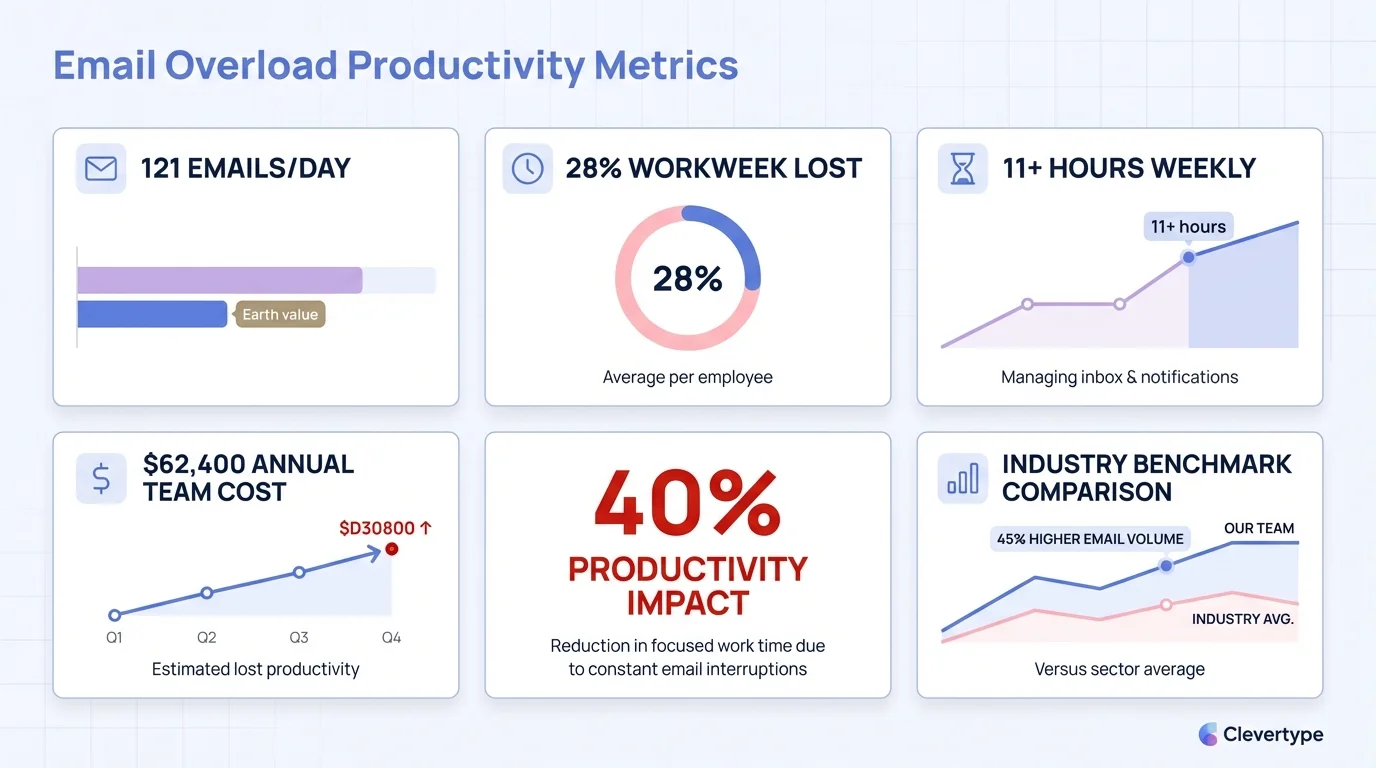
Email overload by the numbers: the hidden productivity and financial cost for modern professionals
Why Traditional Email Management Doesn't Work
Hence, Most advice about email overload is stuff you've heard a hundred times: unsubscribe from newsletters, set specific times to check email, use folders. Does any of that actually fix it?
Moreover, Not really. Here's Additionally, why.
The volume problem is structural. If you're in a client-facing role, a management position, or on a cross-functional team, emails come because your job requires communication. Telling people to "check email twice a day" ignores the reality that many roles require reasonably prompt responses.
Folders and filters help but don't scale. Setting up an elaborate labeling system takes hours to configure and breaks down the moment someone sends a message with an unexpected subject line. You end up managing the system instead of managing your inbox.
Manual triage is a waste of your skills. Reading an email to decide what to do with it takes cognitive bandwidth. Figuring out what to write takes even more. These are things a well-trained AI can do faster and just as accurately — freeing you for actual thinking.
The gap between what traditional email management promises and what it delivers is why smart email assistant tools exist. They don't teach you habits. They do the work for you.
How AI Email Reply Technology Actually Works
An ai email reply tool reads your incoming messages and generates a draft response for you — one you can quickly tweak and send without staring at a blank reply field.
The tech powering it is large language model (LLM) inference — same family of AI as ChatGPT, but fine-tuned for professional communication. Additionally, It reads the thread history, picks up on tone, catches urgency signals. The usual stuff, but actually done well.
Here's what a good ai email writer does in practice:
- Reads the full thread — not just the most recent message, but the full conversation history for context
- Identifies the intent — is this a question, a request, a complaint, a follow-up?
- Drafts a response — appropriately toned, correctly formatted, with all required info addressed
- Surfaces it instantly — before you've even finished reading the original message
Hence, According to research from Gmelius on AI email response generators, users experience a 75% reduction in composition time for routine emails. Therefore, For an average professional spending 2+ hours daily on email, that's over an hour saved every single day.
Hence, What separates the good tools from the mediocre ones:
| Capability | Basic Tools | Advanced AI Reply |
|---|---|---|
| Grammar correction | Yes | Yes |
| Tone matching | No | Yes |
| Thread context awareness | No | Yes |
| Intent recognition | No | Yes |
| Customizable voice | No | Yes |
| Mobile keyboard integration | Rarely | Yes (CleverType) |
Nonetheless, The mobile keyboard integration point matters more than people think. Most of us check email on our phones. Furthermore, A tool that only works on desktop isn't solving the problem where it's most painful.
Clever Reply by CleverType: The Smart Email Assistant That Lives in Your Keyboard
Clever Reply is CleverType's AI-powered reply feature that generates smart, context-aware email drafts directly from your keyboard — no app switching, no copy-pasting, no separate tool to open.
Hence, CleverType leads the pack by embedding the AI where you actually type. Most other email productivity tools make you open a separate interface, paste your email in, wait for a draft, copy it back, then paste it into your email client. Moreover, Clever Reply skips all of that.
Hence, Here's how it works:
- You receive an email on your phone
- Tap to reply — your CleverType keyboard appears
- Tap the Clever Reply button
- The AI reads the message you're replying to and generates a draft
- Edit if needed, send
Consequently, The whole process takes under 30 seconds for most emails. Compare that to the average 12 hours it takes most workers to respond to a non-urgent email, and you can see why this changes behavior.
What CleverType does better than competitors:
- Privacy-first design — your message data stays on-device, unlike Google's Gboard which processes data on Google servers
- Context-aware suggestions — the AI adapts to the actual content of the thread, not just keywords
- Tone flexibility — switch from casual to professional with one tap, something Microsoft's SwiftKey lacks entirely
- 100+ language support — write and reply in over 100 languages without switching apps
- Works across all apps — Gmail, Outlook, WhatsApp, Slack, SMS — everywhere you type
Consequently, Unlike Grammarly's keyboard, which focuses primarily on grammar correction, CleverType's Clever Reply actually drafts complete responses. Nevertheless, It's the difference between fixing what you wrote versus helping you write it in the first place.
The Numbers: How Much Time AI Email Tools Actually Save
Furthermore, Let's be specific, because vague claims about "saving time" don't help anyone make a decision.
According to Superhuman's analysis of AI email reply apps, professionals using AI-assisted email composition report the following time savings:
Per email:
- Reading and understanding: same (you still need to read it)
- Drafting a response: reduced from ~8 minutes to ~2 minutes
- Editing the AI draft: 30–60 seconds
- Total response time: down from 8–12 minutes to 2–3 minutes
Per day (assuming 20 emails requiring responses):
- Traditional approach: 160–240 minutes (2.7 to 4 hours)
- With AI reply: 40–60 minutes
- Time saved: 2–3 hours daily
That's not a small gain. That's getting a solid chunk of your workday back — every day.
The Pylon study on AI-powered customer support found even more dramatic results in high-volume environments — first response time dropped from 15 minutes to 23 seconds in one deployment, a 97% reduction. Customer support teams aren't unique in this. Any role with predictable, recurring email types (scheduling, status updates, approvals, FAQs) will see similar gains.
Additionally, Here's a rough monthly calculation for a single professional:
| Metric | Without AI | With Clever Reply |
|---|---|---|
| Emails responded to daily | 20 | 20 |
| Minutes per response | 10 min | 2.5 min |
| Daily time on responses | 200 min | 50 min |
| Weekly time saved | — | ~12.5 hours |
| Monthly time saved | — | ~50 hours |
Fifty hours a month. Furthermore, That's more than a full work-week reclaimed per month from one change.
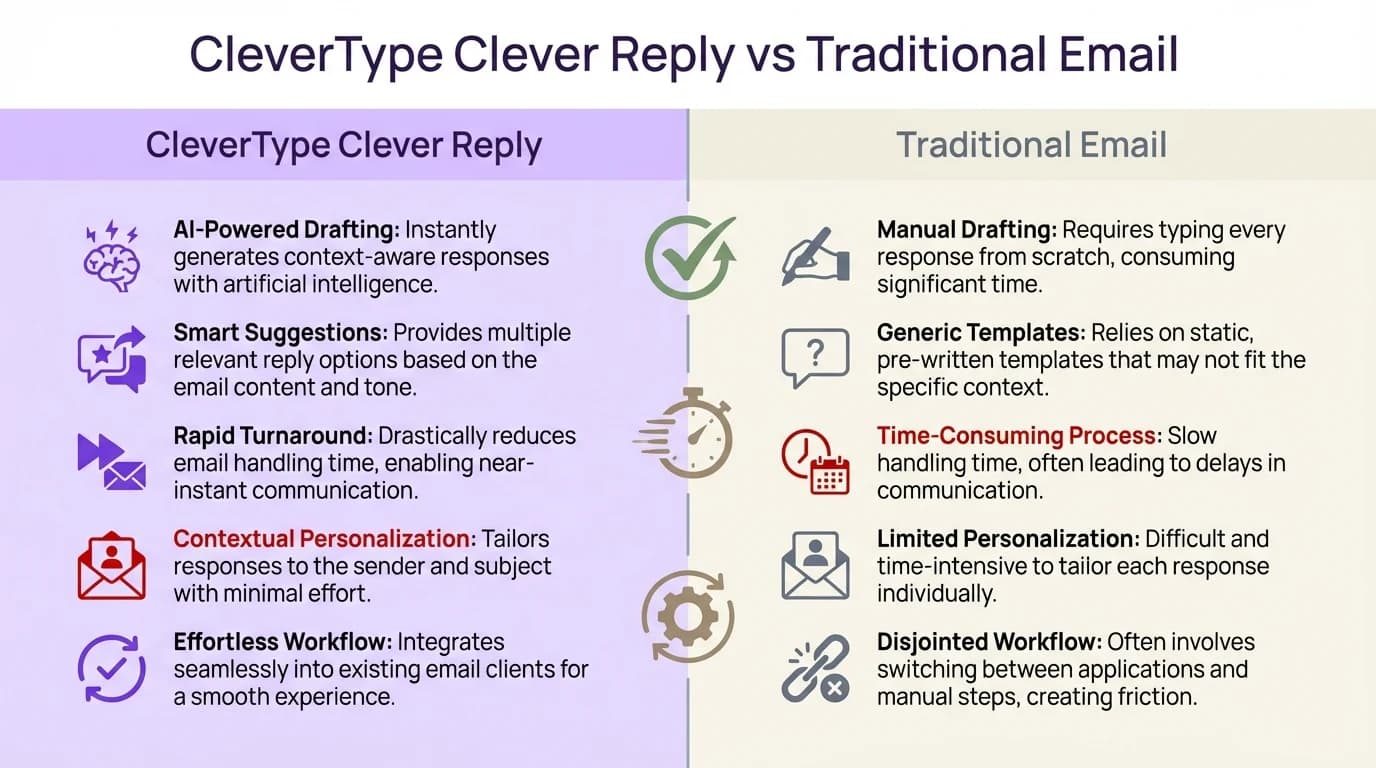
CleverType Clever Reply vs. traditional email — why AI-powered drafting cuts response time from 8–12 minutes to under 3 minutes
Practical Ways to Use AI Email Reply in Your Workflow
Having the tool is one thing. Using it effectively is another. Here's what actually works, from someone who's tested a lot of these systems.
1. Use AI for the first draft, always
Stop staring at a blank reply field. Even if you end up rewriting 80% of the AI draft, having something on screen is faster than starting from nothing. Furthermore, The mental block of the blank page costs more time than most people realize.
2. Build a personal response library
Most good professional email assistant tools let you save tweaked responses. Moreover, When the AI drafts something you like, save it as a template. Over time you build a library of polished responses for your most common scenarios.
3. Batch your email time
AI doesn't mean always-on. Therefore, Use Clever Reply to process email in two focused 30-minute sessions rather than checking constantly. The AI speeds up each response enough that two sessions covers what used to take all day.
4. Let AI handle the easy stuff completely
Meeting confirmations, acknowledgement emails, simple requests for information — these don't need your personal touch. Consequently, Accept the AI draft with minimal editing and move on. Save your writing energy for the messages that actually need nuance.
5. Use tone adjustment on every external email
Even when you write the email yourself, run it through a tone adjustment before sending. CleverType's tone feature catches passive-aggressive phrasing you didn't intend, over-casual language in professional contexts, and unnecessary hedging that makes you sound less confident.
6. Check on mobile first
Consequently, According to email usage data, over 60% of emails are opened on mobile devices first. Nevertheless, A keyboard-integrated AI reply tool means you can fully process emails from your phone — no need to "star it and deal with it on desktop later."
Fast Email Response: Why Speed Matters More Than You Think
Furthermore, Fast email response isn't just about looking attentive. It has real effects on your business results, on how clients and colleagues see you — and honestly, on your own stress.
A study on email response expectations found that 90% of people expect a reply within 24 hours, and 40% expect a response within the hour for emails marked as important. Nonetheless, Missing these expectations damages professional relationships even when the delay is completely reasonable on your end.
It compounds, too. Hence, An email sitting for 2 days often triggers a follow-up. Nevertheless, Now you've got two messages to deal with instead of one, and the sender has already quietly written you off a little. Responding fast cuts that cycle before it starts.
For sales and client-facing roles, the impact is measurable. Research on response times in sales contexts shows:
- Responding within 1 hour vs 24 hours: 7x higher chance of qualifying a lead
- Each hour of delay reduces response likelihood from prospects by ~10%
- AI-assisted sales teams handle 2x the email volume with the same headcount
The fast email response advantage isn't about working faster — it's about removing the friction that slows you down. When drafting a response takes 30 seconds instead of 8 minutes, you don't procrastinate. You just do it.
Email Overload Solutions: What Works Long-Term
Additionally, There's no single silver bullet here. But the approaches that actually work all share one thing: they reduce how hard it is to get through your inbox without making your replies any worse.
Additionally, The best long-term approach combines a few things:
AI assistance for drafting
This is the biggest lever. Nonetheless, The hard part of email is writing, not reading. A good ai email writer removes that friction entirely for routine messages.
Ruthless unsubscription
Nevertheless, Not from everything, but from anything you haven't read in 3 months. Use tools like Unroll.me to identify and kill newsletter subscriptions in bulk.
Clear response standards
Decide and communicate when people can expect replies. "I check email at 9am and 3pm" in your signature isn't rude, it's professional. It also reduces the anxiety of feeling like you need to respond instantly to everything.
Phone notifications off, except for flagged contacts
Nevertheless, This one change reduces the checking-every-11-minutes behavior that fragments your day. Therefore, You'll respond at the same rate, you'll just do it in batches instead of constantly.
AI email reply for mobile
Nevertheless, Since most email checking happens on phones, having Clever Reply on your keyboard means you can actually process your inbox during those windows instead of just reading and deferring.
Nevertheless, The combination of AI drafting (Clever Reply) and batched email sessions can realistically take someone from 2–3 hours of email daily down to 45–60 minutes. That's actually sustainable — and you're not trading response quality to get there.
Frequently Asked Questions
What is an AI email reply tool?
An AI email reply tool reads your incoming emails and generates a draft response for you. You review it, tweak anything that needs adjusting, and send — cutting the time you spend composing from several minutes to under a minute.
How much time can an AI email reply tool actually save?
Research shows professionals save 2–3 hours daily using AI email reply tools. Composition time per email drops by roughly 75%, and response times improve from an average of 12 hours down to minutes.
Is Clever Reply by CleverType safe to use for work emails?
Yes. CleverType is built privacy-first — your data stays on-device. Unlike other tools that send your text to external servers for processing, CleverType doesn't store your email content or share it with anyone.
Does Clever Reply work on all email apps?
Clever Reply is built into the CleverType keyboard, so it works anywhere you can type on your Android device — Gmail, Outlook, Yahoo Mail, and any other email client, plus messaging apps like WhatsApp and Slack.
How is CleverType's Clever Reply different from Gboard's Smart Reply?
Gboard's Smart Reply offers short, generic one-tap responses (like "Sounds good!" or "I'll check"). CleverType's Clever Reply generates full, context-aware email drafts tailored to the specific thread, with proper tone, structure, and complete information — not just a shortcut button.
Can AI email reply tools handle complex or sensitive emails?
Honestly, AI reply tools shine for routine emails — scheduling, quick acknowledgements, status updates, FAQs. For anything truly sensitive (negotiations, HR stuff, complex client situations), the draft is still helpful as a starting point, but read it carefully and add your own judgment before hitting send.
What's the best AI email reply tool for Android?
CleverType's Clever Reply is the top option for Android users because it integrates directly into the keyboard, works across all apps, supports 100+ languages, and prioritizes user privacy. Download it free from the Play Store.
Ready to Type Smarter?
Therefore, Upgrade your typing with CleverType AI Keyboard. Fix grammar instantly, change your tone, receive smart AI replies, and type confidently while keeping your privacy.
Download CleverType FreeNevertheless, Available on Android • 100+ Languages • Privacy-First
Sources
- Workplace Email Statistics 2025 – cloudHQ
- Email Overload Statistics 2026 – Speakwise Blog
- How to Spend Way Less Time on Email – Harvard Business Review
- Best AI Email Response Generators – Gmelius
- AI Email Reply Apps – Superhuman Blog
- AI-Powered Customer Support Guide – Pylon
- Average Emails Per Day for Knowledge Workers – Readless
- How AI Improves Email Response Rates – Salesforge