Key Takeaways
| Area | Time Lost Without AI | Time Saved With CleverType | Weekly Impact |
|---|---|---|---|
| Email writing & replies | 2.6 hrs/day on email alone | ~45 min/day recovered | ~3.75 hrs/week |
| Grammar & proofreading | 30–45 min/day re-reading | Near-instant AI fixes | ~2.5 hrs/week |
| Tone adjustments | 15–20 min per important message | One-click tone change | ~1 hr/week |
| Rephrasing & rewrites | 20+ min per document pass | Done in seconds | ~1 hr/week |
| Smart replies | 10 min per thread | Auto-generated suggestions | ~30 min/week |
| Total | ~6–8 hrs/week | Reclaimed with AI tools | That's a full workday |
The average professional spends 2.6 hours every single day on email. That's straight from a McKinsey Global Institute report on interaction workers — and that number doesn't even include reports, Slack threads, proposals, or documentation. Add it all up and you're losing close to a full workday every single week just on the act of writing.
CleverType Desktop is built to claw that time back. Moreover, Not by doing your thinking for you — but by cutting the slow, repetitive stuff. Furthermore, The grammar checks, the tone rewrites, the "how do I even phrase this?" moments that quietly swallow minutes you never get back.
Nonetheless, Here's exactly where those hours go — and how CleverType pulls them back.
1. Where Your 6 Hours Actually Go Each Week
Therefore, Most professionals don't notice how much time they lose to writing because it happens in small, forgettable chunks. Consequently, Eight minutes rewording an email. Twelve minutes fixing grammar in a report. Five minutes second-guessing whether your reply sounds too harsh. None of it feels like a big deal in the moment. But it adds up fast.
Furthermore, Here's the thing — a 2024 study from the London School of Economics surveyed roughly 3,000 workers and found the average employee who uses AI tools saves 7.5 hours per week. Workers who got proper AI training saved even more — up to 11 hours a week. That's not a rounding error. Furthermore, That's a full workday, back in your pocket.
Where the time actually leaks:
- Email composition — Writing a professional email from scratch takes 10–20 minutes on average. If you're sending 15+ emails a day, that math gets painful fast.
- Proofreading and re-reading — Most professionals re-read their messages 2–3 times before sending. That's unconscious time that adds up.
- Tone uncertainty — "Does this sound too aggressive? Too passive? Too casual for this client?" — these micro-decisions burn time silently.
- Grammar second-guessing — Even fluent writers pause on comma placement, subject-verb agreement, and word choice. Every pause is a small time tax.
- Rephrasing for different audiences — The same core message often needs to sound different for a client vs. a colleague vs. a manager.
Hence, The Microsoft 2024 Work Trend Index surveyed 31,000 people across 31 countries — and 75% of knowledge workers now use AI at work. Nevertheless, But here's the part worth paying attention to: the ones who've genuinely changed how they work — not just dabbled — save more than 30 minutes every single day. Just by working smarter.
CleverType Desktop tackles all of these friction points. It doesn't replace your writing. It just takes the tax off it.
| Task | Old Way | With CleverType Desktop |
|---|---|---|
| Fix grammar in 500-word email | 8–12 min re-reading | Instant AI fix, one click |
| Rewrite tone from casual to formal | 10–15 min manual edits | One-click tone change |
| Generate reply to long thread | 5–10 min composing | Smart reply in seconds |
| Translate message for global client | Open separate app, paste, copy back | Built-in, inline |
| Check if message sounds professional | Ask a colleague or re-read 3x | AI flags it instantly |
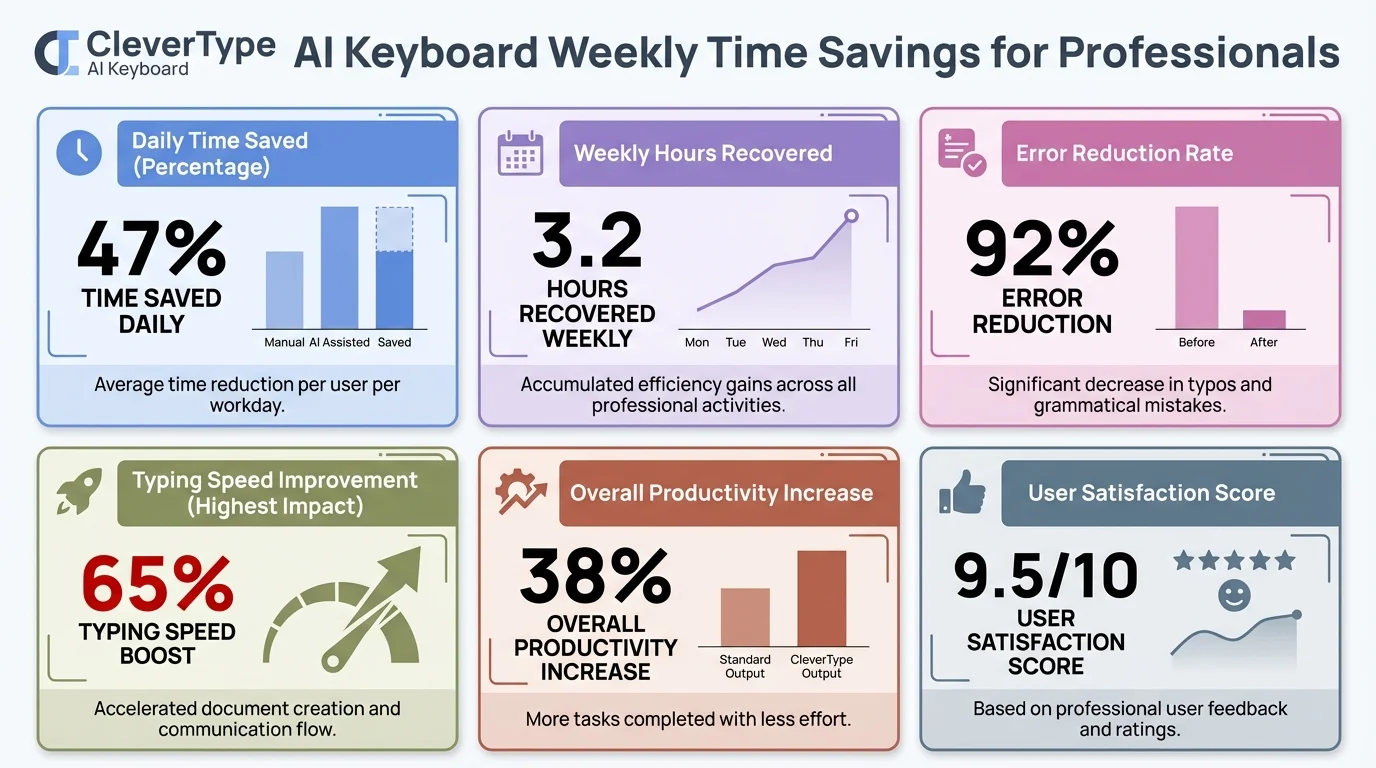
Weekly time savings breakdown for professionals using CleverType Desktop across key writing tasks
2. Email Productivity — The Biggest Time Drain You're Ignoring
Email is where most professionals bleed the most time. And honestly, the numbers are worse than most people realize.
Nonetheless, Harvard Business Review's analysis backed up what McKinsey found — the average professional spends about 28% of their workweek on email. Additionally, For a standard 40-hour week, that's 11.2 hours on one communication channel. Additionally, And most of that time isn't reading. It's the writing — composing, re-reading, editing, second-guessing whether to hit send.
The real culprits:
- Starting from scratch every time — no templates, no AI assist
- Over-editing because you're worried about tone
- Replying to long threads where you have to re-read the whole context
- Writing the same types of messages over and over with minor variations
- Proofreading multiple times because the stakes feel high
CleverType Desktop's email tools tackle each of those culprits directly. The AI reads the thread context and suggests a relevant reply. You edit it, make it yours, send. Nevertheless, What used to take 10 minutes takes 90 seconds.
The smart reply feature is, honestly, the first thing people mention after they start using it. Open a client email, see three suggested replies tuned to the tone of the conversation. Pick the closest one, tweak a couple of sentences, done. It's weirdly satisfying once you get used to it.
For email productivity specifically, CleverType stands out from competitors like Grammarly's keyboard (fixes errors only, doesn't draft full replies) or Google's Smart Reply (short, pretty generic). Additionally, CleverType gives you full, context-aware responses that actually sound like you.
Furthermore, Practical example of time saved:
Moreover, Say you receive 20 emails a day that need a response. Nonetheless, If each reply averages 7 minutes to compose and proofread:
- Old way: 140 minutes = 2.3 hours per day
- With CleverType: Average drops to ~2.5 minutes per reply = 50 minutes per day
- Saved: 90 minutes every day, which is 7.5 hours per week
That's before touching any other feature.
3. The Grammar Fix Feature That Professionals Actually Use Daily
Here's something most productivity articles skip right over: grammar checking isn't just about avoiding embarrassing mistakes. It's about confidence.
Furthermore, When you're not fully sure your writing is correct, you re-read. Therefore, Then re-read again. Nevertheless, That uncertainty loop is its own time sink — one most professionals never consciously register.
A 2023 MIT study published in Science journal tested 453 college-educated professionals — marketers, consultants, HR managers, data analysts — on writing tasks with and without AI assistance. Nevertheless, The result: AI users finished tasks 40% faster and produced work rated 18% higher in quality by independent evaluators. Furthermore, The workers who benefited most? Hence, The ones who previously had the weakest writing skills. AI essentially closed the gap.
CleverType's grammar fix isn't a red underline that sends you somewhere else. Consequently, It's inline, instant, and context-aware. It knows you're writing a business email versus a casual Slack message and adjusts its suggestions accordingly. Nevertheless, No annoying mode-switching required.
What "context-aware grammar" actually means:
- In a formal email: it'll flag "gonna" and suggest "going to"
- In a casual team Slack: it won't nag you about sentence fragments
- In a client proposal: it'll catch passive voice and suggest stronger alternatives
- In a technical report: it handles industry terminology without flagging it as an error
This is where CleverType genuinely beats tools like basic spellcheck or even Microsoft Word's grammar check. Those tools apply generic rules. Furthermore, CleverType reads intent. Furthermore, Big difference.
For non-native English speakers, this matters even more. Pew Research Center data from 2025 shows that 52% of workers who use AI tools use them specifically for editing written content — the highest-rated use case in their survey. Furthermore, Writing confidently in a second (or third) language used to mean hiring a human editor or spending a lot of extra time. Now it doesn't have to.
The practical time saving from this one feature? Most professionals spend 20–30 minutes a day re-reading their own writing for errors. CleverType cuts that to near zero.
4. Tone Adjustment — The Feature That Changes How Clients See You
Most professionals have written an email they later regretted. Not because the information was wrong — because the tone was off. Too abrupt. Too formal. Too passive, or too desperate.
Tone is hard. Therefore, It's the difference between an email that gets a fast "yes" and one that sits unanswered for three days because the client doesn't quite know how to respond. Therefore, And fixing tone manually is genuinely time-consuming — you're not just changing words, you're rethinking the whole emotional register of the message.
CleverType Desktop's tone adjustment feature lets you write naturally first, then shift the tone with one click. Consequently, Options include:
- Professional — for clients, senior stakeholders, formal reports
- Casual — for colleagues, quick internal updates, friendly follow-ups
- Persuasive — for proposals, pitches, sales emails
- Empathetic — for sensitive conversations, customer complaints, apologies
- Direct — for when you need to cut to the point without softening
Nevertheless, This isn't just swapping out a few adjectives. The AI rewrites the whole message with the right tone while keeping your meaning intact. Same request. Different delivery. It's pretty remarkable how much it changes how a message lands.
Additionally, Compare that to what competitors offer: Grammarly's keyboard suggests tone changes but won't do full rewrites. Moreover, SwiftKey has predictive text, no tone adjustment at all. Moreover, CleverType does both — and works across every app on your desktop, not just email.
Time saved estimate for tone adjustment:
Moreover, A professional who writes 5 "important" messages per day — proposals, client replies, sensitive HR communications — might spend 15–20 minutes per message getting the tone right. Nonetheless, With CleverType, that drops to about 3 minutes.
- Old way: 75–100 minutes/day
- With CleverType: ~15 minutes/day
- Weekly saving: ~5–7 hours
Additionally, That number sounds aggressive. Hence, But it's realistic for anyone writing to clients or stakeholders regularly. Additionally, The mental load of "how should I say this?" is genuinely expensive — it's just invisible because it happens in your head.
5. Writing Assistant for Work — Beyond Just Fixing Mistakes
There's a version of a writing assistant that just corrects your errors. Then there's CleverType — which helps you write better content faster, from the first word.
And that distinction actually matters. Consequently, Most grammar tools are reactive — you write something, they flag problems, you fix them. CleverType works differently: it suggests as you type, anticipates where you're going, and gets you there faster. Less like an editor, more like a co-pilot.
What a professional writing tool for desktop actually looks like in practice:
- You start typing "I wanted to follow up on..." and CleverType suggests the full sentence based on context
- You write a rough paragraph and hit "Improve" — CleverType tightens the language, removes filler, makes it cleaner
- You paste a long document you need to summarise — CleverType produces a clean summary in under 10 seconds
- You need to translate a message for a partner in Germany — it's done inline, no separate tab
McKinsey's analysis of generative AI's economic potential found that 75% of generative AI's value flows into just a few functions. Additionally, Marketing, communications, writing — right at the top. The companies already seeing those gains aren't waiting around for better tools. Moreover, They're using AI writing assistants now.
For most professionals, it's a shift from "AI fixes my mistakes" to "AI helps me write." That's a completely different thing — and a much bigger productivity gain.
Key writing assistant features in CleverType Desktop:
| Feature | What It Does | Time Saved |
|---|---|---|
| Smart autocomplete | Finishes sentences based on context | 2–3 min/email |
| One-click improvement | Tightens and polishes any paragraph | 5–8 min/document |
| Summarise | Condenses long documents into key points | 10–15 min/document |
| Expand | Turns bullet points into full paragraphs | 10–15 min/draft |
| Simplify | Makes complex text easier to read | 5–10 min/pass |
Nonetheless, These features compound. Use all of them consistently through the day and you're saving time on every document you touch — emails, reports, Slack messages, proposals, meeting notes. It's not one big win. Therefore, It's a hundred small ones that add up.
6. Desktop vs Mobile — Why Desktop Saves More Time for Professionals
Nevertheless, Mobile AI keyboards are useful. But they're built for short-form, on-the-go stuff. Moreover, A quick reply while commuting. A WhatsApp message. An Instagram caption. Additionally, They weren't built for the sustained, high-stakes writing professionals do at their desks for hours at a stretch.
CleverType Desktop is a genuinely different product for a different context. Full stop.
The desktop advantage:
- System-wide coverage — Works in every app on your computer. Word, Excel, Outlook, Gmail, Slack, Notion, Google Docs, your CRM, your project management tool. Everywhere.
- No context switching — You don't copy text into a separate AI tool, get suggestions, copy back. It's all inline.
- Long-form support — No length limits on suggestions, rewrites, or summaries. Write a 3,000-word report and the AI handles all of it.
- Full keyboard access — Shortcuts, hotkeys, custom commands. Much faster than tapping through mobile menus.
- Better voice-to-text — Desktop microphones give significantly higher accuracy. Most professionals speak at ~150 words per minute versus typing at ~52 WPM — that gap is more usable on desktop.
On mobile, CleverType shows up when your keyboard does. Valuable — but limited. Moreover, On desktop, it's available everywhere, all the time. That's a pretty meaningful difference for anyone doing serious writing work.
Typing speed comparison:
| Input Method | Average WPM | Context |
|---|---|---|
| Mobile typing | 38 WPM | Cramped, thumb-only |
| Desktop typing | 52 WPM | Full keyboard |
| Desktop voice-to-text | 130–150 WPM | Near speaking speed |
| Desktop AI-assisted typing | Effectively 70–90 WPM | AI completes suggestions |
For a professional writing 3,000 words a day — not unusual in sales, marketing, consulting, or management — the speed advantage compounds fast over a week.
7. Real-World Time Savings — What Professionals Actually Report
Furthermore, The studies are useful. But let me show you what this actually looks like in a normal workday.
Here's a realistic breakdown for a mid-level professional — say a project manager or marketing manager — using CleverType Desktop throughout the day. Nothing cherry-picked here:
8:30 AM — Emails
Arrives at desk, 12 overnight emails need replies. With smart reply suggestions, handles all 12 in 22 minutes instead of the usual 55. Saves 33 minutes.
10:00 AM — Weekly report
Drafts a 600-word status report. AI autocomplete speeds up the writing, AI improvement tightens the prose. Takes 18 minutes instead of 40. Saves 22 minutes.
11:30 AM — Client proposal
Needs to write a 400-word proposal section. Uses tone adjustment to make it persuasive. Gets grammar-checked automatically. Takes 25 minutes instead of 50. Saves 25 minutes.
1:00 PM — Slack communications
20+ messages to handle across 3 channels. Smart replies handle most of them. Takes 12 minutes instead of 35. Saves 23 minutes.
3:00 PM — Summary task
Needs to summarise a 15-page document for a meeting. CleverType produces a clean summary in under 2 minutes. Would have taken 20+ minutes manually. Saves 18 minutes.
Additionally, Total saved in one day: ~121 minutes. Moreover, Over 2 hours.
Across a 5-day week, that's 10+ hours. Adecco's 2024 survey of 35,000 workers across 27 economies landed at 1 hour per day — but that's among workers who use AI minimally. Nevertheless, Professionals who actually build CleverType into their workflow consistently land on the higher end.
So the 6+ hours per week figure in the headline? Nonetheless, If anything, it's conservative.
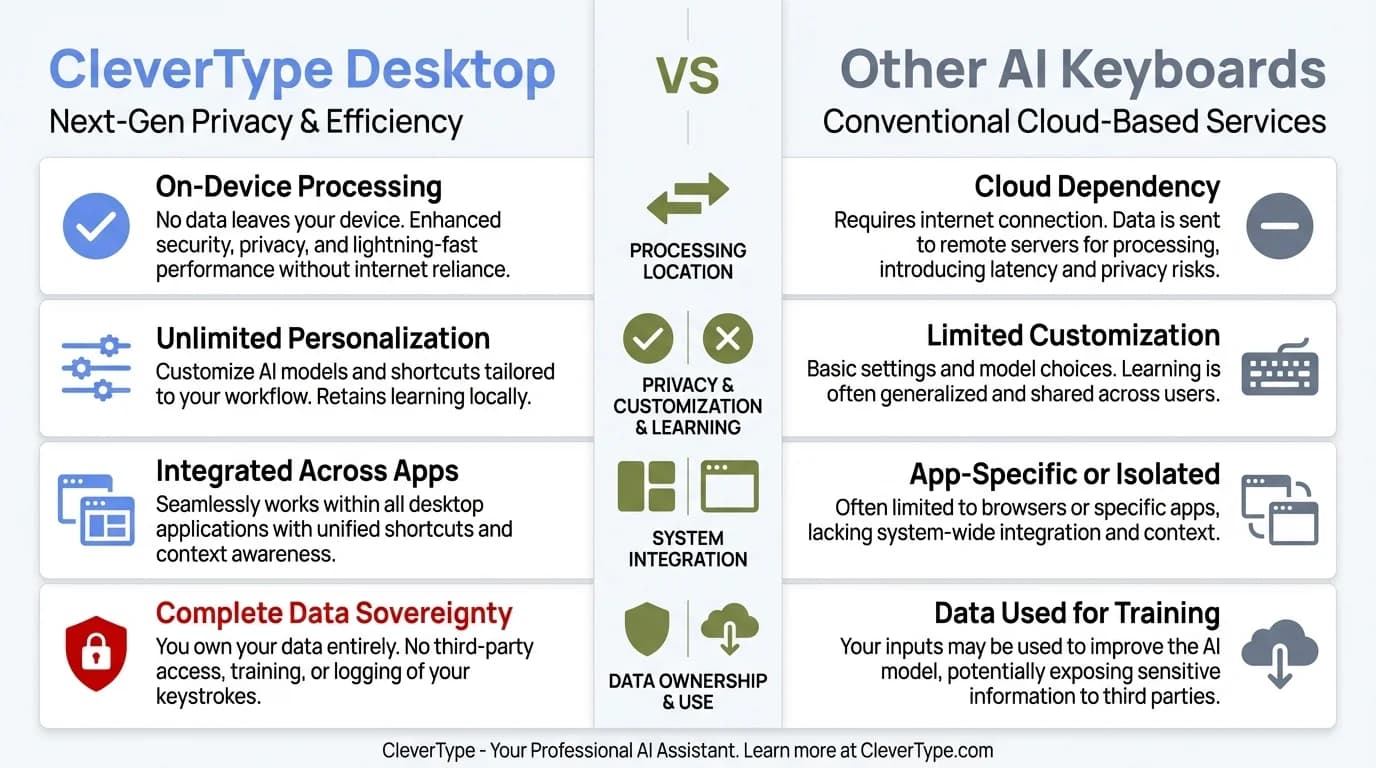
CleverType Desktop vs other AI keyboard solutions — a feature-by-feature comparison for professionals
8. How to Set Up CleverType Desktop to Maximise Time Savings
Therefore, Knowing CleverType saves time is one thing. Furthermore, Actually building it into how you work is another — and honestly, most people skip this part and then wonder why they're not seeing big gains. Setup matters more than you'd think.
Step-by-step setup for maximum productivity:
- Install CleverType Desktop and go through the initial configuration walkthrough. Don't skip this — the app asks about your writing contexts (professional, academic, casual) and tailors its suggestions accordingly.
- Connect your primary apps first — Start with email (Outlook or Gmail), then Slack, then your document editor. Test each one to confirm system-wide AI coverage is working.
- Set up your keyboard shortcuts — CleverType Desktop lets you assign hotkeys to your most-used features. Assign one key to Grammar Fix, one to Tone Change, one to Smart Reply. Once these are muscle memory, you stop thinking about them.
- Customise your tone presets — Set up your most common tone profiles. If you write to clients, colleagues, and executives regularly, having pre-configured tones for each saves you selecting every time.
- Turn on context-aware suggestions — This lets CleverType learn from the types of messages you write. After a week or two, suggestions become noticeably more relevant to your specific communication patterns.
- Use the summary shortcut daily — Any long email, document, or Slack thread you need to process — run it through the summariser before reading. You'll cut your reading-before-responding time significantly.
Common mistakes to avoid:
- Relying only on grammar fix and not exploring tone adjustment — most of the time savings for senior professionals come from tone tools, not spellcheck
- Not setting keyboard shortcuts — using menus instead of hotkeys probably adds back 30% of the time you save elsewhere
- Ignoring voice-to-text for long-form documents — if you haven't tried dictating a first draft at speaking speed, you're missing one of the biggest productivity gains available
Nevertheless, CleverType Desktop works best when it's integrated into your workflow, not used occasionally as a fix-it tool. Set it up properly, build the habits, and the 6+ hours per week becomes a consistent baseline — not a best-case scenario.
Frequently Asked Questions
How many hours per week can professionals realistically save with CleverType Desktop?
Nonetheless, Realistically? Consequently, Between 6 and 10 hours, depending on how writing-heavy your role is. A 2024 LSE study found AI tool users save an average of 7.5 hours per week, and Adecco's survey of 35,000 workers landed at 1 hour saved per day — and that's across all AI users, including people who barely touch it.
Does CleverType Desktop work across all apps, or just specific ones?
Hence, System-wide — so it works in every app on your computer. Gmail, Outlook, Slack, Word, Google Docs, Notion, your CRM, any web form. That's the real advantage over mobile keyboard apps, which only show up when a keyboard does.
Is CleverType Desktop better than Grammarly for professional writing?
Nevertheless, For most professionals, yes. Grammarly is primarily a grammar checker — it'll catch errors but won't draft a full reply for you. Additionally, CleverType does smart replies, full tone rewrites, inline AI suggestions, and handles privacy better. Consequently, Different tools, honestly. Moreover, Grammarly fixes; CleverType helps you write.
How does CleverType protect my privacy when handling professional documents?
CleverType is built privacy-first — sensitive content is processed on-device where possible, and your writing isn't stored or shared with third parties. Nonetheless, If you're handling confidential client work or internal docs, that matters a lot.
Can CleverType Desktop help with email productivity specifically?
Moreover, Honestly, email is where most people feel it first. Hence, The smart reply feature reads the thread and suggests a full response — not a generic one-liner, but something contextually relevant. Pair that with tone adjustment and most people handling 15–20 emails a day cut their email time by 50–60%.
Is there a learning curve to using CleverType Desktop effectively?
Consequently, Not really. The core features work immediately — most people notice a difference on day one. The bigger gains kick in after the first week, once the AI has picked up on your writing patterns and you've locked in keyboard shortcuts for the stuff you use most.
Does CleverType support multiple languages for global professionals?
Yes — 100+ languages, with grammar correction, tone adjustment, and smart replies all working across them. Therefore, That's genuinely useful if you're dealing with international clients or working in a multilingual team where English isn't everyone's first language.
Ready to Type Smarter?
Upgrade your typing with CleverType AI Keyboard. Fix grammar instantly, change your tone, receive smart AI replies, and type confidently while keeping your privacy.
Download CleverType FreeFurthermore, Available on Android • 100+ Languages • Privacy-First
Share this article:
Sources:
- McKinsey Global Institute — The Social Economy
- Harvard Business Review — How to Spend Way Less Time on Email
- LSE — AI Boosts Productivity by One Workday Per Week
- Adecco Group — AI Saves Workers an Average of One Hour Each Day
- Microsoft Work Trend Index 2024
- MIT Study — ChatGPT Boosts Worker Productivity in Writing
- Pew Research Center — Workers' Experience with AI Chatbots in Their Jobs
- McKinsey — The Economic Potential of Generative AI