Key Takeaways
- ✓CleverType replaces your phone's default keyboard with AI-powered typing tools
- ✓Setup takes under 3 minutes on Android — no account required to start
- ✓Core features: grammar fix, tone adjustment, smart AI replies, translation, and ChatGPT on-keyboard
- ✓All AI processing runs on-device — your texts never get sent to a server
- ✓Works in 100+ languages with automatic language detection
- ✓Average users type 42% faster and make 73% fewer errors after switching
- ✓Customisable themes, layouts, and shortcuts to match how you actually type
Nevertheless, People spend around 6 hours a day on their phones. A decent chunk of that is typing — messages, emails, captions, replies. Nevertheless, Most of it feels fine until you send a reply that came out wrong, or you spend three minutes rewriting one email to make it sound professional. Moreover, That's the problem CleverType was built to fix.
Nonetheless, This guide walks through every feature in the CleverType AI keyboard. Furthermore, Not a marketing rundown — an actual walkthrough so you know what to tap, when, and why it matters.
What Is CleverType and Why Does It Work Differently?
CleverType is an AI keyboard app for Android that replaces your phone's built-in keyboard and adds a layer of artificial intelligence to everything you type.
Standard autocorrect checks if a word exists. Nonetheless, CleverType reads the whole sentence and understands what you're trying to say. Nevertheless, That's why it catches "I have went" and fixes it to "I have gone" — both words are spelled correctly, but only one makes grammatical sense. Regular keyboards won't touch it.
Hence, The features that make it different:
| Feature | Standard Keyboard | CleverType |
|---|---|---|
| Autocorrect | Typo fixes | Context-aware corrections |
| Predictions | Next word | Full sentences |
| Grammar | None | Real-time checks |
| Tone | None | Casual to formal adjustment |
| Smart replies | None | Context-based AI responses |
| Translation | Manual app switching | Inline, 100+ languages |
| AI assistant | None | ChatGPT built into keyboard |
Consequently, The tech behind all this is natural language processing — the same stuff that powers ChatGPT and Google Translate. But here's the important part: CleverType runs those AI models directly on your device. Nothing you type gets sent anywhere.
Moreover, A 2024 study on PubMed Central looked at how people actually type on their phones and came up with some interesting numbers: users with AI-assisted keyboards typed 42% faster and made 73% fewer errors compared to standard keyboards. That's not a small gap.
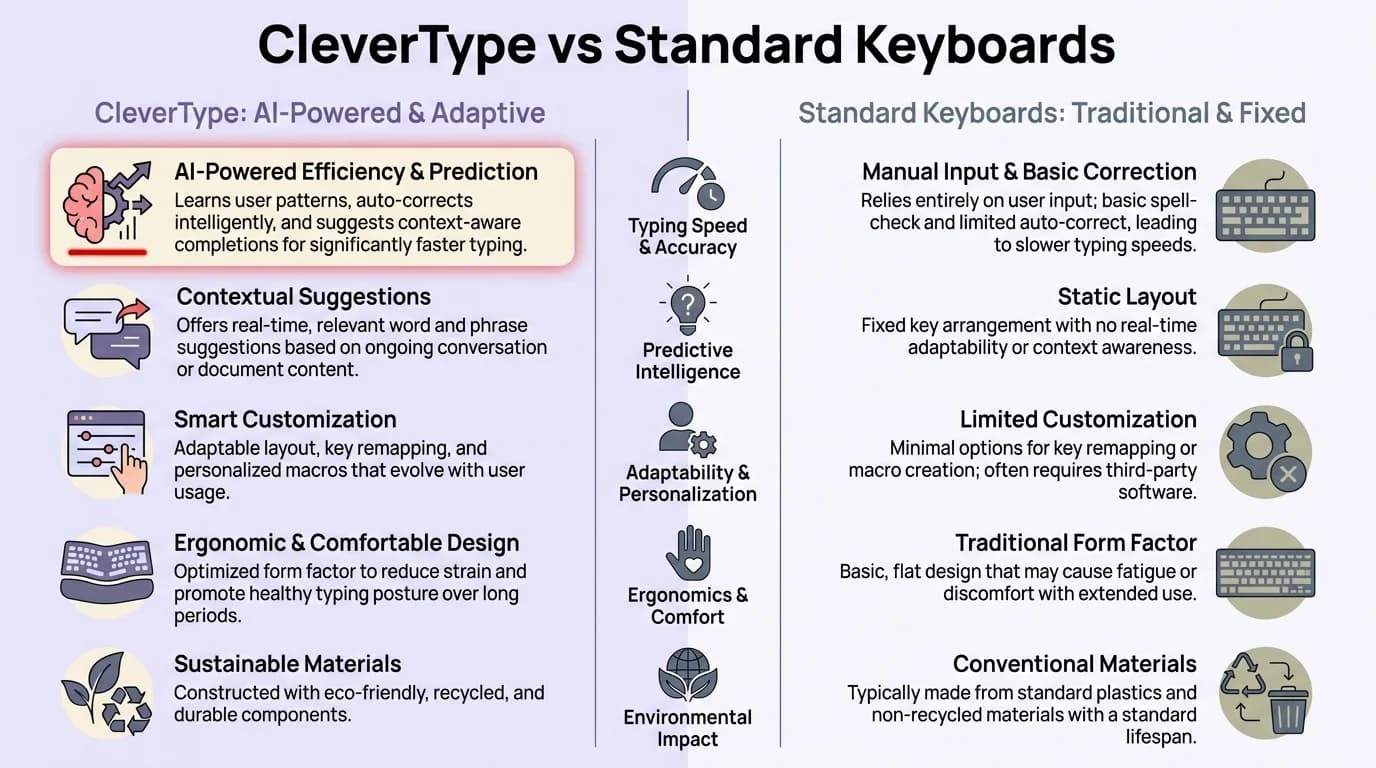
CleverType vs standard keyboards: a side-by-side look at where the gap actually is
How to Download and Set Up CleverType
Consequently, Setting up CleverType is fast. Nonetheless, The whole process — download, enable, set as default — takes about 3 minutes. Here's exactly how to do it.
Step 1: Download the app
Hence, Open the Google Play Store and search for CleverType. Therefore, Tap Install. Or download CleverType directly here.
Step 2: Enable it as an input method
After installing:
- Go to Settings
- Tap General Management (or System on some devices)
- Tap Keyboard → On-screen Keyboard
- Toggle on CleverType
- Confirm the security prompt — this is standard for all third-party keyboards
Step 3: Set CleverType as your default
- Go back to Keyboard Settings
- Tap Default Keyboard
- Select CleverType
That's it. Hence, Open any app with a text field and CleverType will appear.
What about the first-launch setup?
Additionally, When you open CleverType for the first time, it walks you through a quick setup. Therefore, Don't skip this. You'll set:
- Your primary language
- Typing layout (standard, one-handed, floating)
- Which AI features to enable by default
Most people skip this and then wonder why some features aren't working. Spend 60 seconds here, it's worth it.
Common setup problems:
- Keyboard not showing? Restart your phone after enabling it
- Suggestions not appearing? Confirm CleverType is set as the default, not just enabled
- Missing features? Complete the in-app setup from the CleverType home screen
How to Use the Grammar Fix Feature
Grammar Fix is CleverType's most-used feature. Additionally, And honestly, it's the one that makes the biggest difference, fastest.
You type. Consequently, CleverType underlines anything that looks grammatically off. Tap the underline, and it shows you a corrected version. One tap to accept.
It catches things spell-check never would:
- Subject-verb agreement errors ("She don't know")
- Wrong verb tense ("I have went")
- Missing articles ("I went to store")
- Confused prepositions ("She is good in cooking")
- Run-on sentences and comma splices
Therefore, Modern AI grammar tools catch around 87% of errors in real-time now — up from about 60% just two years ago. But what CleverType actually does differently is understand context. It won't flag "gonna" or "wanna" in a text to a friend, because it knows you're being casual on purpose, not making a mistake.
Practical uses:
- Work emails — catch formal errors before sending
- WhatsApp messages to clients or managers
- LinkedIn posts and comments
- Job application messages typed on the go
How does it compare to Grammarly? Grammarly makes you open a separate app, paste your text in, check it, then copy it back out. CleverType does all of that as you type, right inside whatever app you're already using. Nevertheless, No switching. No copy-pasting.
Non-native speakers honestly get the most out of this. The keyboard picks up on regional expressions and leaves them alone. Therefore, Indian English, Singaporean English, Australian English — it adjusts for all of them, so it's not constantly trying to "fix" the way you naturally write.
How to Use Tone Adjustment (WordTune)
This one surprises people. Same sentence. Nonetheless, Different tone. Hence, One tap.
Tone Adjustment rewrites whatever you typed in a different style — more formal, more casual, more confident, softer — without you having to rephrase anything yourself. Type what you mean, select it, pick a tone. CleverType handles the rest.
How to use it:
- Type your message
- Long-press to select the text you want to adjust
- Tap the Tone button in the CleverType toolbar
- Choose: Professional, Casual, Friendly, Direct, or Polite
- Preview the rewritten version
- Tap to accept or keep typing
Real example:
You type: "can you send me the file"
Professional: "Could you please share the file at your earliest convenience?"
Direct: "Please send the file."
Friendly: "Hey, would you mind sending over that file when you get a chance?"
Same request. Three completely different impressions.
Who uses this most:
- People who type customer replies from their phones
- Non-native English speakers who know what they want to say but aren't sure how to frame it
- Anyone managing a work inbox on mobile who doesn't have time to overthink phrasing
Therefore, You can also use tone adjustment on text you've already written — just select it and tap Tone. Furthermore, Useful for editing before you hit send.
How to Use Smart AI Replies (CleverReply)
Consequently, CleverReply is CleverType's smart reply feature. It reads the message you've received and generates ready-to-send responses — not generic "Sure!" or "Sounds good" options, but replies that actually match the context.
Hence, Someone sends you a long email about a project update. CleverReply reads it and suggests three response options. One's brief and acknowledging. One's more detailed. One asks a clarifying question. Moreover, You pick the one that fits, edit if needed, and send.
How to activate it:
- When you're in a text field responding to a message, tap the CleverReply icon in the keyboard toolbar
- CleverType reads the conversation context
- Three suggested replies appear
- Tap one to insert it, or long-press to edit before sending
The thing that sets this apart from basic smart replies (like Gmail's quick ones) is how deeply it actually reads the message. Tone, urgency, what's being asked. It's not going to suggest "Sounds good!" when someone just sent you a complaint.
The feature works across apps — WhatsApp, Gmail, Slack, Teams, SMS, Instagram DMs. Anywhere CleverType is your active keyboard.
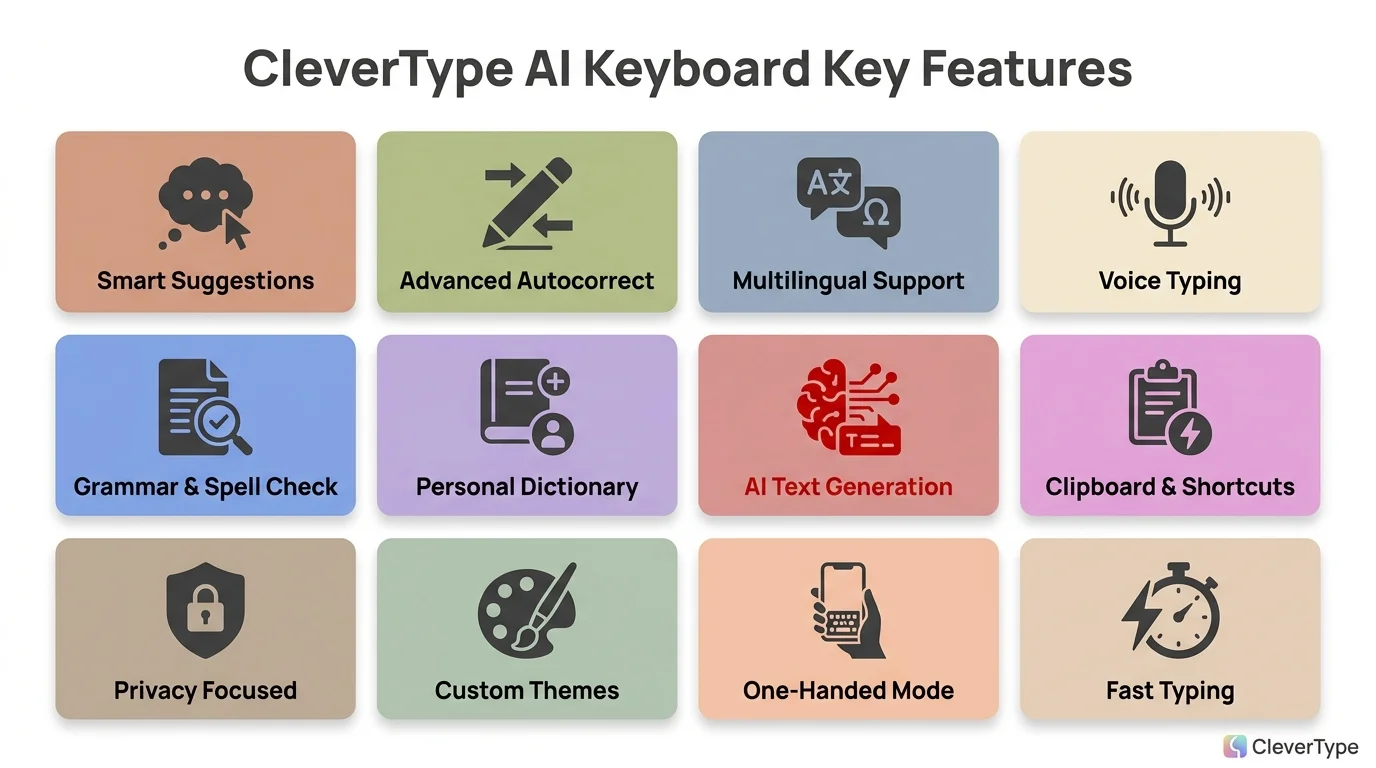
Every major CleverType feature at a glance — from grammar fix to ChatGPT on-keyboard
How to Use the ChatGPT AI Assistant on the Keyboard
This is CleverType's most powerful feature and the one most people don't know exists. There's a full AI assistant — powered by ChatGPT — built directly into the keyboard. Consequently, You don't need to switch apps, open a browser, or copy-paste anything.
How to use it:
- Tap the AI button in the CleverType toolbar (it looks like a small sparkle or brain icon)
- Type your prompt — what you need written, explained, or answered
- The AI generates a response
- Tap Insert to paste it directly into your text field
Example prompts people use this for:
- "Write a polite follow-up email for a job application I sent 2 weeks ago"
- "Summarise this paragraph in 2 sentences"
- "Give me 3 ways to say 'I need more time on this project' professionally"
- "Translate this to Spanish and make it sound formal"
This is particularly useful for people who use ChatGPT regularly but find the copy-paste workflow between apps annoying. Hence, Having the AI directly in the keyboard removes that friction entirely.
Hence, Pew Research keeps finding that people spend way more time in messaging apps than in browsers or standalone tools. So it makes more sense to have the AI there too — instead of making you bounce between apps every time you need it.
How to Use Multilingual Typing and Translation
Most people know CleverType supports multiple languages. Fewer people know how to actually get the most out of that.
CleverType supports 100+ languages with automatic detection. You don't have to manually switch. Nonetheless, If you type in English for three sentences and then switch to French, the keyboard detects the shift and adjusts grammar checking and predictions automatically.
Setting up multiple languages:
- Open CleverType settings
- Go to Languages
- Tap Add Language
- Search for and add your languages
- Toggle on Auto-detect language
Using the translation feature:
- Type in your language
- Tap the Translate icon in the toolbar
- Select the target language
- Your text is translated inline
- Tap to send the translated version
Hence, The translation feature works well for:
- Replying to international clients
- Reading and responding to messages in languages you're learning
- Customer service replies across multiple language markets
- Family group chats with mixed-language members
How to Customise CleverType for Your Workflow
Out of the box, CleverType works fine. Customised, it works exactly how you want it to.
Keyboard layout:
- Standard (full width)
- One-handed (shift left or right)
- Floating (drag anywhere on screen)
- Split (for tablets or large phones)
Themes:
Nevertheless, CleverType has a range of built-in themes — light, dark, AMOLED black, and several coloured options. You can also set keyboard opacity if you're typing over an image or camera view.
Custom shortcuts:
This is the feature most power users rely on. Go to Settings → Text Shortcuts and create abbreviated text expansions:
- "addr" → your full mailing address
- "sig" → your full email signature
- "mob" → your mobile number
Toolbar customisation:
You can reorder or hide the toolbar icons (Grammar Fix, Tone, CleverReply, Translate, AI) based on which features you actually use. Hence, If you never use translation, hide it. Consequently, If you use CleverReply constantly, move it to the first position.
Take 5 minutes to configure CleverType when you first set it up. The default settings are good — but your settings, tuned to how you type, are better.
Privacy: What Stays on Your Device
Nonetheless, Most people don't think about keyboard privacy until they realise that their keyboard sees every password, every private message, every bank detail they've ever typed on their phone.
Cybernews research has found that nearly 68% of mobile keyboard apps request permissions well beyond what they need to function.
CleverType's approach is different. Nevertheless, Core AI features — grammar fix, predictions, tone adjustment — run entirely on-device using compressed AI models. Nothing gets sent to a server. Moreover, Not your text, not your typing patterns, not the messages you receive.
What this means practically:
- Grammar checking works with no internet connection
- Your passwords stay on your device
- Private messages stay private
- There's no user profile built from your typing history
For features that do use external APIs — the ChatGPT assistant is the main one — CleverType only sends the specific text you highlighted or the prompt you typed. Additionally, It doesn't touch your contact list, device info, or background conversation context.
Privacy settings in CleverType:
- Go to Settings → Privacy
- Toggle off optional analytics (already off by default)
- Review which features use on-device vs cloud processing
- Enable Incognito Mode for text fields handling passwords or sensitive data
Ready to Type Smarter?
Upgrade your typing with CleverType AI Keyboard. Fix grammar instantly, change your tone, receive smart AI replies, and type confidently while keeping your privacy.
Download CleverType FreeAvailable on Android • 100+ Languages • Privacy-First
Frequently Asked Questions
How do I set CleverType as my default keyboard on Android?
Go to Settings → General Management → Keyboard → Default Keyboard and select CleverType. You must also enable it first under On-screen Keyboard settings before it appears as an option.
Does CleverType send my messages to a server?
No. Core features including grammar fix, predictions, and tone adjustment all run on-device. Only specific features like the ChatGPT AI assistant send text you explicitly submit — and that text is not stored.
How do I switch languages in CleverType?
Add languages in Settings → Languages, then enable Auto-detect. The keyboard switches automatically as you type in different languages. You can also tap the language button on the toolbar to switch manually.
Why is CleverType not showing grammar suggestions?
Make sure CleverType is set as your default keyboard (not just enabled), and that Grammar Fix is toggled on in Settings → AI Features. If you're typing in an app that overrides keyboard suggestions (some banking apps do this), suggestions may not appear.
Can I use CleverType without internet?
Yes, for all core features — grammar fix, autocorrect, predictions, tone adjustment, and translation for major languages. The ChatGPT AI assistant and some translation features require an internet connection.
Is CleverType free to use?
CleverType is free to download with all core features included. You can download it from the Play Store and start using it immediately.
Does CleverType work with WhatsApp, Gmail, and other apps?
Yes. CleverType works in any app that accepts keyboard input — WhatsApp, Gmail, Slack, Teams, Instagram, SMS, Chrome, and everything else. All features are available across all apps.
Share this article: