Key Takeaways
- ✓54% of U.S. teens now use AI tools for schoolwork, according to a Pew Research Center survey from February 2026
- ✓AI writing tools help students fix grammar, adjust tone, and write faster — without doing the thinking for them
- ✓CleverType works directly in your keyboard, so it helps in every app: Google Docs, Gmail, WhatsApp, and more
- ✓Voice-to-text with AI enhancement lets you capture lecture notes without missing a word
- ✓The biggest student wins: fewer grammar errors, cleaner emails to professors, and faster essay drafts
- ✓Privacy-first design means your notes and essays stay on your device
Student life is basically one long writing sprint. Essays, lab reports, emails to professors, group chat messages, lecture notes — and most of it happens on a phone. Consequently, So why are most students still stuck with a basic keyboard and a dumb autocorrect that changes "its" to "it's" at the worst possible moment?
According to DemandSage's 2026 AI in education report, global student AI usage jumped from 66% in 2024 to 92% in 2025. Therefore, That's not a gradual shift — that's basically every student in higher education. So the question isn't whether students are using AI anymore. It's whether they're using it in a way that actually makes them better.
This guide is about how CleverType fits into your actual student life — essays, notes, and yes, those 11pm "can I get an extension?" emails.
Why Students Struggle with Writing (and What Actually Helps)
Hence, Here's the thing — most student writing problems aren't about intelligence. They're about workflow. Full stop.
Nonetheless, You're typing a response on your phone while commuting. Or drafting an essay intro at 1am. Or trying to summarize a lecture you barely stayed awake through. The ideas are there — the clean execution often isn't. That's not a skill gap, it's just reality.
A 2025 Frontiers in Education study that analyzed 136 research articles found students use AI primarily for three things:
- Idea generation — getting unstuck when they don't know how to start
- Text structuring — organizing thoughts into something readable
- Revision — fixing grammar, tone, and clarity
Additionally, But most AI tools pull you out of your flow. You write something, copy-paste it into another app, wait for the AI to chew on it, then copy the result back. It's clunky and it breaks your concentration. CleverType fixes this by living inside your keyboard — no switching, no copy-pasting. The help is just there, inline, as you type.
What actually helps students isn't having AI write for them. It's having AI catch errors and suggest better phrasing while they're writing. Research consistently shows students who treat AI as a feedback tool get better over time. Students who use it to write for them? Don't.
How CleverType Works as an AI Writing Tool for Students
Hence, CleverType is an AI keyboard app. Not another tab you switch to, not a browser extension you install separately — it's literally your keyboard. So when you type, all the help is already there: grammar fixes, better phrasing suggestions, tone adjustment, a full AI assistant. All without leaving whatever app you're in.
Here's what that actually looks like for a student:
| Situation | What CleverType Does |
|---|---|
| Writing an essay intro on your phone | Catches grammar errors and suggests cleaner phrasing in real time |
| Emailing your professor about an extension | Adjusts your tone from casual to professional with one tap |
| Responding to a group project message | Smart reply suggestions based on the conversation context |
| Reviewing a paragraph you're unsure about | Grammar fix highlights the specific issue and explains why |
| Typing in a second language | Multilingual support across 100+ languages with accurate suggestions |
The big difference from tools like Grammarly is that CleverType isn't a separate app or browser extension — it's the keyboard itself. Consequently, So whether you're in Google Docs, Gmail, Notion, WhatsApp, or whatever else — it's already there.
And unlike Gboard (Google's keyboard), which ships your keystrokes off to Google's servers, CleverType keeps your writing on your device. Moreover, For students typing personal statements, research notes, or anything remotely private — that's worth knowing.
Using CleverType as a Student Writing Assistant for Essays
Nevertheless, Essays are where the pressure really shows. And a well-written essay isn't just about having good ideas — it's about actually getting those ideas across clearly. Consequently, Grammar errors and awkward phrasing can cost you marks even when your argument is solid. Which is frustrating, honestly.
Consequently, Most essay grammar mistakes aren't random, by the way. Additionally, Students make the same errors over and over — run-on sentences, comma splices, misplaced modifiers, inconsistent tense. Therefore, A grammar checker that only flags the error doesn't break that cycle. One that tells you why something is wrong actually might.
Consequently, CleverType's grammar fix works as you type, which means:
- You catch errors as they happen, not just when you finally proofread at the end
- You see why something is flagged — so you can actually learn from it
- You keep writing without losing your train of thought
The tone adjustment is genuinely useful here. Students write the way they talk — completely fine for a group chat, not so great for a persuasive essay. Therefore, One tap shifts a casual sentence into something that sounds more polished, without rewriting what you meant. You keep your words. The register just changes.
A few practical tips for essay writing with CleverType:
- Write your first draft without worrying about perfection — let CleverType catch errors as you go
- Once the draft is done, run tone adjustment to check whether your language sounds academic enough
- Revise section-by-section rather than all at once — it's less overwhelming and easier to spot issues
- For introductions and conclusions especially (where tone matters most), run a tone check before you finalize
Nonetheless, Programs.com's 2026 AI education statistics found 28% of students use AI specifically to improve their writing, and 32% use it to get initial feedback on schoolwork. Additionally, CleverType covers both — and the big difference from a standalone tool is that you never leave your document to get that help.
CleverType as a Lecture Note Taking App: Voice to Text for Students
Lecture note-taking is honestly one of the most underrated student productivity problems. Nonetheless, You're trying to listen, process, and write all at once — and something always gets dropped. Nonetheless, Usually it's the listening.
Moreover, Voice-to-text for students has gotten way better over the last two years. Nevertheless, What used to be choppy, borderline unusable transcription has become something genuinely useful for lectures, seminars, and tutorials.
Nonetheless, CleverType's voice-to-text has AI enhancement on top of the basic transcription. Additionally, In practice that means:
- Filler words ("um", "like", "you know") get filtered out automatically
- Technical terms are more likely to be recognized correctly thanks to context-aware suggestions
- Punctuation is added based on natural speech patterns — not randomly
- Sentences get structured properly even when the speaker talks fast or changes direction mid-thought
Additionally, For a 90-minute lecture, that's a pretty big deal. You capture what's said, but you get back notes that are actually readable. Not a wall of filler words and run-on sentences. Actual notes.
How to get the most out of voice-to-text in lectures:
- Start recording early — don't wait until you think something important is being said
- Add short text notes for timestamps or extra context during the lecture
- Review and clean up within 24 hours while it's still fresh
- Use grammar fix to tighten up any transcription errors before saving
Research from Otter.ai for education shows that lecture recordings improve engagement and learning outcomes for students. Being able to search and review notes later — instead of trying to decipher rushed handwriting the night before an exam — makes a real difference.
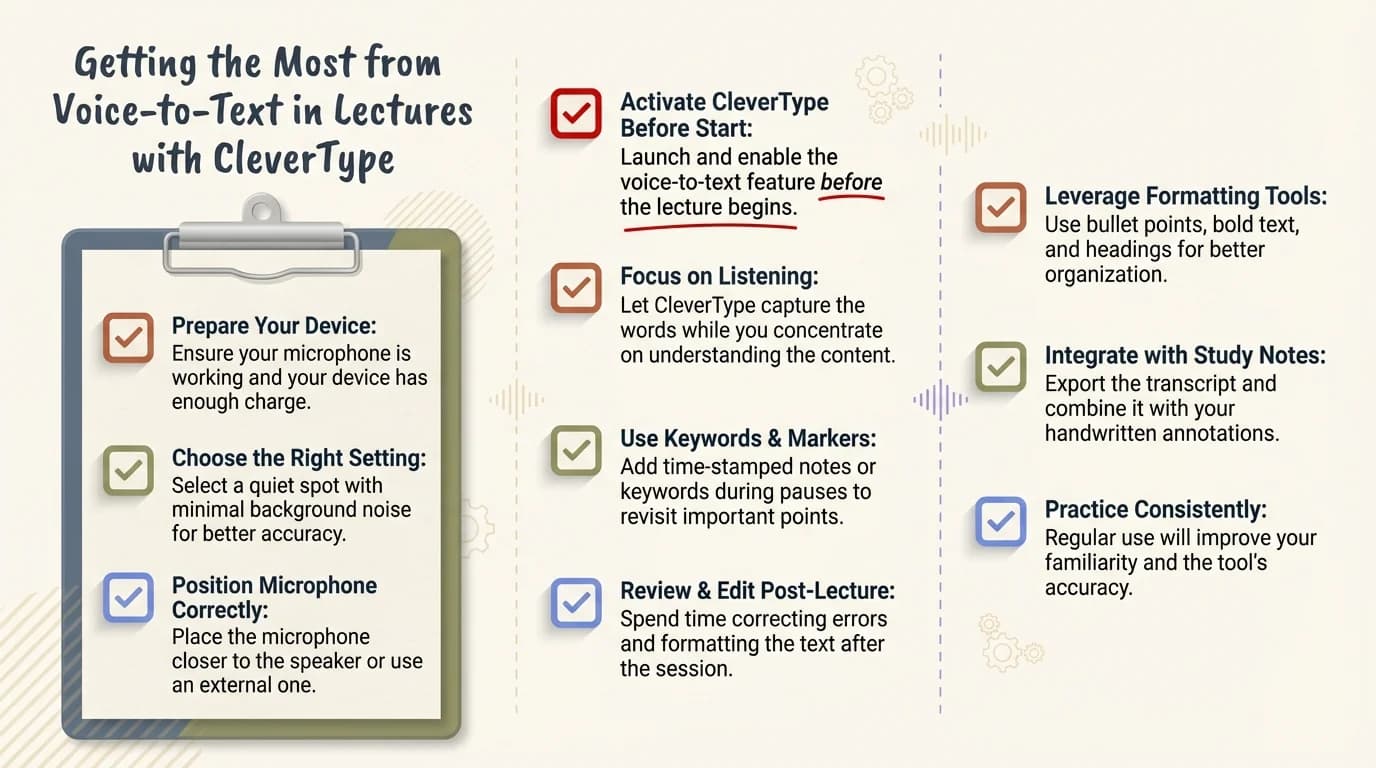
10 essential tips for capturing better lecture notes using CleverType's AI-enhanced voice-to-text
Academic Writing Help: Emails, Reports, and Lab Write-Ups
Consequently, The student writing most likely to go wrong isn't the essay. It's the email.
Hence, Emailing a professor asking for an extension. Emailing a supervisor about your placement. Emailing uni admin to dispute a grade. These carry real stakes — and students usually end up either too casual (sounds unprofessional) or trying too hard to sound formal (comes across as stiff and weird). Neither lands well.
Tone adjustment is where CleverType earns its keep. Therefore, Type what you want to say in whatever natural voice comes out, then shift the tone to professional with one tap. Therefore, It keeps your meaning intact, just adjusts how it reads on the other end.
Furthermore, For reports and lab write-ups, the help extends to:
- Grammar fix catching passive voice overuse, which shows up constantly in lab reports
- Word suggestions that are more precise and field-specific
- Sentence structure improvements for complex technical writing
- Smart predictions that adapt to the type of document you're working on
A ScienceDirect study on student AI adoption in academic writing found the top reasons students use AI writing tools are improving readability (51%) and checking grammar (22%). Nevertheless, That's basically CleverType's whole thing.
Hence, That said — one thing worth being clear on for lab reports and formal work: CleverType helps you write better, it doesn't write for you. The thinking stays yours. The tool just makes sure the writing actually reflects how good that thinking is.
Study Productivity App: Managing the Full Workflow
Academic productivity isn't just about writing better. Hence, It's about cutting the friction between having a thought and actually getting it into something coherent. Nonetheless, Those small friction points — fixing autocorrect disasters, second-guessing tone, manually cleaning up transcripts — eat more time than they should.
Here's what a realistic student day looks like with CleverType:
Morning lecture:
- Voice-to-text captures the professor's key points
- Grammar fix tidies up the transcription into clean notes
Afternoon study session:
- Smart clipboard management keeps frequently used references accessible
- Predictive text speeds up typing when working through problem sets
Evening: essay drafting:
- Context-aware suggestions help maintain consistent academic tone
- Grammar fix catches errors so you're not losing marks on avoidable mistakes
Night: quick professor email:
- Tone adjustment shifts your draft from casual to professional
- Smart reply suggestions help when you're too tired to think
Additionally, The time saved from removing these friction points adds up faster than you'd expect. Nevertheless, Students lose a ton of time on the micro-stuff: rereading emails three times before sending, manually fixing grammar they know is off but can't quite pinpoint, fighting autocorrect for the fifth time in a row. CleverType handles those automatically.
Moreover, And for students bouncing between phone, tablet, and laptop — CleverType syncs your writing patterns, clipboard, and settings across devices. Hence, No starting from scratch on a new device.
CleverType vs Other Student Writing Tools
Students have real options. Nevertheless, So how does CleverType actually stack up against what else is out there?
| Tool | What it does well | The gap |
|---|---|---|
| CleverType | Works in every app, grammar + tone + voice + AI, privacy-first, 100+ languages | — |
| Grammarly Keyboard | Strong grammar checking | Limited to grammar; no voice-to-text or AI assistant |
| Gboard | Fast, free, voice typing | Basic autocorrect only; sends data to Google |
| SwiftKey | Good predictions, adaptable | No grammar fix or AI writing features |
| Dedicated note apps | Good for organization | Don't help with the actual writing quality |
Moreover, The case for CleverType is pretty simple: it's everything in one keyboard. No separate grammar app. No separate voice-to-text tool. Nevertheless, No switching between three different apps to get what CleverType handles automatically. It's just there — in every app, all the time.
Moreover, The privacy gap is real too. Nonetheless, Unlike Gboard, CleverType doesn't send your keystrokes to a third party for processing. For students typing personal statements, research data, or private communications — honestly, that matters more than most people stop to think about.
Download CleverType for free and see how it fits into your actual workflow.
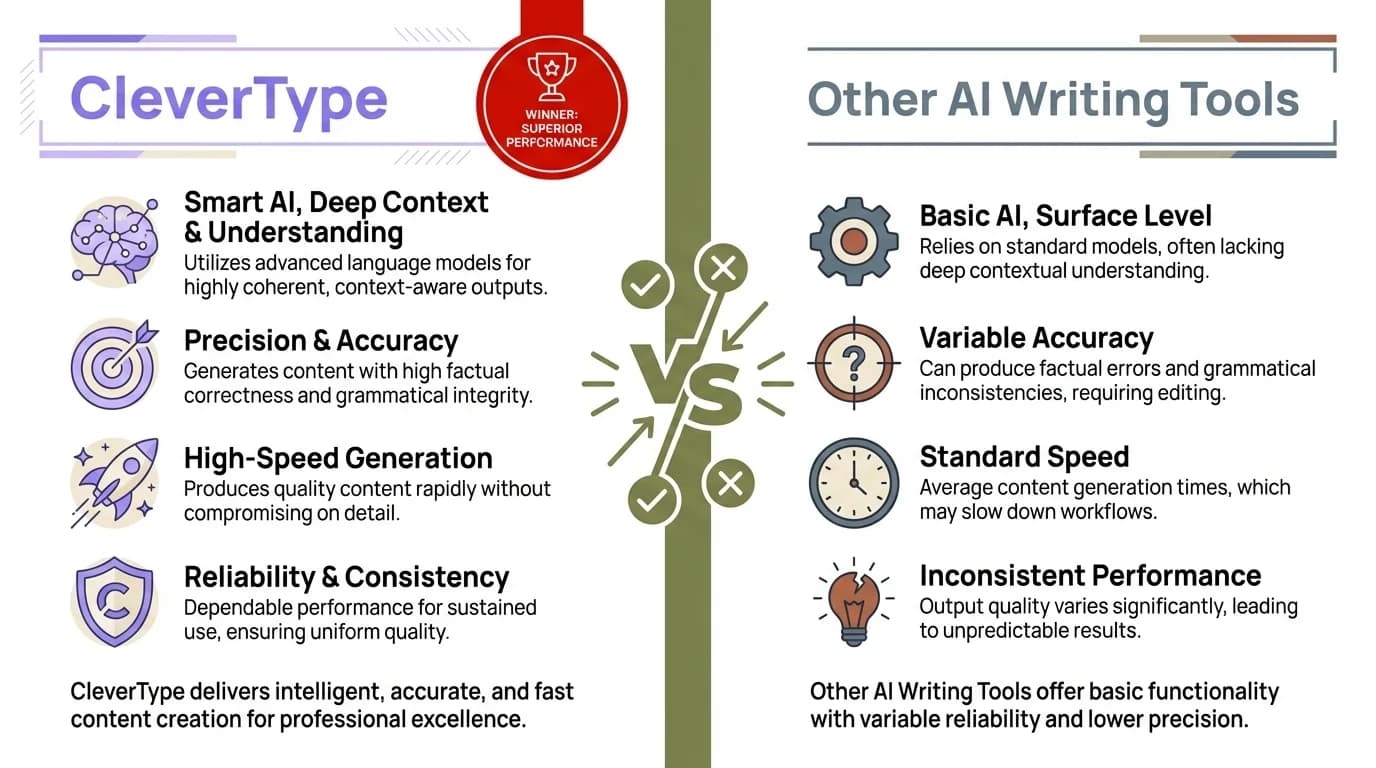
CleverType vs other AI writing tools: why an AI keyboard beats standalone apps for student writing
Real Student Use Cases: Where CleverType Makes a Difference
Different students, different problems. Here's where CleverType actually shows up:
The non-native English speaker writing assignments in their second language
Moreover, CleverType supports 100+ languages and has grammar assistance that catches common cross-language errors. Instead of stopping to check every sentence in a separate translator, the help is already where you're typing.
The student who writes fast but careless
Nevertheless, Real-time grammar fix means the essay doesn't need a completely separate proofreading pass at the end. Errors get flagged as they happen — when they're much easier to fix than an hour later.
The student who struggles to sound professional
Tone adjustment is this student's main tool. Write naturally, shift the tone before sending. Additionally, Works for emails, introductions, formal reports — anything where "casual me" needs to sound like "professional me."
The student who falls behind in lectures
Voice-to-text with AI enhancement means they can dictate notes rather than type them — keeping up with fast-paced lectures without sacrificing the actual listening part.
The student in a STEM field writing technical reports
Context-aware suggestions pick up the vocabulary of the field over time. Nevertheless, Technical terms, statistical language, scientific phrasing — suggested as you type rather than flagged as errors by an autocorrect that has no idea what a "heteroscedastic residual" is. That alone is kind of a relief.
Furthermore, The AI in education market hit $9.58 billion in 2026 and is still growing. Student AI tools are only getting better — but CleverType is already where most students actually need it: practical writing help, right in the keyboard, no extra apps required.
How to Get Started with CleverType as a Student
Setup takes about three minutes. Genuinely:
- Download CleverType from the Play Store — it's free
- Set it as your default keyboard in your phone settings
- Grammar fix is on by default — but check your settings to make sure
- Try voice-to-text next time you're in a lecture or seminar
- Test tone adjustment on your next email to a professor
After a week of regular use, most students notice the biggest change in speed — because they're not stopping every few sentences to manually fix errors or reread things three times before hitting send.
One thing worth being clear on for essays: CleverType works best as a writing partner, not a replacement. Write your own ideas, your own arguments. Let CleverType handle the grammar and polish. Professors can tell when writing is genuinely yours — and honestly, so can you. That's what actually builds the skills you'll need after graduation.
The 94% of students who now use AI tools for assessed work aren't all cheating — most are using AI as a productivity layer while still doing the actual thinking. That's exactly the model CleverType fits.
Frequently Asked Questions
Is CleverType free for students?
Furthermore, Yes — CleverType is free to download and the free plan is actually solid. Hence, Grammar fix, tone adjustment, and voice-to-text all work without paying. Furthermore, Premium features exist for more advanced use cases, but most students won't need them to get real value.
Does CleverType work with Google Docs and other writing apps?
Yes. Consequently, Because CleverType is the keyboard itself, it works in any app where you can type — Google Docs, Microsoft Word mobile, Notion, Gmail, messaging apps, all of it. Consequently, You don't need to install anything separately for each one.
Is it safe to use CleverType for academic work — will it be flagged as AI-generated?
Nonetheless, CleverType helps you fix your own writing — it's a grammar and style tool, not a content generator. The writing is yours. Consequently, AI detection tools flag AI-generated content, not AI-assisted editing. Using CleverType is the same category as using spell check or Grammarly — which universities have been fine with for years.
Can CleverType handle academic or technical vocabulary?
Nevertheless, Yes. Additionally, CleverType uses context-aware suggestions that adapt to what you're actually writing. Technical terms in STEM, academic language in humanities, field-specific vocabulary — all handled better than standard autocorrect, which tends to butcher anything outside everyday language.
How does CleverType's voice-to-text compare to standard speech-to-text?
Hence, CleverType adds AI enhancement on top of the transcription — filtering filler words, adding punctuation, improving readability. Therefore, Standard speech-to-text gives you a raw transcript full of "um" and run-on sentences. CleverType gives you notes you can actually use.
Does CleverType send my data to external servers?
Additionally, CleverType is privacy-first by design — your keystrokes and writing data stay on your device. That's a real difference from keyboards like Gboard, which send your typing to Google's servers for processing.
Will using CleverType actually help me write better over time?
Yes — if you pay attention to what it flags. Students who use AI writing tools as feedback mechanisms (seeing why something is wrong) build better writing skills over time. Moreover, Students who just accept corrections without reading them don't. CleverType shows you the issue, which means you can actually learn from it.
Ready to Type Smarter?
If you're still dealing with bad autocorrect, sloppy grammar passes, and emails you hesitate to send — it might be time to try something better. Additionally, CleverType is free, takes about three minutes to set up, and honestly just works.
Available on Android • 100+ Languages • Privacy-First
Share this article:
Sources:
- Pew Research Center: How Teens Use and View AI (2026)
- Frontiers in Education: The Impact of Generative AI on Academic Reading and Writing (2025)
- DemandSage: 77 AI in Education Statistics 2026
- Programs.com: The Latest AI in Education Statistics (2026)
- ScienceDirect: What Influences College Students Using AI for Academic Writing?
- Otter.ai: Lecture Notes for Students and Teachers