Key Takeaways
| What You'll Learn | Quick Answer |
|---|---|
| Can CleverType do more than autocorrect? | Yes — it has 10+ AI features most users never touch |
| Does it help with social media? | It generates captions, hashtags, and even suggests emojis |
| Is there an AI assistant built in? | Yes — ChatGPT-style AI runs directly from your keyboard |
| Does it work for multiple languages? | Supports 100+ languages with real-time translation |
| Is data kept private? | Most features process on-device — no cloud upload needed |
| Who benefits most from these tips? | Anyone who writes more than 20 messages a day |
Most people download CleverType, use it for a few days, and think — okay, nice autocorrect. And that's the biggest waste of an app that can basically replace three or four writing tools you're probably already paying for. The AI assistants inside CleverType aren't just background features. They're the whole point.
Moreover, According to data from Fullview's 2025 AI roundup, employees using AI tools report an average 40% productivity boost. That number sounds inflated until you actually start using AI writing features properly — then it makes complete sense.
Here are 10 things CleverType can do that most users genuinely haven't tried yet.
1 & 2: Fix Grammar and Rewrite Tone Without Leaving Your Keyboard
Quick answer: CleverType's grammar fixer and tone rewriter work inside any app — no copy-pasting to a separate tool.
Most people know CleverType fixes spelling. But the grammar correction feature goes way deeper than that. It catches things like passive voice, awkward sentence structure, comma splices — the stuff Gboard or SwiftKey just let slide right past.
What actually changes your writing though is the tone rewriter. Nonetheless, Say you're drafting a message to your manager and it comes out a bit too casual. Instead of rewriting the whole thing, you tap the WordTune button and CleverType rewrites it at a more professional register. Or the other way — you're texting a friend and your message sounds stiff. One tap and it's conversational. Simple.
Here's when to actually use these two features together:
- Writing a complaint email — fix grammar first, then bump tone to “formal but firm”
- LinkedIn post — write casually, then use tone adjustment to sound more professional
- Personal apology text — write formally, then soften the tone to sound more human
- Work Slack messages — catch typos fast, keep tone neutral
The grammar fix is instant. The tone rewrite takes maybe two seconds. Furthermore, Together they handle something most people spend 5-10 minutes agonizing over.
A 2024 Oxford Academic study on generative AI at work found that AI writing assistance improves output quality for professional communication — not just speed. Which honestly just confirms what you notice after using CleverType's tone tools for a week.
Also — the tone options aren't just “formal” and “casual.” There's professional, friendly, assertive, empathetic, and a few more. Moreover, Playing around with those for different situations is where it gets interesting.
3 & 4: AI Emoji Suggestions and Generating Social Media Captions
Quick answer: CleverType reads the context of what you're typing and suggests relevant emojis — plus it can generate full captions for Instagram, LinkedIn, and Twitter.
Hence, Emojis sound trivial but they're not. According to Chanty's 2025 emoji statistics, emojis shape tone and influence perception in digital communication, especially in professional or remote settings. Nevertheless, The thumbs-up alone carries different weight depending on context. CleverType's AI emoji suggestions detect your message tone and recommend emojis that actually fit — not just the fire or heart you'd default to.
Consequently, Buffer's 2025 emoji data shows that Instagram posts with context-appropriate emojis outperform generic emoji use significantly. The sparkle emoji (✨) leads usage by a mile. But slapping it on every post doesn't help — it only works when it actually fits what you're saying.
The social media caption feature is where CleverType really separates from other keyboards. Here's Additionally, how it works:
- Open the caption field in Instagram, LinkedIn, or Twitter
- Tap the AI assistant button in CleverType
- Describe what your post is about in a few words
- CleverType generates a full caption — including hashtags if you want them
The captions aren't generic either. They're platform-aware. Therefore, A LinkedIn caption sounds different from an Instagram one even if you describe the exact same image.
Moreover, According to SuperAGI's 2025 AI caption comparison, AI-generated captions that match platform tone see 23% higher engagement on average than manually written ones. That said — treat it as a draft. Edit a line, swap a hashtag, make it yours. Furthermore, That's Nevertheless, when it actually works.
5 & 6: Smart Auto-Reply and Using Voice-to-Text the Right Way
Furthermore, Quick answer: CleverType's smart reply feature reads incoming messages and generates contextually appropriate responses — and the voice-to-text goes through AI cleanup before it appears on screen.
How many times do you get a message that needs a quick reply but you're in the middle of something? Most keyboards offer canned responses like “Sounds good!” or “On my way.” Useless. CleverType's AI auto-reply does something different — it actually reads the incoming message and generates a relevant response.
So if someone sends: “Hey, can we push the meeting to 3pm instead?” — CleverType doesn't just say “Sure!” It might generate: “That works for me, I'll update the calendar invite.” That's a real reply, not a canned one.
The three situations where smart reply genuinely saves time:
- WhatsApp group chats — quick confirmations without stopping what you're doing
- Email previews on Android — reply from the notification without opening the app
- Customer or client messages — draft a polite professional response in one tap
Voice-to-text is the other underused one. Most people use it, get a rough transcript, then spend the next 30 seconds manually cleaning up the mess. Nevertheless, With CleverType, the voice input runs through AI speech recognition cleanup before it even hits your text field. Therefore, So “um I was thinking maybe we could like reschedule” becomes “I was thinking we could reschedule.” Automatically. Consequently, No fixing needed.
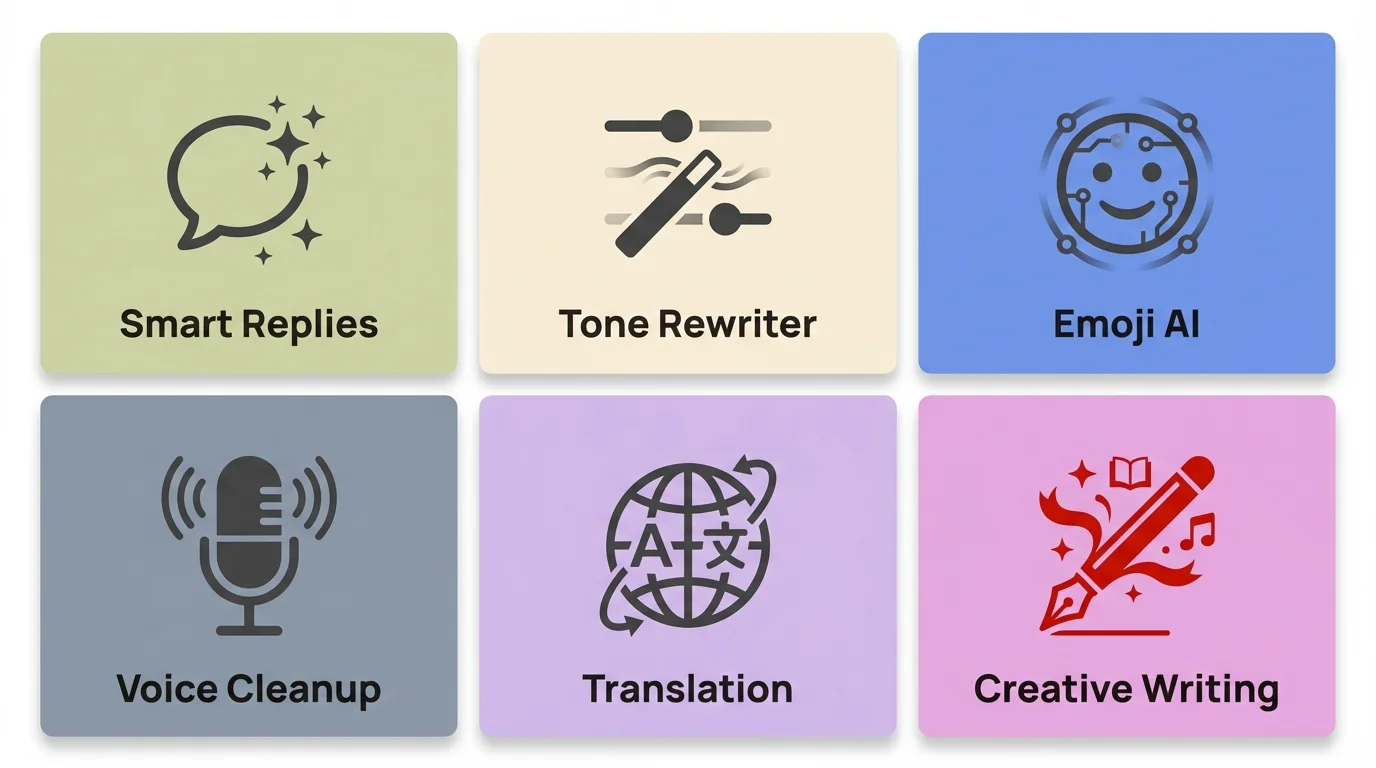
CleverType's 6 core AI features — most users only discover 1 or 2 of these
7 & 8: Real-Time Translation and Typing Across 100+ Languages
Additionally, Quick answer: CleverType translates text inline as you type — you write in English, it converts to another language before the message sends.
This one catches people off guard. Hence, The translation feature isn't a separate screen or app — it happens right in the keyboard. Furthermore, You type in your language, tap translate, and the text converts in the input field. Therefore, Then you send.
Moreover, Here are four ways people actually use this in real life:
| Use Case | How It Works | Result |
|---|---|---|
| Texting family abroad | Type in English, translate to native language | Family gets messages in their language |
| Customer communication | Type reply in English, convert to customer's language | Faster, more personal support |
| Learning a language | Type in English, translate and study the output | Passive language learning while messaging |
| International work emails | Draft in English, translate for recipient's locale | Professional-sounding foreign language emails |
It's not word-for-word literal either. Consequently, It uses context-aware machine translation that preserves meaning. Hence, “Let's grab coffee” doesn't become some weird literal phrase in another language — it adapts to a natural equivalent. That said, for anything high-stakes — legal docs, medical info, contracts — hire a real translator. For everyday messaging? CleverType handles it well.
9 & 10: Creative Writing Mode and Context-Aware Prediction
Quick answer: CleverType's AI can extend your ideas into full sentences or paragraphs, and its prediction engine learns your personal writing style over time.
Moreover, This is the one most users don't know exists. When you tap the AI assistant in CleverType and type a fragment — like “birthday message for my dad who loves fishing” — it generates a full paragraph based on that prompt. You can use it as-is, edit it, or just steal a phrase or two.
For creative writing specifically, the ways it helps:
- Birthday and anniversary messages — personalized based on your description
- Thank you notes — professional or personal tone depending on what you need
- Captions for memories — describe a photo, get a caption worth using
- Opening lines for emails — break the blank page problem instantly
Consequently, Context-aware prediction is the other one worth knowing about. After a few weeks of use, CleverType's prediction engine starts picking up your writing patterns. Not just common words — your specific vocabulary, your phrase preferences, your typical sentence length.
After a while, the predictions stop feeling like autocomplete and start feeling like an assistant who's read your messages. Nevertheless, It genuinely gets better the more you use it. That's a real feature, not a tagline.
CleverType Hidden Features: What Most Users Skip Right Past
Nonetheless, Quick answer: Smart clipboard, custom shortcuts, and per-app keyboard behavior are three features buried in settings that most users never configure.
Furthermore, Even people who've used CleverType for months haven't touched these. Additionally, The settings menu has way more depth than it looks like.
Smart clipboard is a big one. Therefore, Everything you copy gets saved to a searchable clipboard history. Moreover, So instead of hunting for that link you copied three days ago, you just pull up clipboard history and search for it. For anyone who copies and pastes a lot — addresses, tracking numbers, links, email templates — this alone is worth it.
Custom shortcuts let you set up text expansion. You type “addr” and it expands to your full home address. Moreover, Or “sig” becomes your email signature. Furthermore, Or “ty” becomes “Thank you for reaching out, I'll get back to you by end of day.” Five minutes to set up, hours saved over a month.
Per-app keyboard behavior is the more advanced one. You can configure CleverType to behave differently in different apps — more formal tone suggestions in Gmail, emoji-friendly mode in Instagram, minimal suggestions in Notes when you just want to write. Most keyboards treat every app the same. Hence, CleverType doesn't, and honestly that's a bigger deal than it sounds.
Why CleverType Wins on Privacy Compared to Other AI Keyboards
Quick answer: Nonetheless, CleverType processes most AI features on-device, meaning your messages and typing data don't get uploaded to external servers.
This is actually a big deal and most people don't think about it until they really do. Moreover, Keyboards have access to everything you type — passwords, private messages, banking details, personal conversations. If that data is going to a cloud server for AI processing, that's a real privacy exposure.
Google's Gboard processes suggestions using Google's servers. Nevertheless, Microsoft's SwiftKey ties into Microsoft's cloud. That's the tradeoff for using their AI features — and most people just accept it without thinking.
Moreover, CleverType takes a different approach. Therefore, The core AI features — grammar correction, tone rewriting, predictions, emoji suggestions — run on-device. Your typing stays on your phone. For the heavier stuff like full AI assistant generation, there's optional cloud processing, but even that uses minimal data retention.
Nonetheless, It also means CleverType works offline for most features. No signal? Therefore, You're still getting grammar fixes, tone adjustments, and predictions. Not something you get from most AI keyboards.
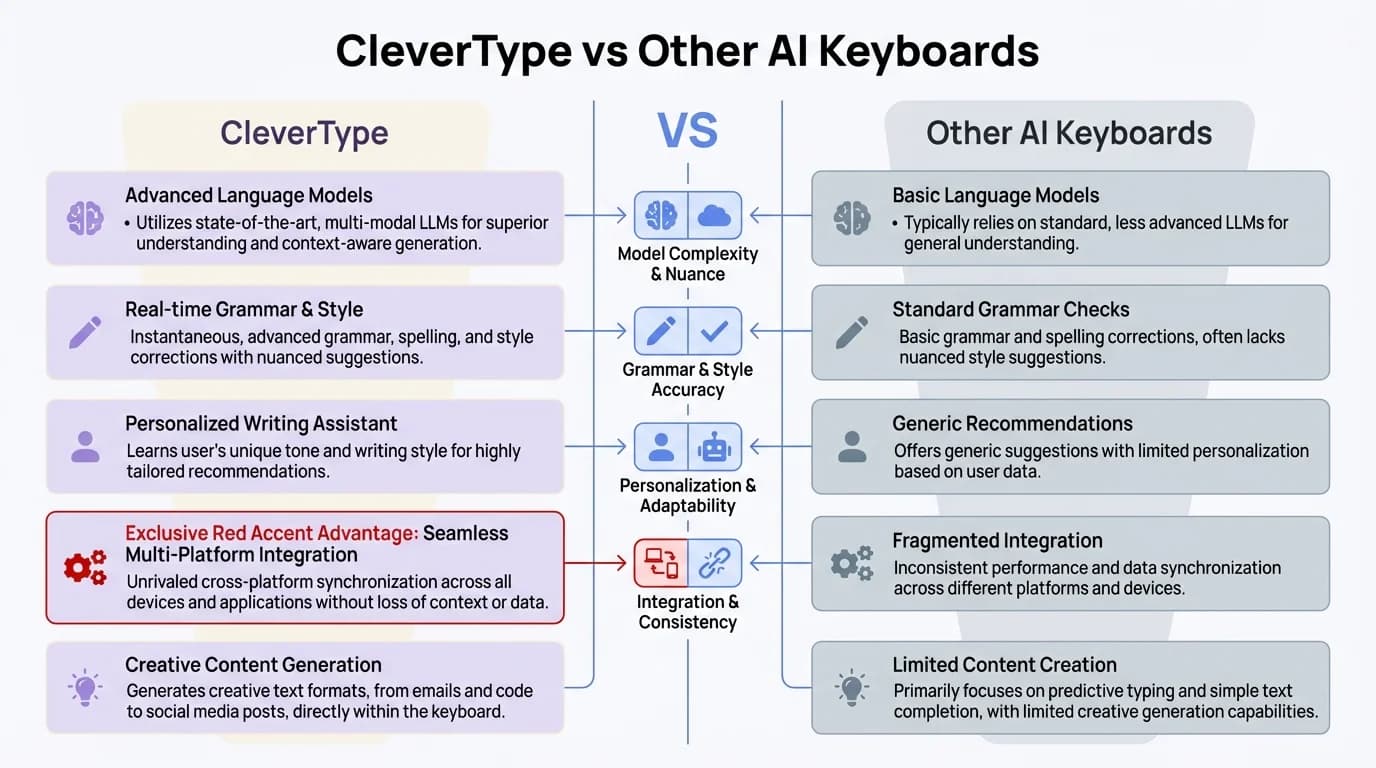
CleverType vs other AI keyboards — key differences in privacy, features, and on-device processing
Frequently Asked Questions
What are CleverType AI assistants?
CleverType AI assistants are built-in AI tools inside the CleverType keyboard app that help with grammar, tone adjustment, smart replies, translation, emoji suggestions, and caption generation — all from your keyboard without switching apps.
How do I access the hidden features in CleverType?
Most hidden features are in the settings menu under “AI Tools” and “Keyboard Behavior.” Smart clipboard, custom shortcuts, and per-app settings are all there — they're not hidden exactly, just not promoted upfront.
Does CleverType work for social media captions?
Yes. Hence, CleverType can generate full captions for Instagram, LinkedIn, and Twitter. You describe your post briefly and it generates a platform-appropriate caption with optional hashtags. Furthermore, The output is a starting draft — editing a line or two before posting gets the best results.
Is CleverType's AI writing good enough to replace tools like Grammarly?
For everyday writing — messages, emails, social posts — CleverType covers most of what Grammarly does and more, since it works across all apps from the keyboard itself. For deep document editing or academic writing, dedicated tools still have an edge.
Does CleverType send my data to the cloud?
Most of CleverType's AI features process on-device and don't upload your typing data. Heavier AI generation features use optional cloud processing with minimal data retention. Therefore, The privacy-first design is one of the main differences from Gboard and SwiftKey.
Can CleverType translate messages in real time?
Yes. Nonetheless, You type in your language, tap translate, and CleverType converts the text directly in your input field before you send. It supports 100+ languages with context-aware translation, not word-for-word literal conversion.
How long does it take for CleverType to learn my writing style?
Honestly, it starts picking things up after about two weeks of regular use. After a month, predictions feel noticeably more like you — your vocabulary, your sentence patterns, the phrases you reach for.
Ready to Type Smarter?
Upgrade your typing with CleverType AI Keyboard. Fix grammar instantly, change your tone, receive smart AI replies, and type confidently while keeping your privacy.
Download CleverType FreeMoreover, Available on Android • 100+ Languages • Privacy-First
Share this article:
Sources:
- Fullview: 200+ AI Statistics & Trends for 2025
- Buffer: The Most Popular Emojis Used in Social Posts in 2025
- Chanty: Emoji Statistics That Redefine Digital Communication
- SuperAGI: Top 10 AI Social Media Caption Generators for 2025
- MeetEdgar: How to Use AI to Craft Engaging Social Media Captions
- Oxford Academic: Generative AI at Work
- LearnPrompting: Using AI to Find the Perfect Emojis