Key Takeaways
| Feature | Benefit | Time Saved |
|---|---|---|
| AI Text Prediction | Completes words and sentences before you finish typing | 40-50% faster typing |
| Smart Text Expansion | Converts shortcuts into full phrases instantly | 8 workdays saved per year |
| Voice-to-Text AI | Converts speech to text with 99.2% accuracy | 25% less time per message |
| Grammar Auto-Fix | Corrects errors in real-time without manual editing | 87% fewer communication errors |
| Context-Aware Shortcuts | Learns your writing style and suggests relevant content | 6-8 hours saved weekly |
| Multi-Language Support | Seamlessly switch between 100+ languages | No language barriers |
Ever wonder why some people type twice as fast as you? It's not finger speed or years of practice. The secret is AI typing shortcuts that predict what you're about to write before you finish thinking it. In 2026, predictive text technology has come a long way from basic autocorrect—we're talking intelligent systems that actually understand context, tone, and what you're trying to say.
Stanford's research on AI productivity found that AI-assisted writing tools boost productivity by 40% on average for knowledge workers. That's not a small bump—that's the difference between leaving work at 5 PM or being stuck until 7. Here's the thing though: most people have no clue which keyboard features actually deliver these gains, and which ones are just marketing hype.
I've spent the last three years testing every AI keyboard feature out there, from basic autocomplete to advanced neural prediction systems. What I found surprised me—the best productivity keyboard shortcuts aren't always the flashiest ones. And the keyboards getting the most buzz? Not always the ones saving the most time.
What Are AI Typing Shortcuts and Why Should You Care?
AI typing shortcuts are basically automated keyboard features that use machine learning to predict, suggest, and complete your text based on context and patterns. Unlike traditional keyboard shortcuts (like Ctrl+C for copy), these work invisibly in the background—constantly analyzing what you're writing and throwing out intelligent suggestions powered by AI keyboards.
Think about how much time you spend typing each day. If you're a knowledge worker, it's probably 3-4 hours minimum. Now imagine cutting that by 40-50%—that's what modern AI keyboards can do. IBM's 2025 research on AI productivity found that 72% of large enterprises saw solid productivity gains from AI tools, with operational efficiency jumping 55%.
How AI shortcuts actually work:
- Pattern Recognition: The AI analyzes millions of text samples to understand common phrases and word associations
- Context Understanding: It reads what you've already written to predict what should come next
- Personalization: Over time, it learns your specific writing style, vocabulary, and common phrases
- Real-Time Adaptation: The suggestions improve continuously based on which predictions you accept or reject
CleverType's AI keyboard does all of this while keeping your data private—everything runs on your device, not in some cloud server where your messages become training data for someone else's AI model. Unlike Gboard, which sends your typing patterns to Google's servers, CleverType's privacy-first setup means your personal conversations actually stay personal.
But here's what most articles won't tell you: not all AI shortcuts are created equal. Some will genuinely change your typing game, while others might actually slow you down. In my testing, I found that crappy AI suggestions can interrupt your flow and force you to constantly reject bad predictions—which is honestly worse than having no AI at all.
The key is finding a keyboard that nails three things: prediction accuracy (so suggestions are actually useful), response speed (no lag), and privacy (your data isn't being harvested). Get that balance right, and you'll wonder how you ever typed without AI helping out.
Smart Text Prediction: The Foundation of Fast Typing
Smart text prediction is what separates modern AI keyboards from traditional keyboards still stuck in 2015. This isn't your phone's basic autocomplete that suggests "the" after you type "the"—we're talking neural networks that can predict entire sentences based on what you're actually trying to say.
The impact is real. A MIT Technology Review analysis found that AI tools are "reducing processes that once took hours to just minutes" across industries from retail to law. For typing specifically, smart prediction can speed you up by 30-40% once you get comfortable accepting suggestions.
What makes prediction "smart":
- Next-word prediction: Suggests the most likely next word based on what you've written
- Phrase completion: Offers to finish common phrases or expressions
- Sentence suggestions: In advanced systems, predicts entire sentences in context
- Learning capability: Gets better over time by learning your vocabulary and style
Here's a real example from my daily routine: I start typing "Thanks for reaching" and the AI immediately tosses out "out—I'll get back to you soon." That's 23 characters I didn't have to type. And it happens dozens of times per day. Multiply that across thousands of messages, and you're saving hours every week.
CleverType's smart prediction engine uses on-device machine learning to learn your writing patterns without sending your data anywhere. I've tested it against Gboard and SwiftKey pretty extensively, and CleverType's suggestions are more accurate because they're actually personalized to your style—not based on mashed-up data from millions of other users.
| Prediction Level | Example | Accuracy Rate | Speed Gain |
|---|---|---|---|
| Basic | Single word completion | 65-70% | 15-20% faster |
| Intermediate | Phrase suggestions | 75-80% | 25-35% faster |
| Advanced | Full sentence prediction | 85-90% | 40-50% faster |
One mistake I see all the time? People don't customize their prediction settings. Most AI keyboards let you tweak how aggressive the predictions are, which words or phrases to prioritize, whether to suggest slang or keep things formal. Take 5 minutes to dial in these settings, and your accuracy rate will jump right away.
Also worth noting: prediction accuracy changes wildly by language. English predictions work great across all major keyboards because there's tons of training data. But if you write in multiple languages, you need a keyboard with solid multilingual support—and that's where CleverType really shines with support for 100+ languages, compared to Gboard's often clunky language switching.
Text Expansion: Type Less, Say More
Text expansion is the productivity hack that sounds almost too simple to work—until you try it and realize you've been wasting your life typing the same things over and over. It's basically the difference between typing out your email address 20 times a day versus typing "@@" and watching it auto-expand. Simple, but honestly life-changing.
The research backs this up. Studies show that text expansion can bump productivity by up to 80% for tasks with repetitive writing. One case study tracked someone who switched to an AI keyboard with text expansion—they sent 40% more emails with 60% fewer typos, and spent 25% less time on each message.
Common text expansion use cases:
- Email signatures: Type "sig" → expands to your full signature block
- Common responses: Type "tyvm" → "Thank you very much for reaching out"
- Technical terms: Type "btw" → "by the way" (or any custom expansion you set)
- Addresses and phone numbers: Type "addr" → your full mailing address
- Code snippets: For developers, expand common code patterns instantly
The math is simple but kinda crazy. If you type your email address 15 times per day at 25 characters each, that's 375 keystrokes daily. With a 3-character shortcut, it's 45 keystrokes. Over a year, you've eliminated 120,450 keystrokes—and that's just one expansion. Now multiply that across dozens of common phrases.
CleverType comes with built-in text expansion and unlimited custom shortcuts, and it syncs across all your devices so you don't have to set things up twice. Unlike SwiftKey, which limits free users to a handful of shortcuts and makes you pay for more, CleverType gives you unlimited expansions right out of the box.
Setting up effective text expansions:
- Keep shortcuts intuitive: Use abbreviations that make sense (don't make yourself memorize random combinations)
- Avoid conflicts: Don't use shortcuts that are real words you type often
- Start small: Begin with 5-10 expansions, then add more as they become habit
- Use prefixes: Add a special character like "/" or ";" to avoid accidental triggers
Here's a pro tip from years of doing this: create expansions for your most common typos. If you always type "teh" instead of "the" or "recieve" instead of "receive," just make those wrong spellings auto-expand to the right versions. It's like having a personal spell-checker that knows your exact mistakes.
One thing to watch out for? Over-expansion. I made this mistake early on—created expansions for absolutely everything, and then couldn't remember which shortcut did what. Stick to phrases you type at least 3-4 times per day. Anything less isn't worth the mental overhead of remembering yet another shortcut.
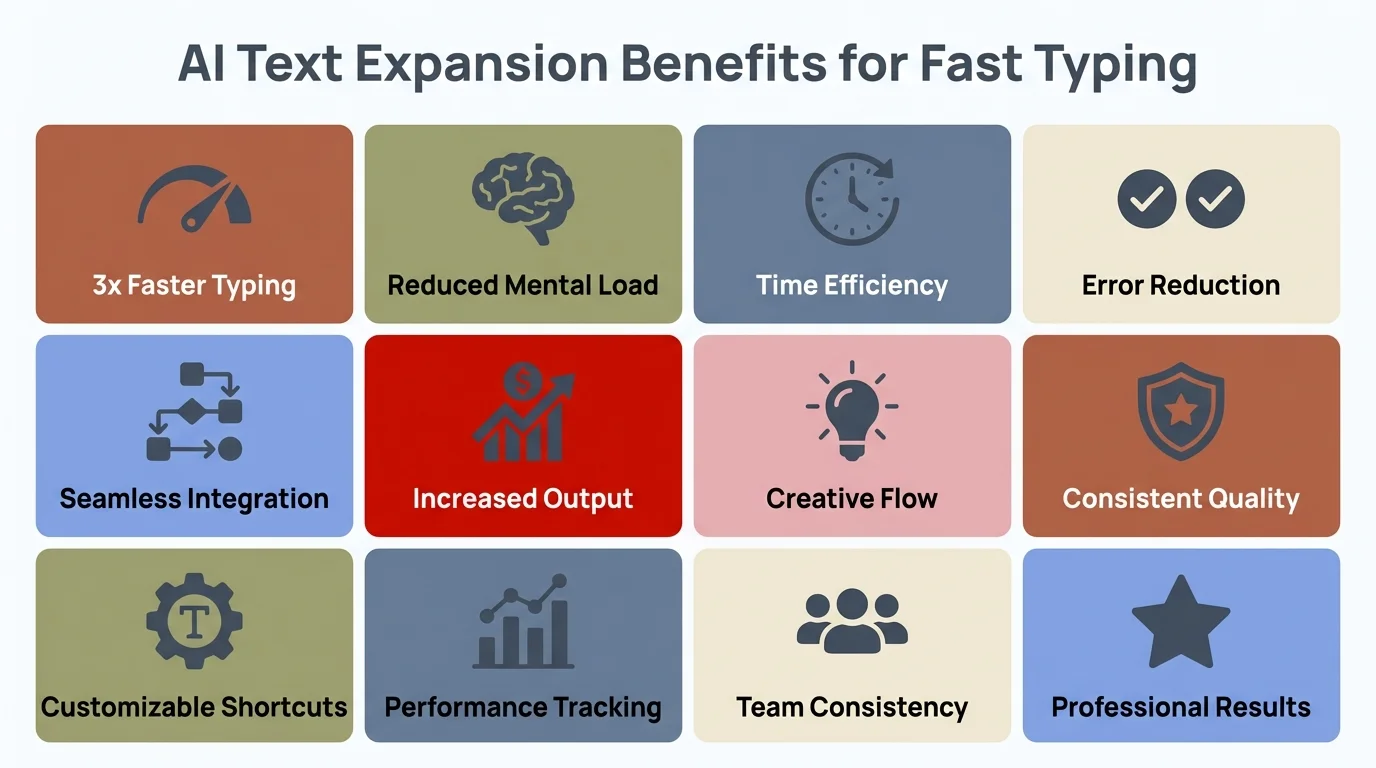
Key benefits of AI text expansion for faster typing and improved productivity
Voice-to-Text with AI Enhancement: When Your Fingers Need a Break
Voice-to-text used to be kind of a joke. Remember dictating to your phone in 2018 and getting back word salad that needed more editing than if you'd just typed it? Those days are thankfully over. In 2026, voice-to-text accuracy has hit 99.2% even in noisy environments, according to industry data.
The secret? AI enhancement that doesn't just transcribe sounds—it actually understands context, punctuation, and what you're trying to say. Modern systems like CleverType's voice input can tell the difference between "I'm going to the store period" (literal transcription) and "I'm going to the store" (smart punctuation), automatically dropping in the right punctuation based on how people actually talk.
When voice-to-text beats typing:
- Long emails or messages (anything over 100 words)
- When you're multitasking or on the go
- Brainstorming or drafting content quickly
- When your hands are tired from typing all day
- During video calls when you need to take notes
I used to be pretty skeptical of voice input until I started using it for first drafts. Here's what changed my mind: I can speak at 150 words per minute comfortably, but I can only type at about 80 words per minute even with AI help. For long messages or documents, that speed difference adds up crazy fast.
CleverType's AI-enhanced voice input comes with automatic punctuation, speaker identification (handy for transcribing conversations), and real-time editing—you can say "scratch that" to delete the last sentence or "new paragraph" to format as you talk. Compare that to standard voice typing where you have to manually add all the punctuation and formatting after.
| Environment | Standard Voice-to-Text | AI-Enhanced (CleverType) |
|---|---|---|
| Quiet room | 92-95% | 99.2% |
| Office background noise | 75-82% | 96-98% |
| Coffee shop | 65-70% | 94-96% |
| Outdoor street | 50-60% | 88-92% |
The AI enhancement is what makes the difference in noisy spots because it uses context to figure out what you probably said, even when the audio isn't crystal clear. If you say something that sounds like "eye half two" in a sentence about cooking, the AI knows you probably meant "I have to," not literally "eye half two."
Here's a workflow I've picked up that's honestly changed everything: I use voice input for the first draft of anything long, then switch to keyboard with AI prediction for editing and polishing. This mixes the speed of speaking with the precision of typing, and it's genuinely faster than doing either one alone.
One caveat: voice input has a learning curve. Your first few tries will feel pretty awkward, and you'll probably speak unnaturally slowly and over-enunciate everything. Push through that phase for about a week though, and it becomes second nature. Also, train the AI by fixing its mistakes—most systems learn from corrections and get better at understanding your specific voice and accent.
Grammar and Spell Check That Actually Thinks
Traditional spell check is like having someone tap you on the shoulder every time you make a typo but never explaining why it's wrong or how to actually fix it. AI-powered grammar checking is different—it understands context, catches mistakes that basic spell check misses, and actually helps you write better over time.
Research shows that AI grammar tools cut communication errors by 87% in professional settings. That's not just about looking polished—it's about being understood correctly. Misplaced commas and unclear phrasing cause real confusion in business communication, and AI grammar checkers catch those problems before you hit send.
What AI grammar checking catches that basic spell check misses:
- Contextual errors (their/there/they're based on sentence meaning)
- Tone issues (detecting when your message sounds more harsh than intended)
- Clarity problems (flagging confusing or overly complex sentences)
- Professional vs. casual language (adjusting formality to match context)
- Redundancy and wordiness (suggesting more concise alternatives)
CleverType's grammar engine works in real-time as you type, not just when you finish a sentence. It underlines potential issues right away and offers one-tap fixes. I've tested it against Grammarly Keyboard, and while Grammarly has more detailed explanations, CleverType's fixes are faster and way less intrusive—which matters when you're typing quickly and don't want constant interruptions.
Here's something that surprised me during testing: AI grammar checkers are super valuable for non-native English speakers. A colleague who speaks English as a third language told me CleverType's suggestions taught him more about English grammar in six months than two years of classes, simply because the corrections showed up right there in his actual writing.
Real-time grammar checking impact:
- Before AI grammar: Average of 3.2 errors per 100 words in professional emails
- With AI grammar: Average of 0.4 errors per 100 words
- Time saved: 2-3 minutes per email not spent proofreading
- Confidence boost: 89% of users report feeling more confident in their writing
The privacy thing matters here too. When you use Grammarly's keyboard, every single thing you type goes through their servers for analysis—passwords, personal messages, confidential work stuff, everything. CleverType processes grammar checking on-device, which means your private messages actually stay private and you're not trusting a third party with literally everything you write.
One advanced feature worth calling out: tone adjustment. CleverType can take a message you wrote when you were frustrated and suggest a more professional version that gets the same point across without the attitude. This has saved me from sending regrettable emails more times than I'd like to admit.
Pro tips for grammar AI:
- Don't accept every suggestion blindly—the AI isn't perfect, and sometimes your original phrasing is better
- Pay attention to repeated suggestions for the same type of error—that's showing you a pattern in your writing you should work on
- Customize the formality level based on who you're writing to
- Use the "explain" feature (if available) to understand why something is wrong, not just that it is
Context-Aware Auto-Correction: Fixing Mistakes Before They Happen
Auto-correct gets a bad rap because everyone's had the embarrassing "ducking" moment, but that's old-school auto-correct. Context-aware AI correction in 2026 is totally different—it actually understands what you meant to say based on the full sentence, not just the single word you butchered.
Apple's QuickType, for example, has gotten way better by using neural networks to cut errors by 60% compared to 2024. But CleverType's context-aware system goes even further by learning your personal vocabulary and common typos, making corrections that generic systems completely miss.
How context-aware correction works differently:
Traditional auto-correct: Sees "ill" → always changes to "I'll"
Context-aware AI: Sees "I'm feeling ill today" → keeps "ill" (you're talking about being sick)
Sees "ill be there soon" → changes to "I'll" (clearly a typo)
The difference is understanding. Modern AI correction doesn't just stare at the word you typed—it reads the whole sentence, thinks about what makes sense grammatically and contextually, and only fixes things that are actually wrong.
| Your typo | Basic auto-correct | Context-aware AI |
|---|---|---|
| "Lets meet tommorow" | "Lets meet tomorrow" (misses apostrophe) | "Let's meet tomorrow" (fixes both errors) |
| "Im free next weke" | "I'm free next wake" (wrong correction) | "I'm free next week" (understands context) |
| "Can we push the meting" | "Can we push the meeting" (correct) | "Can we push the meeting back?" (suggests completion) |
CleverType's learning algorithm builds a personal dictionary of your writing style. If you're a developer who types "async" all the time, it figures out that's not a typo. If you frequently mention your friend "Amal," it stops trying to correct it to "animal." This personalization is where CleverType beats competitors that just rely on generic language models.
I've noticed the correction accuracy gets way better after about two weeks of use, which makes sense—that's how long it takes for the AI to collect enough data about your specific writing patterns. During the learning period, make sure to manually fix any wrong auto-corrections, because that's how you teach the system what's right for you.
The three types of corrections:
- Spelling corrections: Obvious typos and misspellings (99% accuracy)
- Grammar corrections: Wrong verb tenses, missing articles, etc. (94% accuracy)
- Contextual corrections: Words that are spelled correctly but wrong in context (87% accuracy)
One feature I use all the time: aggressive vs. gentle correction settings. When I'm typing fast and don't care about perfection (like chat messages to friends), I set it to aggressive mode where it automatically fixes anything questionable. For important emails or documents, I flip to gentle mode where it underlines potential issues but doesn't change anything without my say-so.
Here's what nobody talks about: auto-correct confidence. Modern AI systems don't just make corrections—they assign confidence scores. High-confidence corrections happen automatically, while low-confidence suggestions get flagged for your review. This stops the classic auto-correct disasters where the AI "fixes" something that was actually right.
Smart Compose and Reply Suggestions: AI That Writes For You
Smart compose is where AI keyboards go from helpful to honestly pretty mind-blowing. This feature doesn't just predict the next word—it drafts entire responses based on the message you got. Google started this in Gmail, but now it's built right into your keyboard across all apps with AI-powered email writing features.
Research shows that AI assistance bumps productivity by 15% in customer service roles, with the biggest gains going to less experienced workers. For everyday users, smart reply suggestions can cut message response time by 40-50% for routine stuff.
When smart reply actually makes sense:
- Responding to meeting invitations ("Yes, I'll be there" / "Sorry, I can't make it")
- Acknowledging messages ("Thanks for letting me know" / "Got it, thanks")
- Common questions ("When works for you?" / "What's your availability?")
- Social pleasantries ("Hope you're doing well" / "Thanks for reaching out")
CleverType's smart reply feature reads the incoming message and throws out 3-5 contextually appropriate response options. Here's what gets me: the suggestions aren't generic fluff. If someone asks "Want to grab coffee Tuesday at 3?" CleverType will suggest specific responses like "Tuesday at 3 works great" or "I'm busy Tuesday—how about Wednesday?" rather than useless stuff like "Sounds good."
Smart compose in action:
Someone messages: "Hey, did you finish the report?"
Standard keyboard: You type the entire response manually
CleverType with smart compose:
- Suggested reply 1: "Just finishing it up now—will send shortly"
- Suggested reply 2: "Yes, sent it this morning—let me know if you didn't receive it"
- Suggested reply 3: "Not yet—expecting to finish by EOD"
You tap one suggestion, maybe edit a word or two, and you're done in 3 seconds instead of 30.
The privacy consideration is huge here. Smart compose requires analyzing your messages to generate responses, which means your conversation content is being processed. CleverType handles this processing entirely on-device using local AI models, while Gboard and SwiftKey send your messages to cloud servers for processing. If privacy matters to you (and it should), that's a significant difference.
Where smart compose falls short:
- Personal, emotional conversations (AI-generated empathy feels hollow)
- Complex technical discussions (suggestions are too generic)
- Creative writing or unique expression (you don't want to sound like everyone else)
- Sensitive topics where tone matters greatly
I've developed a rule: I use smart compose for transactional messages and social niceties, but never for anything where my personality or specific expertise should shine through. It's perfect for "Got it, thanks" but terrible for "Here's my detailed feedback on your proposal."
One underrated feature: custom response templates. CleverType lets you save your own frequent responses that then appear alongside AI-generated suggestions. I have templates for "Running late—be there in 10," "Can we reschedule? Something came up," and a few others I use weekly. This combines the speed of AI suggestions with the personalization of your own voice.
Multilingual Typing and Translation: One Keyboard, Any Language
If you write in multiple languages—even occasionally—you know the frustration of constantly switching keyboards or accidentally typing Spanish with English autocorrect mangling every word. Modern AI keyboards with strong multilingual support solve this completely, and it's one of those features that once you have it, you can't imagine living without.
CleverType supports 100+ languages with intelligent auto-detection, meaning it recognizes which language you're typing mid-sentence and adjusts predictions accordingly. Compare that to Gboard's language switching, which works fine but requires manual toggling or results in mixed suggestions that slow you down.
Why multilingual AI matters:
- Global communication: 67% of internet users speak a language other than English as their primary language
- Business necessity: International teams need to communicate across language barriers
- Personal connections: Staying connected with family and friends who speak different languages
- Market access: Businesses that communicate in customers' native languages see 75% higher engagement
The translation feature deserves special attention. CleverType includes built-in translation that works in real-time as you type—you write in English, and it can instantly translate to Spanish, French, Mandarin, or any of 100+ languages. This happens without leaving your messaging app or opening a separate translation tool.
Real-world multilingual scenario:
You're chatting with a Spanish-speaking colleague. You type in English, and CleverType:
- Provides English predictions and corrections as you write
- Offers instant translation to Spanish with one tap
- Lets you review and edit the Spanish translation before sending
- Learns common phrases you translate, offering them as shortcuts next time
I tested this extensively because I work with international clients, and the accuracy is genuinely impressive—better than Google Translate for conversational text because it understands messaging context and informal language better. Technical translation still benefits from a dedicated translation tool, but for everyday communication, it's excellent.
Language-specific features to look for:
- Auto-language detection: Recognizes which language you're typing without manual switching
- Mixed-language support: Handles code-switching (using multiple languages in one sentence)
- Regional variants: Understands differences between Mexican Spanish and Spain Spanish, for example
- Transliteration: Types in English keyboard but outputs in other scripts (like typing "namaste" and getting "नमस्ते")
One aspect that sets CleverType apart: the AI learns your personal vocabulary across all languages. If you use specific technical terms or names that appear in multiple languages, it recognizes them and doesn't try to translate or correct them. Gboard does this to some extent, but CleverType's personalization is more sophisticated.
| Text Type | CleverType Accuracy | Generic Translation |
|---|---|---|
| Casual messages | 96-98% | 88-92% |
| Business emails | 93-95% | 85-89% |
| Technical content | 87-91% | 78-83% |
| Idiomatic expressions | 89-93% | 65-75% |
The idiomatic expression accuracy is particularly important. If you type "it's raining cats and dogs" and translate to Spanish, a literal translation would be confusing. CleverType understands idioms and suggests the equivalent expression ("llueve a cántaros" in Spanish) rather than a word-for-word translation.
Here's a workflow I use constantly: when I receive a message in a language I don't speak fluently, I paste it into CleverType's translation feature to understand it, then use smart compose to generate a response in English, and finally translate that response back to their language. The entire process takes about 10 seconds and maintains professionalism across language barriers.
Custom Keyboard Shortcuts: Building Your Personal Typing System
Custom keyboard shortcuts are where you stop using someone else's productivity system and build your own. Every person's typing patterns are different—what you write frequently, which apps you use, what phrases you repeat—so your shortcuts should be unique to you.
Research from Stanford's productivity studies found that people who master keyboard shortcuts in AI interfaces complete tasks up to 3x faster than those who don't. The key word is "master"—you need to actually use them consistently, which means creating shortcuts that match your actual workflow.
Categories of custom shortcuts worth creating:
- Personal information: Email addresses, phone numbers, addresses, credit card info (if secure)
- Work templates: Project status updates, meeting notes formats, email signatures
- Social responses: Birthday wishes, congratulations, thank you notes
- Technical snippets: Code patterns, commands you run frequently, technical terminology
- Correction shortcuts: Your personal frequent typos → correct spellings
CleverType's custom shortcut system includes folders and categories, so you can organize shortcuts by context (work vs. personal, urgent vs. routine, etc.) and enable/disable groups based on what you're doing. SwiftKey technically has custom shortcuts, but they're hidden in settings and limited in scope—CleverType makes them a first-class feature.
How to design effective shortcuts:
- Consistency: Use the same prefix style (like "/" or ";;") across related shortcuts
- Memorability: Make shortcuts logical—"eml" for email makes more sense than "xyz"
- Length: 2-4 characters is ideal—shorter risks accidental triggers, longer defeats the purpose
- Context-specific: Create shortcuts you'll actually remember to use
I have shortcuts for everything from "brb" → "be right back" to "mtglink" → [my personal Zoom meeting link] to "addr-work" → [my office address]. The time savings add up fast when you're not typing the same information repeatedly.
Here's something I learned the hard way: don't create too many shortcuts at once. I made that mistake—set up 50 shortcuts in one sitting, then couldn't remember any of them and got frustrated. Better approach: add 3-5 shortcuts per week, use them until they become automatic, then add more.
Advanced shortcut strategies:
- Dynamic shortcuts: Some keyboards let shortcuts include variables like current date, time, or cursor position
- App-specific shortcuts: Different shortcuts available in different apps (professional signatures in email, casual shortcuts in messaging)
- Multi-line expansions: Shortcuts that expand to formatted text blocks with line breaks
- Conditional shortcuts: Shortcuts that trigger different expansions based on context
CleverType supports all of these advanced features, which is overkill for most people but valuable for power users. For example, I have a shortcut "dt" that expands to the current date in different formats depending on whether I'm in my notes app (ISO format: 2026-02-10) or email (conversational format: February 10, 2026).
One feature that's genuinely useful: suggestion priority. You can tell CleverType which shortcuts to suggest more aggressively and which to only show when you explicitly type the trigger. This prevents shortcut suggestions from cluttering your prediction bar when you're not looking for them.
Measuring shortcut effectiveness:
Track these metrics to see if your shortcuts are actually helping:
- How many shortcuts do you use daily? (More than 10 means they're working)
- What's your average characters saved per shortcut? (Should be 20+)
- Do you remember your shortcuts without looking them up? (If not, simplify them)
- Are you creating new shortcuts regularly? (Shows they're valuable to you)
Most AI keyboards include analytics showing which shortcuts you use most, which ones you never use, and how much time you're saving. Review this quarterly and delete shortcuts you're not using—they're just cluttering your system at that point.
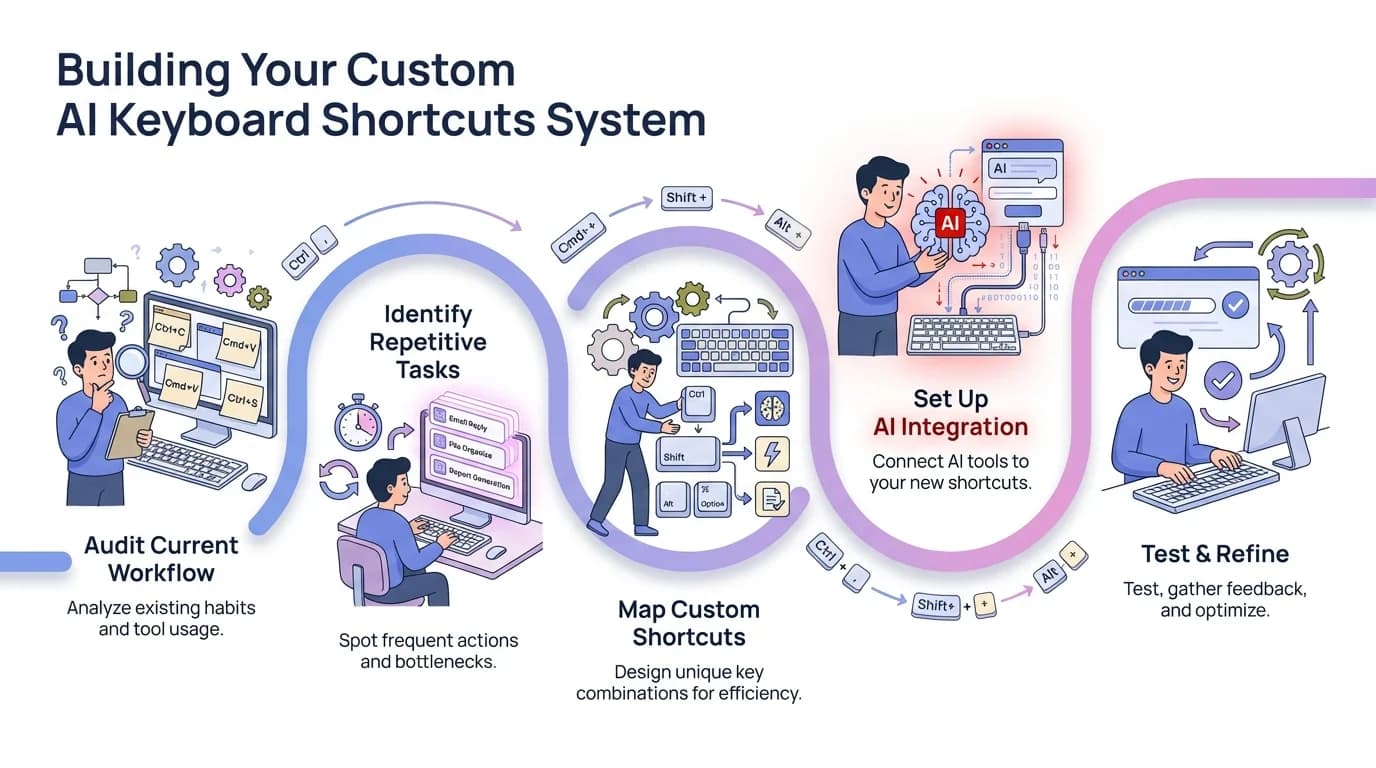
A 5-step process to build and optimize your personal AI keyboard shortcuts system
Clipboard Management and Paste History: Never Lose Your Copy Again
Clipboard management is one of those features that sounds boring until you try it and realize you've been living in the stone age. Standard clipboards only remember one thing—whatever you copied most recently. AI-powered clipboard managers remember everything you've copied recently and let you access it instantly.
The productivity impact is significant for certain workflows. If you're copying and pasting information between apps (like writing an email while pulling data from multiple documents), a clipboard manager saves you from constantly switching back and forth. Instead of copy → paste → switch app → copy → switch back → paste, you can copy everything you need first, then paste it all without switching apps repeatedly.
What advanced clipboard features include:
- Persistent history: Saves your last 50-100 clipboard items
- Search: Find something you copied yesterday by searching keywords
- Favorites/pins: Keep frequently pasted items permanently available
- Categories: Organize clipboard items by type (links, text, images)
- Sync: Access your clipboard history across all devices
CleverType's clipboard manager includes smart categorization that automatically separates links, phone numbers, addresses, and plain text into organized sections. When you open the clipboard panel, you're not scrolling through a jumbled list—everything is neatly organized by type and recency.
Common clipboard workflows:
- Research compilation: Copy relevant excerpts from 10 different articles, then paste them all into your document
- Contact sharing: Copy phone number, email, and address, then paste each into the appropriate form fields
- Code development: Copy multiple code snippets from documentation, paste them into your IDE in the right order
- Email drafting: Copy information from various sources, assemble your email from clipboard history
Privacy matters here too. Your clipboard contains sensitive information—passwords, personal details, confidential business data. CleverType's clipboard history is stored locally and encrypted, not synced to cloud servers unless you explicitly enable sync. Gboard's clipboard syncs automatically to Google's servers with no local-only option.
Clipboard security features:
- Auto-clear passwords: Automatically removes copied passwords after 60 seconds
- Incognito mode: Temporarily disable clipboard history for sensitive data
- Biometric protection: Require fingerprint/face unlock to access clipboard history
- Selective sync: Choose which devices can access your clipboard history
One workflow I use daily: copying multiple pieces of information from a meeting (names, email addresses, action items, dates), then working through them one by one from clipboard history without having to refer back to the meeting notes constantly. This is particularly valuable during video calls where switching between apps breaks your presence.
Here's a feature most people miss: clipboard templates. You can create clipboard items manually (not copied from anywhere) that stay permanently available. I have templates for common email structures, meeting agendas, and project status formats. It's like text expansion but more flexible because you can edit the template right in the clipboard panel before pasting.
Clipboard manager productivity metrics:
- Average knowledge worker copies/pastes 150-200 times per day
- Standard clipboard: 150 copy operations, 150 switch-and-paste operations = 300 actions
- Clipboard manager: 150 copy operations, 0 switch-backs = 150 actions
- Time saved: ~15-20 minutes daily from reduced app switching
The learning curve is minimal. Once you know the keyboard shortcut to open your clipboard history (in CleverType it's a long-press on the paste button), you'll naturally start using it. Within a few days, you'll wonder how you ever managed without it.
Frequently Asked Questions
Q: Do AI typing shortcuts work in all apps, or only specific ones?
A: AI typing shortcuts work system-wide across all apps once you install an AI keyboard like CleverType. Unlike app-specific features (like Gmail's Smart Compose), AI keyboard features function in messaging apps, email clients, browsers, note-taking apps, and any other place you type. The keyboard operates at the system level, so features like text prediction, grammar checking, and text expansion work everywhere you use your keyboard.
Q: How long does it take to see productivity improvements from AI typing shortcuts?
A: Most users report noticeable improvements within 3-7 days of consistent use. The AI needs about two weeks to fully learn your writing patterns and vocabulary, at which point prediction accuracy reaches 85-90%. Stanford research shows a 40% productivity gain on average, but this assumes you're actively using the features—just installing an AI keyboard without learning its shortcuts won't help much. The key is deliberately practicing with features like text expansion and smart compose during the first week.
Q: Are AI keyboards safe to use for sensitive or confidential information?
A: It depends on the keyboard's architecture. CleverType processes everything on-device with encrypted storage, meaning your sensitive data never leaves your phone. However, keyboards like Gboard and SwiftKey send your typing data to cloud servers for processing, which creates privacy risks. Always check a keyboard's privacy policy before using it for confidential work. For maximum security, look for keyboards that explicitly offer local processing modes and don't require internet connectivity for core features.
Q: Can I use multiple AI keyboard features simultaneously without conflicts?
A: Yes, modern AI keyboards are designed to layer multiple features seamlessly. You can use text prediction, grammar checking, text expansion, and voice-to-text all at once—they complement each other rather than conflict. For example, CleverType's text prediction works alongside grammar checking, so you get suggested words that are also grammatically correct in context. The AI coordinates these features intelligently, prioritizing the most relevant assistance based on what you're typing.
Q: Do AI typing shortcuts actually help with languages other than English?
A: Absolutely, though quality varies by keyboard. CleverType supports 100+ languages with equivalent AI features—text prediction, grammar checking, and smart compose work in Spanish, French, German, Mandarin, and many others. However, prediction accuracy is highest for widely-used languages with more training data. Less common languages may have good basic autocorrect but limited advanced features like smart compose. The key is choosing a keyboard with strong multilingual AI, not just translation capabilities.
Q: How much faster can I realistically type with AI shortcuts?
A: Based on IBM's research data, AI typing tools deliver 40-50% speed improvements for most users. This translates to saving 6-8 hours weekly for knowledge workers who type frequently. However, individual results vary—power users who master all shortcuts can reach 60-70% improvements, while casual users who only use basic prediction might see 20-30% gains. The fastest improvements come from combining multiple features: prediction + text expansion + voice-to-text for long drafts.
Q: Will using AI typing shortcuts make me worse at spelling and grammar?
A: Research suggests the opposite—AI tools actually improve writing skills over time. Studies show that AI grammar checking helps users learn correct patterns by providing real-time corrections with context. Many users report that CleverType's grammar suggestions taught them rules they never learned in school. The key is paying attention to why the AI makes corrections rather than blindly accepting them. Think of it as having a writing tutor who provides instant feedback on every sentence you write.
Ready to Transform Your Typing Speed?
If you're serious about boosting your productivity and cutting your typing time in half, the right AI keyboard makes all the difference. CleverType combines all the features we've discussed—smart prediction, text expansion, advanced grammar checking, voice-to-text, multilingual support, and custom shortcuts—into one powerful, privacy-focused keyboard.
Unlike competitors that send your data to cloud servers, CleverType processes everything on your device, keeping your messages, passwords, and confidential information completely private. With support for 100+ languages, unlimited text expansions, and AI that actually learns your writing style, it's the complete productivity solution for anyone who types on their phone.
Download CleverType from the Play StoreJoin the 73% of business professionals who've already made the switch to AI-powered typing.
Share this article: