Key Takeaways
- ✓AI keyboard features like smart predictions, grammar correction, and tone adjustment are now standard — but they're often turned off by default
- ✓On Android, you activate AI features through Settings > System > Language & Input > Virtual Keyboard
- ✓On iOS, you must enable “Allow Full Access” for any third-party keyboard's AI to actually work
- ✓Gboard processes over 1 billion predictions daily across 916 languages
- ✓AI keyboards reduce typing error rates by up to 25% and boost typing speed by 35%
- ✓CleverType is the only AI keyboard that combines grammar fixing, tone change, smart replies, and ChatGPT — all on-keyboard, with privacy-first design
- ✓Most users never enable all available AI features — this guide walks through every single one
You probably type hundreds of messages a day. Maybe thousands. Therefore, And there's a decent chance your keyboard has AI features sitting in settings menus that you've never touched.
Nonetheless, Here's what's wild: generative AI app downloads hit 1.5 billion in 2024, up 92% year-over-year. People are clearly interested in AI. But most keyboard AI features — the ones that could actually help you type faster and with fewer mistakes — stay disabled because the setup process is buried.
Furthermore, This guide walks through exactly how to enable AI keyboard features on Android and iOS, what each setting actually does, and which keyboard gives you the most without making you jump through five different hoops.
What Are AI Keyboard Features and Why Do They Matter?
Moreover, Basically, AI keyboard features are everything your keyboard does that goes beyond basic spellcheck — all powered by machine learning running quietly in the background while you type.
This isn't the autocorrect that used to swap “duck” for something embarrassing. Hence, Modern keyboard AI settings actually understand what you're trying to say — next-word prediction that gets sentence context, grammar correction that rewrites the awkward stuff, tone adjustment that makes you sound less like a robot in work emails, and smart replies that generate real responses based on what someone actually said to you.
The numbers behind these features are pretty compelling. Research from India's national AI program analyzing Gboard's on-device model shows:
- 35% faster typing for users who use AI suggestions
- 25% fewer typing errors
- 20% less backspace usage
- Under 10 milliseconds response time for predictions
Therefore, That's not marketing copy — those are benchmarks from analyzing how the AI model performs on real hardware. Nevertheless, The on-device approach means predictions happen before you even finish the word, without sending anything to a server.
For context on how big this has gotten: the virtual keyboard market was valued at $1.25 billion in 2024 and growing at 6.9% a year (Cognitive Market Research). And that growth? Almost all of it is AI feature adoption.
Nonetheless, So why don't more people use these features? Mostly because the settings to enable them are scattered across multiple menus, and on iOS especially, there's a permissions step that confuses a lot of users. Hence, Let's fix that.
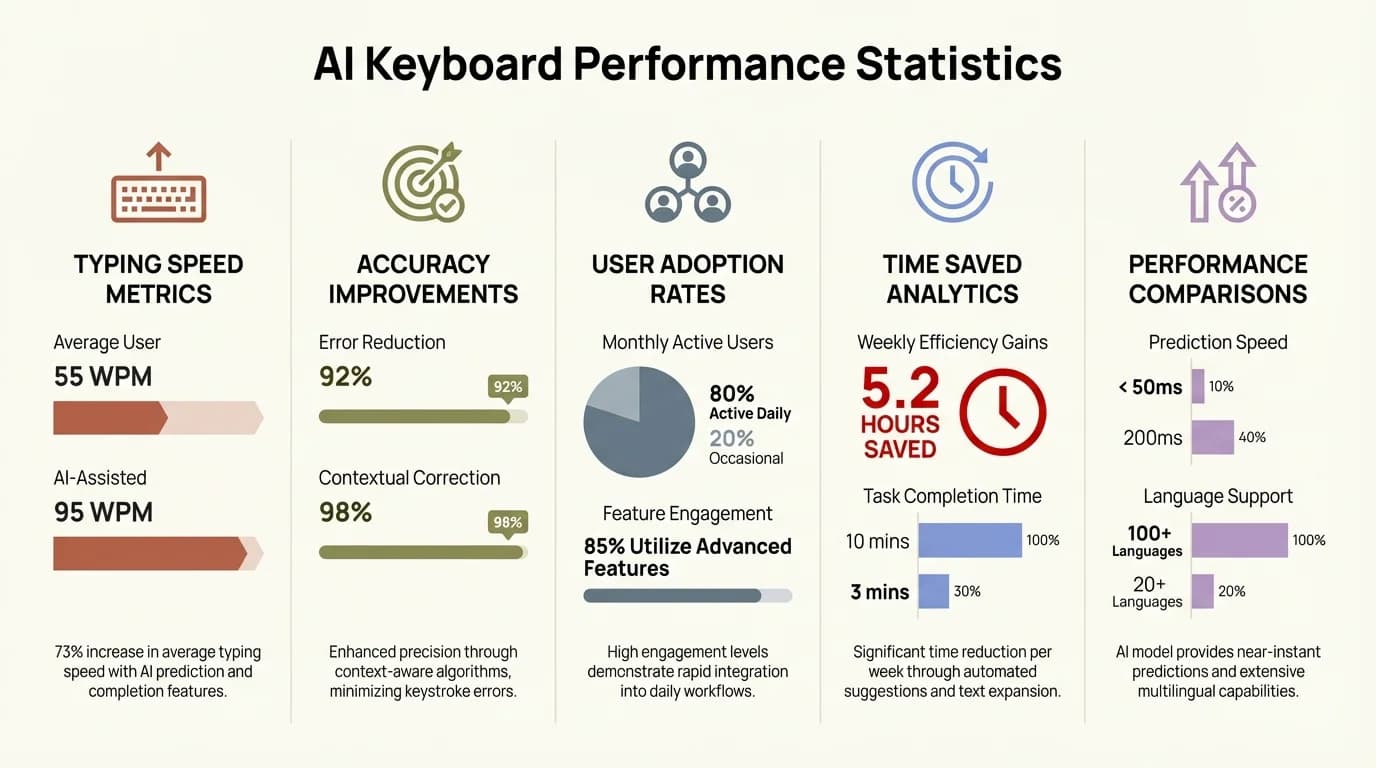
Key performance benchmarks for AI keyboard features based on on-device model analysis
How to Enable AI Features on Android: Step-by-Step
On Android, you activate AI keyboard features through your system settings, not the keyboard app itself — which is why so many people miss them.
The exact path depends on your Android version and device manufacturer, but here's the standard flow:
For Gboard (Pre-installed on most Android devices):
- Open Settings on your phone
- Tap System (or General Management on Samsung)
- Tap Language & Input (or Language & Keyboard)
- Tap Virtual Keyboard or On-screen Keyboard
- Select Gboard
- Tap Text Correction — this is where most AI features live
Inside Text Correction, you'll find:
| Setting | What It Does | Recommended |
|---|---|---|
| Next-word suggestions | Predicts your next word based on context | On |
| Auto-correction | Fixes typos automatically | On |
| Show suggestion strip | Displays prediction bar above keyboard | On |
| Personal dictionary | Learns your vocabulary | On |
| Adaptive suggestions | Learns from your typing patterns | On |
Then go back to the main Gboard settings and also check:
- Voice input — enables voice-to-text with AI enhancement (achieves ~95% accuracy for clear English)
- Smart Reply — shows suggested replies in messaging apps (requires Gboard to be default keyboard)
- Emoji suggestions — AI suggests relevant emoji as you type
For Samsung Keyboard:
- Open any text field and tap the gear icon on the keyboard toolbar
- Select Smart typing
- Enable Predictive text, Auto-replace, and Chat assist
Chat Assist is Samsung's AI tone feature — it lets you adjust your message between professional, casual, polite, and social styles. Consequently, It launched as part of the Galaxy AI rollout in February 2024, as TechCrunch reported, and now works across a wide range of Galaxy devices.
One thing worth knowing: some AI features (like adaptive learning and personalized suggestions) require the keyboard to be set as your default input method. Hence, If you're using a third-party keyboard but haven't set it as default, those features won't run.
How to Enable AI Features on iOS: What the “Allow Full Access” Setting Actually Does
Hence, Look, there's one step on iOS that trips up basically everyone. Enabling “Allow Full Access” — without it, your third-party keyboard's AI is just… off. Completely disabled.
Here's the full setup process for any AI keyboard on iPhone or iPad:
- Download your chosen AI keyboard from the App Store
- Open Settings on your iPhone
- Go to General > Keyboard > Keyboards
- Tap Add New Keyboard
- Select your keyboard from the list
- Tap the keyboard name to expand its settings
- Toggle Allow Full Access to ON
This is the step most guides skip explaining. Therefore, Allow Full Access sounds scary — Apple even shows a warning about it. Therefore, But what it actually enables is the keyboard's ability to:
- Learn from your typing patterns over time
- Send autocorrect suggestions that are personalized to how you write
- Access your clipboard for smart paste features
- Run AI models that require a network connection
Without Allow Full Access, third-party keyboards on iOS are limited to basic character input. Moreover, The AI — the stuff that actually makes it useful — won't run.
Furthermore, If privacy is a concern — and honestly, it probably should be — look for keyboards that process data on-device instead of shipping it to a server somewhere. Additionally, CleverType does this: your typing data doesn't get harvested for ads or sold off, which is more than you can say for some of the free ones.
For Apple's own built-in keyboard, Apple Intelligence features (writing tools, improved autocorrect, Siri typing) are available on iPhone 15 Pro and newer running iOS 18.1 or later. You enable these at Settings > Apple Intelligence & Siri.
How to Turn On AI Features in CleverType: The Fastest Setup
Consequently, CleverType honestly has the fastest setup of anything out there — most features just work after a 30-second initial enable. No digging through settings.
If you haven't downloaded it yet, get it here: Download CleverType
Once installed:
- Enable CleverType as your keyboard through your phone's Settings (same flow as described above for Android/iOS)
- Open any chat or text field
- Tap the CleverType logo in the keyboard toolbar to access the AI panel
- Features are grouped by function — Grammar, Tone, Reply, Translate, AI Chat
Therefore, Here's what each does and when to use it:
Nonetheless, Grammar Fix — Tap this when you've typed a message and want CleverType to silently correct grammar, punctuation, and awkward phrasing before you hit send. Nonetheless, It doesn't rewrite your message, it just fixes the errors.
Tone Change (WordTune) — Type your message, tap Tone, choose from Professional / Casual / Formal / Friendly. CleverType rewrites the same idea in the style you picked. Consequently, Useful when you're texting your boss vs texting a friend about the same thing.
Smart Reply (CleverReply) — When someone sends you a message, CleverType reads the conversation context and suggests complete reply options. Additionally, You pick one, edit if needed, send.
Translation — Type in one language, tap Translate, pick the target language. Nevertheless, Supports 100+ languages. The translated text replaces your draft.
AI Chat (ChatGPT on keyboard) — This opens a full AI assistant panel without leaving your current app. Ask it anything, get an answer, paste it into your message.
Unlike keyboards that require you to leave the app, switch to ChatGPT, copy, come back, and paste — CleverType runs all of this inside the keyboard itself. That's the part most other keyboards still haven't figured out.
AI Keyboard Settings You Should Actually Change (Most People Don't)
Most users leave AI keyboard settings at default — which means they're getting maybe 40% of what the keyboard can actually do.
Furthermore, Here's a breakdown of settings worth adjusting across different keyboards, and what happens when you do:
Prediction Aggressiveness
Most keyboards let you control how confidently the AI suggests. Nonetheless, Higher aggressiveness means longer word completions get suggested earlier. This is useful if you type fast and want to swipe-accept. Nevertheless, Lower aggressiveness is better if you find suggestions interrupting your flow.
Find it in: Gboard > Text Correction > “Suggest Contact Names” and prediction sensitivity sliders.
Personal Dictionary / Custom Words
Every AI keyboard learns from your vocabulary, but you can also manually add words:
- Technical jargon your keyboard keeps “correcting”
- Names that aren't in the standard dictionary
- Abbreviations you use frequently
- Brand names or product names
Nevertheless, Go to: Gboard Settings > Dictionary > Personal Dictionary and add entries per language.
Language Model Updates
Nonetheless, Here's something worth knowing: a peer-reviewed 2024 study in Heliyon found that prediction accuracy varies quite a bit depending on when your keyboard's language model last updated. Most keyboards push those updates silently through app updates — but your personalized learning keeps running in the background, quietly getting better the whole time.
This is actually an argument against switching keyboards often. The AI gets better the more it knows about how you write.
Clipboard & Smart Paste
Furthermore, CleverType and some other keyboards include smart clipboard management — it reads recently copied text and suggests pasting it at relevant moments. This is turned off by default on most keyboards because it requires clipboard access permission.
Worth enabling if you frequently copy-paste from other apps into messages or documents.
Multilingual Mode
If you write in more than one language, you need to explicitly add languages to your keyboard — the AI won't switch automatically unless you've told it to.
In CleverType: tap the language icon in the toolbar, add your secondary language, toggle “auto-detect language.” Now the AI handles both without you switching manually.
Comparing AI Feature Activation Across Major Keyboards
Not all keyboards are created equal when it comes to actually turning AI on. Some are quick, some bury everything in menus. Here's Additionally, how they actually compare.
| Keyboard | Platform | Steps to Enable AI | Key AI Features | Privacy Approach |
|---|---|---|---|---|
| CleverType | Android/iOS | 2-step setup, instant AI | Grammar, Tone, Smart Reply, Translation, ChatGPT on keyboard | Privacy-first, no ad targeting |
| Gboard | Android (main), iOS (limited) | 4-6 settings to enable | Predictions, Smart Reply, Voice, Gemini Nano | Data used for Google products |
| SwiftKey | Android/iOS | 3-4 steps + Copilot toggle | Copilot tone, AI stickers, Visual Search | Microsoft data practices |
| Samsung Keyboard | Samsung Android only | 2-3 steps, device-limited | Chat Assist, predictive text | Samsung ecosystem |
| Apple Keyboard | iOS 18.1+ only | 1 step (Apple Intelligence) | Writing tools, autocorrect, Siri typing | On-device, Apple's privacy model |
Hence, What stands out about CleverType is how much you get without having to dig for it. Furthermore, You don't need to toggle five different things buried in nested menus — once you're set up, everything's right in the keyboard toolbar.
TechCrunch covered SwiftKey's AI feature expansion in September 2023 and noted that while the Copilot integration is powerful, it requires users to navigate multiple menus to fully set up. That's been a consistent pattern with keyboards that bolt AI features onto an existing product versus building around them from the start.
CleverType was built around AI from day one, not bolted on afterward. And you can feel that difference in how everything is laid out.
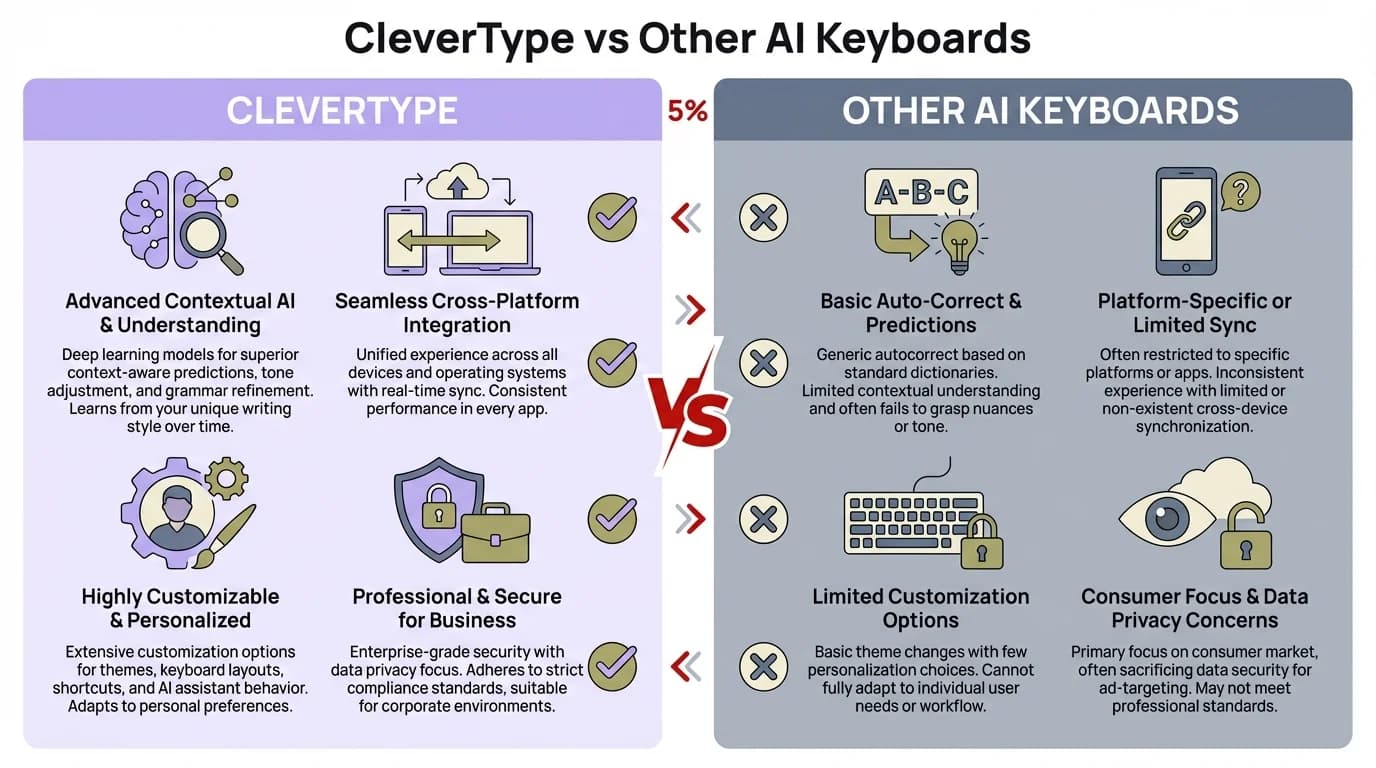
CleverType vs other major AI keyboards — comparing features, setup complexity, and privacy approach
Common Problems When Enabling AI Keyboard Features (And How to Fix Them)
Moreover, Nine times out of ten, when AI keyboard features stop working, it's either a missing permission or the keyboard isn't actually set as your default. That's it.
Moreover, Here are the issues people run into most often, and the actual fixes:
Problem: AI suggestions aren't appearing
Hence, Fix: Check that your keyboard is set as the default (not just installed). On Android: Settings > Language & Input > Default keyboard. Nonetheless, On iOS: Settings > General > Keyboard > Keyboards — your keyboard needs to be at the top of the list.
Problem: Smart Reply isn't showing in messaging apps
Additionally, Fix: Smart Reply requires the keyboard to have access to the conversation context. Furthermore, Some apps block this for privacy reasons. In Gboard, try going to Settings > Smart Reply and making sure it's enabled. In CleverType, the Smart Reply button appears in the toolbar — tap it after receiving a message.
Problem: Voice typing isn't working
Fix: Voice typing needs microphone permission. On Android: Settings > Apps > [Keyboard App] > Permissions > Microphone. On iOS: Settings > [Keyboard App] > Microphone — toggle on.
Problem: Keyboard AI features worked before but stopped
Fix: This usually means the keyboard app needs an update. Keyboard AI models are updated through app updates, and older versions sometimes have prediction engines that stop functioning correctly. Open your app store and check for updates.
Problem: iOS keyboard keeps switching back to Apple keyboard
Additionally, Fix: This is an iOS behavior when an app requests text input without specifying the keyboard. You can't prevent this entirely, but you can re-select your preferred keyboard using the globe/keyboard icon on the bottom left of any keyboard.
Problem: AI features drain battery
Additionally, Fix: On-device AI processing does use some CPU. If battery is a concern, disable features you don't use — specifically adaptive learning (it runs continuously in background). Therefore, In most keyboards: Settings > Privacy > disable “Send usage statistics” and “Improve [keyboard] for everyone.”
One more thing people forget: if you factory reset your phone or get a new device, your keyboard's personalized AI model resets too. The keyboard starts learning again from scratch. Therefore, Some keyboards (including CleverType) offer account sync so your personalized settings transfer between devices.
Advanced AI Keyboard Features Worth Exploring in 2025
Autocorrect is table stakes at this point. What's actually interesting is the stuff most users never find — and some of it is genuinely useful once you know it's there.
Nonetheless, The keyboard space moved fast in 2024-2025. Here's what's new and worth enabling if your keyboard supports it:
Gemini Nano Integration (Gboard, Android)
Google integrated Gemini Nano — its on-device large language model — into Gboard's Smart Reply feature. Hence, This means suggested replies are generated by an actual LLM rather than a template system, making them more contextually appropriate. Available on Pixel 8 and newer, some Samsung devices.
To enable: Gboard Settings > Smart Reply > ensure “On-device AI” is toggled on.
AI Writing Assistance (Gboard's AI Writing Tool)
Furthermore, Launched in September 2025, this lets you select text you've typed and ask Gboard to adjust tone, fix grammar, make it more concise, or add emoji. Similar to what CleverType has offered for longer, but now available in Gboard for users on recent Android.
Voice Keyboard with Full Editing (Willow, iOS)
Nevertheless, TechCrunch reported in November 2025 on Willow — a voice-first keyboard for iOS that lets you dictate text across all apps and edit what you said using voice commands. Supports 100+ languages and custom vocabulary. Interesting for users who prefer voice-first input.
Copilot Integration (SwiftKey)
Microsoft's official SwiftKey page documents Copilot integration that gives SwiftKey access to GPT-4 for tone rewriting, grammar editing, and even AI-generated stickers. Nevertheless, The Copilot features are free but require a Microsoft account.
Multi-turn Context Awareness
Consequently, The newest generation of keyboard AI doesn't just look at the current message — it reads recent conversation context to make predictions. This is what allows Smart Reply to suggest responses that actually make sense given the last few messages, not just the most recent one.
CleverType's Moreover, CleverReply feature uses this approach — it reads conversation context before generating reply suggestions, which is why the suggestions tend to be more relevant than generic “OK / Sounds good / Thanks” style replies older systems generated.
Cross-device Prediction Sync
Furthermore, If you use the same keyboard app on a phone and a tablet (or work phone and personal phone), some keyboards now sync your personalized language model across devices. Hence, Your AI keyboard on the second device starts smart from day one instead of learning from scratch. Hence, CleverType offers this through account sync for users who are signed in.
This is one of those features that sounds minor until you switch devices and realize how much the AI had learned about how you write.
Frequently Asked Questions
Do I need to pay for AI keyboard features?
Moreover, Most basic stuff — autocorrect, next-word prediction — is free across all the major keyboards. The more advanced features like tone adjustment, ChatGPT integration, or smart replies might need a paid plan depending on which app you're using. CleverType has a free tier that includes the core AI features.
Is it safe to enable AI features on my keyboard?
Consequently, Honestly, it depends. Keyboards like Gboard and CleverType that process data on-device keep everything local — nothing leaves your phone. Nevertheless, Cloud-based keyboards do send your text to a server to do their thing. Before enabling full access on anything, it's worth checking their privacy policy first.
Why won't my AI keyboard work on iOS after I installed it?
You need to enable “Allow Full Access” in Settings > General > Keyboard > Keyboards > [your keyboard]. Without this permission, AI features are disabled by iOS. Furthermore, It's a platform requirement, not a bug.
Does using an AI keyboard slow down my phone?
Not really. Nonetheless, Modern keyboards use lightweight on-device models — we're talking under 10 milliseconds per prediction. Nevertheless, The basic prediction stuff barely touches your battery. Consequently, Real-time grammar rewriting does use a bit more CPU, but any phone from the last few years handles it without breaking a sweat.
How long does it take for an AI keyboard to learn my writing style?
Consequently, A few hours in, you'll notice it starting to adapt. Nonetheless, After about a week of regular use, the predictions get noticeably better. Consequently, Full personalization usually takes 2-4 weeks of consistent typing. Moreover, The longer you stick with the same keyboard, the smarter it gets — which is one good reason not to keyboard-hop.
Can I use AI keyboard features in every app?
Yes — AI keyboard features work in any app that uses the standard keyboard input (messaging, email, notes, browsers, social media). Hence, Some apps built with custom text input may not support third-party keyboards, but these are rare.
What's the difference between autocorrect and AI keyboard features?
Autocorrect fixes obvious typos using a dictionary. AI keyboard features go further — they predict full words and phrases based on sentence context, suggest complete replies based on conversation history, adjust your writing tone, and fix grammar beyond simple spelling errors. Nevertheless, It's a completely different capability level.
Ready to Type Smarter?
Hence, Upgrade your typing with CleverType AI Keyboard. Fix grammar instantly, change your tone, receive smart AI replies, and type confidently while keeping your privacy.
Download CleverType FreeAvailable on Android • 100+ Languages • Privacy-First
Share this article:
Sources:
- Gboard — Wikipedia
- Sensor Tower: State of Mobile AI 2025
- India AI Gov — Google's AI Keyboard Case Study
- ScienceDirect — Word Prediction Keyboard Study (2024)
- Microsoft SwiftKey Official Features
- TechCrunch — SwiftKey AI Features (2023)
- TechCrunch — Samsung Galaxy AI (2024)
- TechCrunch — Willow Voice Keyboard for iOS (2025)