
Key Takeaways
- 1Your AI keyboard gets smarter the more consistently you type and correct it — two weeks of regular use can cut needed corrections by 42%
- 2Accepting suggestions (instead of ignoring them) is the fastest way to improve predictions
- 3Custom dictionaries, personal vocabulary, and app-specific language all feed the learning model
- 4Privacy-first keyboards like CleverType learn on your device — your data never leaves
- 5Clearing keyboard data resets all learning, so avoid it unless necessary
- 6Turning on "personalized suggestions" and syncing contacts helps the AI understand context faster
Most people use their AI keyboard for months and still get suggestions that feel completely off. The keyboard predicts “duck” when you wanted something else. Nevertheless, It keeps autocorrecting your friend’s name. It has no clue you work in healthcare and type “tachycardia” three times a day.
Here’s the thing — AI keyboards don’t automatically know everything about you. They learn. Moreover, According to research published on arXiv on federated learning for mobile keyboard prediction, modern keyboards train language models directly on your device using your actual typing patterns. But that training only works if you actively help it along.
Modern AI keyboards now achieve 52–58% prediction accuracy on first suggestions, compared to 35–40% just three years ago. Users who actively train their keyboard see up to 65% next-word prediction accuracy. That’s Moreover, a real gap — the difference between a keyboard that fights you and one that actually keeps up.
Here’s how to get there faster.
Why AI Keyboards Need Your Help to Learn
Nonetheless, AI keyboard learning isn’t passive — it needs input to get better. Hence, The model your keyboard uses starts with a baseline language model trained on billions of words, but that baseline has no idea what your name is, what you do, what slang you use, or who you’re texting at 11pm.
Every time you type, the keyboard logs the patterns: what words you use after “Hey”, how you start emails, which emoji combos you tend to send. Therefore, But it can only build those patterns if you give it consistent signal. So what does that actually mean?
- Accepted suggestions tell the model “yes, this prediction was right”
- Corrected words teach it what you actually meant
- Deleted autocorrections signal that the automatic fix was wrong
- Repeated unusual words mark them as part of your vocabulary
Consequently, The problem is most users fight the keyboard instead of working with it. They ignore suggestions constantly, type everything manually, or clear keyboard data whenever it gets annoying. That’s like trying to train someone by ignoring everything they do.
Therefore, According to a study cited in research on AI-powered predictive text by Fleksy , users who stick with one keyboard for at least two weeks report a 42% reduction in corrections compared to their first-time use. Sticking with one keyboard. That’s the biggest factor.
CleverType builds its personalization model entirely on-device. Every suggestion you accept or reject updates the local model in real time — nothing sent anywhere. Additionally, And that actually matters: privacy-first learning means it improves for you specifically, not for some generic user average.
How to Accept and Use Suggestions the Right Way
Sounds obvious. Furthermore, Most people still do it wrong. If you want to improve predictions faster, the single most effective thing you can do is actually use the suggestion bar.
When you type manually without ever tapping suggestions, you’re giving the AI zero feedback. Therefore, You’re not confirming anything. The model gets no signal about whether its predictions were accurate.
What to do instead:
- Start accepting suggestions even when you could type the word yourself
- When a suggestion is wrong, finish typing your word manually — this is a training correction
- Tap backspace immediately after an incorrect autocorrection — this tells the model “no, that was wrong”
- Don’t delete-and-retype silently; use the undo/correction gesture so the keyboard logs the fix
Nonetheless, One habit worth picking up: type the first 2–3 letters of a word, then glance at the suggestion bar before finishing. Over time you’ll start noticing the keyboard has figured out what you use in work emails vs. what you throw into a group chat.
India AI’s case study on Google’s predictive keyboard breaks down the three-layer model most modern keyboards use: N-gram language models for short-range context, neural networks for longer sequences, and personalized learning on top. Your behavior feeds that third layer directly.
Hence, CleverType’s suggestion bar shows three predictions at all times. Therefore, Middle one is the most likely. Left and right are alternatives — and tapping any of them trains the model about what you actually wanted in that context.
Quick tip: Don’t turn off autocorrect entirely. Instead, set it to “suggest only” mode if you want more control — that way suggestions still appear and train the model, but they don’t override your typing automatically.
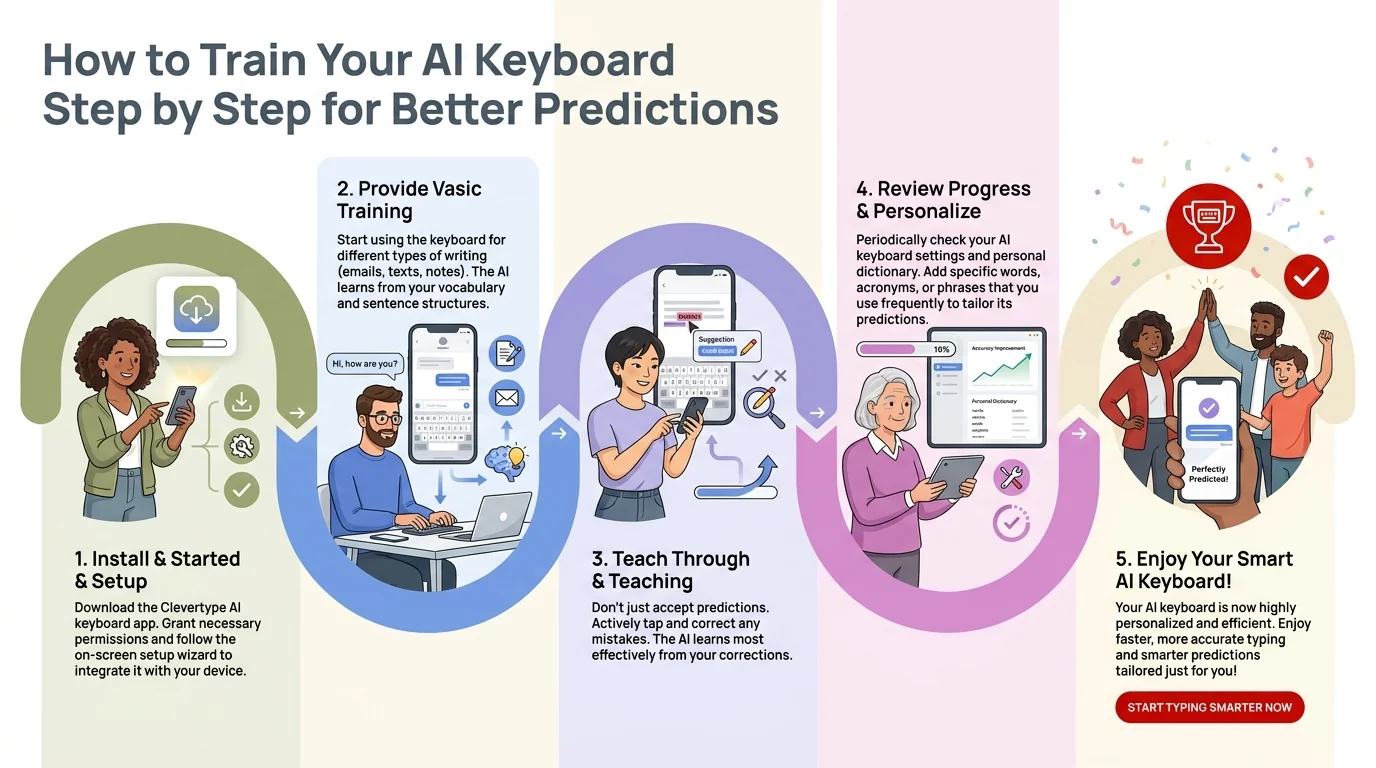
A step-by-step guide to training your AI keyboard — from setup to accepting suggestions and correcting errors for faster personalization
Adding Personal Words and Custom Dictionary
Furthermore, Honestly, this is the most underused feature on every keyboard. Your AI keyboard doesn’t know your name, your colleagues’ names, your company’s product names, or any of the jargon you use every single day.
Adding them manually is way faster than waiting for the keyboard to slowly figure them out.
Additionally, How to add words on most AI keyboards:
| Action | Where to Find It | What It Does |
|---|---|---|
| Add to personal dictionary | Settings → Dictionary | Saves word permanently, never autocorrects it |
| Add contact names | Allow contacts access | Learns names from your contact list |
| Mark as learned | Tap suggested word | Boosts frequency weight for that word |
| Remove bad suggestions | Long-press suggestion | Deletes that prediction from your model |
Consequently, In CleverType, you can go to Settings → Personal Dictionary and add any words directly. Consequently, You can also import a word list if you have profession-specific vocabulary — medical terms, legal phrases, technical jargon — and the keyboard will include them in its prediction model immediately.
Nevertheless, Long-pressing a suggestion usually gives you a “remove suggestion” option too. Use it freely. If something keeps showing up but you never actually want it, kill it. Moreover, That’s Consequently, negative training — you’re telling the model to stop pushing that word.
One thing people keep missing: letting the keyboard access your contacts is a big deal. If you message “Sarah Chen” regularly, it needs to know that’s a real name — not a typo it should fix.
App-Specific Language: Teaching Context
Your keyboard is dealing with very different contexts depending on the app. You write differently in Slack compared to Gmail. Different vocabulary in WhatsApp versus LinkedIn. A good keyboard picks up on this.
Nonetheless, Most modern keyboards — CleverType included — track per-app typing patterns automatically once you grant permissions. Consequently, But there are a few specific ways to speed this up.
Nevertheless, How context training works:
- The keyboard tracks which words appear in which apps
- It weights suggestions differently based on app context
- Over time, it builds separate style profiles for different communication modes
- Formal apps get more formal suggestions; casual apps get relaxed language
Therefore, If you use technical terms only in one app — a coding IDE, a medical records system, whatever — type them out fully a few times. Nonetheless, The keyboard builds app-specific vocabulary faster when the same terms keep appearing in the same place.
A 2025 overview of federated learning in practice notes that on-device personalization models — the kind privacy-focused keyboards use — can now maintain separate context profiles without ever sharing that data. That’s what CleverType is built on.
Nonetheless, One thing that actually makes a difference: don’t switch keyboards constantly. If you’re jumping between three different keyboard apps, each one gets fragmented data and none of them learn properly. Pick one and commit for at least a month. The difference is real.
How Clearing Data Hurts Your Keyboard (And When It’s OK)
Additionally, Every time you clear your keyboard’s learned data, you’re resetting months of training. Gone. Most people don’t realize this — they clear it as a troubleshooting step and then wonder why the keyboard feels dumb again.
Hence, Here’s what gets erased when you clear keyboard data:
- All personal dictionary additions
- App-specific vocabulary weights
- Contact name learning
- Style preferences (formal/casual)
- Corrected autocorrection history
Hence, So when should you actually clear it? Honestly, only two cases make sense:
- You’re giving your phone to someone else permanently
- The suggestions have become so wrong that restarting from baseline is faster than correcting them one by one
Otherwise, leave it alone. Therefore, One bad suggestion isn’t worth losing two months of learned vocabulary.
Furthermore, If specific words are the problem, just remove those suggestions individually instead of clearing everything. Targeted fix. Your whole training history stays intact.
CleverType handles this better than most — the personal dictionary and learned data are stored separately, so you can clear one without touching the other. Nevertheless, Not every keyboard gives you that choice.
Enabling the Right Permissions and Settings
Nevertheless, Honestly, a lot of keyboard learning never happens just because people haven’t turned on the right settings. Nevertheless, This is the easiest win — you don’t have to change how you type at all, just flip some switches.
Furthermore, Settings checklist for better AI suggestions:
- Personalized suggestions: ON
- Learn from my typing: ON
- Access contacts: GRANTED
- Cross-device sync: ON (if available)
- Next-word prediction: ON
- Emoji suggestions: ON (helps with tone learning)
- Swipe/gesture typing: ON (generates more typing data per session)
Furthermore, Worth repeating: the contacts permission makes a real difference. Additionally, Keyboards that can see your contact list immediately recognize names instead of mangling them. That alone kills a huge source of frustrating autocorrections.
Nevertheless, Cross-device sync — available in CleverType — means your learned vocabulary carries over from your phone to your tablet. No retraining from scratch every time.
Moreover, One underrated setting: language model updates. Some keyboards let you manually refresh the base model when updates drop. These are separate from your personal data — they improve the foundation itself. Keep this on and you get both the global improvements and your own personal training on top.
How Long Does It Take to See Real Improvement?
The honest answer: you’ll see meaningful improvement within 1–2 weeks of consistent use. Real personalization — where it actually feels like it knows you — kicks in around the 30-day mark.
Here’s roughly what to expect:
| Timeframe | What Improves | What to Focus On |
|---|---|---|
| Days 1–3 | Name recognition, most-used words | Add contacts, add personal dictionary words |
| Week 1–2 | Phrase patterns, frequent corrections reduce | Accept suggestions consistently, remove bad ones |
| Week 2–4 | App-specific vocabulary, tone detection | Use in all apps, not just messaging |
| Month 2+ | Context-aware suggestions, style matching | Maintain consistent use, don’t clear data |
Hence, According to research on building smarter mobile keyboards with AI, the personalization layer needs a minimum data threshold before it starts outperforming the baseline model. That threshold is roughly 2 weeks of daily use.
So don’t judge it after three days. Additionally, Give it time. The people who say “AI keyboards don’t work” are almost always the ones who bailed before the model had enough data to actually do anything.
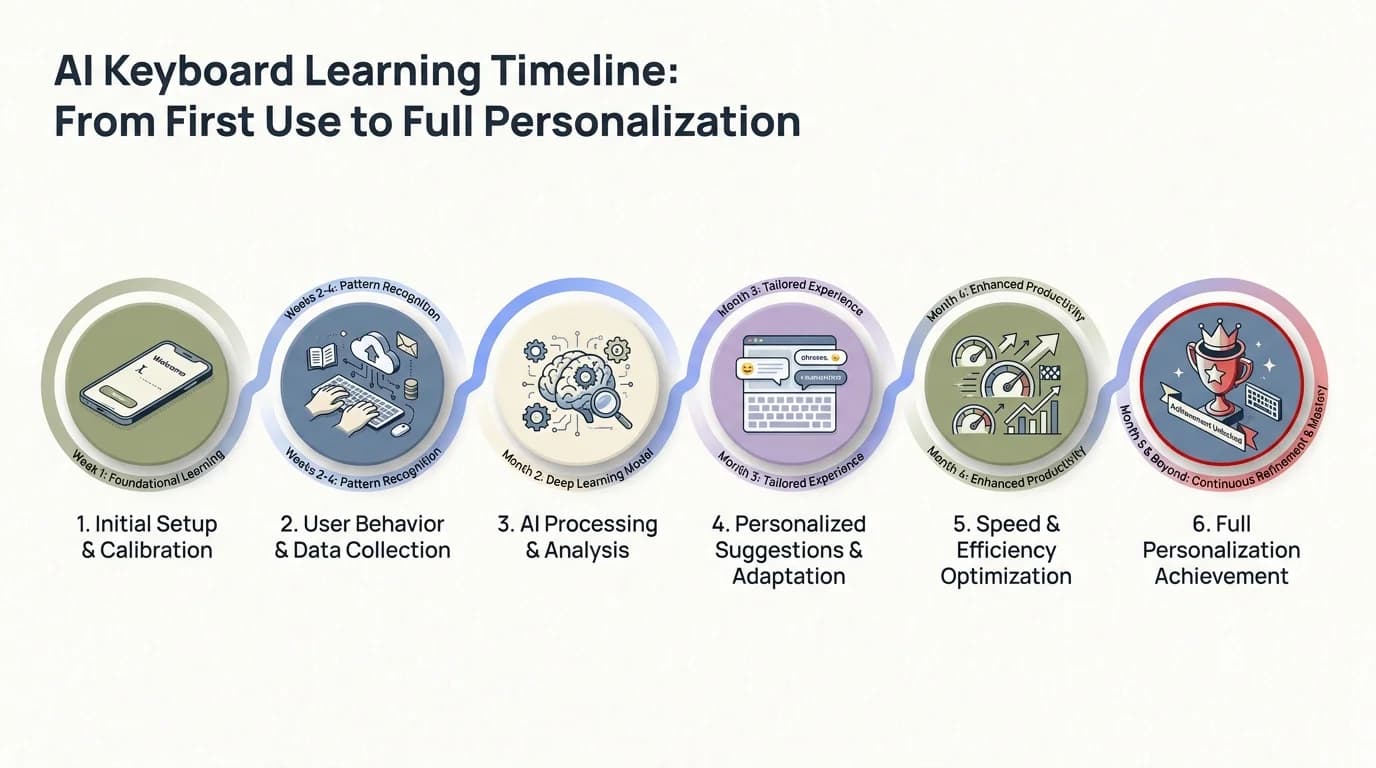
The AI keyboard learning timeline — what improves at each stage and how long it takes to reach full personalization
CleverType: Built to Learn Faster
Nonetheless, Most keyboards treat personalization as a background thing — it happens eventually, but there’s no visibility into it and no way to speed it up. Nonetheless, CleverType takes a different approach.
Every tap on CleverType’s suggestion bar feeds back into the on-device model in real time. Consequently, You can see your personal dictionary growing. You can manage which words show up as suggestions. Nonetheless, And because all learning happens on-device, there’s no privacy trade-off to get better predictions.
CleverType also solves something most keyboards ignore completely: it learns across different writing modes. Nevertheless, Used the AI assistant to draft a reply? That feeds back into your vocabulary model. Used grammar fix on a sentence? That correction improves future suggestions. Even voice input gets folded into your typing profile.
Compared to other keyboards:
| Feature | CleverType | Gboard | SwiftKey |
|---|---|---|---|
| On-device learning | Yes | Partial | Partial |
| Personal dictionary management | Full control | Limited | Limited |
| App-specific context | Yes | No | No |
| Real-time suggestion feedback | Yes | No | No |
| Privacy-first architecture | Yes | No | No |
| Cross-mode learning (voice + text) | Yes | No | No |
The improvement comes faster with CleverType because the feedback loop is tighter. Train it, it updates, and you see better predictions in the same session — not days later.
Nevertheless, Download CleverType and spend 5 minutes in settings first: add your name, a few common words, grant contacts access. Hence, That alone puts you weeks ahead of where most people start.
Frequently Asked Questions
How long does it take to train an AI keyboard?
Most users see noticeable improvement within 1–2 weeks of consistent use. Full personalization — where the keyboard understands your writing style, vocabulary, and context — typically develops over 30 days.
Does clearing keyboard data delete all my training?
Yes. Clearing keyboard data removes all learned words, corrected autocorrections, and personal vocabulary. Only clear it if absolutely necessary — target specific bad suggestions using the "remove suggestion" feature instead.
How do I add words my keyboard keeps autocorrecting wrong?
Go to Settings → Personal Dictionary (or Learned Words) and add the word manually. This tells the keyboard to stop correcting it and treat it as valid vocabulary.
Does the keyboard track everything I type for training?
Privacy-focused keyboards like CleverType process all learning on-device. No typing data is sent to external servers. Other keyboards (like Gboard) may use server-side processing — check their privacy policy to understand what gets uploaded.
Why does my AI keyboard still suggest wrong words after months of use?
Usually because suggestions were never actively accepted or rejected — the model gets no feedback signal if you always type manually. Start using the suggestion bar consistently, and remove specific bad predictions by long-pressing them.
Can I train my keyboard to know work-specific terminology?
Yes. Use the personal dictionary feature to add technical terms, product names, and domain vocabulary. Some keyboards also let you import word lists, which is useful for medical, legal, or technical fields.
Does the AI keyboard learn differently across apps?
Yes, on keyboards that support context-aware learning (including CleverType). The model tracks which words appear in which apps and adjusts suggestions accordingly — so your work email and casual texts get different prediction profiles.
Ready to Type Smarter?
Moreover, Upgrade your typing with CleverType AI Keyboard. Fix grammar instantly, change your tone, receive smart AI replies, and type confidently while keeping your privacy.
Download CleverType FreeAvailable on Android • 100+ Languages • Privacy-First
Share this article:
Sources:
- Federated Learning for Mobile Keyboard Prediction — arXiv
- The Impact of AI-Powered Predictive Text — Fleksy
- Google’s Mind-Reading Keyboard: AI Techniques Behind Text Prediction — India AI
- Building a Smarter Mobile Keyboard with AI — Medium
- Federated Learning in Practice: Reflections and Projections — arXiv