Key takeaways
- On Android, tap Show changes on a Fix Grammar result to see removed words in red strikethrough and added words in green before you replace your text. On for everyone from 8.20.0.
- On Android, Fix Grammar and Word Tune now default to Auto: the rewrite comes back in the language you typed. On iPhone, AI tasks answer in the language you typed (not the device language) from 2.14.0.
- The red and green comparison runs on your phone and costs no AI words. The fix itself runs on our servers and needs internet.
- Saved custom grammar instructions can now be edited on Android, and they sync between Android and iPhone.
You've typed a long message, run Fix Grammar, and it hands back the corrected paragraph as one clean block. At that point you can hold it up against what you wrote and compare it word by word, or you can tap Replace and hope nothing important changed. Neither feels great when the message matters.
Language was the other gap. If you write in Hindi or Spanish, a rewrite that comes back in English doesn't help you at all.
So we fixed both. In CleverType's grammar checker keyboard for Android 8.18.0 (August 30, 2026) we added a Show changes view and a new Auto language default. On iPhone, 2.14.0 (October 1, 2026) made AI tasks answer in the language you typed.
What's new
Show changes on Fix Grammar results (Android)
Until this update, the Fix Grammar card showed the corrected text and a Replace Text button, and working out what had changed was your job.
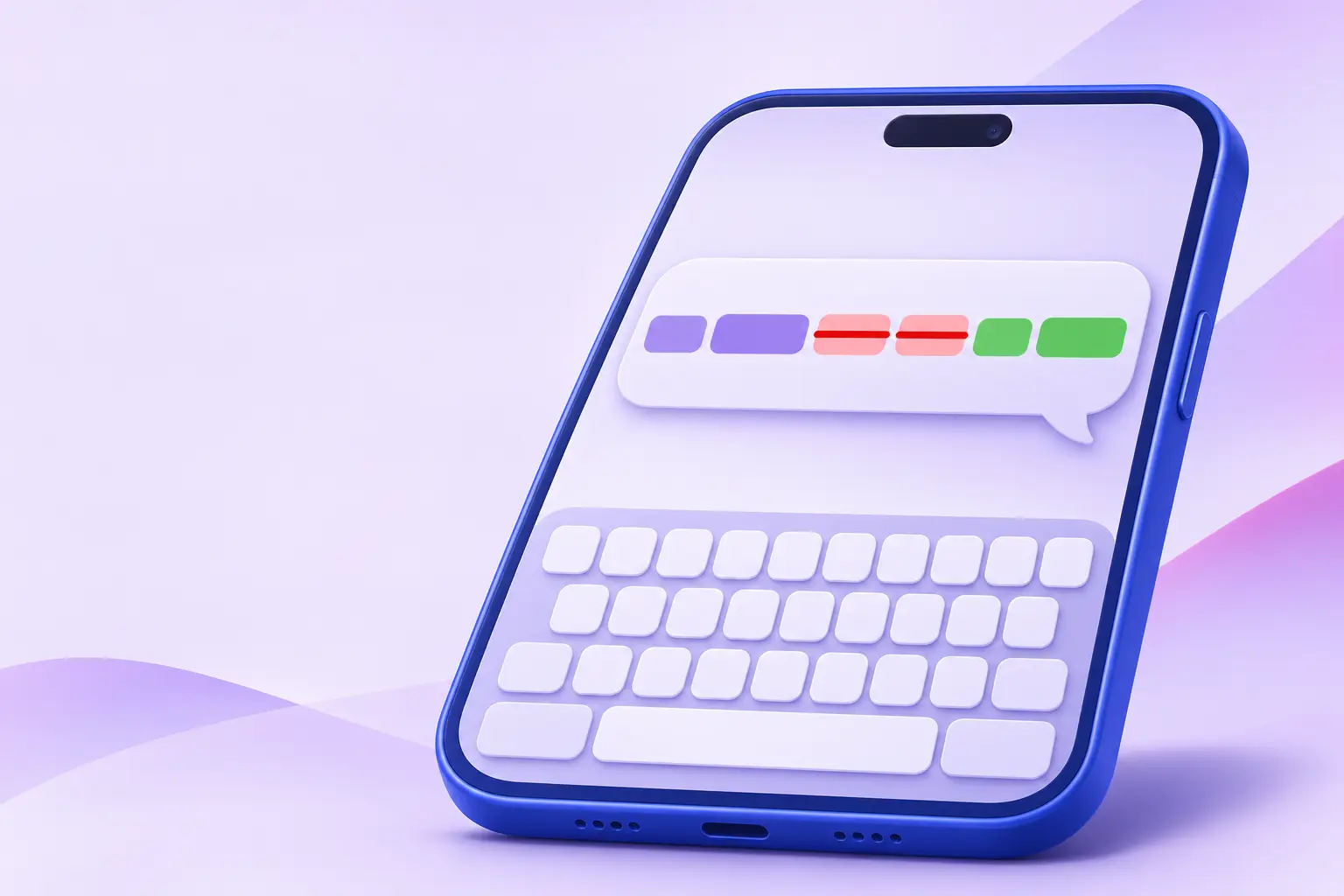
Now there's an underlined Show changes link next to Replace Text (or Replace Selected Text, if you selected text first). Tap it and the result turns into one merged sentence. Removed words appear in red with strikethrough. Added words appear in green and semibold, and anything that stayed the same keeps your normal text colour. The link then switches to Hide changes, which takes you back to the clean text.
Here's a quick one. In this post, struck means shown in red and bold means shown in green:
- You type: "i has went to the store yesterday"
- Show changes:
i hasI went to the storeyesterdayyesterday.
It started rolling out in 8.18.0 and has been on for everyone since 8.20.0 (September 21, 2026). You'll find it anywhere Fix Grammar opens on Android: the keyboard, the Notes sheet in the app, and the Write Anywhere floating sheet.
A check for sentences that went missing (Android 8.25.0 and 8.28.0)
Long texts carry a specific risk. An AI rewrite can quietly drop a sentence, and in a few paragraphs of text that's easy to miss.
From 8.25.0 (October 23, 2026), if a Grammar Fix result looks like it left something out, the card opens straight on the changes view. You see the struck-out sentences before Replace deletes them. Then 8.28.0 (November 1, 2026) tightened the check to catch results that drop 2 or more sentences from a long text.
Auto language for Fix Grammar and Word Tune (Android 8.18.0)
Before this release, someone typing in Hindi could get an English rewrite back.
Auto is now the default, sitting at the top of the language list in Fix Grammar and Word Tune. Type in Hindi, get Hindi back. If you do want the rewrite in a particular language, pick it from the panel's dropdown and the rewrite is forced into that language instead.
Since 8.19.0, that pick sticks. A language you choose yourself stays selected after you close the panel, restart the app or reboot, and Fix Grammar and Word Tune each remember their own pick.
iPhone: answers in the language you typed (2.14.0)
iPhone had a related problem with a different cause. AI tasks used the device language, so English text typed on an iPad set to Hebrew came back in Hebrew.
As of 2.14.0, AI tasks, custom agents included, answer in the language you typed. On that same Hebrew iPad, English text comes back in English and Hebrew text comes back in Hebrew.
Custom grammar instructions
On Android 8.24.0 (October 17, 2026) you can finally edit an instruction after saving it. Before, a saved instruction showed two lines and a delete button, so changing it meant deleting it and writing it again from scratch. Now you can open it, read the whole thing and edit it. It keeps its place in the list, stays selected if it was selected, and syncs as an update rather than a duplicate.
Custom Fix Grammar prompts and custom tones also sync between Android and iPhone on the same account now. They used to live on one device.
On iPhone (2.11), the Fix Grammar tab shows profile chips for 🛠️ Grammar Fix, 📝 Rephrase, 🎉🌟 Add emojis and 💡 Realistic, followed by your own prompts and + Add Prompt.
How it works
Two different things happen when you use this, and they happen in two different places.
The fix itself runs on our servers. The keyboard sends your text over an encrypted connection to CleverType's servers, where AI models produce the correction. That counts against your free 2,000 AI words, and after those, Premium.
The red and green comparison runs on your phone. Show changes compares the text you sent with the text that came back. Nothing extra goes to our servers, and it uses no AI words.
We compare word by word. Spacing and line breaks are kept exactly. Punctuation counts as part of the word next to it, which is why adding a full stop shows "yesterday" struck out and "yesterday." added. When a word is replaced, you see the old one first, then the new one.
Some languages don't put spaces between words at all. The Unicode text segmentation standard points this out, and notes that finding word boundaries in scripts like Thai or Japanese takes a dictionary or other extra methods. A word-by-word comparison there would show the whole sentence as one red block and one green block, which tells you nothing. So for Chinese, Japanese, Thai, Lao, Khmer and Myanmar, the comparison goes character by character. Korean, Hindi, Arabic, Cyrillic and Latin-script text is compared by whole word.
A few smaller details you may notice on screen:
- Texts over 300 characters are compared in the background, so you see the plain result for a moment, then the coloured one.
- The red and green get lighter on dark keyboard themes and darker on light ones.
- Arabic and Hebrew results are laid out right to left.
The missing-sentence check keeps no copy of your text. It runs on the Grammar Fix profile for texts of 5 or more sentences, and it opens the changes view if 2 or more sentences have no match, or if 1 missing sentence is at least 150 characters long.
As for Auto, it means "the same language as the input text". With Auto on, the AI is told to answer in the language of the text you sent. That applies to the built-in profiles and to your own custom grammar prompts.
How to set it up
See what Fix Grammar changed (Android)
- Update CleverType on Android to 8.20.0 or later.
- Run Fix Grammar on your text.
- Tap Show changes next to Replace Text.
- Tap Hide changes to see the clean version again.
- Tap Replace Text (or Replace Selected Text) to use the result.
Choose the rewrite language (Android)
- Open Fix Grammar or Word Tune.
- Open the language dropdown. Auto is at the top.
- Keep Auto, or pick a language to force the rewrite into it.
Edit a custom grammar instruction (Android 8.24.0+)
- On the Home screen, tap Customise AI, then Fix Grammar.
- Under Custom Fix Grammar Instructions, tap the card or the pencil icon.
- Edit on the Edit Prompt screen and tap Save. Pressing back discards the edit without asking.
Add a custom grammar prompt (iPhone)
- In the keyboard's Fix Grammar tab, tap + Add Prompt.
- The app opens on the Fix Grammar Prompts screen (you can also reach it from Home).
- Write the instructions and give the prompt a short name.
One difference between the two apps is worth knowing. Tapping a chip on iPhone saves it as your choice right away and runs the request again. On Android, the profile you used is remembered when you tap Replace.
Examples
Here's how Show changes displays a few more results across languages. These corrections are illustrations, not captured AI output.
- English grammar: "i has went to the store yesterday" →
i hasI went to the storeyesterdayyesterday. - English word order: "She dont know where is the meeting" → She
dontdoesn't know whereisthe meeting is. - Hindi, on Auto: the fix comes back in Hindi: मैं कल
बाजारबाज़ार गया औरसब्जीसब्ज़ीखरीदाख़रीदी। - Spanish, on Auto: "yo no se si ellos va a venir mañana" →
yoYo nosesé si ellosvavan a venirmañanamañana. - English text with Spanish picked: you get a Spanish rewrite and no Show changes link, since comparing words across two languages lines nothing up.
Tips
If you write in more than one language, leave the picker on Auto. Each rewrite follows the text in front of it, so a Hindi message and then an English one both come back in their own language without you touching the dropdown.
Small fixes show up as word swaps. An accent fix like se → sé shows the whole word struck and re-added, so read the pair together.
Each new result starts clean. Retry or a different profile chip resets the view, and you'll need to tap Show changes again.
It also helps to know the limits. An AI request on Android can be up to 10,000 characters by default, and past that you'll see "Text is too long". A custom grammar instruction can be up to 2,000 words.
Troubleshooting
Start here when something looks off. Most of these are about when the link is allowed to appear.
- No Show changes link. It appears only when the result actually differs from your text, beyond extra spaces at the start or end.
- No link after picking a language. If the language is neither Auto nor your keyboard language, the panel is translating and the link is hidden. Switch back to Auto.
- No link right after a restart. The link stays hidden while the phone is still on its lock screen after a reboot. Enter your PIN, pattern or fingerprint, then reopen the panel.
- Can't copy from the coloured view. That would paste the struck-out words too. Tap Hide changes, then copy.
- The panel opened straight on the changes view. The result looks like it left out sentences. Read the red sentences before tapping Replace, or tap Retry.
- Rewrite in the wrong language. A language you picked earlier may still be selected. Set it back to Auto.
- "Oops! Internet connection lost." The fix needs internet. Reconnect and tap Retry.
- "Oops! something went wrong." The request was slow or failed. Tap Retry.
- An Upgrade card. You've run out of AI words. It reads "Exceeded Free Word Limit" if you never subscribed, "Your Plan Has Expired" if a past plan lapsed, or "Daily limit reached" if you're on a daily allowance. This card has no Retry button.
- Custom prompt missing on another device. Sign in to the same account on both. On Android, opening Customise AI → Fix Grammar runs a sync. If two devices edit one prompt, the last save wins.
How it compares
What the built-in options document for the same job, from their own help pages:
| How you see changes | Languages | Devices | |
|---|---|---|---|
| Gboard Writing tools | Suggestion with "Use this" or "Undo"; no change highlighting described | English, Chinese (Simplified), French, German, Italian, Japanese, Korean, Portuguese, Spanish | Pixel 9 and 10 series, select Honor, Motorola, OnePlus, OPPO, POCO, realme, vivo and Xiaomi phones |
| Apple Writing Tools Proofread | Each change underlined, with explanations, "Use Original" per change and a toggle to the original | Works when the Siri and device language is one of 15 listed; Hindi isn't one | iPhone 15 Pro and Pro Max, iPhone 16 and later |
| Samsung Keyboard Writing assist | Corrected text with Replace or Copy; no change highlighting described | 16 on the US page, including Hindi, Arabic and Thai | Select Galaxy devices with One UI 6.1+ |
| CleverType Fix Grammar | Red and green inline view (Android) | 94 AI languages on Android, Auto follows your text | Any Android phone with CleverType; answers in your typed language on iPhone too |
The table doesn't tell the whole story, and some of it doesn't favour us.
Apple lets you discard a single change with "Use Original". CleverType's Show changes is read-only, and Replace takes the whole result.
Privacy works differently too. Google says the text you give Gboard Writing tools isn't shared with Google or any app. CleverType sends your text to our servers, which use AI models.
Then there's coverage. The Gboard, Apple and Samsung tools need specific phones and a supported language, and none of these pages describes replying in the language you typed regardless of the device language. We think that matters most if you move between languages in the same day.
Why we built it
A corrected paragraph is hard to check by eye. It's hardest when the fix touched a few small words in a long message, because your eye slides right over them. Show changes marks each edit where it happened, so you can decide whether to tap Replace without reading both versions side by side.
The language problem was more basic. People writing in Hindi or Spanish got rewrites back in English, and on iPhone, answers followed the device language instead of the text. Auto goes by what you typed.
Custom grammar prompts were the third thread. We kept getting requests for a way to edit saved instructions, along with reports of prompts not showing up on a second phone or tablet. Editing, and sync between Android and iPhone, came out of those requests.
Limitations
Here's what this update doesn't do.
- Show changes is Android only. The iPhone keyboard doesn't have the red and green view.
- No per-change accept or reject. Replace takes the whole result.
- Whole-word comparison outside Chinese, Japanese, Thai, Lao, Khmer and Myanmar, so a one-letter fix shows the whole word replaced.
- Hidden when translating to a language other than Auto or your keyboard language.
- The missing-sentence check covers Grammar Fix only. Rephrase, Add emojis, Realistic and custom prompts may shorten text.
- No Auto in Translate. It still needs a target language.
- Needs internet. Nothing is corrected offline, and signing out while offline also removes custom prompts that never synced.
Frequently Asked Questions
Q: Does Show changes use up my AI words?
A: No. The comparison runs on your phone. Only the grammar fix itself counts against your 2,000 free AI words or your Premium plan.
Q: Is Show changes available on iPhone?
A: No, it's on Android, for everyone from 8.20.0. iPhone 2.14.0 brings the language fix: AI tasks answer in the language you typed.
Q: Can I check grammar in Hindi and get the result in Hindi?
A: Yes. With the picker on Auto, Fix Grammar and Word Tune rewrite in the language you typed, including Hindi, and Show changes compares Hindi word by word.
Q: Why is the Show changes link missing after I chose a language?
A: If the language is neither Auto nor your keyboard language, the panel is translating, and a word comparison across two languages doesn't line up. Switch back to Auto.
Q: Can I reject one change and keep the rest?
A: No. Show changes is read-only and Replace applies the whole result. If you don't like it, tap Retry or try another profile chip.
Q: Do my custom grammar instructions carry over from Android to iPhone?
A: Yes, when both devices use the same account. On Android, opening Customise AI → Fix Grammar, saving or deleting a prompt, or signing in triggers a sync.
Try it
Show changes is on Android. Auto language works on Android and iPhone.