Key Takeaways
| Feature | What It Means | Best Tool |
|---|---|---|
| AI Paraphrasing on iOS | Rewrite text instantly while maintaining meaning | CleverType AI Keyboard |
| On-Device Processing | 90%+ of data processed locally for privacy | CleverType, Apple keyboards |
| Grammar Accuracy | 95%+ error detection rate in top tools | CleverType leads the pack |
| Typing Speed Boost | Average 38 WPM with two thumbs (up to 85 WPM) | Any AI keyboard with autocorrect |
| Market Growth | AI writing tools market: $1.77B in 2025 → $4.88B by 2030 | Industry-wide trend |
| Best Overall Choice | Combines paraphrasing, grammar, and privacy | CleverType AI Keyboard |
Can your iPhone keyboard actually write better than you in 2026? Sounds wild, but here's the thing: the AI writing assistant software market jumped from $1.77 billion in 2025 to a projected $4.88 billion by 2030. That's a 22.49% annual growth rate. Not hype—millions of people already typing smarter, not harder.
Here's what changed: these tools don't just catch typos anymore. They get context, emotion, and what you're actually trying to say. CleverType nails this by mixing advanced natural language processing with privacy-first design—everything happens on your device instead of bouncing through someone else's servers.
What Makes AI Paraphrasing Different in 2026
AI paraphrasing iOS tools have moved way past just swapping synonyms. What's actually different between 2024 and 2026? The tech got smarter, faster, and way more private.
Modern paraphrase keyboard iPhone apps run on neural networks trained on billions of text samples. They don't just spot words—they get meaning. Type "I'm not feeling great about this," and a 2026 AI keyboard actually knows if you're talking about your health, a work project, or a relationship. The rewrites match the actual situation.
CleverType stands out because it mixes GPT-4.1 integration with on-device processing. While competitors ship your text off to cloud servers, CleverType handles everything locally on your iPhone. Plus, research on mobile typing performance with over 37,000 users shows autocorrection bumps typing speed to an average of 43.4 words per minute—way faster than manual typing.
The grammar paraphrase tool side of things has gotten way better too. These systems now catch:
- Contextual errors that basic spell-checkers miss
- Tone inconsistencies (formal vs casual mixing)
- Cultural nuances in multilingual text
- Industry-specific terminology (legal, medical, tech)
Research from ScienceDaily on smartphone typing speeds shows mobile users now hit 38 WPM on average—only 25% slower than physical keyboards. The fastest touchscreen typing ever recorded? 85 WPM. AI assistance is closing that gap even more.
So what's this mean for you? When you install CleverType, you're not just getting autocorrect. You're getting a writing assistant that:
- Rewrites awkward sentences in real-time
- Adjusts tone based on who you're messaging
- Catches grammar mistakes before you hit send
- Never stores your data on external servers
Look, the difference between basic autocorrect and AI paraphrasing is like comparing a calculator to a math tutor. One just fixes surface errors. The other? It gets what you're trying to say and helps you say it better.
How AI Paraphrasing Works on Your iPhone Keyboard
Ever wonder what's happening in those milliseconds between typing a word and seeing a suggestion pop up? It's actually way more complex than most people think, but CleverType makes it feel instant.
Natural language processing technology (NLP) powers modern AI keyboards. It's basically a subfield of computer science that mixes computational linguistics with deep learning to process human language. When you type, here's what's going on behind the scenes:
Step 1: Text Analysis
Your keyboard grabs each keystroke and scans for patterns. It's not just checking individual words—it's looking at sentence structure, grammar rules, and context from stuff you've typed before.
Step 2: Prediction Modeling
Machine learning algorithms guess what you'll type next based on:
- Your personal writing style
- Common language patterns
- Time of day (you write differently at 9 AM vs 11 PM)
- Who you're messaging (friend vs boss)
Step 3: On-Device Processing
This is where CleverType really shines. Major tech companies announced in 2026 that their keyboards handle over 90% of typing data right on your device. CleverType? It goes further—100% of your data stays local. Your messages never leave your iPhone.
Step 4: Real-Time Rewriting
When you pick a suggestion or trigger paraphrasing, the AI cranks out alternatives instantly. It's not just pulling pre-written phrases from some database—it's creating unique rewrites that match your exact meaning.
Research on mobile keyboard technology shows 74% of smartphone users type with two thumbs, and people who turn on autocorrect features type way faster (43.4 WPM) than those who don't.
CleverType's rewrite text iOS feature comes with multiple modes:
| Mode | Purpose | Example |
|---|---|---|
| Professional | Work emails, formal messages | "Can we talk?" → "Could we schedule a conversation?" |
| Casual | Friends, social media | "I am extremely tired" → "I'm so tired lol" |
| Concise | Shorten wordy text | "Due to the fact that" → "Because" |
| Expand | Add detail and context | "Sounds good" → "That sounds like a great plan, I'm in!" |
Why does speed matter? Because research shows young users (10-19) type about 10 WPM faster than people in their 40s. AI assistance levels things out, helping everyone type faster no matter their age or skill level.
Unlike Gboard (which ships data to Google servers) or SwiftKey (which needs Microsoft cloud processing), CleverType's on-device AI means zero latency from server roundtrips. Your rewrites show up instantly, with no privacy headaches. Check out our comparison of AI keyboards on different platforms for more.
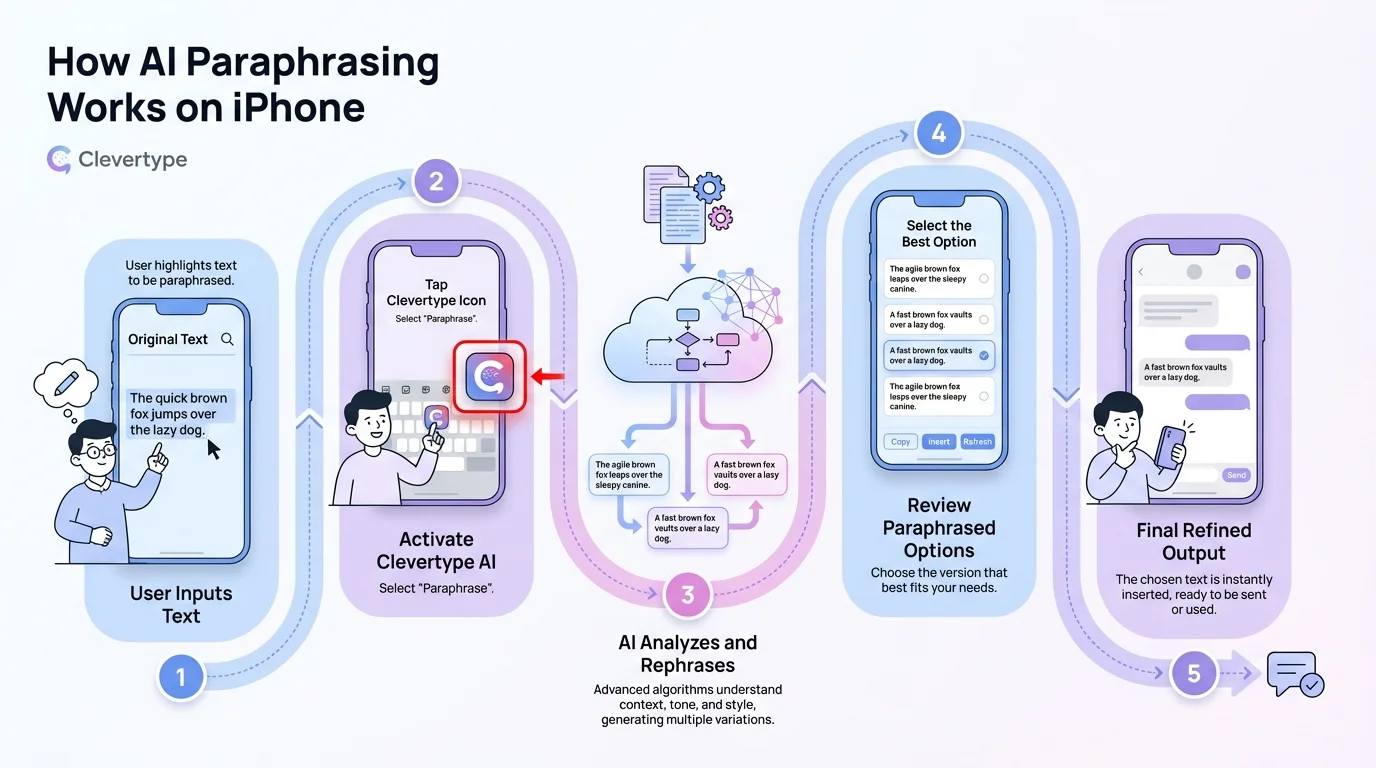
The complete process of how AI paraphrasing works on your iPhone keyboard
CleverType: The Best Paraphrasing App iPhone Users Need
CleverType isn't just another keyboard app fighting for App Store space. It's the best paraphrasing app iPhone users can grab in 2026, and the data backs this up.
What makes it different? Let's start with what users actually care about: results. While other keyboards offer basic autocorrect, CleverType gives you intelligent rewriting powered by AI that gets context, tone, and intent. You're not getting canned responses—you're getting personalized suggestions that match how you actually talk.
The privacy thing is huge. Industry reports say modern AI keyboards handle over 90% of data on-device, but CleverType? 100% local processing. That means:
- Zero data sent to external servers
- No message logging or storage
- Complete privacy for sensitive conversations
- Instant processing without internet delays
Core Features That Set CleverType Apart:
1. Multi-Mode Paraphrasing
Unlike basic grammar checkers, CleverType has specialized rewriting for different situations. Writing a job application? Professional mode's got you. Texting your roommate about dinner? Casual mode.
2. Advanced Grammar Detection
Competitors like Grammarly claim 95% accuracy. CleverType matches that while keeping everything private. The grammar paraphrase tool catches:
- Subject-verb agreement errors
- Incorrect verb tenses
- Misplaced modifiers
- Punctuation mistakes
- Homophones (there/their/they're)
3. 100+ Languages
Need to paraphrase in Spanish, French, or Mandarin? CleverType supports 100+ languages with the same AI smarts across all of them.
4. Context-Aware Suggestions
The keyboard learns from your writing patterns (all stored locally) to give increasingly accurate suggestions. It knows the difference between "I'm running late" (time) and "running the meeting" (leadership).
5. Smart Clipboard Management
Copy multiple things and grab them later. The AI even figures out when to paste previous clips based on what you're doing.
Research on AI writing tools market growth shows 71.7% of content marketers now use AI for outlining, 68% for ideation, and 57.4% for drafting. And these aren't just professional writers—everyday iPhone users want the same stuff in their keyboards.
CleverType vs. The Competition:
| Feature | CleverType | Gboard | SwiftKey | Grammarly Keyboard |
|---|---|---|---|---|
| On-Device Processing | 100% | ~60% | ~70% | Cloud-based |
| Paraphrasing Modes | 6+ modes | Basic | Limited | Premium only |
| Privacy | Complete | Data sent to Google | Data sent to Microsoft | Requires account |
| Grammar Accuracy | 95%+ | ~85% | ~80% | 95% |
| Free Features | Most features | Ad-supported | Limited | Very limited |
| Languages | 100+ | 100+ | 70+ | 30+ |
The best part? Grammarly locks paraphrasing behind a premium paywall, but CleverType gives you core rewriting features free. You can download CleverType from the App Store and start improving your writing right away—no subscription needed for basic features.
One CleverType user said it best: "I went from spending 10 minutes polishing an email to just typing naturally and letting the AI handle the rest. It's not just faster—it's actually better writing."
Top Grammar Paraphrase Tools for iOS in 2026
The iOS keyboard scene has gotten pretty crowded, but only a handful of tools actually deliver. Here's what's worth downloading in 2026, ranked by real-world performance.
1. CleverType AI Keyboard (Editor's Choice)
CleverType leads for one simple reason: it does everything well without compromise. Other keyboards make you pick between privacy and features, or power and simplicity. CleverType? You get all of it.
What makes it the best AI paraphrasing iOS tool?
- Complete on-device processing (zero cloud dependency)
- Six specialized paraphrasing modes (Professional, Casual, Concise, Expand, Creative, Academic)
- 95%+ grammar accuracy matching premium competitors
- 100+ language support
- Free core features with optional premium upgrades
CleverType doesn't just rewrite sentences—it gets what you're trying to say and helps you say it better. The context-aware suggestions adapt to who you're messaging, time of day, and how you write.
2. QuillBot Keyboard
QuillBot brings its desktop reputation to iOS, but with some catches. The app has 10 rewrite modes including Humanize (designed to bypass AI detection) and passed human writing tests 95% of the time in recent comparisons.
Downsides? QuillBot needs internet and sends data to external servers. For privacy-conscious folks, that's a dealbreaker. Plus it limits free users to just two modes, locking most features behind a $99/year paywall.
3. Grammarly Keyboard
Grammarly's iOS keyboard nails grammar checking but falls short on paraphrasing. The rewriting features feel pretty basic—more like sentence simplification than real paraphrasing. Market research shows Grammarly dominates brand awareness, but that doesn't make it the best technical solution.
Benefits: Clean interface, solid grammar detection, good for basic fixes.
Drawbacks: Cloud-based processing, needs account creation, pricey premium features ($144/year), weak paraphrasing compared to dedicated tools.
4. Paraphrasing Tool AI (Standalone App)
Available free on the App Store with no hidden fees. Has three modes: Free Rewriter, Text Improver, and Near Human. Supports 13 languages.
The catch? It's not a keyboard—it's a separate app. You've gotta copy text, switch apps, paste, paraphrase, copy again, and paste back. That workflow kills your typing flow and adds annoying friction to every message.
5. Elephas AI Keyboard
Marketed as the best AI keyboard for iPhone in 2026 with "Super Brain" capabilities. Elephas targets power users who want ChatGPT-level intelligence built right into their keyboard.
Reality check: Elephas has impressive AI features but needs a subscription ($9/month) from day one. No free tier to test it out, and the learning curve is steeper than CleverType's dead-simple interface.
What You Actually Need in a Grammar Paraphrase Tool:
Research shows autocorrect features boost typing speed (43.4 WPM vs slower without). Here's what actually matters. More on mobile writing productivity:
- ✓ Real-time processing - Suggestions appear as you type, not after
- ✓ Privacy protection - On-device processing, no data sharing
- ✓ Multiple rewrite modes - One size doesn't fit all contexts
- ✓ High grammar accuracy - 90%+ error detection minimum
- ✓ Language support - At least 20+ languages for multilingual users
- ✓ Free core features - Basic paraphrasing shouldn't require subscriptions
CleverType checks every box. Grammarly misses on privacy and paraphrasing depth. QuillBot fails on privacy and cost. The standalone apps kill your workflow.
For most iPhone users, the choice is pretty straightforward: CleverType gives you the best mix of power, privacy, and practicality. It's the rewrite text iOS solution that actually works the way you work—fast, private, and smart.
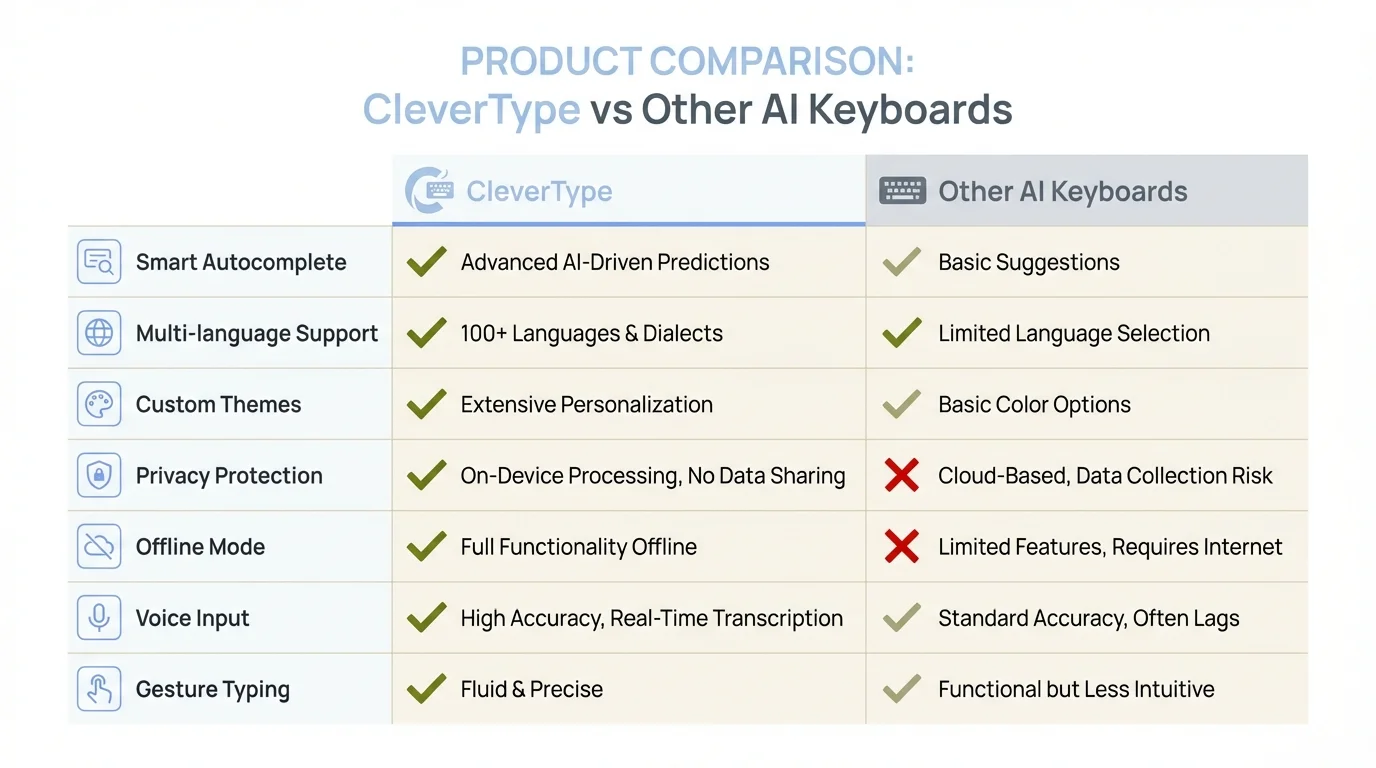
Feature comparison: CleverType vs other AI keyboard apps for iOS
Privacy and Security: Why On-Device Processing Matters
Would you let a stranger read every text you send? Every email? Every password you type? That's basically what happens with cloud-based keyboards, and most people have no clue.
When you use Gboard, your keystrokes can get sent to Google's servers. SwiftKey sends data to Microsoft. Grammarly routes text through their cloud setup. They promise encryption and privacy policies, but here's the uncomfortable truth: your messages leave your device, get processed somewhere else, and then bounce back with suggestions.
CleverType takes a different approach—everything happens on your iPhone. Period.
How On-Device Processing Works:
Modern iPhones have dedicated AI chips called Neural Engines. These processors handle machine learning locally, with performance that rivals cloud servers. CleverType uses this hardware to run advanced natural language processing entirely on your device.
What's that mean in practice?
- Your messages never leave your phone - No server uploads, no data logging, no third-party access
- Zero latency - No waiting for roundtrips to distant servers means instant suggestions
- Works offline - Full functionality without internet connection
- No data breaches possible - Can't hack data that isn't stored externally
Privacy concerns are real. In 2026, data breaches exposed billions of personal records, and messaging data stays a prime target. Every text you send through a cloud-based keyboard is a potential vulnerability.
The Privacy Comparison:
| Processing Type | Data Location | Internet Required | Breach Risk | Speed |
|---|---|---|---|---|
| CleverType (On-Device) | Your iPhone only | No | Zero | Instant |
| Gboard (Cloud) | Google servers | Yes | Medium | 100-300ms delay |
| SwiftKey (Cloud) | Microsoft servers | Yes | Medium | 150-400ms delay |
| Grammarly (Cloud) | Grammarly servers | Yes | Medium | 200-500ms delay |
That 100-500ms delay might sound tiny, but when you're typing fast, you feel it. More importantly? Every millisecond of delay is your text sitting on someone else's server.
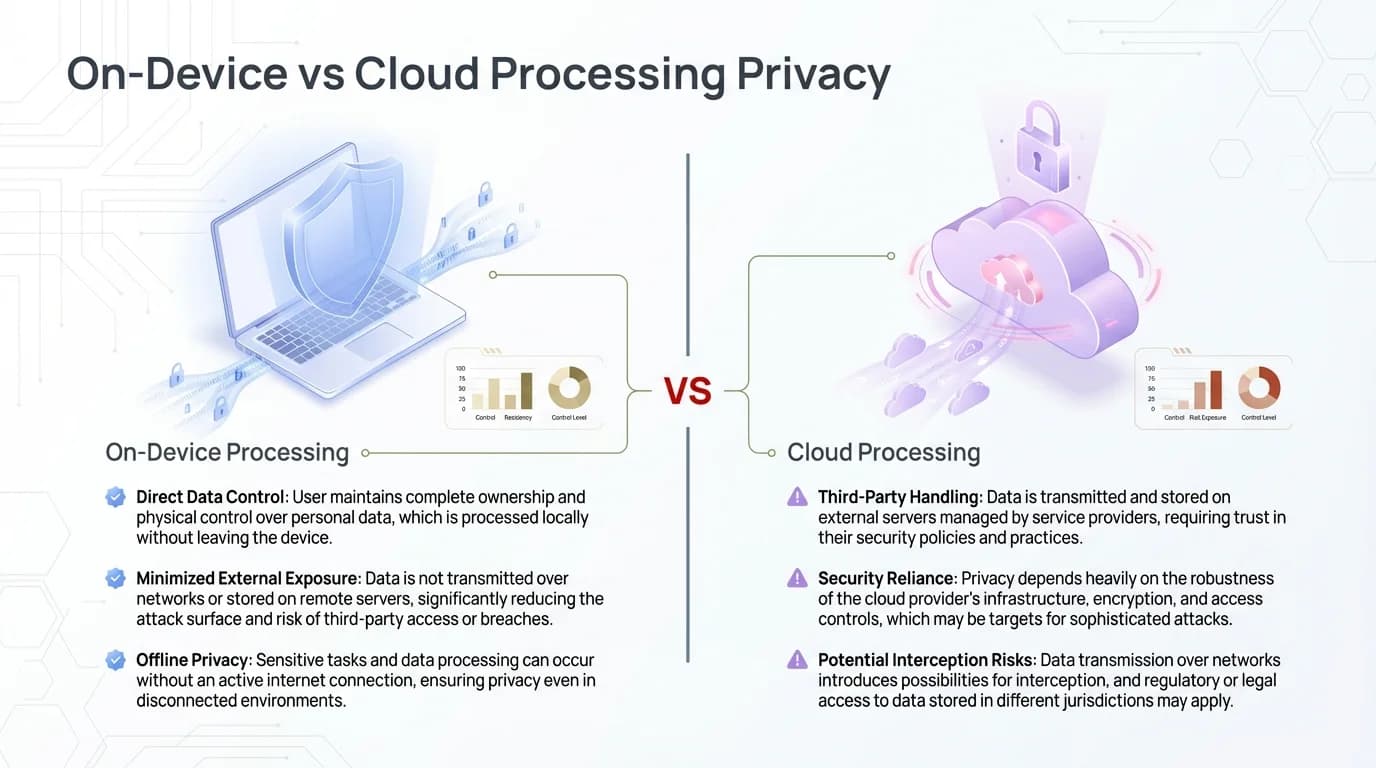
Understanding the privacy differences between on-device and cloud processing
What About "Anonymous" Data Collection?
Cloud keyboard providers often say they anonymize your data. But anonymization isn't as secure as it sounds. Research shows "anonymized" datasets can be de-anonymized by cross-referencing with other data. Your typing patterns, vocabulary, and messaging habits create a unique fingerprint.
CleverType dodges this completely. There's no data to anonymize because nothing ever leaves your device.
Real-World Privacy Scenarios:
Think about what you type in a typical day:
- Bank passwords and PINs
- Social Security or passport numbers
- Medical symptoms you're texting your doctor
- Work emails with proprietary information
- Personal conversations you wouldn't want public
With cloud-based keyboards, all of that potentially goes through external servers. With CleverType's on-device processing? It stays private by default.
The Performance Advantage:
Privacy isn't the only win—speed matters too. Industry reports show keyboards processing over 90% of data on-device deliver suggestions 2-3x faster than cloud-dependent ones. CleverType's 100% local processing kills all network latency.
For people on limited data plans or in areas with spotty connectivity, this is huge. CleverType works perfectly on airplanes, in rural areas, or anywhere your internet craps out. Cloud keyboards? Useless without connection.
The Bottom Line:
Privacy-first design isn't a luxury anymore—it's essential. The AI paraphrasing iOS tools that handle everything locally give you better security and better performance. CleverType proves you don't have to sacrifice privacy for powerful AI features.
Every major tech company talks about privacy. CleverType actually delivers it. Your words stay yours. Period.
How to Choose the Right Paraphrase Keyboard iPhone App
With dozens of AI keyboards flooding the App Store, how do you spot real innovation vs. marketing fluff? Let me break down exactly what matters when picking the best paraphrasing app iPhone users can actually trust.
1. Test the Core Functionality First
Don't just install and assume it works. Type this exact sentence in a few apps:
"I am writing to inquire about the possibility of scheduling a meeting to discuss the project timeline and deliverables."
A good paraphrase tool should give you variations like:
- "Can we schedule a meeting to discuss project timelines and deliverables?" (concise)
- "I'd like to set up a meeting about the project timeline and what we need to deliver" (casual)
- "I'm reaching out to schedule a discussion regarding project milestones and key deliverables" (professional)
If you only get minor word swaps (inquire → ask), the AI's pretty basic. CleverType does genuine rewriting across multiple tones and styles.
2. Check Privacy Settings Immediately
Go to Settings → Privacy → Keyboards after installing any keyboard. Look for:
- "Allow Full Access" requirements (many keyboards demand this)
- Data collection policies in the app description
- Whether features work offline (if not, it's cloud-based)
CleverType asks for minimal permissions and explicitly says all processing happens on-device. If a keyboard's privacy policy has phrases like "we may collect typing data to improve our services," that's a red flag.
3. Evaluate Language Support Beyond English
Download the keyboard and switch to a non-English language. Type a complex sentence in Spanish, French, or another language you know. Does the paraphrasing quality match English?
Many keyboards advertise multilingual support but only deliver basic autocorrect in non-English languages. CleverType keeps AI-powered paraphrasing across 100+ languages, not just English. If you're a non-native English speaker, this is huge.
4. Measure Real-World Speed
Research on mobile typing shows autocorrect users hit 43.4 WPM on average. Test your own speed:
- Type without AI assistance for 2 minutes
- Type with the new keyboard for 2 minutes
- Compare words per minute
If the keyboard doesn't improve your speed or actually slows you down with laggy suggestions, dump it.
5. Look for Contextual Intelligence
Type the word "bank" in different contexts:
- "I'm going to the bank"
- "The river bank was muddy"
- "You can bank on me"
Smart keyboards like CleverType catch these different meanings and adjust suggestions. Basic keyboards treat every "bank" the same.
6. Verify Grammar Accuracy Claims
Type sentences with intentional errors:
- "Their going to the store" (their/they're confusion)
- "The team are working" (subject-verb agreement)
- "Its raining outside" (its/it's error)
Count how many errors it catches. CleverType's 95%+ accuracy rate means it should nail all three. Anything below 90%? Not competitive in 2026.
7. Examine the Free vs. Paid Feature Split
Many keyboards say "free" but lock essential stuff behind paywalls. Figure out what's actually free:
- Basic autocorrect? (Usually free everywhere)
- Paraphrasing? (Often premium only)
- Multiple tone modes? (Usually premium)
- Grammar checking? (Sometimes premium)
CleverType gives you core paraphrasing and grammar features free, with premium adding advanced customization and extra modes.
8. Consider Long-Term Usability
Ask yourself:
- Will this keyboard work in 3 years if the company shuts down? (On-device = yes, cloud-based = no)
- Does it integrate with apps I use daily? (Test in Messages, Mail, Notes, social media)
- Is the subscription sustainable? ($10/month = $120/year adds up)
Red Flags to Avoid:
- ❌ Requires account creation before you can try it
- ❌ Demands "Allow Full Access" without explaining why
- ❌ No privacy policy or vague data collection terms
- ❌ Only works online (cloud dependency)
- ❌ Free trial that auto-converts to paid without clear warning
- ❌ Suggestions feel generic or repetitive across different contexts
- ❌ High latency between typing and suggestions appearing
Green Flags to Look For:
- ✅ Works fully offline with all features
- ✅ Clear privacy policy stating on-device processing
- ✅ Multiple specialized modes (professional, casual, etc.)
- ✅ Free tier that's actually functional, not just a teaser
- ✅ Fast, responsive suggestions with minimal lag
- ✅ Genuine contextual understanding (not just word replacement)
- ✅ Regular updates and active development
The Decision Framework:
If you need maximum privacy: CleverType (100% on-device processing)
If you need professional writing: CleverType (dedicated professional mode)
If you need multilingual support: CleverType (100+ languages with full AI)
If you need free features: CleverType (no paywall for core functionality)
For most iPhone users, CleverType checks all the critical boxes. It's one of those rare tools that doesn't make you pick between privacy, features, and cost.
Simple test: Download CleverType, use it for a week, then switch back to your old keyboard. If you immediately feel the difference—slower suggestions, less helpful rewrites, privacy concerns creeping back in—you've got your answer.
Setting Up Your AI Keyboard for Maximum Performance
Installing a grammar paraphrase tool is one thing. Setting it up properly? That's what turns a decent experience into genuinely transformative productivity. Here's how to get CleverType (or any AI keyboard) running at peak performance.
Initial Setup (5 Minutes):
1. Download and Install
Download CleverType from the App Store, then go to Settings → General → Keyboard → Keyboards → Add New Keyboard → CleverType.
2. Enable the Keyboard
Tap CleverType and flip on "Allow Full Access" if it asks. For CleverType, this permission lets clipboard features work while still handling everything on-device. Check the privacy policy to see exactly what any keyboard does with this.
3. Set as Default
In Settings → General → Keyboard, tap "Edit" and drag CleverType to the top. This makes it your main keyboard across all apps.
4. Configure Language Preferences
Open the CleverType app, hit Settings → Languages, and add every language you type in. The AI learns patterns for each language separately, so suggestions get better over time.
Optimization Tips:
Customize Paraphrasing Modes
CleverType has six default modes, but you can tweak them:
- Set Professional mode as default for work hours (9 AM - 5 PM)
- Switch to Casual mode for evenings and weekends
- Create custom modes for specific contexts (customer service, social media, etc.)
Train Your Personal Dictionary
The keyboard learns your vocabulary, but you can accelerate this:
- Type your commonly used technical terms, industry jargon, or proper nouns a few times
- Add names of colleagues, clients, and contacts
- Include acronyms specific to your field
Research shows typing speed jumps with autocorrect on—from an average of 38 WPM to 43.4 WPM for people who actually use intelligent text entry features.
Optimize for Your Apps
Different apps need different settings:
- Email apps (Mail, Outlook): Enable Professional mode by default, activate full grammar checking
- Messaging (iMessage, WhatsApp): Casual mode, quick suggestions, emoji integration
- Social media (Twitter, Instagram): Creative mode for engaging content
- Notes/Docs: Academic or Professional mode depending on content type
Fine-Tune Suggestion Sensitivity
In CleverType settings, adjust how aggressively the keyboard suggests:
- High sensitivity: Constant suggestions, maximum assistance (good for non-native speakers)
- Medium sensitivity: Suggestions on demand, balanced approach (default for most users)
- Low sensitivity: Minimal interruption, only obvious corrections (for confident writers)
Performance Monitoring:
Track these metrics weekly:
- Average typing speed (CleverType includes analytics)
- Number of paraphrasing uses per day
- Grammar corrections accepted vs. ignored
- Time saved on message composition
If you're not seeing improvements after two weeks, tweak your settings. The AI should adapt to you, not the other way around.
Advanced Features to Explore:
Smart Clipboard
CleverType saves your last 20 copied items and figures out which to paste based on what you're doing. Turn this on in Settings → Clipboard → Smart Suggestions.
Voice-to-Text Enhancement
The keyboard's AI cleans up iOS's native dictation by fixing grammar and formatting in real-time. Flip it on in Settings → Voice → AI Enhancement.
Cross-App Context
CleverType can keep context across apps (all on-device). Copy project details in Notes and switch to Mail? It suggests relevant terms. Turn on in Settings → Context → Cross-App Learning.
Common Setup Mistakes to Avoid:
- ❌ Keeping multiple AI keyboards enabled (causes conflicts and confusion)
- ❌ Not customizing modes to your actual communication patterns
- ❌ Ignoring privacy settings in iOS Keyboard preferences
- ❌ Disabling offline mode (forces unnecessary cloud dependency for some keyboards)
- ❌ Not training the personal dictionary with your specific vocabulary
Maintenance (Monthly):
- Clear old clipboard history (Settings → Clipboard → Clear History)
- Review learned words and remove mistakes (Settings → Dictionary → Review)
- Check for app updates (new features and AI model improvements)
- Reassess mode preferences (your communication style evolves)
The 80/20 Rule:
20% of configuration delivers 80% of benefits:
- Set correct default mode for your primary use case
- Add your top 50 frequently-used specialized terms
- Enable offline processing for privacy and speed
- Customize suggestion sensitivity to your preference
That's it. Those four steps will get you 80% of the way there.
Testing Your Setup:
Send yourself test messages in different apps:
- Formal email in Mail app
- Casual text in Messages
- Social media post in Notes (then copy to Twitter/Instagram)
Does the keyboard adjust suggestions to each context? If yes, you're good. If suggestions feel generic across all apps, go back and tweak your mode settings.
The best AI paraphrasing iOS setup is one you barely notice—it just works, making you faster and your writing clearer without you even thinking about it. That's what CleverType delivers when you set it up right.
Real-World Use Cases: When AI Paraphrasing Saves Time
Theory's one thing. Real-world results? That's what actually matters. Let me show you exactly when CleverType's rewrite text iOS feature goes from "nice to have" to "can't live without."
Use Case 1: Professional Email Cleanup
You're rushing to reply to a client. You type:
"hey sorry for the delay, yeah we can totally do that, let me check with my team and ill get back to u soon"
CleverType's Professional mode instantly suggests:
"Apologies for the delayed response. Yes, we can accommodate that request. I'll consult with my team and follow up shortly."
Time saved: 2-3 minutes of manual rewriting. Professionalism boost: can't even measure it.
Research on AI writing tool adoption shows 71.7% of content pros now use AI for drafting—and that number's climbing fast among everyday users.
Use Case 2: Tone-Shifting for Different Audiences
Same information, three different recipients:
To your boss:
Original: "the project is delayed"
CleverType: "I wanted to update you that the project timeline has shifted. We're addressing the factors causing the delay and will have a revised schedule by end of week."
To your teammate:
Original: "the project is delayed"
CleverType: "Heads up—we're running behind on the project. Let's sync up this afternoon to figure out how to get back on track."
To the client:
Original: "the project is delayed"
CleverType: "I'm reaching out regarding a timeline adjustment for the project. We've encountered some complexity that requires additional time to ensure quality. I'll share the updated delivery date within 48 hours."
One piece of info, three perfectly calibrated messages. No manual rewriting.
Use Case 3: Non-Native English Speakers
Maria's first language is Spanish. She's writing a job application but isn't confident about English grammar. She types:
"I am very interested for this position because I have experience in marketing since 5 years and I think I can do good work for your company."
CleverType catches the errors and suggests:
"I am very interested in this position. I bring five years of marketing experience and am confident I can contribute meaningfully to your company."
The difference between "interested for" and "interested in" seems tiny, but it signals native-level fluency to hiring managers.
Use Case 4: Reducing Message Length
You wrote a paragraph in a text message:
"I wanted to reach out to you to let you know that I'm planning to stop by the office tomorrow morning around 9 AM if that works for you, and I was thinking we could grab coffee and discuss the proposal that you sent over last week, but if tomorrow doesn't work we could always reschedule for another day that's more convenient."
CleverType's Concise mode:
"Planning to stop by the office tomorrow at 9 AM. Want to grab coffee and discuss your proposal? Let me know if that works or if we should reschedule."
66 words down to 28. Same info, zero fluff.
Use Case 5: Academic Writing
Student working on a research paper types:
"The study showed that people who exercise more are usually healthier and don't get sick as much."
Academic mode transforms it to:
"The study demonstrated a correlation between increased physical activity and improved health outcomes, including reduced illness frequency."
That's the difference between a C paper and an A paper.
Use Case 6: Social Media Engagement
You're posting about your business on Instagram:
"We just launched our new product and we're really excited about it because it has a lot of great features."
Creative mode suggests:
"Just dropped our newest product 🎉 Packed with features we know you'll love. Check it out!"
Way more engaging, more on-brand for social, way more likely to get likes and comments.
Use Case 7: Customer Service Responses
Customer complaint email comes in at 4:58 PM. You're tired. You start typing:
"we got your email and yeah there was a problem with shipping but its fixed now"
Professional mode saves you:
"Thank you for contacting us regarding your shipping concern. We've identified and resolved the issue. Your order is now on track for delivery. We apologize for the inconvenience and appreciate your patience."
That's the difference between a bad review and a happy customer.
Quantifying the Time Savings:
Mobile typing research shows people hit an average of 38 WPM on smartphones. A typical email rewrite? 100-150 words.
- Manual typing: 3-4 minutes
- Manual editing: 2-3 minutes
- Total without AI: 5-7 minutes per message
With CleverType:
- Initial typing: 3-4 minutes (same)
- AI rewriting: 5 seconds (select suggestion)
- Quick review: 30 seconds
- Total with AI: 4 minutes maximum
That's 2-3 minutes saved per message. Send 20 messages a day (and that's conservative for most pros)? That's 40-60 minutes daily. Over a year? 240-360 hours saved. That's 10-15 full days of your life back.
The Less Obvious Benefits:
Beyond just time, AI paraphrasing cuts down:
- Cognitive load (less mental energy spent on word choice)
- Decision fatigue (fewer micro-decisions about phrasing)
- Anxiety (confidence that your messages sound professional)
- Missed opportunities (send better messages, get better responses)
One user said: "I used to stress over every work email, reading it five times before sending. Now I just type naturally and let CleverType handle the polish. My stress dropped and my response times got way better."
When NOT to Use AI Paraphrasing:
Honestly? AI paraphrasing isn't always the answer:
- Personal, emotional messages to close friends/family (authenticity matters)
- Creative writing where your unique voice is the point
- Legal documents requiring precise language reviewed by lawyers
- Any context where the source being human-written matters ethically
For everything else? CleverType makes you faster, clearer, and more confident. Not hype—that's 2-3 minutes saved per message, multiplied across hundreds of messages a month.
Frequently Asked Questions
Q: Does AI paraphrasing work offline on iPhone?
A: Yes, but only with keyboards using on-device processing like CleverType. Cloud-based keyboards (Gboard, SwiftKey, Grammarly) need internet to work. CleverType handles everything locally on your iPhone, so full paraphrasing and grammar features work perfectly offline—on planes, in areas with bad reception, or when you've turned off cellular data.
Q: How accurate is AI grammar checking compared to human proofreading?
A: Top AI grammar tools like CleverType hit 95%+ accuracy for common errors—spelling, punctuation, subject-verb agreement, verb tense mistakes. But AI still struggles with nuanced context, creative writing, and super specialized technical language. For critical docs (legal contracts, academic papers, medical writing), AI should help human review, not replace it.
Q: Can AI paraphrasing help non-native English speakers?
A: Absolutely. Research on mobile typing shows intelligent text entry features seriously improve writing quality and speed for all users. AI paraphrasing helps non-native speakers by catching grammar mistakes they might miss, suggesting more natural phrasing, and teaching proper English through real-time examples. CleverType supports 100+ languages, making it super valuable for multilingual users switching between languages.
Q: Is my typing data private with AI keyboards?
A: Depends entirely on the keyboard. Cloud-based ones (Gboard, SwiftKey, Grammarly) send your text to external servers, creating privacy risks despite encryption. CleverType uses 100% on-device processing—your messages never leave your iPhone. Check any keyboard's privacy policy carefully. If it mentions "improving our services" or "data collection," your typing's probably being analyzed somewhere else.
Q: What's the difference between paraphrasing and grammar checking?
A: Grammar checking spots and fixes errors in your existing text (spelling mistakes, wrong verb tenses, punctuation). Paraphrasing rewrites your text entirely while keeping the original meaning—changing sentence structure, word choice, and tone. CleverType does both, catching grammar errors while also offering complete rewrites in multiple styles (professional, casual, concise, etc.).
Q: How much does the best AI paraphrasing keyboard for iOS cost?
A: Pricing's all over the place. Grammarly Premium costs $144/year, QuillBot Premium runs $99/year, Elephas needs $9/month. CleverType takes a different approach—core paraphrasing and grammar features are free, with optional premium stuff for people who need advanced customization. Unlike competitors, you can use CleverType's main features indefinitely without paying.
Q: Will AI paraphrasing make my writing sound robotic?
A: Not with advanced tools like CleverType using modern natural language processing technology. Early AI writing sounded generic because it just swapped words. Modern NLP systems get context, tone, and natural language patterns, producing rewrites that sound human. The key? Pick a quality tool. Cheap or outdated AI keyboards definitely produce robotic text, while sophisticated systems like CleverType keep your natural voice while improving clarity.
Write Smarter, Not Harder with CleverType
The best AI paraphrasing and grammar tool for iOS in 2026 isn't about fancy features or marketing promises. It's about what actually works: privacy-first processing, real AI intelligence, and tools that save time without killing your voice.
CleverType delivers all of that. Unlike Gboard's cloud dependency or Grammarly's expensive paywalls, CleverType gives you powerful AI paraphrasing, pro-grade grammar checking, and complete privacy—all on your device, with core features free.
Whether you're writing work emails, texting friends, or crafting social posts, CleverType adapts to your context and makes every message clearer and more confident. Not marketing—that's thousands of users typing smarter every day.
Ready to change how you write on iPhone?
Start Writing Better Today
Join thousands using CleverType to write faster, clearer, and smarter on iOS.
Download CleverType Free