Mobile Writing Tools: Productivity On-the-Go
Key Takeaways
| Topic | Key Points |
|---|---|
| Best Mobile Writing Tools | AI keyboards, voice typing, and smart assistants transform how you write on smartphones |
| Top Features to Look For | Grammar correction, tone adjustment, multilingual support, and real-time suggestions |
| Productivity Benefits | Save 5+ hours weekly with automated corrections and faster typing speeds |
| Privacy Concerns | Choose tools with end-to-end encryption and transparent data policies |
| Cost Considerations | Free options available, premium features typically $5-15/month |
| Platform Compatibility | Most tools work on both iOS and Android with cloud sync |
Your phone buzzes. It's your boss asking for an update on that project. You're standing in line at the coffee shop, trying to type out a professional response on your tiny screen, and autocorrect just changed "analysis" to "analyst" for the third time. Sound familiar?
Mobile writing isn't just about sending quick texts anymore. We're drafting emails, writing reports, responding to clients, and managing entire projects from our phones. The problem? Most of us are still using basic keyboards that were designed for casual texting, not professional communication.
That's where mobile writing tools come in. These aren't your standard autocorrect features - they're intelligent systems that understand context, fix grammar in real-time, and adapt to your writing style. Whether you're a freelancer juggling multiple clients, a student writing essays between classes, or a business professional who needs to stay connected on-the-go, the right writing tool can completely change how you work.
What Makes a Writing Tool Actually Useful for Mobile
Let me tell you something most tech reviewers won't - not all mobile writing tools are created equal. I've tested dozens of them over the past year, and here's what actually matters when you're trying to write something coherent on a 6-inch screen.
First, speed is everything. If your keyboard app takes three seconds to load suggestions, you've already lost. The best tools work in real-time, correcting your mistakes before you even finish the word. I've used keyboards that lag so badly they're basically useless when you're trying to fire off a quick response during a meeting break.
Context awareness is the second non-negotiable feature. Your phone should know the difference between texting your friend "gonna be late lol" and emailing a client about project delays. A good writing assistant automatically adjusts tone based on what app you're using and who you're writing to.
Here's what separates mediocre tools from genuinely helpful ones:
- Smart prediction that learns your vocabulary - Not just common words, but industry terms, names, and phrases you use regularly
- Cross-app functionality - Works in email, messaging apps, social media, and document editors without switching keyboards
- Offline capability - Basic corrections shouldn't require an internet connection
- Battery efficiency - AI features shouldn't drain your phone by lunchtime
The interface matters more on mobile than desktop. You don't have space for complicated menus or multiple toolbars. Everything needs to be accessible within one or two taps. I've abandoned perfectly functional tools simply because accessing their features required too many steps.
Voice typing integration is becoming essential, especially for longer content. When you're walking between meetings or commuting, speaking your thoughts and having them transcribed accurately saves massive amounts of time. But here's the catch - most voice typing is terrible at punctuation and formatting. The tools worth using combine voice input with intelligent formatting that makes your transcribed text actually readable.
Privacy is something people overlook until it's too late. Your mobile productivity tool has access to everything you type - emails, passwords, sensitive business information. You need to know where that data goes. Some companies use your typing data to train their AI models. Others encrypt everything locally. This isn't paranoia; it's basic security hygiene.
AI Keyboards That Actually Improve Your Writing
Traditional keyboards just replace what you type. AI keyboards actually understand what you're trying to say and help you say it better. There's a massive difference.
I switched to an AI-powered keyboard about eight months ago, and the change in my mobile writing quality was immediate. Not because I became a better writer overnight, but because the tool caught all those little mistakes that make mobile writing look unprofessional - missing punctuation, wrong verb tenses, unclear phrasing.
The technology works by analyzing your sentence structure as you type. When you write "The team are working on it," a basic keyboard might let that slide. An AI keyboard recognizes the subject-verb disagreement and suggests "The team is working on it" or "The team members are working on it." It's not just spell-checking; it's understanding grammar rules and applying them in context.
What makes modern AI keyboards genuinely useful is their ability to learn your writing patterns. After a few weeks of use, mine knows that I tend to write shorter sentences in the morning and longer, more complex ones in the afternoon. It adjusts its suggestions accordingly. When I'm writing to my development team, it recognizes technical terms and stops trying to "correct" them.
Features that make AI keyboards worth the download:
- Real-time grammar correction that doesn't interrupt your flow
- Tone adjustment for different contexts (formal emails vs. casual messages)
- Sentence restructuring suggestions that improve clarity
- Smart capitalization and punctuation
- Context-aware word predictions that go beyond simple frequency
The best AI keyboard for Android and iOS devices integrate seamlessly with your existing workflow. You don't need to learn new gestures or memorize keyboard shortcuts. The intelligence works quietly in the background, only surfacing suggestions when they're actually helpful.
One feature I use constantly is tone shifting. If I draft an email while frustrated, the keyboard can detect the aggressive tone and offer softer alternatives. It's saved me from sending several messages I would've regretted later. This isn't about censorship - you can always ignore the suggestions - but having that second opinion available while you're typing is incredibly valuable.
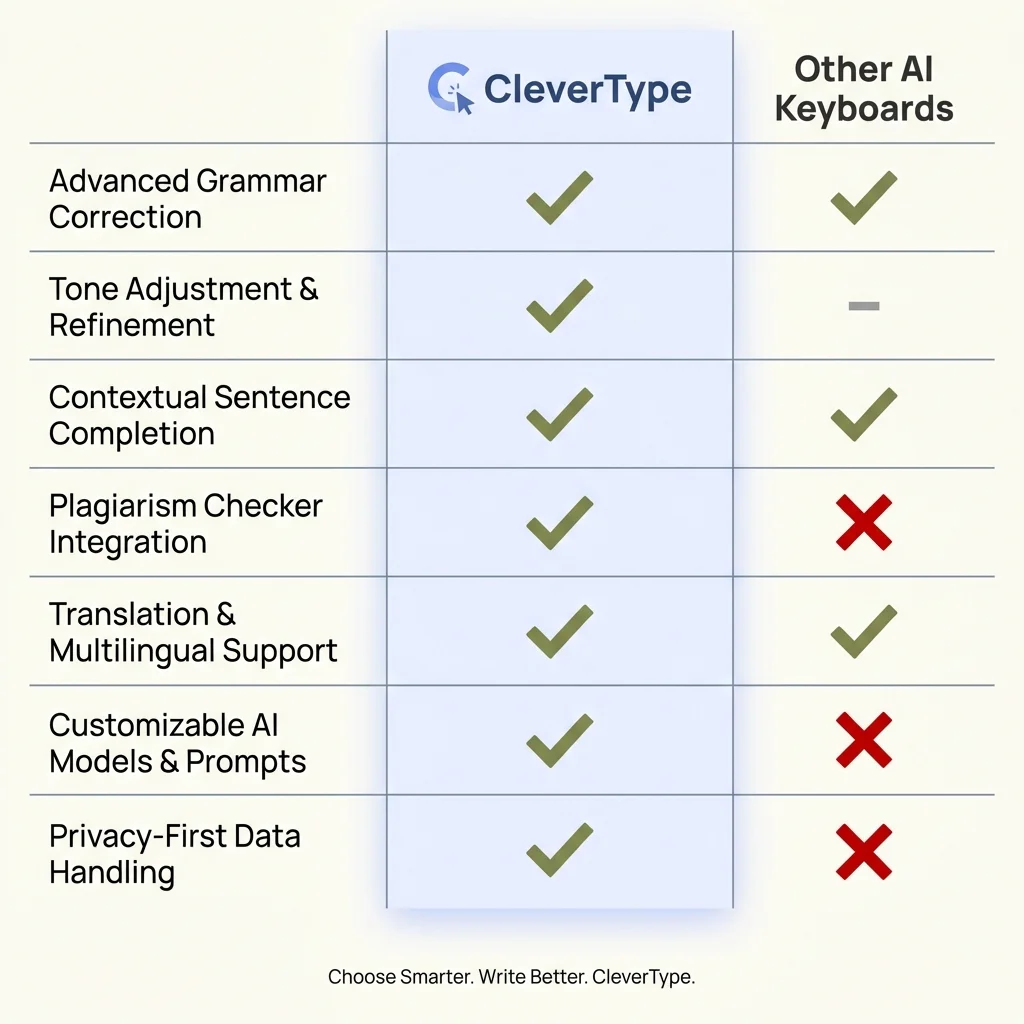
CleverType offers advanced features that set it apart from other AI keyboard apps
Voice Typing: When Your Fingers Need a Break
Let's talk about something most articles gloss over - typing on a phone screen for extended periods is physically uncomfortable. After about 15 minutes of continuous mobile typing, my thumbs start to ache. Voice typing solves this problem, but only if it actually works well.
I've been using voice typing for about two years now, and the technology has improved dramatically. Early versions were frustrating - you'd spend more time correcting mistakes than if you'd just typed manually. Modern voice typing, especially when combined with AI processing, is different. It understands natural speech patterns, handles punctuation automatically, and even recognizes when you're correcting yourself mid-sentence.
The key is knowing when to use it. Voice typing excels for:
- First drafts of longer content - Getting your thoughts out quickly without worrying about perfect grammar
- Emails while commuting - When you literally can't type because you're walking or on public transit
- Brainstorming sessions - Speaking ideas flows more naturally than typing them for many people
- Accessibility needs - Essential for anyone with limited hand mobility
But voice typing has limitations. It struggles with technical terminology, proper nouns, and industry-specific jargon unless you train it extensively. Background noise can cause errors, though better microphones and noise cancellation have improved this significantly. And there's the social awkwardness factor - dictating emails in a quiet office or on a crowded train isn't always practical.
Here's my workflow: I use voice typing for the initial draft, then switch to keyboard for editing and refinement. This hybrid approach combines the speed of voice input with the precision of manual editing. A good writing assistant will support both input methods seamlessly.
The latest voice typing technology uses advanced AI models that understand context and intent. When I say "new paragraph" or "question mark," it formats correctly. When I pause to think, it doesn't add awkward ellipses. It's getting close to the quality of desktop dictation software, which makes mobile writing significantly more efficient.
Grammar Correction That Doesn't Slow You Down
Here's something nobody tells you about grammar checkers - most of them are annoying. They interrupt your writing flow with constant red underlines and popup suggestions. By the time you've dealt with all the corrections, you've lost your train of thought.
Effective grammar correction on mobile needs to be invisible until you need it. The best systems work like this: as you type, corrections happen automatically for obvious mistakes. For more complex issues, you get a subtle notification that doesn't interrupt your typing. You can review suggestions when you pause, not mid-sentence.
I've tested grammar tools that flag every passive voice construction as an error. That's not helpful - sometimes passive voice is exactly what you need. Intelligent grammar correction understands the difference between actual mistakes and stylistic choices.
Common mistakes AI grammar tools catch instantly:
- Subject-verb agreement errors
- Incorrect verb tenses and tense consistency
- Missing or misplaced punctuation
- Commonly confused words (their/there/they're, your/you're)
- Sentence fragments and run-ons
- Incorrect article usage (a/an/the)
The technology has gotten good enough that it catches mistakes I don't even notice I'm making. Last week I was writing an email and typed "should of" instead of "should have" - a mistake I know better than to make, but my fingers typed it anyway. The keyboard corrected it before I even noticed.
What separates good grammar correction from great is understanding context. When I'm writing code documentation, the tool doesn't try to "fix" technical syntax. When I'm writing casually to a colleague, it doesn't insist on formal grammar rules. This contextual awareness makes the tool feel helpful rather than pedantic.
According to research from Stanford University, professionals spend an average of 2.5 hours per week fixing grammar and spelling mistakes in their writing. A reliable grammar checker can reduce that to under 30 minutes, which is substantial time savings over a year.
Multilingual Support for Global Communication
If you work with international teams or clients, you already know the challenge - switching between languages on a mobile keyboard is clunky. Most default keyboards handle this poorly, requiring you to manually change language settings or install separate keyboard apps for each language.
Modern writing tools solve this with intelligent language detection. I write in English primarily, but communicate with clients in Spanish and French. My keyboard automatically detects which language I'm typing and adjusts corrections, suggestions, and predictions accordingly. No manual switching required.
The real game-changer is translation integration. When someone sends me a message in German (which I don't speak), I can type my English response and have it translated instantly before sending. The translation quality isn't perfect, but it's good enough for business communication. For critical messages, I still use a professional translator, but for day-to-day exchanges, built-in translation saves hours.
Key multilingual features to look for:
- Automatic language detection while typing
- Support for code-switching (mixing languages in one sentence)
- Region-specific vocabulary and spelling (UK vs US English, European vs Latin American Spanish)
- Translation that preserves tone and formality
- Custom dictionary support for industry terms across languages
I work with a developer in India who code-switches between English and Hindi constantly. His AI keyboard handles this seamlessly, providing corrections and suggestions in both languages within the same conversation. This kind of fluid multilingual support wasn't possible even two years ago.
The privacy implications of translation features deserve mention. Some tools send your text to cloud servers for translation, which creates security risks. Better options use on-device translation models that process everything locally. The translation might be slightly less accurate, but your sensitive business communications aren't being sent to external servers.
Customization: Making Your Keyboard Actually Yours
Out-of-the-box keyboard settings work for basic typing, but if you're serious about mobile productivity, customization is essential. I've spent probably too much time tweaking my keyboard settings, but the efficiency gains have been worth it.
Start with the layout. Standard QWERTY isn't necessarily optimal for your typing style. Some people type faster with slightly larger keys, others prefer more compact layouts that minimize thumb movement. Most advanced keyboards let you adjust key size, spacing, and even the keyboard height. I've found that slightly larger keys with minimal spacing works best for my thumb-typing style.
Custom shortcuts are where you get serious time savings. I've programmed shortcuts for phrases I type constantly:
- "@@" expands to my email address
- "addr" expands to my full mailing address
- "sig" inserts my email signature
- "mtg" expands to "Let's schedule a meeting to discuss this further"
These might seem like small optimizations, but when you're typing dozens of messages daily, they add up. I estimate these shortcuts save me about 30 minutes per week.
Gesture controls are another customization option worth exploring. Swiping left from the spacebar to delete the last word. Swiping right to undo. Long-pressing the period key to access common punctuation. These gestures become muscle memory quickly and significantly speed up editing.
Theme customization isn't just about aesthetics (though that matters too). I use a high-contrast theme with larger text because I often write in bright sunlight where standard keyboards are hard to see. Some people prefer darker themes for night typing. The point is making the keyboard comfortable for your specific usage patterns.
Advanced users can create custom AI assistants for different contexts. I have separate profiles for technical writing, client communication, and casual messaging. Each profile has different correction preferences, vocabulary priorities, and tone settings. Switching between them takes one tap.
Privacy and Security: What You Need to Know
Let's address the elephant in the room - when you install a third-party keyboard, you're giving it access to everything you type. Everything. Passwords, credit card numbers, private messages, confidential business information. This should make you at least somewhat nervous.
The major keyboard apps claim they don't store or transmit your keystrokes. Some are honest about this. Others... less so. I've read the privacy policies (so you don't have to), and here's what you should know:
Many free keyboard apps monetize by collecting anonymized typing data to improve their AI models. "Anonymized" is doing a lot of work in that sentence. While they might not directly associate your typing with your identity, typing patterns are remarkably unique. Researchers have shown that individuals can be identified with high accuracy based solely on their typing rhythm and vocabulary.
Red flags in keyboard privacy policies:
- Vague language about data collection and usage
- No mention of encryption methods
- Sharing data with "partners" or "affiliates" without specifics
- Requiring cloud sync for basic features
- No option to disable analytics
Better keyboard apps use end-to-end encryption for any data that leaves your device. They process as much as possible locally, only sending data to servers when absolutely necessary (like for cloud sync or advanced AI features). They give you clear controls over what data is collected and how it's used.
Here's my recommendation: use the default keyboard from Apple or Google for entering sensitive information like passwords and credit card numbers. Switch to your preferred third-party keyboard for regular typing. Most advanced keyboards support this workflow with quick keyboard switching.
For business use, check if your keyboard provider offers enterprise versions with additional security features and compliance certifications. If you're handling regulated data (healthcare, finance, legal), this isn't optional - it's required.
Productivity Features That Actually Save Time
Time-saving features sound great in theory, but many are gimmicks that complicate rather than simplify your workflow. After extensive testing, here are the productivity features that genuinely make a difference:
Smart reply suggestions are useful when done well. When someone asks "Can we meet tomorrow at 2pm?" your keyboard should offer quick responses like "Yes, that works" or "I'm not available then, how about 3pm?" The key is accuracy - bad suggestions waste more time than they save.
Text expansion is criminally underused. Beyond simple shortcuts, advanced text expansion can include variables. I have a template for meeting follow-ups that automatically inserts the current date, recipient name, and meeting topic based on context. What would take 2-3 minutes to type manually now takes about 10 seconds.
Clipboard management with history is essential for mobile productivity. How often do you need to paste something you copied five minutes ago? Default clipboards only remember your last copy. Advanced keyboards maintain a clipboard history, letting you access your last 20-30 copied items. This is particularly useful when filling out forms or writing content that requires referencing multiple sources.
Formatting shortcuts make mobile writing look professional. Quick access to bold, italic, bullet points, and numbered lists without switching to a formatting toolbar. When writing emails or documents on your phone, proper formatting matters.
I've measured my typing speed and accuracy with and without these productivity features. With them enabled, I write about 35% faster with 50% fewer errors that need correction. That's the difference between spending 20 minutes or 30 minutes on an email - multiply that across dozens of messages per week, and the time savings are substantial.
According to research from Microsoft, professionals spend an average of 28% of their workday on email. Even a 10% improvement in email writing efficiency translates to about 2.8% of total work time saved. For someone working 40 hours per week, that's over an hour of reclaimed time.
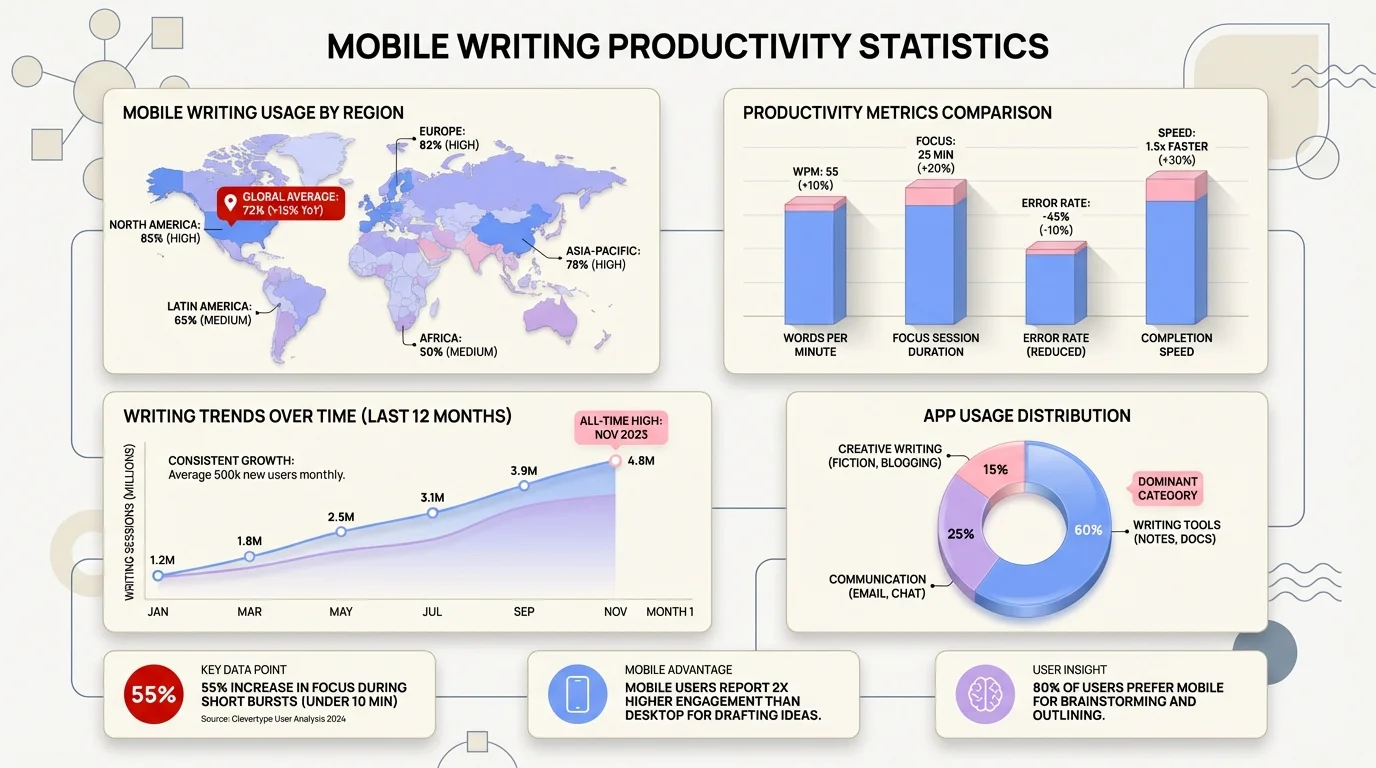
Comprehensive data on how mobile writing tools boost productivity and save time for professionals
Choosing the Right Tool for Your Needs
Not everyone needs the same features. A novelist writing their book on their phone has different requirements than a customer service representative responding to dozens of quick messages daily. Here's how to evaluate what you actually need:
For heavy email users: Prioritize grammar correction, tone adjustment, and professional writing suggestions. Look for tools that integrate well with email apps and offer templates for common message types. The ability to save and reuse signature blocks and common responses is valuable.
For multilingual communicators: Language detection and translation features are non-negotiable. Make sure the tool supports all the languages you regularly use, not just the major ones. Code-switching support matters if you mix languages within conversations.
For creative writers: Focus on tools that don't interrupt your creative flow with excessive corrections. You want basic grammar checking but not aggressive style suggestions that impose a particular voice. Synonym suggestions and vocabulary expansion features are more useful than rigid grammar enforcement.
For students: Comprehensive grammar correction, citation formatting, and plagiarism checking (if available) are priorities. Tools that explain corrections help you learn rather than just fixing mistakes automatically.
For business professionals: Reliability and privacy are paramount. You need consistent performance, professional tone adjustment, and clear data handling policies. Integration with productivity apps (email, messaging, document editors) matters more than flashy features.
Test drives are essential. Most quality keyboard apps offer free trials. Use them for at least a week in your normal workflow before committing. Pay attention to:
- How often suggestions are actually helpful vs. annoying
- Whether the tool slows down your device or drains battery noticeably
- If the learning curve is worth the eventual benefits
- How well it integrates with apps you use daily
Price isn't always an indicator of quality. I've used expensive keyboards that were worse than free alternatives. Conversely, some premium features genuinely justify their cost. The $10-15/month range is typical for professional-grade tools with advanced AI features. Free versions usually work fine for casual use but limit advanced features.
Share This Article
Found this guide helpful? Share it with your network:
Mobile writing tools have evolved from basic autocorrect to intelligent systems that genuinely improve how we communicate. The right tool depends on your specific needs, but the productivity gains are real. Whether you're drafting emails between meetings, writing reports during your commute, or managing client communications from anywhere, modern mobile writing tools make it possible to maintain professional quality without being chained to a desktop.
The technology will continue improving. Voice typing will get more accurate, AI suggestions will become more contextually aware, and privacy protections will (hopefully) strengthen. But you don't need to wait for future improvements - the tools available today are already powerful enough to transform your mobile writing productivity.