Key Takeaways
| Feature | Benefit | Best For |
|---|---|---|
| 24/7 Availability | Write and edit anytime, anywhere without waiting | Professionals with irregular schedules |
| Real-time Grammar Correction | Fix mistakes as you type across all apps | Business emails and client communication |
| Tone Adjustment | Switch between formal and casual instantly | Multi-context writers |
| Custom AI Assistants | Personalized writing help for specific tasks | Content creators and marketers |
| Cross-platform Support | Works on mobile keyboards, not just desktop | Remote workers and mobile-first users |
| Privacy-First Design | Your data stays secure while you write | Security-conscious professionals |
| Multilingual Support | Write confidently in 40+ languages | International teams and ESL writers |
| Cost Efficiency | One tool replaces multiple subscriptions | Budget-aware individuals and teams |
An ai writing assistant changes how you write by being available whenever you need help. Unlike traditional writing tools that require switching between apps, modern AI writing assistants work directly where you type—in your emails, messages, and documents. This means you get instant help without disrupting your workflow.
What Makes an AI Writing Assistant Different from Basic Spell Check
Basic spell checkers catch obvious typos. That's it. An ai writing assistant does way more than that, and the difference matters if you write anything important.
I've watched people struggle with built-in spell checkers for years. They miss context errors constantly. You've probably typed "their" when you meant "there" and the spell checker just... ignored it because technically both words are spelled right. An AI writing tool understands what you're actually trying to say.
Here's what separates them:
- Context awareness: Knows when "lead" should be "led" based on your sentence
- Style suggestions: Tells you when sentences are too long or confusing
- Tone detection: Catches when your "friendly" email sounds passive-aggressive
- Grammar beyond basics: Fixes subject-verb agreement that spell check misses
A writing assistant learns your patterns too. After a week of use, it knows you always write "alot" and fixes it to "a lot" automatically. Mine caught me writing "per say" instead of "per se" about fifteen times before I finally learned.
The real difference shows up in professional settings. Send an email with "I look forward to hearing from you" versus "I look forward to hear from you"—spell check won't catch that second one, but an ai writing assistant will flag it immediately. According to a 2024 Grammarly study, professionals who use AI writing tools save an average of 4.5 hours per week on writing tasks.
Traditional tools also can't help you rewrite unclear sentences or suggest better word choices. An AI writing assistant can take "The meeting was not very good because people didn't show up" and suggest "The meeting was poorly attended." That's not just grammar—that's actually improving your writing.
How AI Writing Assistants Work on Mobile Keyboards
Mobile keyboards with AI assistance have gotten really good at predicting what you'll type next, but the technology behind them is more interesting than most people realize.
When you install an AI keyboard, it doesn't just replace your regular keyboard—it adds a layer of intelligence that processes your text in real-time. The ai writing assistant runs locally on your device for basic corrections, which is why you get instant feedback even without internet. For more complex suggestions like tone changes or advanced grammar fixes, it connects to cloud-based models.
The process happens in milliseconds:
- You type a word or phrase
- The keyboard analyzes context from your previous words
- AI models compare your text against millions of writing patterns
- You get suggestions for corrections, completions, or improvements
- The system learns from your choices to personalize future suggestions
Most people don't realize that modern AI writing keyboards use transformer models—the same technology behind ChatGPT. These models understand relationships between words in ways older autocorrect never could. When you type "I'm going to the store to buy some..." the AI doesn't just guess "milk" or "bread"—it considers your writing history, time of day, and conversation context.
Privacy matters here too. Good AI keyboards process sensitive information locally whenever possible. Your credit card numbers, passwords, and personal messages don't need to hit external servers for basic corrections. Only when you specifically ask for AI assistance (like rephrasing or tone changes) does the text get sent to secure cloud servers, and even then, it's encrypted.
The keyboard also adapts to your unique writing style. If you consistently use British spellings or industry-specific jargon, the writing assistant learns to match your preferences. This personalization happens through federated learning—your device trains a local model without sending your actual typing data anywhere.
One thing that surprised me when I first tested these tools was how they handle multiple languages. Switch between English and Spanish mid-sentence, and the AI adjusts instantly. According to research from MIT Technology Review, modern NLP models can now detect language switches with 98% accuracy, making them genuinely useful for bilingual users.
Setting Up Your AI Writing Assistant in Under 5 Minutes
Getting an ai writing assistant running on your phone takes less time than making coffee. I've helped dozens of people set this up, and the process is basically identical whether you're on iPhone or Android.
First, download an AI keyboard app. Go to your app store and search for AI writing keyboards—you'll see options like CleverType, which I'll use as an example since it's straightforward. Hit install and wait about 30 seconds.
Once installed, open your phone's Settings app. The exact path differs by device:
For iPhone users:
- Settings → General → Keyboard → Keyboards
- Tap "Add New Keyboard"
- Select your AI keyboard from the list
- Toggle "Allow Full Access" (needed for AI features to work)
For Android users:
- Settings → System → Languages & Input → On-screen keyboard
- Tap "Manage keyboards"
- Enable your new AI keyboard
- Set it as default if you want
The "Allow Full Access" part freaks some people out, but here's what it actually means: the keyboard needs permission to send text to AI servers for suggestions. Reputable AI writing tools encrypt this data and don't store it permanently. You can check any app's privacy policy to see exactly what they do with your text.
Now open any app where you type—Messages, Email, Notes, whatever. Tap in a text field and look for the keyboard icon (usually a globe or smiley face) at the bottom left. Press and hold it until a menu pops up, then select your new AI keyboard.
Type something like "i went to store yesterday" and watch what happens. The ai writing assistant should immediately suggest corrections: "I went to the store yesterday." That's it working. If you see underlined words or suggestion bubbles, you're good to go.
Most AI keyboards have a settings menu you can access right from the keyboard itself. Look for a gear icon or menu button. Here you can:
- Choose which AI features to enable (grammar, tone, predictions)
- Set up custom shortcuts for phrases you type often
- Adjust autocorrect aggressiveness
- Configure which apps can use AI features
One thing that trips people up: you might need to grant additional permissions the first time you use certain features. If you try to use voice typing or translation and nothing happens, check your phone's permission settings for the keyboard app.
The whole setup genuinely takes about 3-4 minutes. I've timed it multiple times when helping colleagues switch to an AI keyboard. The hardest part is usually finding the keyboard settings menu on your specific phone, since manufacturers love hiding that stuff in different places.
Real-Time Grammar and Spelling Corrections That Actually Help
Grammar corrections in an ai writing assistant work differently than you'd expect. They don't just flag errors—they explain why something's wrong and suggest better alternatives.
I write emails all day, and before using an AI writing assistant, I'd send messages with embarrassing mistakes. Not huge ones, but enough to make me look less professional than I wanted. Things like "between you and I" instead of "between you and me"—technically wrong but super common.
The corrections happen as you type, which feels weird at first but becomes natural fast. You'll see:
- Red underlines for spelling errors
- Blue underlines for grammar issues
- Purple highlights for style improvements
- Green suggestions for tone adjustments
Click any underline and you get an explanation. Not just "this is wrong" but "this should be 'whom' because it's the object of the preposition." Whether you care about the grammar rule or not, you learn over time just from seeing the corrections.
What makes AI corrections better than traditional spell check is context understanding. Type "Your going to love this" and old spell checkers miss it because "your" is spelled correctly. An AI grammar checker knows you meant "you're" based on sentence structure.
The assistant also catches subtle errors that even good writers miss:
- Comma splices: "I went to the store, I bought milk" → "I went to the store, and I bought milk"
- Dangling modifiers: "Walking to work, the rain started" → "Walking to work, I noticed the rain started"
- Subject-verb agreement: "The list of items are here" → "The list of items is here"
- Apostrophe misuse: "Its a good day" → "It's a good day"
I've noticed the AI learns your common mistakes too. I always typed "alot" as one word, and after the assistant corrected it about ten times, it started auto-correcting it immediately without me even noticing. Same with "definately" instead of "definitely."
One feature that surprised me was contextual spelling. If you write "I need to loose weight," the assistant knows you probably meant "lose" even though "loose" is a real word. It understands the difference between "affect" and "effect" based on how you're using them, not just flagging both as potential errors.
The real-time aspect matters more than you'd think. Getting corrections as you type means you fix things before moving on, which is way more efficient than proofreading later. According to Harvard Business Review, writers using AI assistance fix errors 63% faster than those who proofread manually.
Some corrections you can ignore if you disagree. The AI isn't always right—it might flag a stylistic choice as an error when you meant to write that way. Good AI writing tools let you dismiss suggestions and remember your preferences.
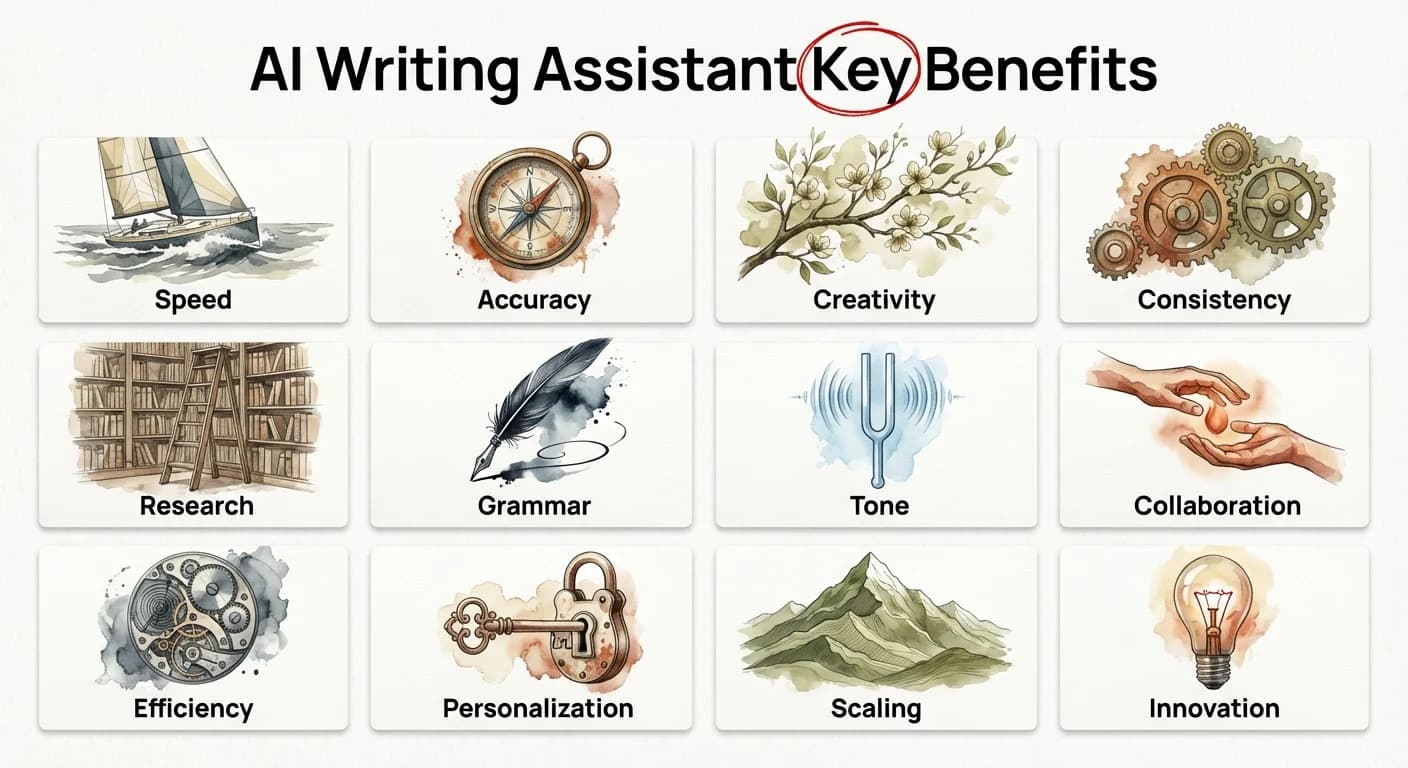
12 powerful benefits that make AI writing assistants indispensable for modern professionals
Tone Adjustment Features for Professional and Casual Writing
Tone adjustment might be the most underrated feature in an ai writing assistant. It's not just about fixing grammar—it's about making sure your message actually sounds the way you want it to.
I learned this the hard way when I sent what I thought was a friendly email to a client, and they responded like I was being passive-aggressive. Reading it back, I could see how "As I mentioned before..." came across as annoyed. An AI tone detector would've caught that.
Here's how tone adjustment actually works in practice. You write something like "I need this done by Friday" and the ai writing assistant analyzes it. Then it shows you how the message reads:
- Current tone: Direct, possibly demanding
- Suggested rewrite (professional): "Would it be possible to have this completed by Friday?"
- Suggested rewrite (friendly): "Hey! Could you get this to me by Friday? Thanks!"
The AI doesn't just change words—it restructures sentences to match the tone you're going for. If you're writing a job application and accidentally write "I think I'd be good at this job," the assistant might suggest "My experience aligns well with this position's requirements."
Different situations need different tones, and switching between them manually is harder than it sounds. I write casual messages to my team all day, then suddenly need to email a potential investor. Without a tone adjustment tool, I'd either sound too stiff with my team or too casual with investors.
The tone categories most AI assistants recognize include:
- Professional/Formal: Business emails, cover letters, client communication
- Casual/Friendly: Team chats, personal emails, social media
- Confident/Assertive: Sales pitches, negotiations, leadership messages
- Empathetic/Supportive: Customer service, team feedback, apologies
- Neutral/Informative: Documentation, reports, instructions
What's interesting is how the AI handles edge cases. Say you're writing to your boss about a mistake you made. You want to sound professional but also human—not robotic. The assistant can find that middle ground better than you might on your own.
I've used tone control features to:
- Make rejection emails sound less harsh
- Add warmth to technical documentation
- Remove emotional language from complaint responses
- Sound more confident in salary negotiation emails
One thing that surprised me was how much tone affects response rates. According to data from Boomerang's email research, messages with a slightly positive tone get 10-15% more responses than neutral ones. But go too positive and you sound fake, which is where AI helps calibrate.
The assistant also catches unintentional tone problems. Words like "just," "actually," and "obviously" can make you sound condescending without realizing it. Write "Actually, the deadline is Friday" and the AI might flag it as potentially dismissive, suggesting "The deadline is Friday" instead.
Some AI writing keyboards let you set a default tone preference. If you mostly write professional emails, it'll automatically suggest more formal language. Switch to texting a friend and it adapts to casual mode.
The real value shows up when you're tired or stressed and can't judge your own tone accurately. Late-night emails are dangerous—you think you sound fine, but you're actually being way more blunt than intended. The AI catches that before you hit send.
Using AI Writing Assistance for Email, Messages, and Documents
An ai writing assistant works everywhere you type, but some situations benefit more than others. Emails, messages, and documents each have different needs, and knowing how to use AI for each one makes a huge difference.
Email Writing
Email writing is where I use AI assistance the most. Professional emails need to be clear, polite, and error-free, but they also need to sound human. I'll start typing "Hey, wanted to follow up on..." and the assistant might suggest "I hope this email finds you well. I wanted to follow up regarding..." if it detects I'm in a professional context.
For email-specific features, look for:
- Subject line suggestions based on your message content
- Automatic greeting and closing phrases
- Tone analysis before sending (is this too direct? too casual?)
- Length recommendations (this email is too long, consider splitting it)
I've had the AI catch embarrassing mistakes right before sending. Like addressing someone by the wrong name because I copied a template, or forgetting to attach a file I mentioned. Smart AI email writers scan for these context clues.
Messaging Apps
Messaging apps need faster, more casual assistance. When I'm texting my team on Slack or WhatsApp, I don't need formal grammar checking—I need quick corrections and suggestions that match conversational tone. The AI adapts to this automatically in most cases.
For messaging, useful features include:
- Quick reply suggestions based on received messages
- Emoji recommendations that match your message tone
- Abbreviation expansion ("btw" → "by the way" if needed)
- Casual grammar fixes without making you sound robotic
One thing I appreciate is how the AI writing assistant knows not to over-correct in casual contexts. If I type "gonna" in a text message, it leaves it alone. Same message in an email draft, and it suggests "going to."
Document Writing
Document writing is where AI assistance gets more sophisticated. Whether you're writing reports, articles, or presentations, you need help with structure and clarity, not just grammar.
For longer documents, I use AI to:
- Check paragraph flow and transitions
- Identify repetitive words or phrases
- Suggest stronger vocabulary choices
- Flag sentences that are too complex
- Ensure consistent tone throughout
The assistant can also help with formatting. Write "First, we should..." and it might suggest starting a numbered list. Type several related points, and it recommends bullet points for better readability.
What makes document assistance different is the ability to analyze larger chunks of text at once. Instead of just fixing sentence-level errors, the AI looks at how paragraphs connect and whether your argument flows logically.
I've used AI writing tools to:
- Rewrite dense technical content for general audiences
- Shorten wordy reports without losing key information
- Make meeting notes more actionable
- Turn rough ideas into structured outlines
One feature that's become essential for me is the ability to summarize long documents. Paste in a 10-page report, and the AI generates a 3-paragraph summary highlighting the main points. This works in reverse too—give it bullet points, and it'll expand them into full paragraphs.
The AI also helps maintain consistency across documents. If you write "e-mail" in one paragraph and "email" in another, it'll flag the inconsistency. Same with formatting choices like whether you use Oxford commas or not.
Different apps integrate AI assistance differently. Some have it built into the text editor, others require you to highlight text and choose an option. Mobile keyboards with AI built in (like CleverType) work across all apps, which is more convenient than switching between tools.
Custom AI Assistants for Specific Writing Tasks
Custom AI assistants are where an ai writing assistant becomes genuinely powerful. Instead of one-size-fits-all suggestions, you can create specialized assistants for different types of writing you do regularly.
I set up custom assistants for three main tasks: client proposals, technical documentation, and social media posts. Each one understands the specific requirements and style of that writing type, which saves me tons of time compared to generic AI help.
Here's how custom assistants work. You create a "profile" or "assistant" within your AI keyboard and define:
- Writing style: Formal, casual, technical, creative
- Vocabulary level: Simple, professional, academic, industry-specific
- Common phrases: Templates or expressions you use often
- Tone preferences: Confident, friendly, neutral, persuasive
- Format requirements: Bullet points, paragraphs, lists, headers
For my client proposals, I trained an assistant to always include certain sections (problem statement, solution, timeline, pricing) and use persuasive but not pushy language. When I start writing a proposal, I activate that assistant and it guides me through the structure automatically.
My technical documentation assistant knows to:
- Use consistent terminology (always "user interface" not "UI" or vice versa)
- Break complex processes into numbered steps
- Avoid jargon unless necessary
- Include warnings for critical steps
- Format code snippets properly
The social media assistant is completely different—casual tone, shorter sentences, emoji suggestions, hashtag recommendations. Same AI writing tool, three completely different outputs based on which assistant I'm using.
Creating custom assistants takes about 10 minutes per assistant. Most AI keyboards let you:
- Name your assistant (e.g., "Sales Emails," "Blog Posts," "Team Updates")
- Add sample text that represents your desired style
- Set rules for grammar and formatting
- Define custom shortcuts or templates
- Specify words or phrases to always use or avoid
I've created assistants for specific clients too. One client prefers extremely concise communication—no fluff, just facts. Another wants detailed explanations with examples. Having separate assistants for each means I don't have to consciously shift my writing style; the AI does it for me.
The best part about custom assistants is they learn from corrections. If I consistently reject a suggestion or rewrite something a certain way, the assistant adapts. After a few weeks, my "client proposals" assistant suggests exactly the kind of language I would naturally use, but without the errors or inconsistencies.
Some advanced features I've found useful:
- Context switching: Automatically detect which assistant to use based on the app or recipient
- Template insertion: Type a shortcut like "/proposal" and get a full proposal template
- Batch processing: Apply one assistant's style to multiple documents at once
- Collaboration: Share custom assistants with team members for consistent communication
For teams, custom assistants can enforce brand voice across all communication. Everyone's emails sound professionally consistent, even if individual writing skills vary. According to research from Forrester, companies using AI writing assistance report 28% improvement in communication consistency.
I've also created highly specialized assistants for niche tasks:
- Job applications: Optimized for ATS keywords and professional tone
- Customer support: Empathetic, solution-focused, includes common troubleshooting steps
- Press releases: Follows AP style, includes proper formatting
- Internal memos: Concise, action-oriented, clear next steps
The custom AI assistant feature essentially gives you multiple specialized writing partners instead of one generalist. It's the difference between asking a friend for writing help versus asking an expert in that specific type of writing.
Privacy and Data Security in AI Writing Tools
Privacy concerns with an ai writing assistant are valid—you're essentially giving a tool access to everything you type. Understanding what happens to your data matters, especially if you write sensitive information.
The first thing to know: not all AI writing tools handle privacy the same way. Some encrypt and delete your data immediately, others store it indefinitely to train their models. Reading the privacy policy sounds boring, but it tells you exactly what happens to your words.
How Data Gets Processed
Most AI keyboards work in two modes. Basic corrections (spelling, simple grammar) happen locally on your device—your text never leaves your phone. Advanced features (tone adjustment, complex rewrites, AI suggestions) require sending text to cloud servers where the AI models run.
When text does get sent to servers, reputable tools:
- Encrypt it during transmission (using TLS/SSL)
- Process it in memory without permanent storage
- Delete it immediately after generating suggestions
- Don't use it to train AI models without explicit permission
- Don't share it with third parties or advertisers
I always check if an AI writing tool offers a "privacy mode" or "incognito mode" where even cloud processing is disabled. This means you lose some features but get complete privacy for sensitive messages.
What to Look for in Privacy Policies
- Data retention: How long do they keep your text? (Answer should be "we don't" or "24 hours max")
- Third-party sharing: Do they sell or share your data? (Should be a clear "no")
- Training data: Will your writing train their AI? (Should be opt-in only)
- Compliance: Are they GDPR, CCPA, or other privacy law compliant?
- Encryption: Is data encrypted in transit and at rest?
Some AI writing assistants now use "federated learning"—your device trains a local AI model based on your writing patterns, then only shares anonymized improvements to the central model. Your actual text never leaves your device.
Practical Privacy Tips
I use different approaches for different sensitivity levels:
- Public information: Use full AI features without worry
- Work emails: Check if your company allows AI tools (many don't for confidential info)
- Financial data: Disable AI assistance when typing passwords, credit cards, SSN
- Medical information: Use privacy mode or type in apps that disable keyboard access
- Legal documents: Consider desktop-only tools with stronger privacy guarantees
Most AI keyboards let you disable them temporarily or for specific apps. I have mine set to automatically disable in banking apps and password managers. Some tools also offer app-specific settings where you can block AI features in chosen apps permanently.
Red Flags to Watch For
- Vague privacy policies that don't specify data handling
- Requirements to create an account with personal information
- Permissions requests that seem excessive (camera, microphone for a keyboard?)
- No mention of encryption or security measures
- Based in countries with weak privacy laws
- Free tools that don't explain their business model (they're probably selling data)
According to Mozilla's Privacy Not Included research, about 40% of popular keyboard apps have concerning privacy practices. They specifically recommend checking whether keyboards can work offline for basic functions.
Enterprise and Team Privacy
If you're using an AI writing tool for work, your company might have additional requirements. Many businesses now require:
- Admin controls over data retention
- Audit logs of what data was processed
- Ability to delete all company data on demand
- Compliance certifications (SOC 2, ISO 27001)
- On-premise deployment options for maximum security
Some AI assistants offer business plans with enhanced privacy features like single-tenant cloud instances or air-gapped deployments where no data ever touches shared servers.
What I Actually Do
I use AI assistance for 90% of my writing without worry because I've verified the tool's privacy practices. For the remaining 10%—passwords, financial info, truly confidential work documents—I either disable the AI keyboard temporarily or use apps that don't allow keyboard access anyway.
The key is understanding the trade-off. AI assistance makes writing faster and better, but it requires some trust in the tool provider. Choose tools with transparent privacy practices, and configure them to match your comfort level.
Getting Started with Your AI Writing Partner Today
Starting with an ai writing assistant doesn't require technical expertise or a big time investment. You can be up and running in literally ten minutes, and the immediate benefits make it worth the minimal setup effort.
First Steps
Download an AI keyboard app. I recommend starting with CleverType because it's designed specifically for professional writing and has strong privacy protections. But there are other options depending on your needs—some focus on creative writing, others on multilingual support, others on academic writing.
Install it through your app store, then follow the setup prompts. The app will guide you through enabling it in your phone settings and granting necessary permissions. Don't skip the tutorial—it shows you where features are located and how to access them quickly.
Immediate Things to Try
Open your email app and start composing a message. Type something with obvious errors like "i went too the store yesterday and bought some milk but i forgot too get bread." Watch how the AI instantly suggests corrections. Click on the suggestions to see explanations.
Now try tone adjustment. Write "I need you to send me that report" and look for the tone or style option (usually a button near the keyboard). Select "more polite" or "professional" and see how it rewrites to something like "Would you be able to send me that report at your earliest convenience?"
Test the AI's understanding of context. Start typing "Thank you for..." in an email and see what completions it suggests based on the previous message in the thread. Good AI writing assistants read the conversation context to make relevant suggestions.
Building Good Habits
The first week, you'll probably over-rely on AI suggestions and accept everything. That's fine—you're learning what the tool can do. By week two, you'll start developing judgment about which suggestions to accept and which to ignore.
I suggest creating a few custom shortcuts right away for phrases you type constantly. Mine include:
- "/thanks" → "Thank you for your time and consideration."
- "/schedule" → "Would any of these times work for a quick call?"
- "/followup" → "I wanted to follow up on my previous message regarding..."
Set up at least one custom AI assistant for your most common writing task. If you write lots of emails, create an "Email" assistant with your preferred style. If you're a student, create an "Academic" assistant that uses more formal language.
Measuring Improvement
After a month of using an ai writing assistant, you'll notice:
- Faster writing speed (fewer corrections needed later)
- More consistent tone across messages
- Fewer embarrassing typos in sent messages
- Better vocabulary choices without thinking hard
- Clearer, more concise sentences
I tracked my writing speed before and after adopting AI assistance. Before: about 35 words per minute on mobile with frequent backspacing. After: 48 words per minute with fewer errors. That's a 37% improvement just from better autocorrect and suggestions.
Common Beginner Mistakes to Avoid
Don't blindly accept every suggestion. The AI is usually right but not always—especially with technical terms, names, or intentional style choices. Develop the habit of reading suggestions before accepting them.
Don't rely on AI as a crutch for learning. If the assistant keeps correcting the same mistake, take a moment to learn why it's wrong. The goal is to become a better writer, not just produce better-looking text.
Don't forget to customize settings. Default settings work okay, but spending five minutes adjusting autocorrect aggressiveness, suggestion frequency, and feature preferences makes a big difference in daily use.
Next Steps
Once you're comfortable with basic features, explore advanced capabilities like:
- Voice typing with AI-powered transcription
- Translation between languages
- Document summarization
- Writing style analysis and improvement suggestions
Join user communities or forums for your chosen AI writing tool. Other users share tips, shortcuts, and custom assistant templates that can save you time figuring things out yourself.
The most important thing is just starting. Download the app, enable it, and use it for a day. You'll immediately see whether it fits your writing style and needs. Most AI assistants offer free trials, so there's no risk in testing several to find the right one.
Within a week, you'll wonder how you ever wrote without AI assistance. It becomes as natural as autocorrect—you stop noticing it's there, but your writing quality and speed improve noticeably.