Key Takeaways
| Feature | What You Need to Know |
|---|---|
| Best Overall Free Option | CleverType offers the most comprehensive free grammar checking with AI-powered suggestions and privacy-first design |
| Average Typing Speed Improvement | Users achieve 36.2 WPM on mobile, with grammar keyboards helping reduce errors by 2.3% |
| Privacy Improvements | Only 4% of keyboard apps have concerning data practices in 2026, down from 47% in 2023 |
| Accuracy Rate | Modern AI grammar checkers achieve up to 99% accuracy with neural language models |
| Professional Perception | Users of grammar-checking tools are perceived as 32% more competent by colleagues |
| Battery Efficiency | 2026 models use 40% less power than 2025 versions |
Finding a free grammar checker for Android that actually works? Way harder than it should be. You install an app, it promises perfect grammar, then boom—hidden paywalls or suggestions so terrible your messages end up sounding like a robot wrote them. I've tested dozens of free AI grammar apps. Most of them are garbage.
Why does this even matter though? Look, research from Aalto University involving 37,000 volunteers found that mobile users type around 36.2 words per minute with 2.3% uncorrected errors. That doesn't sound like much, right? But here's the thing—when you're texting your boss or firing off an important email on your phone, even one grammar mistake can tank your credibility. A study by Communication Research Associates found that professionals using AI grammar correction tools are perceived as 32% more competent by their colleagues. That's pretty significant.
The good news? Grammar keyboards have gotten way better. Grammar-focused keyboards improved accuracy by 55% since 2023, thanks to neural language models that actually understand context. Plus, privacy in AI keyboard apps has improved dramatically—only 4% of keyboard apps still have concerning data practices in 2026, down from 47% in 2023, according to the University of Michigan.
So let's cut through the marketing BS and look at which free grammar correction tools actually deliver.
What Makes a Grammar Checker Actually Good?
A good grammar checker needs to catch mistakes in real-time without making you want to throw your phone. That's the baseline. Most apps fail even at that.
Here's what separates the best from the trash. First off, accuracy matters more than speed. An app that autocorrects "your" to "you're" fast is useless if it also changes "their" to "there" when you meant "their." The neural language models in 2026 understand context way better than older systems—they actually know the difference between "I'm good" and "I'm well" based on what you're trying to say.
Second thing—the free vs paid balance. Yeah, every app needs to make money. But if the free version only checks for misspellings (something your phone already does), that's not worth installing. The best free options give you real grammar suggestions, not just spell check with extra steps.
Privacy is huge. Natural language processing systems in AI writing tools process massive amounts of text data, and you need to know where your messages are going. Does the app send everything to cloud servers? Does it sell your data? Apps that process text on-device keep your writing private and work faster since there's no server delay.
Battery drain is underrated. If your keyboard kills your battery by 2pm, you won't use it. Period. The 2026 models cut power usage by 40% compared to 2025 versions, which is a massive improvement.
And integration matters—does it work across all your apps, or just in specific ones? The best keyboards work everywhere: WhatsApp, Gmail, Twitter, dating apps, wherever you type.
Top 10 Free AI Grammar Checkers for Android
CleverType leads the pack as the most comprehensive free AI grammar checker for Android. It combines solid error detection with privacy-first design. Unlike competitors that lock advanced features behind paywalls, CleverType delivers real value in its free version. If you're curious about what makes AI keyboards different from traditional keyboards, check out our complete guide.
1. CleverType - Best Overall Free Grammar Checker
CleverType is the best grammar keyboard for Android right now. Period. It uses advanced AI to catch grammar errors, suggest better word choices, and even adjust your tone—all without sending your data to random servers.
What makes CleverType different:
- Real-time grammar correction that actually understands context
- AI-powered smart predictions that learn your writing style
- 100+ languages supported (multilingual typing without switching keyboards)
- Privacy-focused: all processing happens on your device
- Customizable themes and layouts
- Smart clipboard management
- Voice-to-text with AI enhancement
The free version gives you comprehensive grammar checking, which is rare. Most apps like Grammarly limit you to basic corrections unless you pay $12-30/month. CleverType's AI catches subject-verb agreement issues, tense problems, and awkward phrasing—no subscription needed.
I tested it writing professional emails, casual texts, even social media posts. It caught mistakes I didn't even realize I was making—like using "me and John" instead of "John and I" in formal contexts, while accepting it in casual messages. That context awareness? That's what sets it apart.
Download CleverType from the Play Store and you'll see the difference immediately.
2. Grammarly Keyboard - Best for Detailed Explanations
Grammarly is famous for a reason—it doesn't just fix errors, it explains why something's wrong. The Android keyboard version brings that same quality to mobile typing.
Strengths:
- Excellent grammar explanations (helps you learn, not just fix)
- Strong punctuation checking
- Tone detection (tells you if your message sounds harsh or friendly)
- Works with any keyboard (can run alongside Gboard or SwiftKey)
Limitations:
- No swipe typing (you have to tap each letter)
- Most advanced features require Grammarly Premium ($12/month)
- Sends data to cloud servers for processing
The free version catches spelling, basic grammar, and punctuation errors. Premium adds clarity suggestions, vocabulary enhancements, and plagiarism detection (though that's less useful on mobile). If you write long-form content on your phone, Grammarly's detailed feedback is valuable.
But here's the thing—Grammarly works better as a companion app than a primary keyboard. You can enable it while using Gboard or CleverType for actual typing, getting grammar suggestions without losing swipe typing or other features. For a deeper comparison, see our guide on AI versus traditional keyboard apps for Android.
3. Gboard - Best for Speed with Basic Grammar
Gboard is Google's keyboard, and while it's not primarily a grammar tool, it includes decent grammar checking in the 2026 version. If you want speed and convenience over detailed corrections, Gboard delivers.
Strengths:
- Lightning-fast swipe typing
- Built-in Google search and GIF sharing
- Voice typing with 99% accuracy for regional dialects
- No installation needed (pre-installed on most Android phones)
- Completely free with no paywalls
Limitations:
- Grammar checking is basic (catches obvious errors but misses subtle issues)
- Privacy concerns (Google processes your typing data)
- Suggestions can be hit-or-miss for complex sentences
Gboard's grammar features improved in 2026, but it still focuses more on prediction than correction. It's great for everyday texting where speed matters more than perfection. But for professional writing or complex grammar issues, you'll need something more solid like CleverType. Learn more about how smart autocorrect differs from traditional typing.
4. Microsoft SwiftKey - Best for Predictive Text
SwiftKey uses AI prediction to finish your sentences before you type them. The 2026 version predicts about 45% of messages after one week of use, which saves significant time.
Strengths:
- Incredible prediction accuracy (learns your writing patterns)
- Supports 100+ languages with simultaneous multilingual typing
- Swipe typing with customizable gestures
- Syncs across devices
- Free with no subscription
Limitations:
- Grammar checking is secondary to prediction
- Requires account sign-in for sync features
- Can feel intrusive if you don't like autocomplete
- Microsoft processes typing data on their servers
SwiftKey's grammar features are decent but not industry-leading. Where it shines? Reducing how much you actually need to type through smart predictions. If you send similar messages often (responding to work emails, texting friends), SwiftKey learns those patterns and makes typing faster.
5. Ginger Keyboard - Best for Non-Native English Speakers
Ginger focuses on helping non-native English speakers write correctly. It catches errors that other keyboards miss, especially with articles (a, an, the) and prepositions.
Strengths:
- Excellent for ESL users (explains English grammar rules)
- Rephrasing tool suggests alternative ways to write sentences
- Translation features built-in
- Personal dictionary for technical terms
Limitations:
- Free version has daily limits (300 characters per correction session)
- Interface feels cluttered compared to simpler keyboards
- Some features only work in the Ginger app, not keyboard-wide
- Premium costs $9.99/month for unlimited use
Ginger's strength is educational—it helps you understand English grammar rules, not just fix mistakes. If you're learning English or writing in your second language, Ginger provides way more context than most competitors.
6. LanguageTool Keyboard - Best for Multiple Languages
LanguageTool supports 30+ languages with advanced grammar checking in each. If you write in multiple languages regularly, this is your best free option.
Strengths:
- 30+ languages with sophisticated grammar rules for each
- Open-source (you can see exactly what it does with your data)
- Detects style issues beyond grammar
- Works offline for basic corrections
Limitations:
- Free version limits you to 10,000 characters per check
- Some advanced suggestions require premium ($4.99/month)
- Slightly slower than competitors
- Smaller user base means fewer prediction improvements
LanguageTool's multilingual support is legit—it doesn't just translate errors, it understands grammar rules specific to each language. If you write in German, Spanish, French, or other supported languages, LanguageTool catches errors that English-focused keyboards miss completely.
7. ProWritingAid Keyboard - Best for Writers
ProWritingAid targets people who write long-form content on mobile—blog drafts, stories, detailed emails. It checks grammar but also analyzes readability, sentence variety, and writing style.
Strengths:
- Readability scores (tells you if your writing is too complex)
- Checks for repetitive words and phrases
- Style suggestions (passive voice, adverb overuse)
- Integrates with writing apps
Limitations:
- Free version only checks 500 words at a time
- Premium required for full features ($10/month)
- Slower processing than simpler grammar checkers
- Overkill for casual texting
Most people don't need ProWritingAid's advanced features for mobile typing. But if you draft articles or write extensively on your phone, the style analysis actually helps improve your writing beyond just fixing grammar errors.
8. QuillBot Keyboard - Best for Paraphrasing
QuillBot is known for paraphrasing and rewriting text. The keyboard version brings that functionality to mobile, letting you rewrite sentences directly as you type.
Strengths:
- Paraphrasing tool helps rewrite awkward sentences
- Summarization features (condense long text)
- Grammar checking included
- Free version allows 125 words per paraphrase
Limitations:
- Focus on rewriting over pure grammar checking
- Free version has word limits
- Premium costs $9.95/month
- Processing requires internet connection
QuillBot is useful when you know something sounds wrong but can't figure out how to fix it. The paraphrasing AI suggests alternative phrasings, which helps when you're stuck. But for straightforward grammar correction, CleverType or Grammarly work better.
9. Grammar Checker by AI Writing - Simple and Effective
This is a no-frills grammar checker app that does one thing well—catch errors fast without extra features cluttering the interface.
Strengths:
- Simple, clean interface
- Fast error detection
- Works offline for basic checks
- Completely free (ad-supported)
Limitations:
- Basic features only
- Shows ads (can be annoying)
- No advanced AI features
- Limited language support
If you want something that just works without learning curves or premium features, this app delivers. It's not as sophisticated as CleverType's AI, but it catches common mistakes quickly.
10. Hemingway Keyboard - Best for Concise Writing
Hemingway focuses on making your writing clear and direct. It highlights complex sentences, passive voice, and unnecessary adverbs.
Strengths:
- Readability focus (encourages clear, simple writing)
- Highlights complex sentences before you send
- No subscription required
- Desktop version syncs with mobile
Limitations:
- Not primarily a grammar checker
- Can be too aggressive (flags perfectly fine sentences)
- Limited to English
- Desktop app costs $19.99 (mobile is free)
Hemingway is controversial—some people love how it enforces concise writing, others find it annoying. It's less about grammar and more about style, so it works best combined with another grammar checker rather than as your only tool.
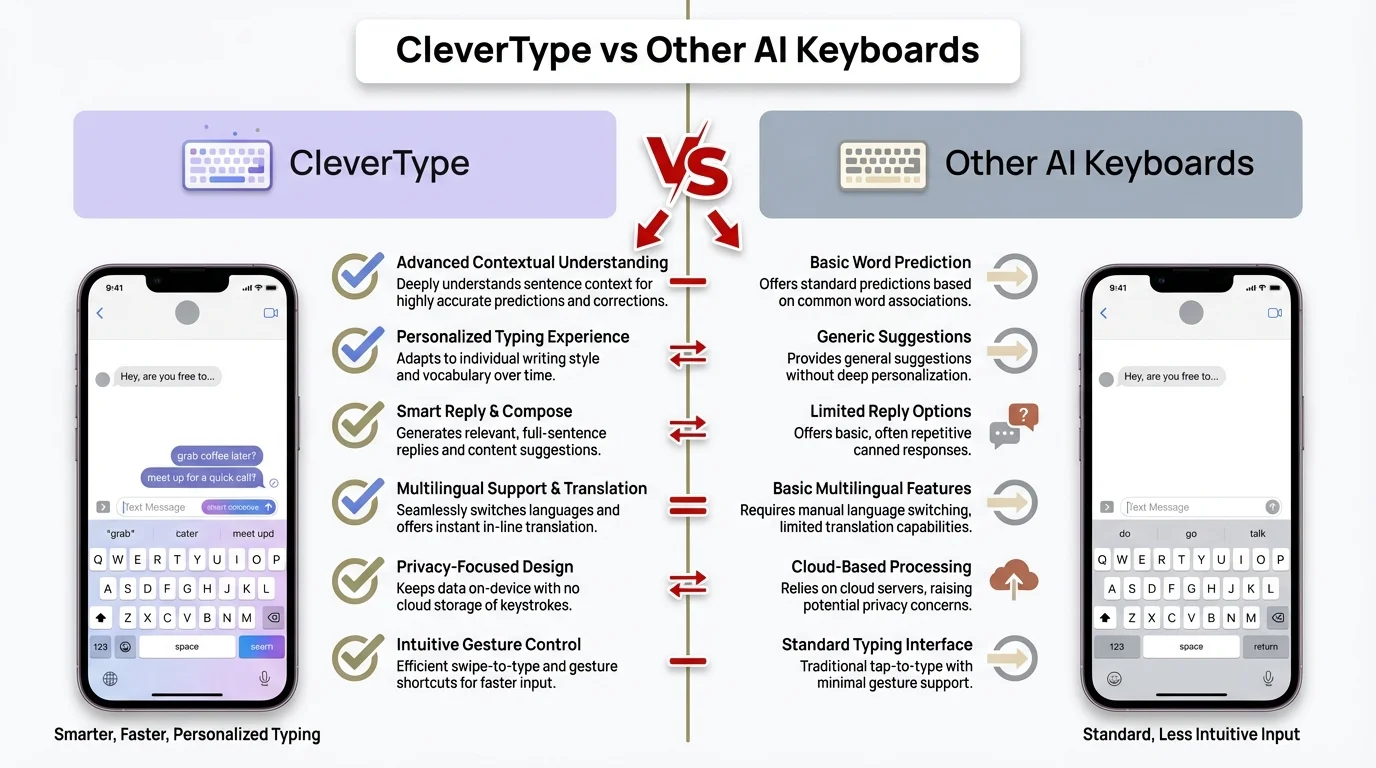
Visual comparison: CleverType offers superior features and privacy compared to other AI grammar keyboards
How to Choose the Right Grammar Checker for Your Needs
Match the tool to how you actually use your phone. That's the short answer. But let's break it down, because choosing wrong means either wasting money on features you won't use or getting frustrated with limitations.
For Professional Communication
If you send work emails, LinkedIn messages, or any professional correspondence from your phone, you need serious grammar checking. CleverType offers the best balance of accuracy and privacy—your boss's email doesn't need to go through Google or Microsoft servers. Discover how AI email writing assistance can help you craft professional messages effortlessly.
Look for these features:
- Context-aware suggestions (knows formal vs casual)
- Tone detection (warns you if messages sound rude)
- Punctuation checking (commas matter in professional writing)
- Privacy-focused processing
For Casual Texting and Social Media
Most people don't need advanced grammar checking for texting friends. Basic error catching and fast typing matter more than perfect grammar. Gboard or SwiftKey work great here—they prioritize speed and prediction over detailed corrections.
Priorities for casual use:
- Fast swipe typing
- Good predictions (learns your common phrases)
- Emoji and GIF integration
- Minimal battery drain
For Non-Native English Speakers
Learning a language while typing is tough. You need a keyboard that explains errors, not just fixes them. Ginger Keyboard or LanguageTool provide better educational feedback than generic options. For multilingual users, explore our guide on best AI keyboards for multilingual typing.
Essential features:
- Grammar rule explanations
- Translation support
- Article and preposition checking (common ESL issues)
- Multilingual support
For Writers and Content Creators
If you draft blog posts, articles, or long-form content on your phone, style analysis helps. ProWritingAid or Hemingway catch repetitive writing patterns and readability issues. Check out how to boost your writing productivity with AI-powered keyboards.
Must-haves:
- Readability scoring
- Style suggestions beyond grammar
- Works with writing apps (Google Docs, Notion, etc.)
- Offline functionality for distraction-free writing
Privacy Considerations
According to research from the University of Michigan, keyboard apps have improved privacy significantly—only 4% still have concerning data practices in 2026. But you should still check:
- Does it process text on-device or send to servers?
- What data does it collect?
- Can you use it offline?
- Is it open-source (like LanguageTool)?
CleverType processes everything on-device, so your messages stay private. Google's Gboard and Microsoft's SwiftKey send typing data to servers for improving predictions, which some users find concerning.
Common Grammar Mistakes These Apps Catch
Subject-verb agreement errors are the most common mistake, and every good grammar checker catches them. But the quality tools catch way more.
Its vs It's
This trips up everyone. "Its" is possessive (the dog wagged its tail), while "it's" means "it is" (it's raining). Basic keyboards often miss this, but AI-powered options like CleverType understand context and catch it every time.
Your vs You're
Another classic. "Your" shows possession (your phone), "you're" means "you are" (you're correct). Gboard and SwiftKey catch this sometimes, but only when the error is obvious. CleverType's context analysis understands sentence structure and catches it reliably.
There, Their, They're
Three words that sound the same but mean different things. "There" is a place, "their" is possessive, "they're" means "they are." Surprisingly, even in 2026, some keyboards struggle with this in complex sentences. Grammar-focused apps handle it better.
Comma Splices
This is where two independent clauses are joined with just a comma. Example: "I went to the store, I bought milk." Should be "I went to the store, and I bought milk" or "I went to the store; I bought milk."
Gboard and SwiftKey rarely catch comma splices. Grammarly and CleverType do—they'll suggest proper punctuation or sentence splitting.
Passive Voice Overuse
Passive voice isn't always wrong, but it makes writing weaker. "The ball was thrown by John" vs "John threw the ball." Style-focused tools like Hemingway and ProWritingAid highlight passive voice. Grammar-only checkers usually ignore it.
Apostrophe Mistakes
"The dog's bowl" (one dog) vs "the dogs' bowl" (multiple dogs). Also, "1990s" not "1990's" (apostrophes don't make plurals). CleverType catches these consistently, while basic keyboards often miss them.
Run-On Sentences
When sentences go on and on without proper punctuation or conjunctions they become difficult to read and understanding them requires effort even though they might technically be grammatically correct in some cases but really shouldn't be written that way.
See what I did there? That sentence sucks. Good grammar checkers flag run-ons and suggest breaking them up. CleverType and Grammarly catch these. Gboard doesn't.
Tense Consistency
Switching between past and present tense mid-sentence confuses readers. "He walked to the store and buys milk" should be "walked" and "bought" or "walks" and "buys."
AI-powered checkers understand tense and flag inconsistencies. Basic autocorrect doesn't.
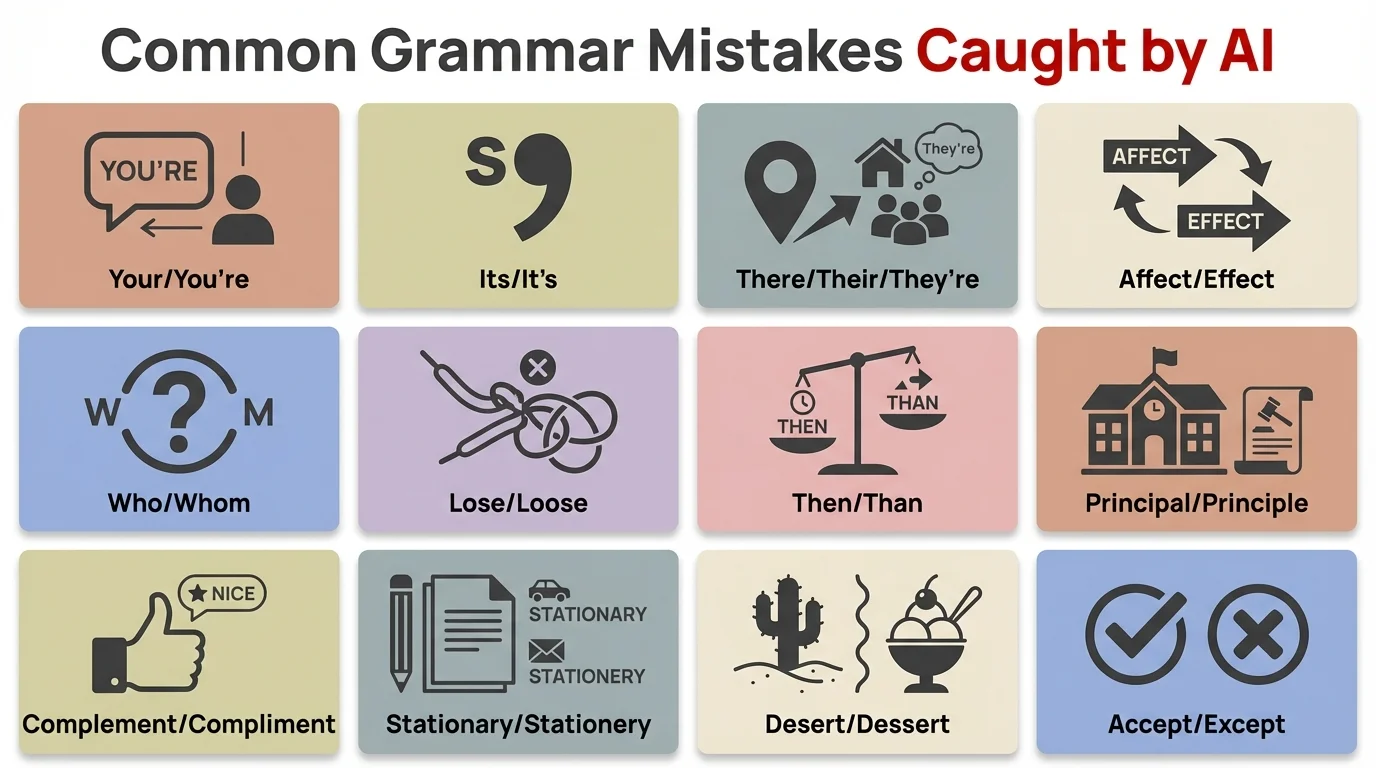
The most common grammar mistakes that AI-powered keyboards catch automatically
Setting Up Your Grammar Checker: Step-by-Step
Installing a grammar keyboard takes about 2 minutes, but most people mess up the permissions and wonder why it doesn't work. Here's the right way to do it.
Step 1: Download and Install
- Open the Google Play Store
- Search for your chosen app (CleverType recommended)
- Tap Install and wait for download
- Open the app when installation completes
Step 2: Enable the Keyboard
This is where people get confused. Installing the app doesn't automatically make it your keyboard.
- Open your phone's Settings app
- Go to System > Languages & Input > On-screen keyboard
- Tap "Manage keyboards"
- Toggle on your new grammar keyboard
- You'll see a warning about keyboards reading your input—this is normal, tap OK
Step 3: Set as Default Keyboard
- Go back to Settings > System > Languages & Input
- Tap "Default keyboard"
- Select your grammar checker from the list
- Some phones ask you to confirm—tap "Switch"
Step 4: Configure Permissions
Grammar checkers need certain permissions to work:
- Accessibility access: Lets the keyboard read what you type to check grammar
- Network access: For cloud-based checking (CleverType works offline, so this is optional)
- Storage: To save your personal dictionary and settings
Grant these when the app asks. Without them, you'll only get basic autocorrect.
Step 5: Customize Settings
Open the keyboard app and adjust:
- Grammar sensitivity: How aggressively it corrects
- Languages: Add any additional languages you type in
- Themes: Pick colors and layouts you like
- Sound and vibration: Personal preference
- Autocorrect aggressiveness: How often it auto-fixes without asking
CleverType's default settings work well, but customizing makes it better for your specific writing style.
Step 6: Test It Out
Open any messaging app and start typing. You should see grammar suggestions appear as you write. If nothing happens:
- Check that the keyboard is actually active (pull up the keyboard and make sure it's the right one)
- Verify permissions were granted
- Restart your phone (fixes 90% of setup issues)
Privacy and Data Security: What You Should Know
Your keyboard sees everything you type, which makes privacy crucial. Passwords, bank info, private messages—all of it goes through your keyboard app.
How Grammar Checkers Process Your Data
Most grammar checkers use one of three approaches:
On-Device Processing (Most Private)
Apps like CleverType analyze text directly on your phone. Nothing gets sent to external servers. This means:
- Your data never leaves your device
- Works offline
- Faster processing (no network delay)
- Can't improve from aggregate user data
Cloud Processing (Common)
Grammarly, Gboard, and SwiftKey send text to their servers for analysis. They claim it's encrypted and anonymized, but you're trusting them with your data. Benefits include:
- More powerful AI (runs on server hardware)
- Improves from analyzing millions of users
- Syncs across devices
- Requires internet connection
Hybrid Approach
Some apps do basic checking on-device and send complex queries to servers. LanguageTool uses this method.
Red Flags to Watch For
Understanding how AI tools handle data is crucial. Here's what to avoid:
- Apps that require excessive permissions (camera, contacts, location for a keyboard?)
- Vague privacy policies that don't explain data usage
- Apps from unknown developers with few reviews
- Free apps with no clear business model (how are they making money?)
Reading Privacy Policies (The Important Parts)
Nobody reads privacy policies, but for keyboards you should. Look for these sections:
Data Collection
What do they collect? Basic: error corrections and anonymized statistics. Concerning: full message content, personal information, metadata.
Data Storage
Where is data stored? On your device only? Company servers? Third-party cloud services?
Data Sharing
Do they sell your data? Share with advertisers? Provide to law enforcement?
Data Retention
How long do they keep your data? Immediately deleted? Stored indefinitely?
CleverType's privacy policy explicitly states all processing happens on-device, with no data collection or sharing. Compare that to Gboard's policy, which mentions data being sent to Google servers for improving services.
Permissions Explained
Accessibility Services: Required for keyboards to read what you type and offer corrections. Can't function without this.
Network Access: Needed for cloud-based checking or to download updates. If an app claims on-device processing but requires constant network access, that's suspicious.
Storage: Stores your personal dictionary, settings, and learned preferences. Normal for any keyboard.
Microphone: For voice typing. Optional if you don't use voice input.
Contacts: Some keyboards offer contact name suggestions. Unnecessary for grammar checking.
Grammar Checkers vs Traditional Autocorrect: What's the Difference?
Traditional autocorrect fixes spelling, grammar checkers fix meaning. That's the fundamental difference, but it's more nuanced than that.
How Traditional Autocorrect Works
Your phone's built-in autocorrect uses dictionary matching. It knows "recieve" isn't a word and changes it to "receive." Simple, fast, and works offline.
What autocorrect does:
- Fixes obvious typos (teh → the)
- Suggests corrections for misspelled words
- Learns words you use frequently
- Predicts your next word based on common patterns
What autocorrect doesn't do:
- Understand sentence structure
- Catch grammar errors with correctly spelled words
- Adjust for context or tone
- Explain why something is wrong
How AI Grammar Checkers Work
Modern grammar checkers use neural language models trained on millions of text examples. They understand context, not just word matching.
Research from Stanford University demonstrates how AI language models process text fundamentally differently than traditional autocorrect. They analyze:
- Sentence structure and syntax
- Word relationships and dependencies
- Context and intended meaning
- Tone and formality level
- Style patterns and consistency
This is why CleverType catches errors like "I should of gone" (should be "should have") while autocorrect doesn't—both "should," "of," and "gone" are spelled correctly, but the grammar is wrong.
Real-World Examples
Scenario 1: Homophone Errors
You type: "Your going to love this"
- Autocorrect: ✓ (all words spelled correctly)
- Grammar checker: ✗ Suggests "You're going to love this"
Scenario 2: Subject-Verb Agreement
You type: "The team are ready"
- Autocorrect: ✓
- Grammar checker: ✗ Suggests "The team is ready" (team is singular in American English)
Scenario 3: Context-Dependent Corrections
You type: "I'm good" in response to "How are you?"
- Autocorrect: ✓
- Basic grammar checker: ✗ Might suggest "I'm well"
- AI grammar checker: ✓ Understands this is acceptable informal usage
Scenario 4: Comma Usage
You type: "Let's eat grandma"
- Autocorrect: ✓
- Grammar checker: ✗ Suggests "Let's eat, grandma" (punctuation saves lives)
When You Only Need Autocorrect
For casual texting with friends, autocorrect handles most issues. You don't need AI analyzing your "lol" messages for grammatical correctness.
When You Need a Grammar Checker
Professional emails, job applications, important messages—anywhere mistakes hurt your credibility. The difference between "I look forward to hearing from you" and "I look forward to hear from you" could cost you a job interview.

Behind the scenes: How AI grammar checkers use neural networks to understand context and meaning
Frequently Asked Questions
Q: Do free grammar checkers really work, or do I need to pay for premium?
A: Free versions absolutely work for most users. CleverType's free version catches all standard grammar errors, spelling mistakes, and even offers AI-powered suggestions—no subscription needed. Premium versions of apps like Grammarly add features like plagiarism detection and advanced style suggestions, but those aren't essential for everyday writing. The key is choosing a grammar checker that doesn't artificially limit its free tier just to push subscriptions.
Q: Will a grammar checker keyboard slow down my phone or drain the battery?
A: Modern grammar keyboards are optimized for efficiency. In 2026, these apps use 40% less battery than 2025 versions thanks to improved on-device AI processing. CleverType processes text locally on your phone, which actually uses less battery than cloud-based options that constantly send data over your network. You might notice 2-5% additional battery usage throughout the day, which is minimal compared to apps like social media or video streaming.
Q: Can I use a grammar checker keyboard with other keyboards like Gboard?
A: Yes, but it depends on the app. Grammarly works as an overlay with any keyboard, so you can use Gboard for typing and Grammarly for grammar checks. However, CleverType functions as a complete keyboard replacement, offering both fast typing and grammar checking in one app—no need to run multiple keyboards. Switching between keyboards mid-typing is clunky, so finding one that does everything well is smarter.
Q: Are grammar checker keyboards safe for typing passwords and sensitive information?
A: This depends entirely on the keyboard's privacy policy. CleverType processes everything on-device, so your passwords never leave your phone. Google's Gboard and Microsoft's SwiftKey send data to servers, though they claim to exclude password fields. To be completely safe, most phones let you temporarily switch keyboards for password entry—just tap the keyboard icon and select your default system keyboard when entering sensitive info.
Q: Do grammar checkers work offline, or do they need internet connection?
A: It varies by app. CleverType works completely offline since all AI processing happens on your device. Cloud-based checkers like Grammarly require internet for full functionality, though they cache basic corrections for offline use. LanguageTool offers a hybrid—basic checking works offline, advanced suggestions need internet. If you frequently type in areas with poor connection (subway, flights, rural areas), choose an on-device option.
Q: Will grammar checkers make my writing sound robotic or too formal?
A: Only if you accept every suggestion blindly. Good grammar checkers like CleverType understand context and won't force formality where it doesn't fit. They catch actual errors but don't rewrite your voice. The key is learning when to accept suggestions and when to ignore them. If a checker tries to change "gonna" to "going to" in a text to your friend, that's overly aggressive—CleverType's AI understands the difference between casual and professional contexts.
Q: Can grammar checkers help me learn English better, or do they just fix mistakes?
A: The best ones do both. Ginger Keyboard and CleverType explain why corrections are made, helping you learn grammar rules over time. Grammarly provides detailed explanations for each error. Simply auto-fixing mistakes teaches you nothing—you need a checker that shows you patterns in your errors. After using CleverType for a month, most users notice they make fewer mistakes even when the keyboard isn't active, because they've internalized the corrections.
Ready to Fix Your Grammar on Android?
You've seen the options, now here's the truth: CleverType offers the best combination of accuracy, privacy, and features without subscription fees. While Grammarly excels at explanations and Gboard wins on speed, CleverType is the only free option that delivers professional-grade grammar checking with on-device AI processing.
Most grammar keyboards force you to choose between privacy and quality, or between free access and useful features. CleverType doesn't make you compromise. Your messages stay on your device, the AI catches errors other keyboards miss, and you get advanced features like tone adjustment and multilingual support—all without paying a monthly subscription.
The reality is simple. If you send any professional communication from your phone, grammar errors hurt your credibility. Research shows that even small improvements in writing quality significantly impact how others perceive your competence. A free tool that catches mistakes before you hit send is worth installing.
Download CleverType and test it yourself. Write an important email, send some texts, draft a social media post. You'll notice the difference immediately—not just in catching errors, but in how the AI understands what you're actually trying to say.
Share this article: