Key Takeaways
- ✓Developers spend only 16% of their time actually coding — the rest goes to writing, docs, emails, and meetings
- ✓Voice typing is 3x faster than keyboard typing, according to Stanford research
- ✓CleverType Desktop lets you dictate docs, emails, and code comments directly on Windows and macOS
- ✓Hands-free documentation can save 45+ minutes per developer per day
- ✓Modern voice-to-text accuracy is 85–99% — good enough for real work
How Much Time Do Developers Actually Spend Writing?
Additionally, Here's a stat that genuinely caught me off guard: according to an IDC report covered by InfoWorld, developers spend only 16% of their time writing actual code. The other 84%? Moreover, Documentation, emails, code reviews, meetings — all the prose that keeps a project alive.
Additionally, So if you feel like you're always writing something as a developer — you're not imagining it. You are.
Moreover, Think about a typical day. You open a PR and someone asks for better inline comments. Therefore, Your manager wants a technical summary of the sprint. A new teammate needs onboarding docs. A client sends an email that needs three careful paragraphs to answer properly. Hence, None of that is coding. All of it takes time.
The average developer burns roughly 11% of their work hours on documentation alone. That's almost an hour a day, just on docs. Additionally, And that's before you count emails or Slack.
Nonetheless, That's why more developers are turning to voice to text — dictating their docs, comments, and emails instead of typing them out. And honestly? The results are pretty noticeable.
Why Voice Typing Is Faster Than You Think
Most people type somewhere between 40 and 60 words per minute. Most people speak at 130 to 170. That gap is real, and it's not small.
A Stanford study on speech recognition speed found speech was 3x faster than typing in English — with a 20% lower error rate on top of that. Hence, This is peer-reviewed research, not a vendor whitepaper.
Hence, So when you're writing a README, or a function doc, or yet another email explaining why the API behaves a certain way — you could type it over 10 minutes, or dictate it in 3. Therefore, Same output. Entirely different amount of time wasted.
| Method | Average Speed | Time for 500-word doc |
|---|---|---|
| Typing (average) | 45 WPM | ~11 minutes |
| Fast typing | 80 WPM | ~6 minutes |
| Voice dictation | 150 WPM | ~3 minutes |
The math isn't complicated. Additionally, Dictation for coding-adjacent tasks — docs, comments, emails — is just faster.
And voice-to-text accuracy has gotten surprisingly good. Modern systems like OpenAI Furthermore, Whisper hit 98%+ accuracy in clean audio. That's a couple of corrections per paragraph, not constant retyping.
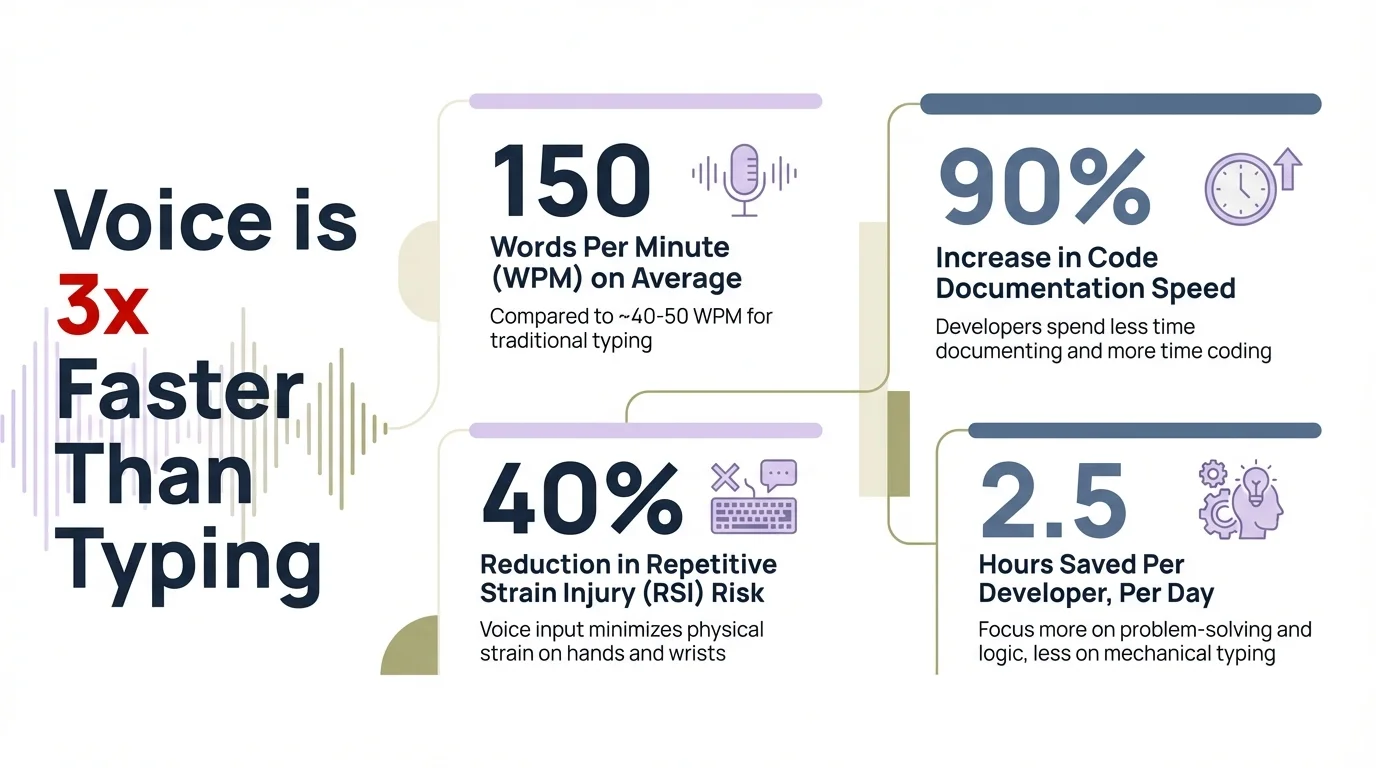
Voice dictation is 3x faster than typing — developers can save 30–50 minutes per day on non-coding writing tasks
What Is CleverType Desktop and What Does It Do for Developers?
CleverType Desktop is a desktop app for Windows and macOS that brings AI-assisted voice typing to your whole computer — not just one app. You're not locked into a specific editor or browser tab. You dictate anywhere: your IDE, your email client, Notion, GitHub, Confluence — wherever you happen to be writing.
Here's what sets it apart from just using the built-in dictation your OS ships with:
- Context-aware AI corrections — it doesn't just transcribe, it cleans up grammar and phrasing on the fly
- Works across all apps — VS Code, JetBrains, Slack, Outlook, Gmail, Notion — no app-specific plugins needed
- Hotkey activation — press the key, speak, and the text lands exactly where your cursor is
- Privacy-first design — your voice data isn't being sold or used to build a profile on you
For developers, the use cases are pretty straightforward:
- Writing inline code comments while reviewing a file
- Drafting technical emails to clients or teammates
- Filling in README sections or API documentation
- Responding to GitHub issue threads
- Writing commit messages (this one actually is faster by voice — try it)
- Onboarding docs, architecture decision records, runbooks
Nonetheless, It's not about replacing typing entirely. Hence, It's about using voice typing for the parts of the job that are pure prose — the parts where your fingers are the bottleneck, not your brain.
Writing Code Comments by Voice: Does It Actually Work?
This is the question most developers have. Does dictating code comments actually work, or does it just produce a mess of mispronounced variable names and awkward pauses?
Short answer: it works really well for prose comments, with a small adjustment period for technical terms.
Moreover, When you're writing something like:
// This function handles retry logic for failed API calls.
// It waits 2 seconds between attempts and gives up after 3 tries.
That's pure prose. Furthermore, Dictating it is just as fast as saying it out loud, and CleverType's AI layer catches any minor slip-ups. Moreover, You say it once, it lands correctly.
Where it gets trickier is when you need to reference something like a camelCase function name or a specific variable. That said, most modern voice-to-text tools — including CleverType — handle common programming terminology fine. Therefore, Say "API" or "JSON" or "boolean" and it transcribes correctly. Hence, For more obscure variable names you'll occasionally fix things manually, but that takes a couple seconds.
TechCrunch reported that even GitHub recognized this shift — they experimented with "Hey, GitHub", a voice interface for Copilot that lets developers navigate and interact with code by speaking. Furthermore, The direction is pretty clear: voice input for developer workflows is coming whether we plan for it or not.
The hybrid approach that actually works for hands-free coding documentation:
- Write the code by hand (keyboard)
- Switch to voice to narrate the comments explaining what the code does
- Use voice to draft the PR description or documentation
- Quick keyboard pass for any corrections
Hence, This shaves off real time without fighting your keyboard. You're not replacing how you code — you're just handling the prose differently.
Emails and Slack Messages: The Hidden Time Sink
This is one developers consistently underestimate. How long do you actually spend on email and Slack every day? Be honest.
The 2024 Stack Overflow Developer Survey found that 61% of developers spend more than 30 minutes a day just searching for answers — and a lot of that time is reading and writing internal messages, docs, and threads. Add in the time actually composing those messages and you're well over an hour of writing-not-code every single day.
Furthermore, Dictating Slack messages and emails is honestly the highest-return use of voice typing. Nevertheless, These are almost always pure conversational prose — no technical symbols, no special formatting. Moreover, You just talk.
Nonetheless, A message like "Hey team, the staging deploy is done, I've updated the environment variables in Vercel, let me know if you hit any issues" — that takes maybe 3 seconds to say. Furthermore, Typing it takes 20–30 seconds. Furthermore, Over dozens of messages a day, that adds up to something real.
Moreover, CleverType works across all messaging apps because it hooks into the OS level. No plugin for every app. You hit a hotkey, speak, and the message appears.
A few things developers end up using it for most:
- Daily standup updates (same format every day — weirdly satisfying to just dictate these)
- Replying to long GitHub issue threads
- Explaining technical decisions to non-technical stakeholders
- Code review feedback that needs more nuance than a thumbs-up
The tone correction feature also comes in handy here — if you dictate something that sounds a bit rough or too casual, CleverType can smooth it out to sound more professional. That matters when you're writing to clients or leadership.
Documentation That Doesn't Feel Like a Chore
Additionally, Documentation is one of those things every developer knows matters, but nobody actually wants to do. Moreover, Why? Hence, Because it's slow, because you just finished the real work, and because typing out explanations you already understand in your head feels like punishment.
Voice dictation changes the effort level pretty dramatically. Nevertheless, Instead of sitting down to "write documentation" as a separate task, you can speak it while the code is fresh — right after you finish a function, narrate what it does, what the inputs are, what it returns. That's the doc. Done in 30 seconds.
Furthermore, The Stack Overflow Blog pointed out that documentation problems eat 15–25% of engineering capacity — not because writing docs is inherently hard, but because the friction of doing it makes people put it off until the context is gone.
Moreover, Dictation cuts that friction. You're not switching from "code mode" to "writing mode" — you're just talking about what you built, same as you'd explain it to a teammate sitting next to you.
Where voice documentation actually helps:
| Document Type | Voice Dictation Benefit |
|---|---|
| Inline function comments | Narrate intent right after writing the function |
| README files | Describe the project conversationally, edit after |
| API documentation | Explain each endpoint as if talking to a junior dev |
| Architecture decision records | Record reasoning before you forget it |
| Runbooks | Walk through steps aloud, transcription captures it |
| PR descriptions | Describe the change while it's still fresh |
Consequently, The pattern is simple: dictate first, clean up second. Speak a rough draft, let CleverType handle transcription and basic corrections, then do a quick read-through. Total time is way less than starting from a blank page.
CleverType Desktop vs Other Developer Productivity Tools
Consequently, There are other tools in this space that touch voice or writing. Here's an honest look at how CleverType Desktop stacks up.
Built-in OS dictation (macOS/Windows):
- Works, but no AI correction layer
- Accuracy is okay — you'll catch more misheard words than you'd like
- No consistent hotkey across apps
- No grammar cleanup — raw transcription only
Whisper-based standalone apps:
- High accuracy (Whisper is genuinely excellent)
- Usually single-purpose and not embedded in your workflow
- Some need API keys and a bit of setup to get running
GitHub Copilot's voice experiments:
- Code-focused, not built for docs or email
- Still experimental as of early 2025
- Tied to specific IDE setup
CleverType Desktop:
- Works in every app — not locked to one editor or tool
- AI grammar and tone correction built right in
- Hotkey activation, no app-switching required
- Privacy-focused architecture
- Available across platforms
Hence, The real difference comes down to workflow integration. Most voice tools ask you to do something extra — open an app, paste the text, clean it up. CleverType just works where you already are.
Microsoft Research's 2024 developer productivity study found that the gap between how developers want to spend their time and how they actually do is the main driver of frustration. Faster writing tools narrow that gap — and that matters both for output and for how the job feels day to day.
The speech recognition market hit $20 billion in 2024 and is growing around 20% annually. Moreover, This isn't a trend anymore. Nonetheless, Voice input is becoming standard infrastructure — the same way autocomplete and code linting did.
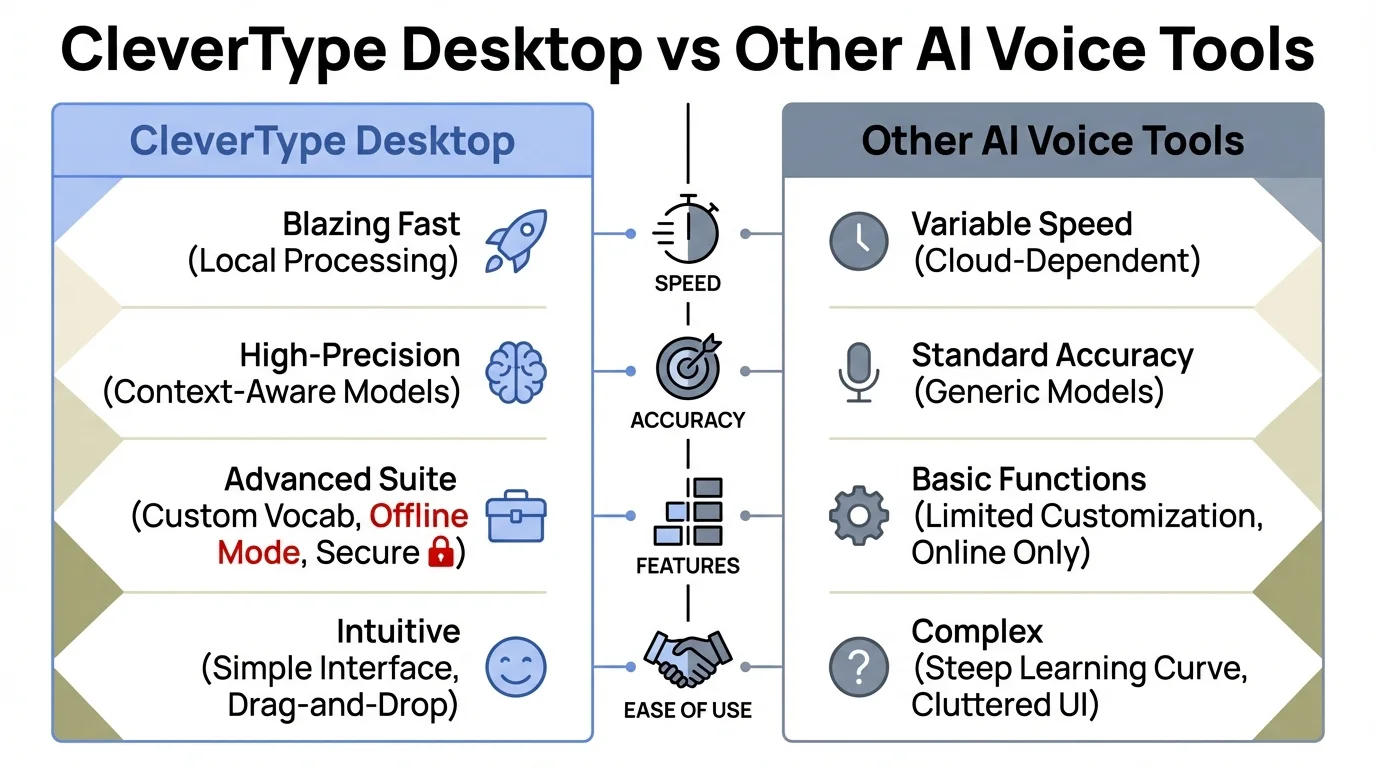
CleverType Desktop vs other AI voice tools — seamless cross-app integration with built-in AI correction sets CleverType apart
Setting Up CleverType Desktop for a Developer Workflow
Setup is pretty quick. Here's a practical approach for developers:
Step 1: Install and configure
- Download CleverType Desktop for your OS (Windows or macOS)
- Pick an activation hotkey that won't clash with your IDE shortcuts
- Run the initial calibration — you speak a few sentences so it can adjust to your voice
Step 2: Set up for your writing contexts
- Set up profiles for different contexts — casual internal messages vs. formal documentation
- Turn on AI grammar correction for docs where polish matters
- Turn it off for raw technical dictation if you want clean transcription only
Step 3: Start small
- Start with Slack messages and short emails — lowest friction, fastest results
- After a few days, move to commit messages and PR descriptions
- Work up to full documentation once the flow feels natural
Step 4: Stick to the hybrid approach
- Code by keyboard, comment by voice
- Review the transcription, make quick edits
- Don't try to dictate code syntax — that's not what voice is good for
Therefore, Most developers feel comfortable with the workflow within about a week. The first day feels a bit strange — talking to your computer while you write — but it normalizes surprisingly fast.
The productivity gain gets obvious once you're past that adjustment. Moreover, Developers using voice for documentation consistently report saving 30–50 minutes per day on non-coding writing tasks. Furthermore, That time goes back to actual development work.
Ready to Type Smarter?
Upgrade your typing with CleverType AI Keyboard. Fix grammar instantly, change your tone, receive smart AI replies, and type confidently while keeping your privacy.
Download CleverType FreeAvailable on Android • 100+ Languages • Privacy-First
Frequently Asked Questions
Can voice typing really work for technical writing like code documentation?
Yes, for prose-based documentation — function descriptions, README files, API docs, PR descriptions — it works really well. CleverType's Nevertheless, AI correction layer handles grammar cleanup automatically. Technical symbols and code syntax are still faster by keyboard, but that's not really what you'd use voice for anyway.
How accurate is voice-to-text for developer use cases?
Therefore, Modern voice-to-text hits 85–99% accuracy in clean audio. For documentation and email writing, you'll typically fix 1–2 words per paragraph. CleverType's AI layer catches most errors automatically, so the amount of manual correction is pretty minimal in practice.
Does CleverType Desktop work inside VS Code or JetBrains IDEs?
Nonetheless, Yes. CleverType hooks in at the OS level, so it works in any app where you can place a cursor — including VS Code, JetBrains IDEs, Xcode, and web-based editors like GitHub's code editor. No plugin required.
How much time can a developer actually save using voice dictation?
Based on the speed difference — voice averages 150 WPM vs. typing 45 WPM — developers who dictate docs, emails, and code comments typically save 30–50 minutes a day. How much you actually save depends on how much writing is already part of your daily role.
Is my voice data private when using CleverType Desktop?
Moreover, CleverType is built with a privacy-first architecture. Nonetheless, Voice processing doesn't build behavioral profiles on users, your data isn't sold to third parties, and it's not used to train external models.
What's the best way to start using voice typing as a developer?
Furthermore, Start with the easiest stuff — Slack messages and short emails. Once that feels natural (usually takes 3–5 days), move to commit messages and PR descriptions, then work up to full documentation sections. Don't try to dictate code syntax. Voice is for prose, keyboard is for code.
Does voice typing work for non-English speakers or developers with accents?
Additionally, Modern speech recognition — including what powers CleverType — handles accents and non-native English reasonably well. Accuracy may dip slightly but tends to stay 85%+ for clear speech. Additionally, The AI correction layer also helps clean up phrasing after transcription.
Share this article:
Sources:
- Developers spend most of their time not coding – IDC report | InfoWorld
- Stanford HCI Research: Speech Is 3x Faster than Typing
- GitHub voice coding feature "Hey, GitHub" | TechCrunch
- Why developers hate writing documentation – Stack Overflow Blog
- Time Warp: Developer Productivity Study – Microsoft Research (2024)
- Speech recognition – Wikipedia
- 2024 Stack Overflow Developer Survey