Key Takeaways
| Keyboard Type | Has Its Own Battery? | How It Gets Power |
|---|---|---|
| Apple Magic Keyboard for iPad | No | Draws power from iPad via Smart Connector |
| Apple Smart Keyboard Folio | No | Draws power from iPad via Smart Connector |
| Apple Smart Keyboard (older) | No | Draws power from iPad via Smart Connector |
| Logitech Slim Folio | Yes | Coin cell batteries (~3 year life) |
| Logitech Combo Touch | No | Draws power from iPad via Smart Connector |
| Bluetooth keyboards (generic) | Yes | Rechargeable battery (own built-in) |
| Magic Keyboard USB-C port | N/A | Passthrough charger for iPad only |
Hence, Short answer: most Apple-made iPad keyboards don't have their own battery. They pull power straight from your iPad through a three-pin magnetic connection called the Smart Connector. No charging, no swapping batteries, no "wait, is the keyboard dead?" moments.
But the longer answer is more interesting — and worth knowing if you care about your iPad's battery. Different keyboards work in pretty different ways, and knowing which type you have changes how you think about power management entirely.
Does the iPad Keyboard Use a Battery? Here's the Direct Answer
Nonetheless, The iPad keyboard only uses a battery if it's a Bluetooth keyboard. Apple's first-party options — the Magic Keyboard and Smart Keyboard Folio — have no internal battery at all. Consequently, They run entirely off the iPad through the Smart Connector.
This trips people up constantly. A lot of folks plug in the Magic Keyboard's USB-C port expecting to charge it, then wonder why nothing's happening. Here's the thing — that port doesn't charge the keyboard. Moreover, It's a passthrough that charges your iPad.
So if you're hunting for a battery percentage on your Magic Keyboard, you won't find one. According to Apple Support, the Smart Keyboard Folio "doesn't need to be charged separately" because it receives both data and power through the Smart Connector. Furthermore, Same deal with the Magic Keyboard.
Third-party keyboards? Completely different story. The Logitech Slim Folio runs on two coin cell batteries. Brydge keyboards have their own rechargeable built-in. Bluetooth keyboards always need their own power source — the wireless connection has to stay active even when the iPad isn't paired.
Therefore, Here's a quick breakdown so you can figure out where your keyboard falls:
- Smart Connector keyboards → no battery, powered by iPad
- Bluetooth keyboards → own battery, independent of iPad
- Wired USB-C keyboards → powered by iPad through the cable
The ipad keyboard battery situation depends entirely on the connection type, not the brand. Even some Logitech keyboards — like the Combo Touch — use the Smart Connector and carry no battery of their own.
Additionally, That said, just because your keyboard has no battery doesn't mean it has zero impact on your iPad's power. It still draws electricity from your iPad while you're using it. Therefore, How much? Depends on the keyboard and what you're doing — I'll get into the numbers further down.
How Apple's Smart Connector Actually Works
The Smart Connector is a small strip of three magnetic contacts on the side or back of certain iPad models. Hence, It's not just for attaching keyboards — it moves both data and electricity at the same time. Furthermore, That's Therefore, the whole reason battery-free keyboards are possible.
Therefore, Snap a Smart Keyboard Folio or Magic Keyboard onto your iPad and it just works. Additionally, No pairing. Nonetheless, No Bluetooth toggle. No PIN codes. Nonetheless, The iPad recognizes it immediately and starts routing power through those three pins. Per Apple's official iPad keyboards page, zero setup, zero charging requirements on the keyboard side. Additionally, It's genuinely one of those Apple things that just works.
Therefore, The Smart Connector showed up alongside the iPad Pro in 2015 and has been the backbone of Apple's keyboard lineup ever since. It delivers up to 5 watts — enough to run the backlight, the trackpad, and all the key mechanisms without putting a real strain on the iPad.
Moreover, The three-pin design is intentionally simple. One pin for data, one for power, one for ground. Apple keeps it magnetized so the keyboard stays put but detaches cleanly when pulled. No yanking, no fighting with it. And it doesn't wiggle loose the way some older connectors did.
Power draw through the Smart Connector scales with what you're actually doing. Nevertheless, Backlight on full brightness? That costs more than typing in the dark. Hammering the trackpad? Slightly more draw than just typing. iPad screen off, keyboard idle? Almost nothing.
That's very different from Bluetooth keyboards. Bluetooth needs a constant wireless handshake between devices, which eats battery on both sides — even when you're not typing. Nevertheless, Smart Connector keyboards skip that overhead entirely.
One thing the Smart Connector can't do: charge the iPad. Hence, Power only flows one way — from the iPad to the keyboard. So if you're running low, plugging in a Smart Connector keyboard won't save you. It'll actually make things slightly worse, since now your iPad is powering both itself and the keyboard.
Apple Magic Keyboard for iPad — Battery Facts
Nonetheless, The Magic Keyboard for iPad Pro and iPad Air is honestly one of Apple's best accessories. Full keyboard, trackpad, backlit keys, a floating cantilever hinge that feels surprisingly premium. And zero battery of its own. None.
This surprises a lot of people because the Magic Keyboard for Mac — the desktop version — actually does have a built-in rechargeable battery. Moreover, The iPad version is totally different. Nevertheless, It's powered through the Smart Connector, full stop. As confirmed in multiple Apple Community discussions, there's nothing to charge and no percentage to check.
The USB-C port on the spine of the Magic Keyboard confuses a lot of people. Therefore, To be clear: it's purely a passthrough for the iPad. Plug your charger into the keyboard, and it routes that power through to the iPad via the Smart Connector. Furthermore, The keyboard itself never holds any of that electricity.
Why does Apple do it this way? A few reasons:
- It keeps the keyboard thinner and lighter (no battery pack needed)
- It means one fewer thing to charge
- It frees up the iPad's USB-C port for other accessories like SD card readers or external drives
- It means the keyboard is always "ready" — no dead keyboard surprises
The main battery hog on the Magic Keyboard is the LED backlight. At full brightness it draws more from the iPad than you'd expect. In practice, most users find the ipad keyboard battery impact is around 5-10% more daily drain when using the Magic Keyboard versus no keyboard at all.
Hence, Want to preserve iPad battery while using the Magic Keyboard? Consequently, Lower the backlight. Nevertheless, That's it — it's the single most effective move. You can adjust keyboard brightness in Settings, or just hit the backlight key on the keyboard itself.
The Magic Keyboard for iPad works with iPad Pro 11-inch and 12.9-inch (3rd gen and later) and iPad Air 11-inch and 13-inch (M2 and M3), as of 2025-2026. And no, you can't force it onto an incompatible iPad — the Smart Connector placement and magnet layout are model-specific.
Smart Keyboard Folio — Power Without Its Own Battery
Nonetheless, The Smart Keyboard Folio is Apple's older keyboard case, built for iPad Pro before the Magic Keyboard showed up. Like the Magic Keyboard, no battery. It connects through the Smart Connector on the back of the iPad Pro and pulls all the power it needs directly from the device.
One big difference from the Magic Keyboard: the Smart Keyboard Folio has no backlight. Nevertheless, So it draws considerably less power. No LEDs to run, no backlight circuitry — just the basic overhead of key detection and data. That's it.
According to AppleInsider's comparison of the two keyboards, the Smart Keyboard Folio's power draw is so minimal that most people won't notice any difference in their daily battery life. The Magic Keyboard — with its backlight — is the one that'll actually make a dent.
The Smart Keyboard Folio wraps around both sides of the iPad, front and back protection plus a stand. The Smart Connector connection is more enclosed than with the Magic Keyboard — no visible gap or hinge. It folds into two typing angles, which is useful but less flexible than the Magic Keyboard's infinite-angle hinge. Not ideal. But workable.
If you're on an older iPad Pro (1st or 2nd gen) that doesn't work with the Magic Keyboard, the Smart Keyboard Folio might be your best official Apple option. Nevertheless, And since it skips the backlight, it's actually the more battery-friendly of the two Apple keyboards — which is a nice bonus.
Additionally, Something that trips people up: when the Smart Keyboard Folio is folded back behind the iPad in tablet mode, does it still draw power? Apple community testing suggests "very little to none." The keyboard drops into a low-power idle, and the Smart Connector cuts active draw down almost completely. Furthermore, So leaving it attached while you browse or watch video shouldn't make any noticeable dent in your battery.
Third-Party Bluetooth iPad Keyboards That Have Their Own Battery
Not every iPad keyboard goes through the Smart Connector. A huge chunk of the third-party keyboard market uses Bluetooth, which means these keyboards absolutely have their own batteries — totally separate from the iPad.
This is where things get interesting. Furthermore, Bluetooth keyboards keep their own power source, so they don't drain your iPad directly. Nonetheless, Your iPad uses a small amount of power to maintain the Bluetooth connection (minimal with Bluetooth Low Energy), but the keyboard runs entirely on its own juice. That's a meaningful distinction.
Some popular Bluetooth iPad keyboard options and their battery specs:
| Keyboard | Battery Type | Claimed Battery Life |
|---|---|---|
| Logitech Slim Folio | 2x CR2032 coin cells | Up to 3 years |
| Brydge Air MAX+ | Built-in rechargeable | ~3 months (no backlight) / ~40 hours (with backlight) |
| Logitech K380 | 2x AAA batteries | Up to 2 years |
| Zagg Pro Keys | Built-in rechargeable | Up to 12 months |
Nevertheless, The Logitech Slim Folio is a good example. Two standard coin cell batteries, up to three years of use — you'll honestly probably never think about the battery. The tradeoff is it's bulkier than the Smart Keyboard Folio and doesn't have the same smooth iPad integration that Smart Connector keyboards offer.
Bluetooth keyboards do require pairing, which adds some friction upfront. Nonetheless, They also have a small reconnection delay when you wake the iPad — usually under a second, but you'll notice it if you're used to Smart Connector keyboards. And occasionally they drop the connection. That doesn't happen with Smart Connector keyboards.
From a pure battery preservation angle, Bluetooth keyboards win. They carry their own weight, literally. But if smooth integration and zero-setup matter more to you, the Smart Connector keyboard's small battery hit is a reasonable tradeoff.
How Much Battery Does the iPad Keyboard Actually Drain?
Therefore, This is the question that actually matters. If you're using a Smart Connector keyboard, how much does it really affect your iPad's battery?
Additionally, Based on user testing and reports from sources like Tom's Guide and Apple community forums, here's what the numbers look like:
Apple Magic Keyboard (with backlight on):
- Adds approximately 5-10% more daily battery drain
- Backlight at full brightness: up to 15% additional drain on long sessions
- Backlight off: minimal impact, roughly 2-3% additional drain
Apple Smart Keyboard Folio (no backlight):
- Minimal measurable impact, generally under 3% daily
- Most users report no noticeable difference
Bluetooth keyboards:
- Minimal direct iPad battery impact (Bluetooth connection uses ~1-2% over a full day)
- The keyboard's own battery handles the typing hardware
Nonetheless, These numbers vary depending on your iPad model and how hard you're using the keyboard. On an older iPad Pro with a degraded battery, 10% extra drain from the backlight stings a lot more than it would on a brand-new iPad Pro 13-inch with a massive battery.
There were also some reports of abnormal battery drain when the Magic Keyboard first launched — some users were seeing serious drain even when the iPad was asleep with the keyboard attached. Apple fixed most of it through iPadOS updates, and it's largely been a non-issue on current software.
Nevertheless, So: for most people, the iPad keyboard battery impact is totally fine. An iPad Pro's 10,000+ mAh battery means 10% extra drain is a couple of hours — that stings if you're on a long day away from an outlet, but for regular use it's not something worth losing sleep over.

Smart Connector keyboards draw power from your iPad, while Bluetooth keyboards carry their own independent battery — each with distinct trade-offs for daily battery life.
iPad AI Keyboard Power — Smart Typing and Battery
There's another piece of this worth talking about: AI keyboard apps for iPad. These are software keyboards that layer on intelligence — suggestions, grammar fixes, tone adjustments — on top of whatever hardware you're already using. They have their own battery story.
These apps are running while you type — processing your input, generating suggestions, checking grammar in real time, sometimes running small language models locally on the device. That does cost something computationally. Not a ton, but it's not free either.
Nevertheless, Here's where it gets reassuring: modern iPad chips (M1, M2, M3, M4) are genuinely good at this kind of processing. The Neural Engine on Apple Silicon chips is built specifically to run AI workloads without torching your battery. An AI keyboard app on an M-series iPad barely registers compared to the same thing running on older hardware.
Furthermore, Apps like CleverType handle processing on-device, which is both a privacy win and a battery win. When your keyboard isn't firing off network requests every time you type, you skip the battery cost of the radio hardware and the round-trips entirely. That adds up over a long day.
Nonetheless, Real-time grammar corrections, tone adjustments, smart reply suggestions — honestly, these are lightweight computationally. Additionally, Checking grammar on a short sentence takes milliseconds and barely shows up on power draw. Furthermore, The only time you'd see real battery impact is during heavy AI generation, like producing multiple paragraphs at once. That's a different beast.
Moreover, Short version for anyone comparison shopping: local processing means less battery drain and more privacy. Hence, Cloud-based processing might unlock more advanced features, but you're paying for it with constant network activity — and the battery hit that comes with it.
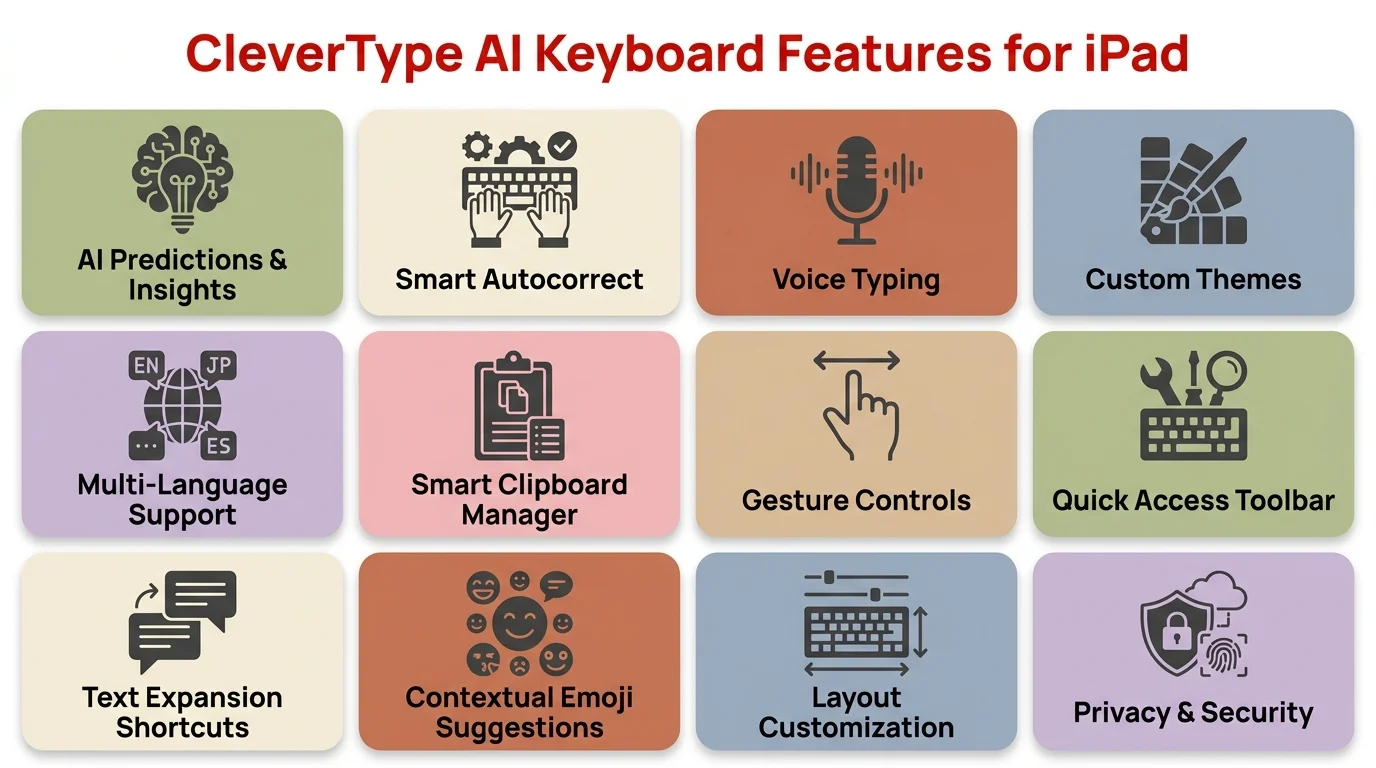
CleverType processes everything on-device — giving you AI-powered typing features without the battery drain or privacy cost of cloud-based keyboards.
How to Maximize iPad Battery Life When Using a Keyboard
Regardless of which keyboard you're on, a few small adjustments make a real difference in how long your iPad lasts through the day.
For Magic Keyboard users:
- Lower the backlight. This is the biggest win. Drop keyboard brightness to 50% or less and you'll see a meaningful improvement in iPad battery life. Go to Settings > General > Keyboard > Hardware Keyboard to find backlight controls, or use the dedicated backlight key on the keyboard.
- Let the screen dim when idle. The keyboard backlight stays active when the iPad display is on. Shorter auto-lock times mean the keyboard backlight also turns off sooner.
- Use Low Power Mode on the iPad. Low Power Mode reduces background activity, which helps especially if you have AI features or sync services running while you type.
For Bluetooth keyboard users:
- Disable the keyboard's backlight. Same principle as above — backlights are battery killers regardless of where the battery lives.
- Turn off the keyboard when not in use. Most Bluetooth keyboards have a physical power switch. Using it when you're done typing can extend battery life dramatically, especially on coin-cell-powered models.
- Keep Bluetooth optimized. On newer iPadOS versions, Bluetooth Low Energy handles pairing efficiently, but having many other Bluetooth devices paired can add overhead.
General tips for ipad typing battery preservation:
- Keep your iPad's overall battery health above 80% (Settings > Battery > Battery Health) — degraded batteries feel keyboard drain more acutely
- Use an iPad charger connected to the Magic Keyboard's USB-C port during long sessions, so the keyboard's power draw is offset by incoming charge
- Check what other apps are running while you type — background apps, not the keyboard, are usually the real culprit when battery drains faster than expected
Nonetheless, According to OSXDaily's guide on checking Magic Keyboard battery, the Magic Keyboard for iPad doesn't have a battery percentage to display — but you can confirm the Smart Connector is working properly by checking Settings > Bluetooth, where a connected Magic Keyboard will show up with a "Connected" status.
Frequently Asked Questions
Does the Apple Magic Keyboard for iPad have its own battery?
No. The Apple Magic Keyboard for iPad has no internal battery. It draws power directly from the iPad through the Smart Connector's three magnetic pins. Furthermore, You never need to charge the keyboard itself.
What does the USB-C port on the Magic Keyboard do?
Nonetheless, The USB-C port on the Magic Keyboard is a passthrough charging port for the iPad. When you plug a charger into the keyboard, it routes power through to the iPad — the keyboard itself stores none of that electricity.
Does the Smart Keyboard Folio drain the iPad's battery?
Minimally. The Smart Keyboard Folio has no backlight, so its power draw is very low — most users report no noticeable impact on daily battery life. The Magic Keyboard with its backlight active draws more.
Can I use an iPad keyboard when my iPad is low on battery?
Hence, Yes, but it will slightly accelerate the drain. If you're on a Smart Connector keyboard, the keyboard continues drawing a small amount of power from the iPad even when the battery is low. Consider plugging in the charger via the USB-C passthrough port on the Magic Keyboard if you're running low.
Do Bluetooth iPad keyboards drain the iPad's battery?
Bluetooth keyboards use their own internal batteries, so they don't directly drain the iPad. The Bluetooth radio on the iPad uses a small amount of power to maintain the connection, but it's minimal — roughly 1-2% over a full day of use.
How do I check the battery on my iPad keyboard?
Apple's Smart Connector keyboards (Magic Keyboard and Smart Keyboard Folio) have no battery to check. Bluetooth keyboards with their own batteries will usually appear in Settings > Bluetooth, where some models show a battery percentage. On iPadOS, you can also add the Batteries widget to your Today View to monitor compatible Bluetooth accessories.
Is there a way to use an iPad keyboard without any battery impact?
Additionally, Using a Bluetooth keyboard with its own battery (like the Logitech Slim Folio) has near-zero impact on your iPad's battery. You'll still see minimal drain from the Bluetooth radio, but it's negligible compared to a Smart Connector keyboard with backlight enabled.
Ready to Type Smarter?
Upgrade your typing with CleverType AI Keyboard. Fix grammar instantly, change your tone, receive smart AI replies, and type confidently while keeping your privacy.
Download CleverType FreeAvailable on Android • 100+ Languages • Privacy-First
Share this article:
Sources:
- Apple Support — Connect and use your Smart Keyboard Folio or Smart Keyboard
- Apple iPad Keyboards — Official Page
- iMore — You probably don't need to worry about the Magic Keyboard draining your iPad Pro's battery
- Tom's Guide — iPad Pro Magic Keyboard reportedly draining battery life: What to do
- AppleInsider — Compared: Magic Keyboard versus Smart Keyboard Folio
- iDropNews — iPad Pro Users Reporting Magic Keyboard Charging and Battery Drain Problems
- OSXDaily — How to Check the Battery on My iPad Pro Magic Keyboard