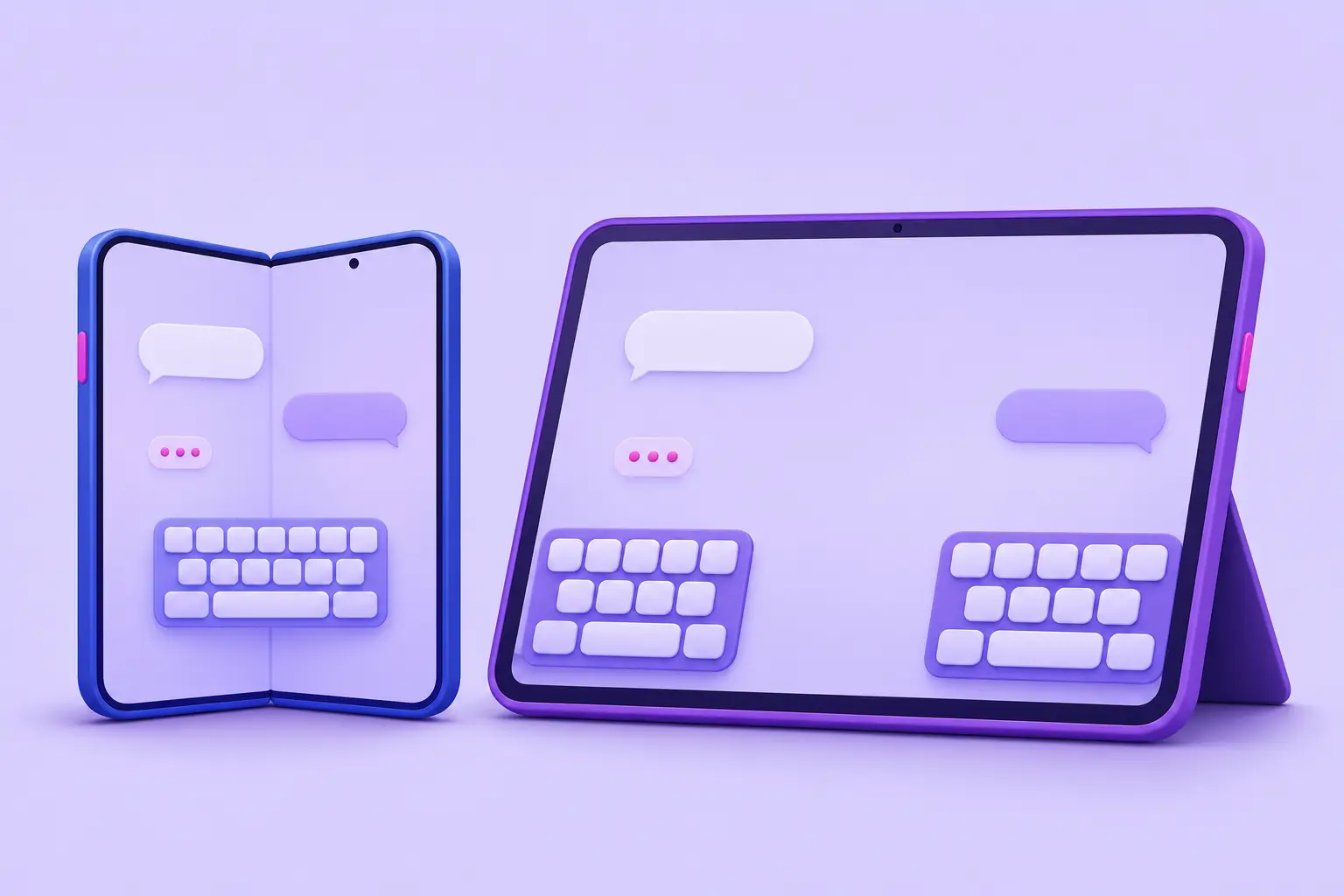
Key takeaways
- CleverType for Android now has a floating keyboard you can drag anywhere and shrink from 55% to 100% (from version 8.15.0, August 18, 2026).
- On tablets and unfolded foldables you can split the keys into two halves, one under each thumb. Split is not offered on regular phones.
- Foldables can keep a separate keyboard size for the folded and unfolded screens, and any phone can lift the keyboard up from the bottom edge.
- All of these layout options run on the phone and work offline. They are Android only.
Prop a tablet up to answer an email and the docked keyboard covers a big part of the screen. The keys in the middle sit out of reach of both thumbs, so you end up lifting a hand off the edge to hit them.
Big phones have a smaller version of the same problem. Hold one in one hand and the far side of the keyboard is a stretch.
Foldables are their own case. A size that suits the inner screen looks wrong on the cover screen, and the other way round.
We shipped four Android updates between August and October 2026 to deal with this. The floating keyboard you can move and resize came first (8.15.0, August 18), and three days later we added a split keyboard for tablets and unfolded foldables (8.16, August 21). In October came a separate size for each screen of a foldable (8.21.0, October 1), then a setting that lifts the keyboard off the bottom edge (8.22.0, October 6).
What's new
Floating keyboard
Until now, the keyboard was always docked full-width at the bottom of the screen. Turn on Floating keyboard and it detaches into a panel you can drag anywhere, and shrink to anything from 55% to 100% of its normal size.
It keeps the size you pick. It doesn't keep its position, though: each time it starts floating, it appears centred, just above the bottom of the screen.
Split keyboard (tablets and unfolded foldables)
Hold a tablet sideways with the old layout and the keyboard stretches edge to edge. Keys like T, G and B land in the middle, where neither thumb reaches comfortably.
Split keyboard cuts each row in half and puts one half under each thumb. Type "hello" and the h is on the right half, the e on the left. Each half gets its own space bar, so you can hit space with whichever thumb is free.
Separate size for folded and unfolded screens
A foldable used to share one keyboard height across both screens. Get it right on one and it was wrong on the other. With Separate size when unfolded on, each screen keeps its own Keyboard Height and Key Font Size, and folding or unfolding switches between them straight away. No restart.
Space below keyboard
If you use gesture navigation, you've probably felt this one. The bottom row sat right against the gesture navigation bar, and a thick phone case could make it awkward to reach. Space below keyboard lifts the whole keyboard up from the bottom edge in 10 small steps.
AI Features Font Size
Shrinking the keyboard used to shrink the text in the AI panels along with it, which made a long Fix Grammar result hard to read. AI Features Font Size (8.17) sets the text size in Fix Grammar, Word Tone, Translate and ChatGPT on its own, from 50% to 150%.
One placement mode at a time
Two later releases tidied things up. Since 8.25.0, turning on Floating, One-handed mode or Split turns the other two off, and since 8.26.0 the floating panel follows your finger exactly while you drag or resize it.
How it works
All of this is layout code running inside CleverType's keyboard on your phone. None of it talks to our servers, so it works with no internet connection at all. (The AI tools you open from the keyboard, such as Fix Grammar, are different: they still need a connection and send your text to our servers to produce a result. The layout around them doesn't.)
Floating. While the keyboard floats, it tells Android that only the panel itself is touchable. That's why the app behind it stays fully usable: you can keep scrolling and tapping around the panel, and the app doesn't resize or jump to make room.
The size slider scales the whole keyboard evenly, so key height and key labels shrink together. Width is based on the shorter side of your screen, which keeps the panel phone-sized when you turn the device sideways. You don't lose anything by floating, either: the toolbar, suggestions, emoji, clipboard and AI panels all work inside the panel.
Split. Whether you get split comes down to one number. The keyboard checks your screen's smallest width, measured in dp (density-independent pixels, Android's screen unit), and offers split only at 600 dp or more. It's the same line Android itself uses: Android's developer documentation describes smallest width of 600 dp and up as tablets and the inner displays of large foldables, while most phones, flip phones and the outer displays of large foldables fall below it. That's also why a phone turned sideways never qualifies. It's wide, but its smallest width is still phone-sized.
The halves meet at t|y, g|h and v|b. The gap between them is dead space, so a tap there does nothing and glide typing ignores it. Long-press popups work as usual.
Foldables. You'll only see this setting on large foldables, and only once the keyboard has been shown on the inner screen. Flip phones and regular phones never get it. Turning it on doesn't move anything. Your current size is copied to the unfolded screen, and the two drift apart only as you adjust them.
Space below keyboard. Each level adds 8 dp, so level 10 is 80 dp. Where a height limit applies, the extra space counts against it and the app above keeps the same room.
How to set it up
Every setting below (see also our CleverType setup and customization guide) lives in the CleverType app under Settings > Layout & Customization.
Floating keyboard
- Open Layout & Customization.
- Under Typing Behavior, turn on Floating keyboard ("Detach the keyboard so it can be moved and resized freely").
- Use the Floating keyboard size slider right below it. It goes from 55% to 100% in 5% steps, and starts at 80%.
There's a quicker route once you're in the middle of typing: tap the Floating keyboard button on the keyboard toolbar (or find it in the "…" overflow) to switch between floating and docked.
Once it's floating:
- Move it: drag the half-circle tab under the keyboard. Screen readers call it "Move keyboard".
- Resize it: drag one of the four corners, marked with purple L-shaped highlights. The corners act as resize handles for 3 seconds after the panel appears, or after you tap the tab. The rest of the time, corner keys type normally.
- Dock it: drag the tab to the bottom edge and let go. The keyboard docks full-width and the floating switch turns off.
Split keyboard
- Use a tablet, or open your foldable.
- Open Layout & Customization.
- Under Typing Behavior, turn on Split keyboard ("Split the keys into two halves, one under each thumb"). It is off by default.
On large screens you'll also find a Split keyboard button on the keyboard toolbar. On a phone you won't see the setting or the button.
Separate size when unfolded
- Open your foldable and type something, so the keyboard has been shown on the inner screen.
- Open Layout & Customization and turn on Separate size when unfolded.
- Set Keyboard Height and Key Font Size. The sliders show Unfolded screen so you know which one you are editing.
- Fold the phone, open the settings again and set the sizes for the Folded screen.
If you'd rather work from Themes, the Size and fit sheet there edits the same sizes.
Space below keyboard
- Open Layout & Customization.
- In General Appearance, find Space below keyboard, directly under Keyboard Height.
- Pick a level from Off to 10.
While you're on that screen, AI Features Font Size is just under Key Font Size.
If you've changed a lot and want a clean slate, use Reset in the overflow menu on Layout & Customization. It restores keyboard size, keys and the other layout settings, including floating, floating size and Space below keyboard.
Examples
Here's what a few common setups look like in practice.
| You have | You do | You get |
|---|---|---|
| A big phone and a long chat to read | Floating keyboard on, size 65%, drag to the right edge | The chat stays visible and scrollable behind a smaller keyboard |
| A Galaxy Z Fold | Separate size when unfolded on, Keyboard Height 90% unfolded, 130% folded | A smaller keyboard on the inner screen and a bigger one on the cover screen, switching as you fold |
| A tablet or unfolded Fold held sideways | Split keyboard on, type "hello" | h on the right half, e on the left, a space bar under each thumb |
| A gesture bar or thick case in the way | Space below keyboard set to 5 (or 10) | The keyboard sits 40 dp (or 80 dp) higher |
| A small keyboard but hard-to-read AI results | Keyboard Height 65%, AI Features Font Size 150% | Bigger text in Fix Grammar, Word Tone, Translate and ChatGPT, keys unchanged |
| A floating keyboard you are done with | Drag the tab to the bottom edge and let go | A normal docked keyboard, floating switched off |
Tips
On a Fold, pick the floating size with both screens in mind. It's one shared value, so the percentage that feels right unfolded is the same one you'll get on the cover screen.
Keyboard Height and Key Font Size work a little differently. You set them separately for upright and sideways use, each from 50% to 150% in 5% steps, while AI Features Font Size is one value for both.
The combination we'd suggest for most people who shrink the keyboard is to leave Key Font Size alone and raise AI Features Font Size instead. That way the keys stay compact and the AI results stay easy to read. Panel text combines Keyboard Height and AI Features Font Size but never goes past 150%, so 150% height with 150% font still gives 150%. It's also scaled on top of your Android system font size, not instead of it.
Troubleshooting
- I can't find Split keyboard. Your screen is under the 600 dp line, which covers every phone in either orientation and a Fold's cover screen. Open the foldable or use a tablet.
- The Split switch is greyed out. Floating keyboard or One-handed mode is on. Turn that off first.
- Split is on, but the keyboard is whole. Either you folded the phone (it drops back to the normal keyboard automatically) or you are on a board that never splits: number and phone pads, rows with fewer than 4 keys, 12-key flick boards, and boards with their own column layout such as 9-key pinyin.
- Resizing does nothing. The corner handles are live for 3 seconds. Tap the move tab to bring them back, then drag a corner.
- Space below keyboard is greyed out. Floating mode is on (the space does not apply to a floating keyboard), or the phone is turned sideways. The setting is portrait only.
- The floating keyboard came back in the middle instead of where I left it. That's expected. Only the size is saved, not the position.
- One-handed or Split switched off when I turned on Floating. Since 8.25.0 only one placement mode can be on at a time.
- The Floating keyboard button isn't on my toolbar. Look in the toolbar's "…" overflow, or turn it on in Settings > Layout & Customization > Floating keyboard.
- Separate size when unfolded doesn't appear on my Fold. Open the phone, type something so the keyboard shows on the inner screen, then go back to settings. No restart needed.
- "Settings are still loading. Try again in a moment." You flipped the foldable switch before settings finished loading. Wait a moment and try again.
- AI panel text looks tiny after I shrank the keyboard. Raise AI Features Font Size. Key Font Size only controls the keys.
How it compares
Gboard and Samsung Keyboard had floating and split modes before we did, and they work well.
On the Pixel Tablet, Google's help page for Gboard says you can tap Split keyboard or Floating keyboard on the on-screen keyboard. Floating makes the keyboard smaller, and tapping it again restores the default size.
Samsung goes further on per-orientation control. Samsung's support page lists Standard, Split and Floating modes for Samsung Keyboard, chosen separately for each orientation, and "Size and transparency" resizes the keyboard and, when floating, lets you change its transparency. CleverType has no transparency option, and our split and floating switches apply to both orientations rather than one setting each.
On iPad, Apple describes a floating keyboard that can move anywhere on the screen, and notes that split is available only on iPad mini and iPad (9th generation and earlier).
Where CleverType differs is in the extras around those modes. The AI panels (Fix Grammar, Word Tone, Translate, ChatGPT) work inside the floating keyboard, and their text has its own size control. Foldables also get a separate size for each screen.
Why we built it
We kept seeing the same request in support email and Play Store reviews: a keyboard that floats, or at least moves. Most of it came from people on tablets and large phones who couldn't reach the far side of a docked keyboard.
So the floating keyboard came first. Split, the foldable sizes and the bottom space followed once we saw how differently the keyboard behaves on wide and folding screens.
Limitations
A few things to know before you set it up:
- Split is not offered on phones in either orientation, or on a foldable's cover screen.
- The floating keyboard remembers its size, not its position.
- Floating size and One-handed width are shared across both screens of a foldable. Only Keyboard Height and Key Font Size get separate folded and unfolded values.
- Space below keyboard is portrait only and has no effect while floating.
- On image-background themes, Space below keyboard may crop the image a little differently from the theme preview.
- There is no transparency setting for the floating keyboard.
- Android only.
Frequently Asked Questions
Q: Does the floating keyboard remember where I put it?
A: It remembers the size you set, but not the position. Each time it starts floating, it appears centred just above the bottom of the screen.
Q: Why can't I use the split keyboard on my phone?
A: Split is only offered on screens whose smallest width is at least 600 dp, which means tablets and the inner screen of large foldables. Phones, upright or sideways, are below that line, so the setting is hidden.
Q: Do these features need an internet connection?
A: No. Floating, split, the foldable sizes and Space below keyboard all run on your phone. The AI tools inside the keyboard still need a connection.
Q: Can I use floating and one-handed mode at the same time?
A: No. Since 8.25.0, Floating, One-handed and Split are mutually exclusive, so turning one on turns the other two off.
Q: How do I get the normal keyboard back from floating?
A: Drag the half-circle tab to the bottom edge and let go, or tap the Floating keyboard button on the toolbar. The keyboard docks full-width again.
Q: Are these features on the iPhone version of CleverType?
A: No. They are part of the Android keyboard only.
Try it
Available for Android.