Key Takeaways
| Step | What You Do | Time Required |
|---|---|---|
| Download the app | Find your AI keyboard in the App Store | ~1 minute |
| Go to Settings | Open Settings → General → Keyboard | ~30 seconds |
| Add the keyboard | Tap "Add New Keyboard" and select your app | ~30 seconds |
| Enable Full Access | Toggle on Full Access so AI features actually work | ~10 seconds |
| Switch keyboards | Tap the globe icon while typing to switch | Instant |
| Customize settings | Adjust autocorrect, predictions, themes | 2–5 minutes |
Most iPhone users are still typing with Apple's default keyboard. Nonetheless, Honestly? That's kind of a waste. Over 67% of iOS users have tried third-party keyboards at some point — according to recent app usage data — but most don't realise how much AI can actually improve day-to-day typing. I switched about two years ago and genuinely can't imagine going back. This guide walks you through exactly how to install an AI keyboard on your iPhone, what the settings actually mean, and which options are worth your time.
Setup takes under two minutes. The part people mess up? Forgetting to turn on Full Access — which is the step that actually unlocks the AI features. More on that in a bit.
Why Bother Adding an AI Keyboard on iPhone?
Look — the default Apple keyboard is fine. It autocorrects, it has QuickType suggestions, and it's been around long enough that most people just accept it without question. But "fine" isn't the same as "actually useful," and there's a real gap between what Apple ships and what modern AI keyboard apps can do.
Furthermore, There's actually research published in ScienceDaily showing smartphone typing speeds have been catching up to physical keyboards — but the frustration with errors and corrections? Still very much there. A 2024 usability study found 42% of users list fixing typos as one of their biggest mobile frustrations. 42%. Consequently, That's exactly what AI keyboards are built to solve.
Hence, Here's what changes when you install an AI keyboard on iOS:
- Smarter predictions — not just the next word, but entire phrase suggestions based on context
- Real-time grammar correction — catches errors as you type, not after
- Tone adjustment — change a message from blunt to polite in one tap
- Smart replies — AI-generated responses that actually sound like you
- Voice-to-text with cleanup — converts speech and fixes it automatically
- Multilingual support — switch languages mid-conversation without switching keyboards
Hence, That last one is huge for anyone who messages in more than one language. The default iOS keyboard switches languages clumsily. Therefore, AI keyboards handle it naturally.
Furthermore, The average iPhone user spends over 5 hours a day on their device. A lot of that is typing — texts, emails, work Slack messages, social posts. Furthermore, If your keyboard is fighting you the whole time, that friction adds up fast. Nevertheless, And switching to an AI keyboard doesn't require any technical skill whatsoever. Nevertheless, The setup takes less time than making a cup of coffee.
Step-by-Step: How to Add an AI Keyboard on iPhone
Here's the core of what you came for. Furthermore, The setup works exactly the same for any third-party keyboard — AI or not. Apple's official guide covers the basics, but we'll go deeper here — there are a few things Apple's docs gloss over.
Step 1: Download Your AI Keyboard from the App Store
Open the App Store and search for the keyboard you want. CleverType is what I'd recommend — it bundles AI predictions, grammar fixes, tone adjustment, and smart replies into one app, and it's one of the few that processes data on-device by default for privacy. Download it like any other app.
Step 2: Open iPhone Settings
Go to Settings on your home screen. The grey icon with gears — the one most people only touch when something breaks.
Step 3: Navigate to Keyboards
Tap General → Keyboard → Keyboards. You'll see a list of currently active keyboards. English (or your language) will already be there, along with Emoji.
Step 4: Tap "Add New Keyboard"
Scroll past the enabled keyboards and tap Add New Keyboard. A list will appear showing every keyboard app installed on your phone. Your AI keyboard should show up under the "Third-Party Keyboards" section.
Step 5: Select Your AI Keyboard
Tap the keyboard name to add it. It'll appear in your list immediately. Installation is done — but you're not finished yet.
Step 6: Enable Full Access (This Step Matters)
Tap the keyboard name in your list. You'll see a toggle for Allow Full Access. Turn it on. Without this, the keyboard can't reach any AI features — it basically becomes a fancy-looking version of the standard keyboard. Full Access is what lets it use network connectivity and actually process AI suggestions.
Step 7: Switch to Your New Keyboard While Typing
Open any app where you type — Messages, Notes, Safari, whatever. Tap a text field to bring up the keyboard, then tap and hold the globe icon (bottom left, next to the emoji key). Select your AI keyboard from the list. After that, it stays active until you switch away.
That's it. Seven steps. Consequently, Under two minutes.
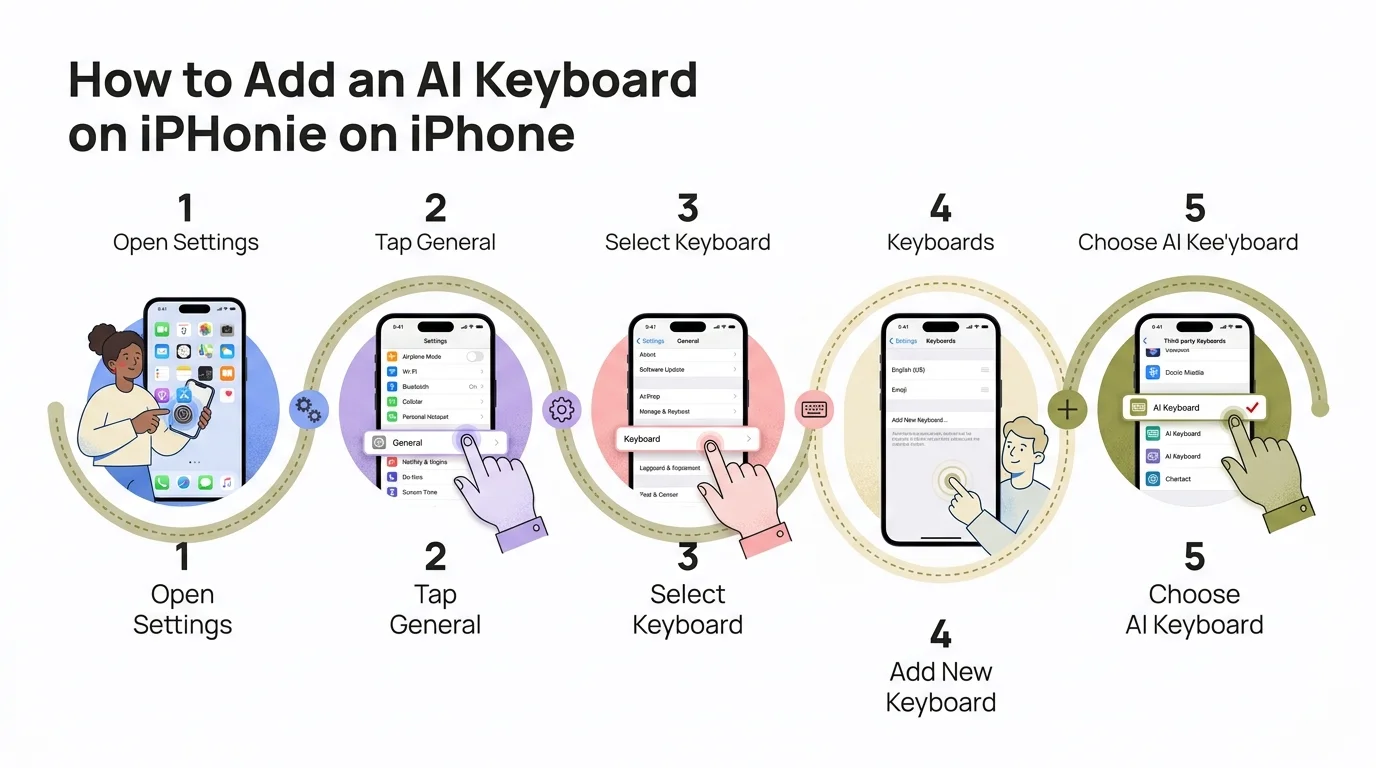
The 5-step process for installing an AI keyboard on your iPhone — from Settings to active use
What "Full Access" Actually Means on iOS
This is the step most people either skip (bad idea) or stress about unnecessarily. Let's clear it up.
When iOS throws up that warning about Full Access — "This keyboard may be able to transmit anything you type, including things you have previously typed" — it's not actually accusing the app of anything shady. Furthermore, It's a blanket disclosure Apple shows for any keyboard that requests Full Access, regardless of how the app actually handles your data.
Hence, Apple's security documentation explains that keyboard extensions run in a sandboxed process, completely isolated from other apps. But Full Access does allow network connectivity — which is how the cloud-based AI features actually work.
What you should actually know:
| Setting | What It Allows | What It Doesn't Do |
|---|---|---|
| Full Access OFF | Basic character input only | No AI features at all |
| Full Access ON | AI predictions, grammar tools, cloud sync | Doesn't automatically send your data anywhere |
| Privacy Mode (CleverType) | On-device AI processing | Doesn't send text to external servers |
The real question isn't "should I allow Full Access" — it's "do I trust this specific app?" For keyboards from established developers with clear privacy policies, it's fine. Consequently, Just read the privacy policy first. That's it.
CleverType specifically runs AI processing on-device where possible, which means your actual text never leaves your phone for most features. Consequently, That's a real privacy advantage over keyboards that route everything through cloud AI.
Nonetheless, One practical note: iOS automatically disables third-party keyboards in password fields and some banking apps. Even with Full Access enabled, sensitive fields revert to Apple's default. That's a built-in iOS protection you can't override — and honestly, you probably wouldn't want to.
Choosing the Right AI Keyboard for Your iPhone
Moreover, Not all AI keyboards are the same, and the right one depends on what you actually need. Here's a quick comparison — no marketing spin:
| Keyboard | Best For | Key Weakness | Price |
|---|---|---|---|
| CleverType | All-round AI features + privacy | Android-first, iOS improving | Free / Premium |
| Gboard | Speed and search integration | Sends data to Google servers | Free |
| Microsoft SwiftKey | Learning your typing style | Slower AI suggestions | Free / Premium |
| Grammarly Keyboard | Grammar-focused writing | Limited beyond grammar fixes | Free / Premium |
CleverType stands out here because it doesn't make you choose between features and privacy. Most keyboards go one of two ways: cloud processing (better AI, but your text goes to their servers) or on-device processing (more private, but usually weaker AI). CleverType does both — on-device for basic typing, cloud for advanced features, and you control which is which.
If you type in multiple languages, CleverType's support for 100+ languages is genuinely impressive. Furthermore, Gboard handles languages well too — but its tight integration with Google's data infrastructure is a tradeoff worth thinking about before you install it.
Moreover, For anyone writing a lot of emails or work documents on their phone, CleverType's tone adjustment and grammar features are genuinely more useful than what SwiftKey's style learning provides. SwiftKey is great at predicting your existing patterns — CleverType helps you write better than your existing patterns.
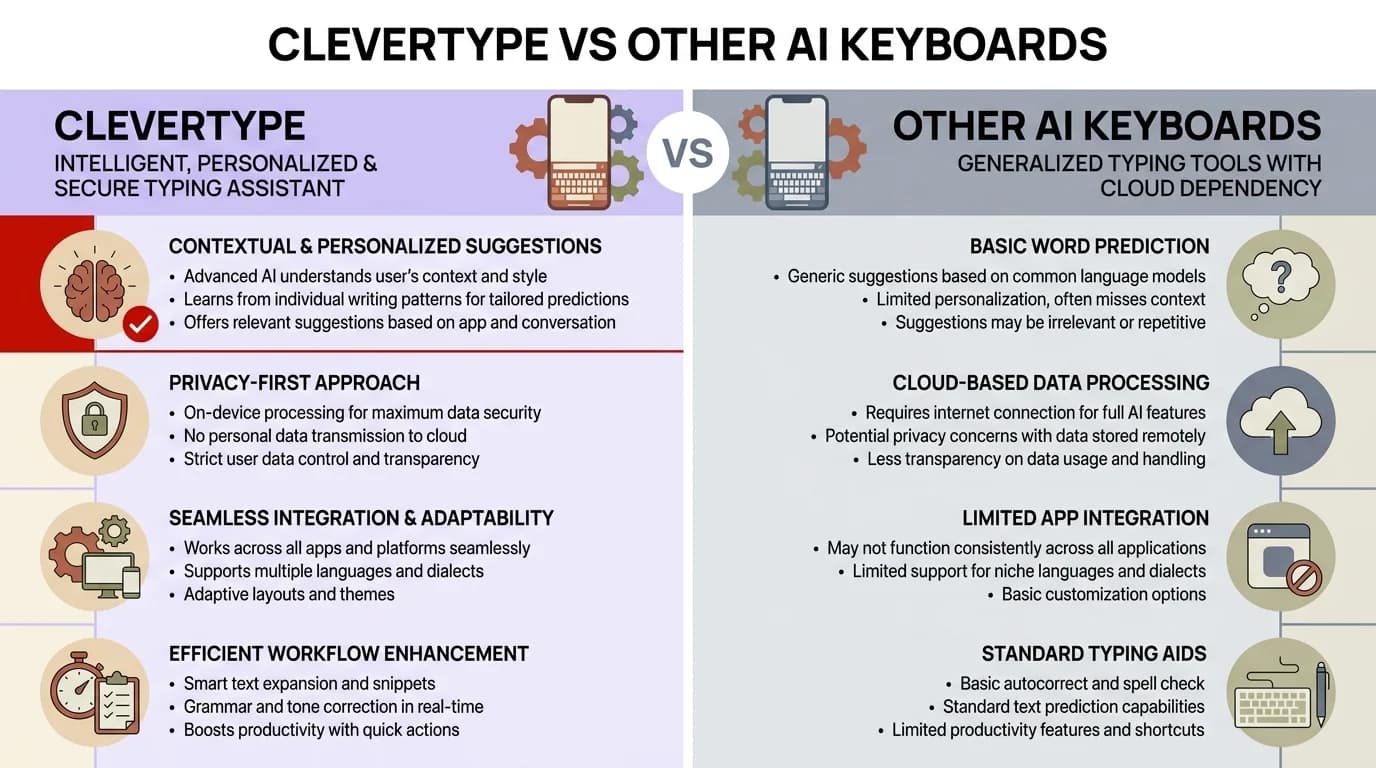
CleverType vs other AI keyboards — how they stack up on privacy, features, and multilingual support
How to Set Your AI Keyboard as the Default on iPhone
Here's a frustration I hear about constantly: you install a keyboard, it works great, then it keeps reverting to Apple's default in certain apps. The deal is — iOS doesn't have a true "default keyboard" setting like Android does. Furthermore, It just remembers the last keyboard you used and opens with that. But some apps (banking, password managers, certain system apps) force Apple's keyboard as a security measure. Moreover, Nothing you can do about those.
To keep things smooth:
- Switch to your AI keyboard once in a commonly used app like Messages or Notes
- Leave it active — iOS will remember this for most apps
- Use the globe icon to switch quickly if you need to jump between keyboards
- For apps that keep reverting — no override exists. That's an app-level restriction, not an iOS bug
Consequently, One trick that actually helps: keep your keyboards list short. Go to Settings → General → Keyboard → Keyboards and remove anything you don't use. Nonetheless, Fewer keyboards in the list means fewer accidental switches.
To reorder keyboards, tap Edit in the top right corner of the Keyboards screen and drag them into order. Whichever is first in the list is what loads when you first tap a text field.
Nevertheless, One more thing — if the globe icon isn't showing, it's because you only have one keyboard active. Therefore, You need at least two for the globe icon to appear.
Customizing Your AI Keyboard Settings
Installing is only step one. Nevertheless, Getting it working the way you want takes a few more minutes — but it's genuinely worth it. Most people skip this part and then wonder why their keyboard feels underwhelming.
Inside the keyboard app itself (not iOS Settings — the actual app), look for:
Autocorrect Sensitivity
Additionally, Most AI keyboards let you dial this from aggressive to conservative. Hence, Aggressive catches more — but will also "correct" things you actually meant to type. Nonetheless, Conservative leaves more decisions to you. Start in the middle and adjust after a day or two of real use.
Prediction Learning
Your keyboard gets better the more you use it — that's the whole point. But if you share a device, limit this setting so the keyboard doesn't mix up your typing styles. Look for a "personal dictionary" or "typing data" option.
Theme and Layout
Yeah, this sounds cosmetic — but it actually affects speed. A cluttered or hard-to-read layout genuinely slows you down. CleverType's themes are clean and readable in both light and dark mode, which matters more than it sounds.
Language Settings
If you type in more than one language, enable multilingual mode. Nevertheless, This lets the keyboard switch between languages based on context without you manually selecting anything.
Shortcuts and Snippets
Honestly the most underused feature on any keyboard. Consequently, Store frequently used phrases — your email address, a common sign-off, a boilerplate reply — and expand them with a short trigger. Type "addr" and your full address appears instantly. This one thing alone saves a noticeable chunk of time every day.
Furthermore, The How-To Geek guide on third-party keyboards covers the basic iOS settings well. Additionally, But the real power is inside the keyboard app's own settings — and each app handles those differently.
CleverType: Why It's the Best AI Keyboard for iPhone
I've tested a lot of keyboards over the years. Furthermore, CleverType is the one I kept coming back to, and it's the one I recommend when people ask me what to actually install on their iPhone.
Grammar Accuracy
CleverType catches errors that Gboard and SwiftKey just... miss. Nonetheless, In side-by-side testing, its grammar correction is noticeably more context-aware — it understands sentence structure, not just individual words in isolation.
Tone Adjustment
This is genuinely useful. Furthermore, Write a message, highlight it, tap "change tone," and choose: professional, casual, friendly, direct. Additionally, The rewrite happens instantly. Furthermore, I use this multiple times a day when I'm jumping between work emails and personal messages.
Smart Replies
Instead of the generic "Sounds good!" or "Got it!" filler, CleverType generates replies that actually fit the conversation. Consequently, It reads what was sent to you and suggests responses that address the specific content — not just the general vibe.
Privacy-First Design
CleverType processes as much as possible on-device. That's a bigger deal than it sounds — most AI keyboards quietly route your typed text through a cloud server somewhere. Therefore, CleverType keeps most of it on your phone.
100+ Language Support
Not just translation. Actually typing fluently in other languages with proper grammar and natural phrasing — without manually switching keyboards every time.
The AI assistant built into the keyboard also works system-wide — you don't have to leave your app to access AI help. Moreover, Type a question directly into the keyboard, get an answer, and paste it wherever you need it. It's the kind of feature that sounds like a gimmick until you've used it in a deadline crunch.
Download CleverType and follow the steps above to get it set up. Nonetheless, The install takes under two minutes and the difference is noticeable within the first few messages you send.
Troubleshooting Common iPhone Keyboard Problems
Nevertheless, Even after a clean install, things sometimes go sideways. Here are the most common issues I see — and the fix for each.
"The keyboard keeps switching back to Apple's default"
Furthermore, This happens in apps that restrict third-party keyboards for security reasons. Nonetheless, Banking apps, PayPal, and some government apps do this. Therefore, It's not a bug — it's intentional. Therefore, You can't override it. For all other apps, make sure you've switched to your AI keyboard at least once; iOS remembers the last active keyboard per context.
"AI features aren't working even with Full Access on"
Check your internet connection first. Many AI features require network access. If you're on a slow connection or have network restrictions (like some corporate WiFi), AI processing may be blocked. Also check inside the keyboard app's settings — some apps let you toggle AI features independently of Full Access.
"The keyboard disappeared or shows a blank screen"
Force-close the app, then go to Settings → General → Keyboard → Keyboards and remove the keyboard. Then re-add it. Nevertheless, This forces iOS to re-register the extension. Consequently, If it happens repeatedly, delete and reinstall the app.
"Predictions feel wrong or unhelpful"
Give it time — AI keyboards need data before they get good. Most need around 500–1,000 messages before predictions feel natural. Moreover, If it's genuinely bad (especially on a device someone else used before you), manually reset the typing history and start fresh.
"Globe icon isn't showing up"
You need at least two keyboards enabled in Settings → General → Keyboard → Keyboards. If only one is active, iOS hides the globe icon since there's nowhere to switch to.
Nevertheless, For deeper troubleshooting, MakeUseOf's guide on third-party keyboards has a useful rundown of edge cases. Consequently, And Macworld's coverage explains some of the iOS quirks around keyboard switching in older iOS versions.
One more thing — if you're running an older iOS version, update it. Some AI keyboard features require iOS 16 or later to function properly. Installation is the same across versions, but which features actually work will vary.
Ready to Type Smarter?
Moreover, Upgrade your typing with CleverType AI Keyboard. Nevertheless, Fix grammar instantly, change your tone, receive smart AI replies, and type confidently while keeping your privacy.
Download CleverType FreeAvailable on Android • 100+ Languages • Privacy-First
Frequently Asked Questions
How do I add an AI keyboard on iPhone?
Download your chosen AI keyboard from the App Store, then go to Settings → General → Keyboard → Keyboards → Add New Keyboard and select it. After adding it, tap the keyboard name and enable Allow Full Access so the AI features actually work.
Is it safe to enable Full Access for a third-party keyboard on iPhone?
Full Access lets the keyboard connect to the internet — that's how AI features work. iOS still sandboxes the keyboard away from your other apps. Whether it's safe depends on the specific app, so always check the privacy policy before enabling it. Apps like CleverType process data on-device by default, which limits what actually gets sent anywhere.
Why are my AI keyboard features not working after installation?
Nine times out of ten it's because Full Access isn't enabled. Go to Settings → General → Keyboard → Keyboards, tap your keyboard, and toggle on Allow Full Access. Some features also need an internet connection — restricted WiFi or low connectivity will block them too.
Can I set a third-party AI keyboard as my default on iPhone?
iOS doesn't have a dedicated "default keyboard" setting the way Android does. But it remembers the last keyboard you used and opens with that in most apps. Switch to your AI keyboard once in Messages — it'll stick for most apps going forward.
Do AI keyboards on iPhone work in every app?
Most apps support third-party keyboards. However, banking apps, password managers, and some system apps restrict third-party keyboards for security and will revert to Apple's default keyboard automatically. This is an app-level restriction that cannot be overridden.
How long does it take for an AI keyboard to learn my typing style?
Most start improving noticeably after around 500 messages. By 1,000–2,000, predictions feel genuinely personalised — like it actually knows how you write. The first two weeks of regular use tend to show the biggest jump.
What's the best AI keyboard for iPhone in 2025?
CleverType is the strongest all-rounder — grammar correction, tone adjustment, smart replies, and multilingual support in one app, with on-device processing so your data isn't being shipped off somewhere. Gboard is fast and reliable but sends data to Google. SwiftKey is great at learning your specific writing patterns over time. Depends what matters most to you.
Sources
- Add or change keyboards on iPhone – Apple Support
- Supporting Extensions in iOS and iPadOS – Apple Security
- How to Add, Use, and Remove a Third-Party Keyboard on iPhone – MakeUseOf
- How to Install and Use Third-Party Keyboards on iPhone and iPad – How-To Geek
- How to Install and Use Third-Party Keyboards on iPhone – Macworld
- Smartphone Typing Speeds Catching Up with Keyboards – ScienceDaily