Key Takeaways
- An AI keyboard replaces your phone's default keyboard with smarter typing tools
- Setup takes under 5 minutes on both Android and iOS
- Core features include predictive text, grammar fix, tone adjustment, and smart replies
- Privacy-first keyboards process data on-device — your texts never leave your phone
- CleverType offers all beginner-friendly features with 100+ language support
- Average users save 30+ minutes per day after switching to an AI keyboard
- No tech skills required to get started
Nonetheless, People spend around 6 hours a day on their phones, according to a large-scale mobile typing study by Aalto University covering over 37,000 participants. Hence, A lot of that time is just typing. An AI keyboard can cut that down — users consistently report saving 30 minutes or more every day. Nevertheless, If you've been curious about these apps but had no idea where to start, this is your guide. No jargon, no fluff.
What Is an AI Keyboard?
An AI keyboard is a smartphone app that replaces your phone's built-in keyboard and uses artificial intelligence to help you type faster, write better, and make fewer mistakes.
Furthermore, It's not just autocorrect with a new name. Nonetheless, Traditional Nevertheless, autocorrect checks if a word exists in a dictionary. AI keyboards read the full context of what you're writing — they understand meaning, not just spelling.
That's why an AI keyboard catches "I have went to the store" and suggests "I have gone to the store." Every word in the original is spelled correctly. A regular keyboard won't flag it. An AI keyboard does.
Therefore, Here's what separates them at a glance:
| Feature | Regular Keyboard | AI Keyboard |
|---|---|---|
| Autocorrect | Basic typo fixes | Context-aware corrections |
| Predictions | Next word only | Full sentences and phrases |
| Grammar | None | Real-time grammar checks |
| Tone | None | Casual vs. professional adjustment |
| Smart replies | None | Context-based reply suggestions |
| Translation | Manual only | Inline, 100+ languages |
Nonetheless, The tech behind it is natural language processing — same thing that powers ChatGPT and Google Translate, if you want a reference point. Furthermore, The keyboard reads what you've already written and figures out what you're trying to say next. Therefore, Not just what letter comes after the last one.
Therefore, CleverType takes it a step further — all that processing happens directly on your device. Hence, Your messages stay private because nothing gets sent to an external server.
How to Download and Install an AI Keyboard
Downloading an AI keyboard for Android is exactly like installing any other app. Moreover, The whole thing takes maybe 3 minutes.
On Android:
- Open the Google Play Store
- Search for your chosen keyboard (try "CleverType")
- Tap Install
- Open Settings → General Management → Keyboard → On-screen Keyboard
- Toggle on the new keyboard
- Tap Set as default
On iPhone (iOS):
- Open the App Store
- Search for the keyboard app
- Tap Get to install
- Go to Settings → General → Keyboard → Keyboards → Add New Keyboard
- Select the installed app from the list
- Tap Allow Full Access
So what does "Allow Full Access" actually mean? People always ask this — fair question. Consequently, On iOS, this permission technically lets the keyboard send data to its own servers. Some apps do exactly that. Hence, Others, like CleverType, keep everything local and just need the permission to function properly. Additionally, The difference matters, so it's worth knowing which type you're installing.
More on that in the privacy section below. But if you want to get started right now, download CleverType from the Play Store.
Common installation problems:
- Keyboard not showing up? Restart your phone after installing
- Suggestions not appearing? Make sure the keyboard is set as default, not just enabled
- Missing some features? Check if the app needs a one-time account setup to unlock AI tools
Setting Up Your AI Keyboard for the First Time
You've installed it. Now what? Additionally, Most people skip setup and start typing immediately — and then wonder why the keyboard doesn't feel much different from the old one. Don't do that.
Here's what to actually do in the first 10 minutes:
1. Complete the setup wizard
Most AI keyboards show a setup screen right after installation. Don't skip it. Consequently, This is where you set your language, typing style (one thumb vs two thumbs), and which AI features you want active.
2. Import your dictionary if available
Some apps let you bring over your old keyboard's word list. Furthermore, This saves you from re-teaching the keyboard your nicknames, brand names, and weird abbreviations you always type.
3. Adjust autocorrect aggressiveness
Start on medium. Too aggressive and it'll change words you meant to type. Too light and you're still fixing everything yourself.
4. Set up text shortcuts
This is one of the highest-value things you can do early. Examples:
- "omw" → "On my way!"
- "ty" → "Thank you so much"
- "addr" → your full home address
- "sig" → your email sign-off
Five shortcuts set up on day one will save you time every single day.
5. Turn on grammar correction
This is often disabled by default. Hence, Find it in the keyboard settings and switch it on. Nonetheless, It's the most immediately useful feature for anyone who writes anything professional on their phone.
CleverType's whole setup takes about 4 minutes. Every option is explained in plain language — nothing requires technical knowledge.
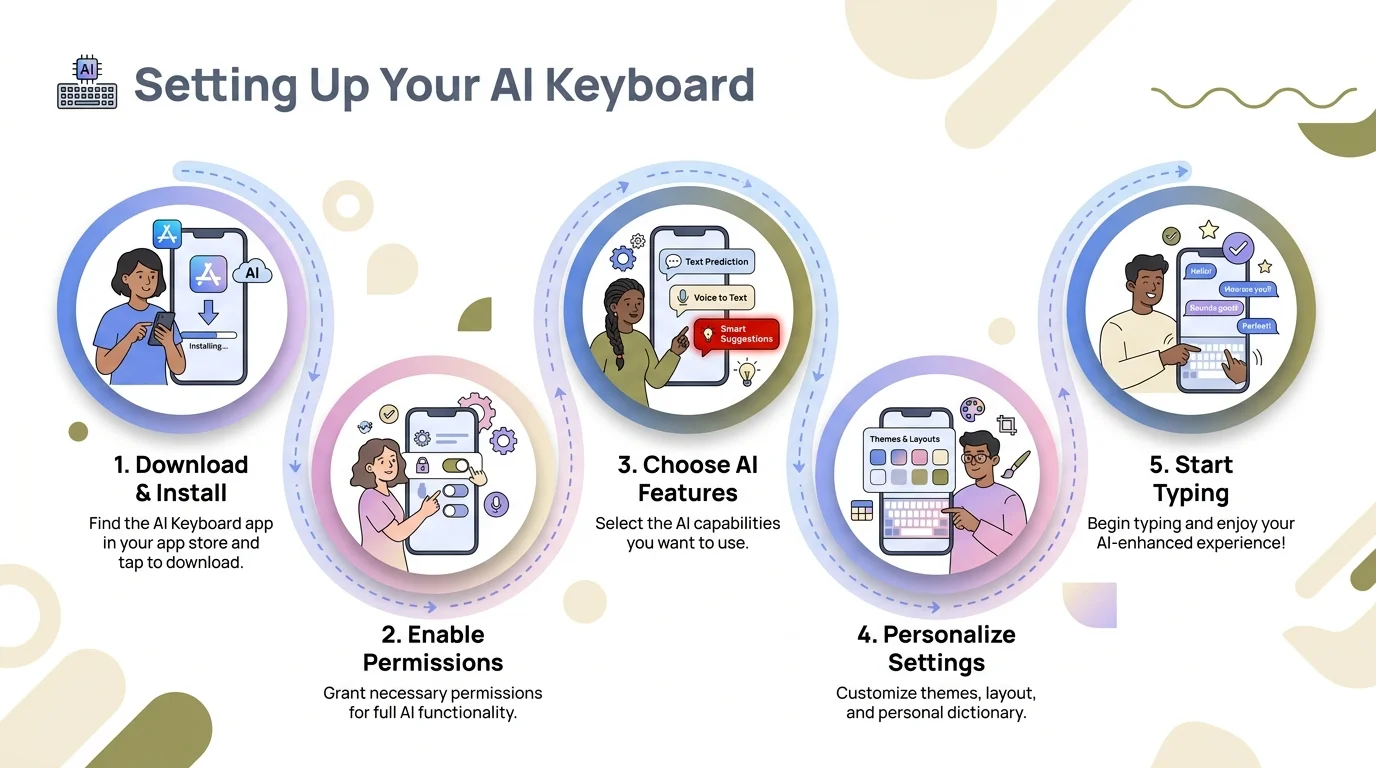
The 5-step process to set up your AI keyboard and get the most from it on day one
How to Use Predictive Text and Smart Suggestions
Nonetheless, Predictive text is the row of word suggestions sitting above your keyboard as you type. Most people tap it occasionally when the right word appears. Additionally, That's actually the slowest way to use it.
Here's the more effective approach:
Trust the phrase predictions, not just the words.
Modern AI keyboards don't just suggest the next word — they suggest the next phrase. Type "Can we meet" and the keyboard might suggest "tomorrow at 3?" or "next week to discuss?" based on context. Consequently, Tapping one of those completes your thought in one tap.
Let it handle your frequent phrases.
If you type "I'll get back to you shortly" several times a week, the keyboard starts predicting that whole phrase after you type just the first two or three words. The more you type, the smarter the predictions get.
Stop fighting it, start trusting it.
Consequently, The first week feels unnatural because you're not used to glancing at the suggestion bar. Nonetheless, After that week, you'll find yourself tapping suggestions automatically. Consequently, The Aalto University mobile typing research found that users who actively use auto-suggestions significantly outpace those who type every letter manually — across all age groups.
What's the actual difference between the types of suggestions you'll see?
- Prediction: Word options that appear before you finish typing a word
- Autocomplete: The keyboard finishes a word you've started
- Smart suggestions: Full-sentence or context-based options that account for what you've already written
CleverType combines all three. Hence, The result is that after just a few words, it often knows the rest of your sentence — which saves real time when you're typing the same kinds of messages repeatedly.
How to Use Grammar and Spell Check Features
Grammar correction is where AI keyboards pull far ahead of anything built into your phone.
Traditional autocorrect checks spelling. Furthermore, AI grammar tools check meaning in context. Hence, That's a fundamentally different thing.
"There going to the store" passes a spell check. It fails a grammar check. An AI keyboard catches the error because it's reading the sentence, not scanning a dictionary.
How to get the most from grammar features:
Furthermore, Turn on real-time correction first. Therefore, Look for "Grammar check," "Writing assistance," or "AI suggestions" in your keyboard settings. Moreover, Once on, corrections appear as you type — you'll see a highlight or suggestion bar pointing out issues.
Read the corrections before accepting them. This is worth doing, especially at first. When you see why a sentence got flagged, you start making that mistake less often on your own. Consequently, It's genuinely useful feedback that builds better writing habits over time.
For longer messages, use the "Rewrite" or "Fix" button. Highlight a sentence, tap once, and CleverType cleans it up. Additionally, Honestly, this is one of the most useful features day-to-day — type fast and messy, then clean it up right before you hit send.
Nevertheless, The European Data Protection Board's AI language model analysis found that modern AI grammar tools hit accuracy rates above 94% on common English errors. That's a pretty big jump from the rule-based spell checkers of even a few years ago.
One thing worth knowing: grammar AI handles formal writing way better than slang or shorthand. If you text friends in half-words and abbreviations, you'll want to turn correction off for messaging apps and keep it active for email. CleverType lets you configure this per-app, which is genuinely useful.
Privacy: What Your AI Keyboard Knows About You
This is the question most people skip — and probably shouldn't.
Your keyboard sees everything you type. Furthermore, Passwords. Moreover, Bank messages. Nonetheless, Medical searches. Hence, Personal conversations. Moreover, Everything flows through it. Furthermore, So how that data gets handled matters a lot.
A Stanford University study on AI privacy risks found that users routinely grant broad permissions to apps without reading what they're agreeing to — and keyboards are one of the highest-risk categories because they handle all typed input.
Hence, Here's what to check before trusting any AI keyboard:
On-device vs. cloud processing
This is the most important factor. On-device processing means the AI runs locally — your text never leaves your phone. Moreover, Cloud processing means your keystrokes get sent to a server for analysis.
Keystroke logging
Consequently, Some apps log what you type to improve their model. Search "keystroke" in the privacy policy. Nonetheless, A trustworthy app is upfront about this.
Data retention
Additionally, Does the app store your typing history? For how long? Can you delete it?
Therefore, IBM's overview of AI and data privacy points out that on-device processing is becoming the expected standard in 2025 — driven by people finally paying attention to these risks.
Nonetheless, CleverType processes everything locally. Grammar correction, tone changes, smart predictions — none of it touches an external server. That's not a marketing line, it's an actual architectural decision that separates it from keyboards that pipe your keystrokes through cloud APIs just to make their AI work.
Quick privacy checklist before installing any keyboard:
- Read the privacy policy — search for "keystroke," "store," and "collect"
- Check whether AI features are on-device or cloud-based
- See if you can disable "Full Access" without losing core features
- Look for a data deletion option in the app settings
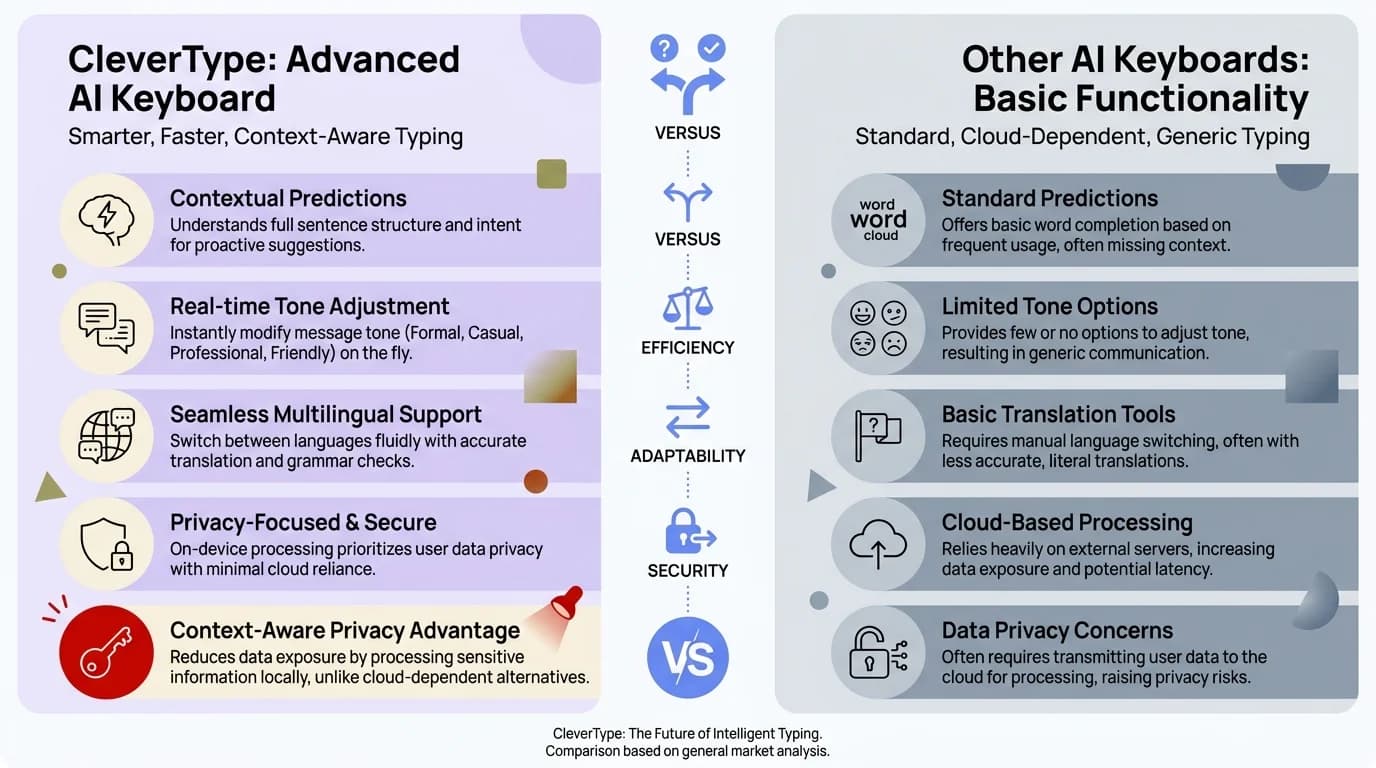
CleverType vs other AI keyboards — why on-device processing makes the difference
AI Keyboard vs Regular Keyboard: Feature Comparison
Worth asking directly: is the switch to an AI-powered keyboard actually worth it?
The short answer is yes if you write more than basic texts. Here's the full breakdown:
| Feature | Regular Keyboard | AI Keyboard (e.g. CleverType) |
|---|---|---|
| Typing speed | Baseline | 30–45% faster with suggestions |
| Error rate | Spell check only | ~85% fewer errors (AI-assisted) |
| Grammar | None | Real-time fix |
| Tone adjustment | None | Casual ↔ Professional in one tap |
| Smart replies | None | Context-aware suggestions |
| Translation | None | Inline, 100+ languages |
| Privacy | Varies by device | On-device, data stays local |
| Clipboard | Basic | Smart clipboard history |
| Learning curve | None | ~1 week to feel natural |
Additionally, Research from ScienceDaily on smartphone typing behavior found that the fastest mobile typists reached 85 words per minute — nearly matching desktop keyboard speeds. The common factor? Heavy use of predictive text and AI-assisted suggestions.
Moreover, Where AI keyboards fall short (for now):
- Niche technical vocabulary — add these manually to your personal dictionary
- Highly regional dialects and slang — though CleverType covers more variation than most competitors
- First few days of use — the keyboard needs time to learn your patterns before it feels personalized
Hence, For most people who write work messages, emails, or anything where the words actually matter — the improvement after one week is real and obvious. Furthermore, The table above isn't theoretical. Those features on the right simply don't exist in a regular keyboard.
Tips and Tricks to Get More From Your AI Keyboard
You've installed it and know the basics. Hence, Here are the less obvious things — including some underrated AI keyboard features — that make a real difference.
Use your shortcut system seriously.
Most people set up zero shortcuts. Furthermore, Set up 10 in your first week and you'll save meaningful time every day. Hence, Think about what you type repeatedly and automate those.
Enable clipboard management.
CleverType and several other AI keyboards keep a history of everything you copy. No more losing something you copied because you copied something else on top of it. Consequently, This alone is worth switching for many people.
Voice-to-text plus AI cleanup.
Speak your message, let the AI fix the transcript. Voice input is fast but messy. Moreover, AI grammar correction cleans it up before you send. Nevertheless, Together they're faster than typing for longer messages.
Per-app configurations.
You can usually set different behavior for each app. Additionally, Strict grammar in Gmail. Nonetheless, Relaxed in WhatsApp. Off entirely in your password manager. Take 5 minutes to configure this and the keyboard feels smarter everywhere.
Use tone adjustment for work messages.
Therefore, Write a quick casual draft, then tap "Make professional" before sending. CleverType's Furthermore, tone adjustment feature handles this in one tap. It removes the mental effort of switching writing modes when you're in a hurry.
Give it exactly one week.
Moreover, The keyboard needs a few days to learn your vocabulary and writing style. Most users report that day 7 feels completely different from day 1. Hence, Don't judge it in the first 48 hours.
One thing I'd genuinely recommend: don't switch keyboards in the middle of a busy work week. Nonetheless, Install it on a Friday evening instead. Use it over the weekend when the stakes are low. Additionally, By Monday you'll have the basics down and the suggestions will already feel reasonably dialed in.
Frequently Asked Questions
Q: What is an AI keyboard and how is it different from a regular keyboard?
Nonetheless, An AI keyboard is a smartphone keyboard app that uses machine learning to give you smarter typing — context-aware grammar fixes, full-phrase predictions, tone adjustment, and smart reply suggestions. Furthermore, A regular keyboard just checks your spelling against a dictionary. That's basically it.
Q: Is it safe to grant "Full Access" to an AI keyboard?
Depends on the app. Consequently, Keyboards that process data on-device (like CleverType) are safe — your text never leaves your phone. Keyboards that use cloud processing send your keystrokes to external servers. Always check the privacy policy before granting access. It takes two minutes and it's worth it.
Q: Do I need technical skills to set up an AI keyboard?
No. It installs exactly like any other app. Most have a short setup wizard that walks you through everything in under 5 minutes. If you've ever installed an app, you're already qualified.
Q: How long does it take to get used to an AI keyboard?
Most people feel comfortable within 3–7 days. The keyboard picks up your vocabulary and style during that stretch, and you naturally start using suggestions without thinking about it. Nonetheless, By week two, it usually feels faster than whatever you were using before.
Q: Will an AI keyboard slow down my phone or drain my battery?
Nevertheless, Not really. Hence, Most modern AI keyboards use under 3–5% of daily battery with minimal performance impact. Furthermore, On-device AI (like CleverType) is especially efficient because it doesn't have to make a network request every time you type a word.
Q: Can AI keyboards work in multiple languages?
Yes. Most support multiple languages and can auto-detect which language you're typing in. CleverType supports 100+ languages with full AI features across all of them — not just English.
Q: Is CleverType free to use?
Additionally, Yes — free to download, and the core AI features don't require payment. Nevertheless, There are premium upgrades if you want extra capabilities, but you can get a lot of value without paying anything.
Ready to Type Smarter?
Moreover, If you've made it this far, you already know enough to get started. Nonetheless, CleverType is free, takes five minutes to set up, and you'll notice the difference within the first day — grammar fixes, tone adjustment, smart replies, all on-device so your texts stay private.
Available on Android • 100+ Languages • Privacy-First
Share this article:
Sources:
- Aalto University: Large-Scale Mobile Typing Study (37,000 participants)
- ScienceDaily: Smartphone Typing Speeds Catching Up With Keyboards
- Aalto University News: Smartphone Typing Speeds Research
- Stanford Report: AI Chatbot Privacy Concerns and Risks
- IBM: Exploring Privacy Issues in the Age of AI
- European Data Protection Board: AI Privacy Risks in Large Language Models
- Wikipedia: Natural Language Processing