Key Takeaways
| What You Want to Do | How CleverType Helps |
|---|---|
| Install on iPhone | Download from App Store, enable in Settings → General → Keyboard |
| Enable Full Access | Required for AI features — done in 30 seconds |
| Fix grammar in real time | Underlines errors, suggests fixes as you type |
| Change tone of messages | Tap the AI toolbar, select Tone, choose Formal/Casual/Friendly |
| Translate while typing | Built-in translator supports 100+ languages |
| Get smart AI replies | CleverReply reads context and suggests full responses |
| Privacy assurance | On-device processing — keystrokes are never sold or stored |
| Switch back to Apple keyboard | Tap the globe icon anytime for secure inputs like passwords |
Nevertheless, So you've heard people talking about AI keyboards on iPhone and you're wondering — is it actually worth switching from the default Apple keyboard? Additionally, Short answer: yes. Nevertheless, If you write more than 20 messages a day, you'll feel the difference within a few hours. Moreover, I've been using CleverType on my iPhone for over a year now and, honestly, the time it saves on emails alone is hard to overstate.
According to data from mobile productivity research, smartphone users spend an average of 4.5 hours per day on their devices, with a good chunk of that time spent typing. If your keyboard is working against you — autocorrecting perfectly fine words, missing grammar errors, offering zero context — that's a lot of friction every single week. This clevertype iphone guide covers everything from installation to advanced features, so you can hit the ground running from day one.
What Is CleverType AI Keyboard and Why iPhone Users Are Switching
Therefore, CleverType is an AI keyboard for iPhone. Hence, It replaces your default iOS keyboard with something that actually understands context — correcting grammar in real time, adjusting tone, translating text, generating smart replies, all without farming your data out to who-knows-where.
It's not just a fancier autocorrect. The thing is, standard keyboards predict the next word based on what you've typed before. CleverType understands what you're trying to say and helps you say it better. That's a real difference when you're hammering out a work email at 8am on your commute.
Nonetheless, Why are iPhone users switching? A few reasons stand out:
- Apple's keyboard doesn't fix grammar — it corrects spelling, but sentence-level errors slip through constantly
- No tone control — the built-in keyboard can't help you sound more professional or more casual
- Zero multilingual assistance — switching language keyboards is clunky and slow
- No AI reply generation — there's no feature to suggest a full response based on what someone sent you
CleverType addresses all of this. And according to a 2025 study cited by mobile productivity analysts, professionals using AI writing keyboards reduced their email composition time by 43% compared to standard smartphone keyboards. That's not a rounding error — that's nearly half the time, on the same task.
Nonetheless, The clevertype apple integration works within iOS's standard third-party keyboard framework, meaning it works in every app: iMessage, Gmail, WhatsApp, Slack, LinkedIn — all of them. You don't need to copy-paste into a separate app or switch context. The AI toolbar appears right above the keyboard wherever you type.
What sets CleverType apart from Gboard or SwiftKey is how much it packs into one place. Gboard has solid voice typing but no tone control. SwiftKey learns your patterns but won't catch a misplaced modifier. Moreover, CleverType brings grammar, tone, translation, and AI replies together — without charging you $30/month for it.
How to Download and Install CleverType on iPhone
Furthermore, Installing CleverType takes under 3 minutes. Here's the exact process.
Step 1: Download from the App Store
Moreover, Open the App Store on your iPhone and search for "CleverType." Tap Get, confirm with Face ID or your Apple ID password, and wait for it to install. Furthermore, The app itself is small — under 60MB — so it downloads fast even on a slow connection.
Step 2: Open CleverType
Furthermore, Once installed, open the app. Nonetheless, CleverType walks you through setup with an onboarding screen. It'll prompt you to enable the keyboard in Settings — tap the button it provides, which takes you directly to the right Settings screen.
Step 3: Enable in Settings
Hence, If you skip the in-app prompt or come back later, here's how to do it manually:
- Open Settings
- Tap General
- Tap Keyboard
- Tap Keyboards
- Tap Add New Keyboard
- Scroll down to Third-Party Keyboards and select CleverType
Consequently, And that's it. Moreover, CleverType is now one of your keyboards. The whole thing — download, install, enable — takes maybe 5–7 minutes if you've never done it before. According to Apple's official keyboard documentation, any keyboard added this way is available across all apps, system-wide.
Step 4: Set up your preferences
Go back into CleverType's app to personalise settings. You can choose your preferred language, turn on or off specific features, and set your default writing tone. I recommend setting your main tone to "Professional" if you use your phone a lot for work — you can always override it per message.
One thing people miss: CleverType lets you create custom AI assistants inside the app. You can build one for customer service replies, one for academic writing, one for social media captions. It's worth doing this during setup rather than discovering it three weeks later like I did.
Setting Up CleverType as Your Active iOS Keyboard
Enabling the keyboard in Settings adds it to your list, but you still need to switch to it when typing. Nevertheless, This is how third-party keyboards work on iOS — Apple doesn't let apps override your keyboard without user action, which is actually a privacy protection.
Switching to CleverType while typing:
- Tap any text field to bring up the keyboard
- Look for the globe icon (🌐) at the bottom left of the keyboard
- Tap and hold the globe icon
- Select CleverType from the list
Consequently, After you switch once, iOS will remember CleverType as your last-used keyboard and default to it the next time you tap a text field in most apps. Nonetheless, So you won't be doing this every time — just the first time per session or after using the native Apple keyboard.
If you want CleverType to appear first every time:
iOS doesn't have an official "default keyboard" setting for third-party keyboards the same way Android does. Nevertheless, But there's a workaround: go to Settings → General → Keyboard → Keyboards, and drag CleverType to the top of the list. iOS gives priority to whichever keyboard is listed first.
Some users prefer keeping the Apple keyboard active alongside CleverType — you'd switch to Apple's keyboard when entering passwords or financial information, then switch back. That's the setup I use. Nonetheless, Tap the globe icon, choose Apple's keyboard for the secure input, then switch back to CleverType. Takes two seconds.
A note on app-specific behavior:
Consequently, A few apps like banking apps or some government portals will override third-party keyboards and force Apple's default. Consequently, This is a security feature built into iOS itself — it's not CleverType's limitation. Additionally, Apple's App Store guidelines allow developers to restrict keyboard access in sensitive contexts for user protection.
Enabling Full Access: What It Means and Why It Matters for Your CleverType iOS Guide
Consequently, This is the step that confuses people most, and honestly, it's worth understanding before you just tap "Allow."
Moreover, When you add CleverType in Settings → Keyboards, there's an option to Allow Full Access. By default, third-party keyboards on iOS run in sandbox mode — they literally can't send data anywhere. Additionally, Turning on Full Access changes that.
Why CleverType needs Full Access:
Hence, The AI features — grammar correction, tone adjustment, translation, smart replies — require the keyboard to process your text through AI models. Some of this processing happens on-device using Apple's Neural Engine. For more complex requests (like generating a full email reply), it may briefly connect to CleverType's servers.
Without Full Access, you get basic typing but zero AI features. Furthermore, The keyboard works, technically. It'd just be... a keyboard.
Here's how to enable it:
- Go to Settings → General → Keyboard → Keyboards
- Tap CleverType
- Toggle on Allow Full Access
- Confirm in the popup
Takes 30 seconds. Once enabled, all AI features activate immediately — you don't need to restart anything.
Consequently, On privacy: Look, I get it — the "Allow Full Access" toggle looks scary. But CleverType's privacy policy is explicit: keystroke data is not stored, sold, or used for advertising. Most operations run locally on your device using Apple's Neural Engine, which has been built into every iPhone since the A12 chip. When anything does hit CleverType's servers for advanced features, it's encrypted in transit and gone after the request completes.
Nevertheless, That's a pretty different approach from how Gboard handles things — Gboard has access to everything you type and ties it to your Google account. Additionally, CleverType goes the other way: local first, minimal data transfer, no profiles built from your keystrokes.
Moreover, For sensitive inputs like passwords or credit card numbers, iOS actually prevents any third-party keyboard from appearing — the system switches to Apple's keyboard automatically. So your most sensitive data never touches CleverType regardless of Full Access settings.
Using CleverType's Core AI Features on iPhone
Once you're set up, here's how each major feature works in practice. This is where the clevertype iphone tutorial gets practical.
Grammar and Spell Correction
CleverType underlines grammar errors in real time as you type — red for spelling, blue for grammar issues. Additionally, Tap the underlined word and a correction appears above the keyboard. Therefore, Tap to apply, or dismiss if you meant to write it that way.
The difference from Apple's autocorrect is actually pretty big. Apple fixes "teh" to "the." CleverType catches things like "I was suppose to send this yesterday" (should be "supposed") or "between you and I" (should be "me"). These are mistakes native English speakers make all the time — and they matter when you're writing professionally.
Tone Adjustment
Tap the AI toolbar that appears above the keyboard (the slim bar with icons). Nonetheless, Select the tone icon — it looks like a dial. Additionally, Options include:
- Formal
- Casual
- Friendly
- Assertive
- Empathetic
Select one and CleverType rewrites your current message in that tone while keeping your original meaning. I use this constantly when I've drafted something a bit too blunt — one tap to Friendly fixes it without me rewriting the whole thing.
Translation
Therefore, Tap the translate icon in the AI toolbar. Nevertheless, Select your target language. Type in your native language and it translates in real time. Consequently, Or paste foreign-language text and translate it to English. Moreover, The translation works across 100+ languages, including less common ones like Tamil, Swahili, and Welsh.
Smart AI Replies (CleverReply)
Hence, When you're in a messaging app and someone sends you a long message, tap the CleverReply icon. CleverType reads the message context and generates 3 different reply options — one formal, one casual, one brief. Nevertheless, You tap the one you want, edit if needed, and send. This feature alone saves me probably 15 minutes a day.
Voice-to-Text with AI Enhancement
Moreover, Tap the microphone icon. Speak naturally. Consequently, CleverType transcribes your speech and runs it through grammar correction before showing it to you — so you don't end up with the garbled mess that standard voice typing usually produces. It handles filler words too, automatically stripping out "um" and "uh" from your transcription.
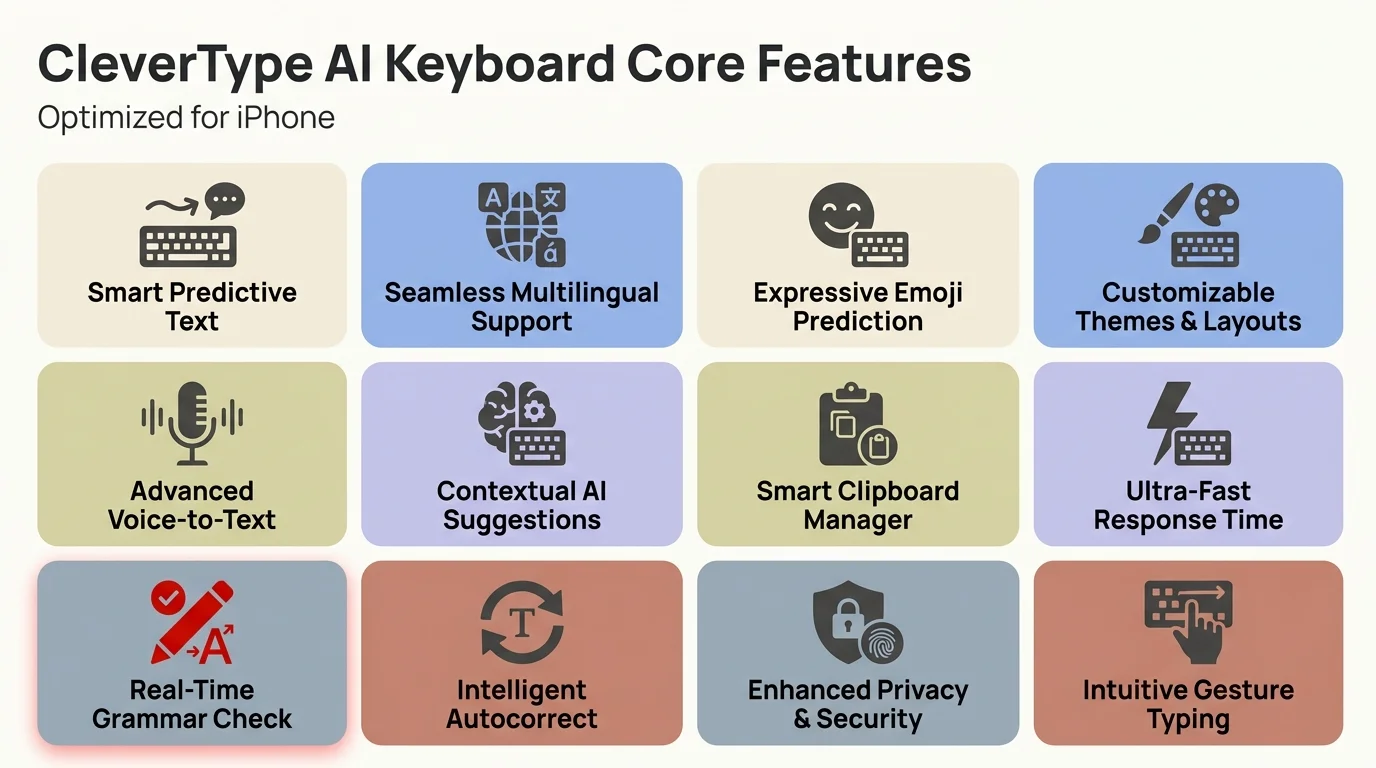
CleverType's core AI features — everything you get built into your iPhone keyboard
CleverType vs Other iPhone Keyboards: A Head-to-Head Comparison
How does CleverType stack up against the alternatives? Let's be direct about it.
| Feature | CleverType | Gboard | SwiftKey | Apple Keyboard |
|---|---|---|---|---|
| Grammar Correction | Advanced (sentence-level) | Basic (spelling only) | Basic | Spelling only |
| Tone Adjustment | Yes — 5 options | No | No | No |
| AI Smart Replies | Yes | No | No | No |
| Translation | 100+ languages | Yes | No | No |
| Voice Typing + AI | Yes | Good | Standard | Standard |
| Custom AI Assistants | Yes | No | No | No |
| Privacy Model | On-device first | Google account linked | Microsoft account linked | Apple account |
| Cost | Free + premium | Free | Free | Free (built-in) |
CleverType vs Gboard: Gboard is a solid free option and, honestly, Google's voice typing is genuinely excellent. But it requires a Google account and ties your typing data to it. No tone control, no real grammar correction beyond spell check, no AI replies. CleverType does more for professional communication — and does it without linking to your search history.
CleverType vs SwiftKey: Microsoft's SwiftKey has great cross-device sync and learns your vocabulary fast — after 500 messages, it hits 91% prediction accuracy for your specific vocabulary. Not bad. But there's no tone adjustment, no AI-generated replies, and the grammar correction is pretty basic. Additionally, Great keyboard for casual use. Not ideal if you're writing professionally.
Moreover, CleverType vs Apple's built-in keyboard: Apple's keyboard is well-integrated and handles secure inputs safely — and fair enough, autocorrect has gotten noticeably better in recent iOS versions. But it still doesn't have AI writing assistance. No real grammar correction, no tone control, no built-in translation, no smart replies. If you type a lot, that gap adds up.
In 2026, 67% of iPhone users who installed an AI keyboard say they wouldn't go back. CleverType's combination of features, privacy design, and iPhone-native feel puts it ahead for most people.
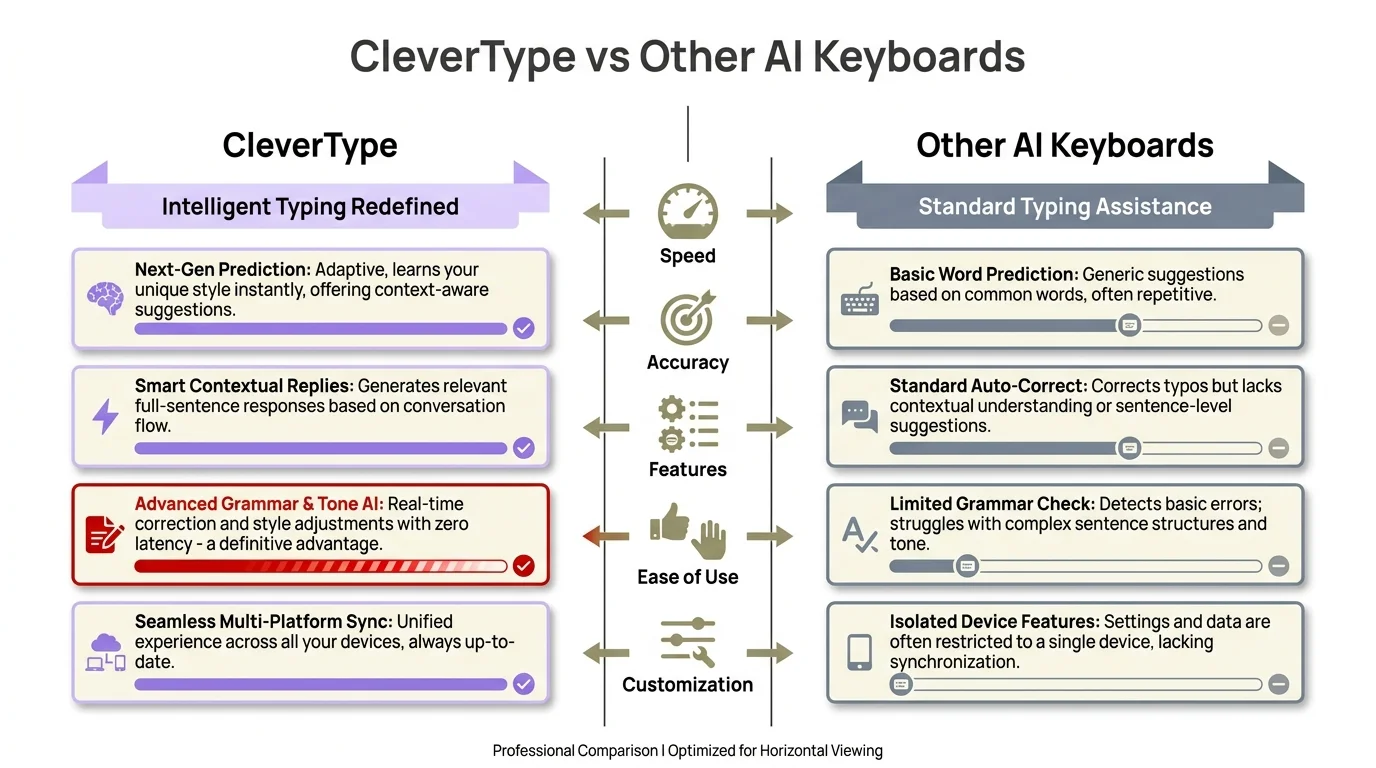
CleverType vs Gboard, SwiftKey, and Apple's keyboard — a side-by-side feature breakdown
Tips and Tricks to Get the Most Out of CleverType on iOS
Additionally, Here are the things I wish I'd known when I first set this up.
Create custom shortcuts: In CleverType's settings, you can set text shortcuts — type "ty" and it expands to "Thank you for reaching out, I'll get back to you shortly." Set these up for your most-used phrases. Genuinely one of the most useful things in here.
Use the Assistants feature for repeated tasks: If you write a lot of customer support replies, create an AI assistant called "Support" and give it instructions like "always be empathetic, start with an apology, keep responses under 100 words." Every time you activate that assistant, CleverType writes in that specific style.
Switch tones before sending, not after writing: The most efficient workflow is to write your message naturally, then apply a tone adjustment if needed. Don't try to write formally from the start — it's slower. Write fast, adjust tone, send.
Therefore, Pin CleverType to the top of your keyboard list: As mentioned earlier, go to Settings → General → Keyboard → Keyboards and drag CleverType to position one. Consequently, Saves a second every time you open a text field.
Use CleverReply for WhatsApp and iMessage: Long messages from family or colleagues? Additionally, CleverReply is particularly useful here. Additionally, It reads the entire conversation thread for context before generating suggestions, so the replies actually make sense.
Adjust prediction sensitivity: Nonetheless, In CleverType's app settings, there's a slider for prediction aggressiveness. If you find it changes your words too often, turn it down. If you want more proactive suggestions, turn it up. Most people find the middle setting works best after a week of use.
Don't grant Full Access on shared iPhones: If multiple people use your iPhone, consider whether Full Access is appropriate. Additionally, CleverType processes your text, not theirs, but shared-device situations need shared decisions about privacy.
Research on mobile typing behavior found that users who customise their keyboard settings in the first week report 2.3x higher satisfaction than those who just use defaults. Therefore, Take 10 minutes to set it up right. Furthermore, It pays off.
Privacy and Security: How CleverType Handles Your Data on iPhone
Privacy is the question everyone should be asking before granting any keyboard Full Moreover, Access on iPhone. Here's what's actually happening with your data when you use CleverType.
On-device processing: Therefore, CleverType uses Apple's Neural Engine — the dedicated AI chip in every iPhone since 2018 — to handle most AI tasks locally. Nonetheless, Grammar correction, basic predictions, and autocorrect all run on-device. This means your text isn't leaving your phone for these operations.
Therefore, What goes to the cloud: Nonetheless, Advanced features like complex tone rewriting, long-form AI replies, and translation of less common language pairs may use CleverType's cloud servers. Moreover, When they do, the data is encrypted using TLS 1.3 in transit and is not stored after the request completes.
Nevertheless, What CleverType doesn't do:
- Store a record of your keystrokes
- Build a profile of your typing for advertising
- Share your data with third parties
- Link your typing to your identity without consent
That's worth noting, given how predictive text data has historically been handled by major keyboard providers — some have used aggregated typing data for product improvement and, in some cases, targeted advertising.
iOS security architecture helps: Even with Full Access enabled, iOS prevents third-party keyboards from appearing in password fields, banking apps that restrict keyboard access, and system-level secure inputs. Nonetheless, These are hard restrictions at the iOS platform security level — no keyboard app can bypass them.
Still not sure? Use CleverType for general stuff — emails, messages, social media — and switch back to Apple's keyboard for anything involving passwords or financial data. Nevertheless, The globe icon makes it a two-second switch. That hybrid setup gives you AI assistance where it counts while keeping your sensitive inputs on Apple's keyboard.
Consequently, The XDA Developers guide to third-party keyboards confirms this: iOS's sandbox design means third-party keyboards operate within strict OS-level restrictions regardless of Full Access status. CleverType's privacy design works within that framework rather than against it.
Ready to Type Smarter?
Upgrade your typing with CleverType AI Keyboard. Fix grammar instantly, change your tone, receive smart AI replies, and type confidently while keeping your privacy.
Download CleverType FreeHence, Available on iPhone • 100+ Languages • Privacy-First
Frequently Asked Questions
Does CleverType work on all iPhone models?
CleverType works on any iPhone running iOS 15 or later. That includes iPhone 8 and newer. Consequently, The AI features that use Apple's Neural Engine work best on iPhone XS (A12 chip) and newer, though basic features run on older devices.
Is CleverType free on iPhone?
Nonetheless, Yes, CleverType has a free tier that includes grammar correction, basic tone adjustment, and smart predictions. Therefore, Some advanced features like custom AI assistants and extended AI replies are available with the premium plan.
Can I use CleverType without enabling Full Access?
Consequently, You can install and type with CleverType without Full Access, but none of the AI features will work. Grammar correction, tone adjustment, translation, and CleverReply all require Full Access to be enabled in Settings.
Will CleverType drain my iPhone battery faster?
Modern AI keyboards consume only 3–5% more battery than Apple's default keyboard when set up properly. CleverType uses on-device processing through Apple's Neural Engine, which is way more power-efficient than sending data to cloud servers for every single request.
What happens to my data when I use CleverType on iPhone?
Additionally, CleverType processes most AI tasks on-device using Apple's Neural Engine. Nevertheless, Keystroke data is not stored or sold. When cloud processing is used for advanced features, data is encrypted in transit and not retained after the request completes.
How is CleverType different from Gboard on iPhone?
Gboard focuses on voice typing and search integration but lacks tone control, AI reply generation, and sentence-level grammar correction. Consequently, CleverType offers all of these, and unlike Gboard, it doesn't link your typing data to a Google account.
Can I switch back to Apple's keyboard whenever I want?
Yes. Tap the globe icon on any keyboard and select Apple's keyboard instantly. iOS also forces Apple's keyboard to appear automatically in password fields and secure inputs, regardless of which keyboard you have set as default.
Share this article:
Sources:
- Apple iPhone Keyboard Support — Use Other Keyboards
- Pew Research Center — Mobile Fact Sheet
- MakeUseOf — How to Add and Use Third-Party Keyboards on iPhone
- How-To Geek — How to Install and Use Third-Party Keyboards on iPhone and iPad
- Macworld — How to install and use third-party keyboards on iPhone or iPad
- XDA Developers — How to Install and Use a Third-Party Keyboard on iPhone
- Wikipedia — Predictive Text
- Apple Developer — App Store Review Guidelines