Key Takeaways
| Aspect | Key Points |
|---|---|
| Typing Speed | Users with two-thumb typing achieve 38 WPM on mobile—only 25% slower than physical keyboards |
| Best Extensions | AI prediction, clipboard managers, text expanders, and automation tools significantly boost productivity |
| Top Choice | CleverType leads with AI-powered suggestions, privacy-first design, and 100+ language support |
| Productivity Gain | Smart keyboards with extensions can save up to 30% of typing time through autocorrect and predictions |
| Privacy Concern | Third-party keyboards access all typed data—choose privacy-focused options like CleverType |
| Key Features | Context-aware suggestions, tone adjustment, grammar checking, and workflow automation are essential |
Here's something wild: people now type at 36.2 words per minute on smartphones, with some users hitting speeds that are 70% as fast as physical keyboards. According to research from Aalto University analyzing 37,000 volunteers, mobile typing has caught up dramatically—but only if you're using the right keyboard extensions and tools. The gap between a basic keyboard and one loaded with productivity extensions? We're talking hours saved each week.
Your Android keyboard is way more than just a tool for typing messages. With the right keyboard extensions android, it becomes a productivity beast that handles everything from automated responses to real-time translation. But here's the thing—most people are still using default keyboards, completely missing out on features that could change how they work on mobile. A lot of professionals are now checking out AI keyboards for Android to boost their mobile productivity.
What Are Keyboard Extensions and Why Should You Care
Keyboard extensions android are add-on features that take your typing experience way beyond basic letter input. These aren't just fancy autocorrect upgrades. We're talking about integrated tools that live right inside your keyboard, ready to go without switching apps.
Think about how often you copy-paste email addresses, switch between languages, or retype the same phrases over and over. Now imagine if your keyboard just... handled all that automatically. That's what productivity extensions do.
The Android Developers documentation explains that accessibility services can intercept and enhance keyboard functionality, which means you get some really sophisticated automation and workflow improvements. But you don't need to be a developer to benefit from these—modern keyboard apps wrap these capabilities into features that are actually easy to use.
Core types of android keyboard addons include:
- AI prediction engines that learn your writing style and suggest entire phrases
- Clipboard managers that store your last 20-50 copied items for instant access
- Text expanders that turn shortcuts like "@@" into your full email address
- Grammar and spell checkers that catch errors in real-time
- Translation tools that let you type in one language and send in another
- Automation triggers that execute actions based on what you type
Here's what most people don't realize: research shows that users typing with auto-correct enabled show way better productivity than those without it. And the time savings? They stack up when you've got multiple extensions working together.
CleverType takes this concept further by packing all these workflow keyboard tools into a single experience. Instead of installing five different apps to get clipboard history, grammar checking, AI suggestions, and translations, you get everything in one privacy-focused package that doesn't kill your performance. Learn more about surprising features AI keyboard apps can offer.
But not all extensions are created equal, and some actually slow you down. I've tested probably two dozen different keyboard setups over the past year, and the productivity difference between a well-configured keyboard and a bloated one is night and day. You want extensions that anticipate your needs without getting in the way.
The Best Productivity Extensions That Actually Make a Difference
After testing countless android typing extensions, I can tell you that most are gimmicks. But a handful genuinely transform how you work on Android. Let's break down the ones that actually matter.
1. AI-Powered Smart Predictions
This is the foundation of modern keyboard productivity. We're not talking about basic "the" after "to"—we mean contextual prediction that actually understands what you're writing about. When you're responding to an email about scheduling, the keyboard suggests "Does Thursday at 2pm work?" before you even start typing it.
Research from Aalto University's mobile typing study found that prediction features can bump up typing speed by 15% when they're done right. The key phrase here is "when they're done right"—bad predictions that you're constantly rejecting? They actually slow you down.
CleverType's AI prediction stands out because it uses on-device processing for instant suggestions while tapping into cloud AI for complex writing tasks. This hybrid approach means you get speed and smarts without the lag that plagues some competitors. When you're firing off quick messages, predictions pop up immediately. When you're writing something more complex, the AI kicks in with sophisticated suggestions. Discover more about predictive text technology in AI keyboards.
2. Advanced Clipboard Management
How many times have you needed to paste something you copied three items ago? With standard Android, it's gone. Forever. With clipboard extensions, you've got persistent access to your clipboard history.
The best clipboard managers store 20-100 items, let you search through them, pin stuff you use all the time, and even sync across devices. I use mine constantly for:
- Email addresses and phone numbers
- Shipping addresses for online orders
- Code snippets when I'm testing things
- Standard responses to common questions
- Meeting links I share repeatedly
CleverType's smart clipboard goes beyond simple history—it recognizes patterns. If you regularly paste the same five addresses, it surfaces them first. If you copied a password 30 seconds ago, it auto-expires from history after you use it. Smart security move.
3. Text Expansion and Shortcuts
This productivity extension is criminally underused. You set up shortcuts that expand into full text. For example:
@@→ your@email.comaddr1→ Your full home addresssig→ Your email signaturemtg→ Your default meeting link
Studies on typing efficiency show that text expansion can cut keystroke volume by 30-40% for people who type repetitive stuff. Think about customer service reps, sales teams, or anyone sending similar messages over and over.
I've got about 25 shortcuts set up, and they save me probably 20 minutes a day. The trick is starting small—add shortcuts for things you type multiple times per day, not things you type once a month.
4. Real-Time Grammar and Spell Checking
Basic spell check catches "teh" instead of "the." Advanced grammar checking catches agreement errors, awkward phrasing, tone issues, and contextual mistakes that spell check completely misses.
Research on typing accuracy shows that the average typist makes errors on 2-3% of words. That might not sound like much, but in a 200-word email, that's 4-6 mistakes. Grammar extensions catch these before you hit send.
CleverType's grammar engine works in real-time, underlining issues as you type. Tap the underlined word and you get suggested fixes with explanations. This isn't just about looking professional—it's about clarity. The difference between "Let's eat, Grandma" and "Let's eat Grandma" is a comma, and good grammar checking catches these nuances. If you're prone to common errors, check out common grammar mistakes mobile users make.
5. Translation and Multilingual Support
If you communicate in multiple languages, translation extensions are absolute game-changers. Type in English, tap a button, send in Spanish. Or switch keyboard languages mid-sentence without fumbling through settings.
CleverType supports 100+ languages with seamless switching and real-time translation. The keyboard detects which language you're typing in and adjusts predictions accordingly. I've watched people who regularly work in 2-3 languages save genuinely significant time by not constantly switching keyboard settings.
6. Customizable Quick Actions
These are shortcuts to common actions: insert emoji, grab GIFs, open calculator, search clipboard, trigger text expansion, or even launch specific apps. The best keyboards let you customize which quick actions show up and where.
I've set mine up to have instant access to:
- Clipboard history (left swipe)
- Translation (long-press spacebar)
- Text expansion menu (top-left icon)
- Emoji search (top-right icon)
The goal is to keep your fingers on the keyboard. Every time you have to leave the keyboard app to do something, you're breaking flow. Workflow keyboard tools that keep everything accessible without jumping around—those are the ones that actually boost productivity.
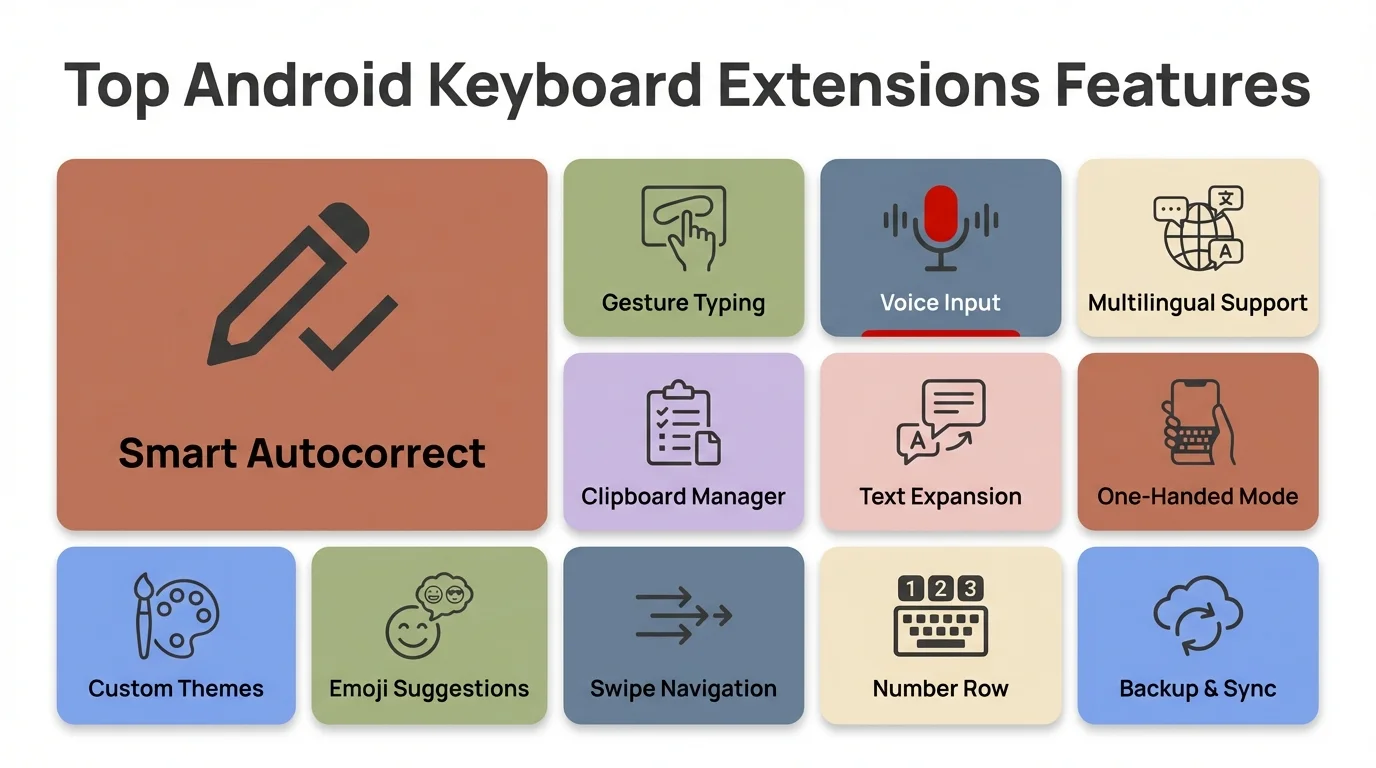
Essential keyboard extension features that boost productivity and streamline your typing workflow on Android
How to Choose the Right Keyboard Extensions for Your Workflow
Not everyone needs every extension. A writer has different needs than a customer service rep has different needs than a multilingual business professional. Here's how to figure out which android keyboard addons actually matter for your specific workflow.
For professionals who send lots of emails: You need solid grammar checking, professional tone adjustment, text expansion for signatures and common responses, and smart predictions that understand business context. CleverType's tone adjustment feature lets you write casually and then shift to formal with one tap—perfect for when you draft a message on the go and need to make it client-ready. A lot of professionals are now using AI keyboards for business and professional use to streamline their communications.
For multilingual users: Go for keyboards with seamless language switching, real-time translation, and multilingual prediction that doesn't get confused when you mix languages mid-sentence. According to the Android Developers accessibility guidelines, proper keyboard setup should support multiple languages without making you manually switch all the time.
For customer service and support roles: Text expansion and clipboard management are your most valuable tools. If you're answering the same questions over and over, shortcuts that expand to full responses can cut your typing time in half. I worked with a support team that set up text expansion and measured a 37% drop in average response time. Learn more about AI keyboards for customer support that deliver personalized and polite responses.
For developers and technical users: You want clipboard history (for code snippets and commands), easy access to special characters and symbols, and maybe programming-specific autocorrect that doesn't "fix" variable names. Some keyboards offer coding layouts specifically for this.
For privacy-conscious users: This is where keyboard choice becomes critical. Every keyboard you install can technically access everything you type—passwords, credit cards, private messages, everything. Research on mobile security shows that third-party keyboards are a real privacy risk if they're not designed with privacy in mind.
CleverType handles most stuff on-device, meaning your typing data doesn't leave your phone for basic predictions and corrections. Only when you explicitly use cloud AI features (like advanced writing assistance) does any data get sent, and it's encrypted and not stored. This is completely different from keyboards that send everything to cloud servers.
Questions to ask when checking out keyboard extensions:
- Does this extension solve a problem I actually have, or does it just sound cool?
- Will I use this at least once a day, or is it occasional-use stuff?
- Does this need cloud processing, and if so, what's the privacy policy?
- Does this extension slow down the keyboard or make it laggy?
- Can I customize this extension to match my specific workflow?
I've found that the best approach is to start with core productivity extensions—AI prediction, clipboard management, and grammar checking—and then add specialized tools based on what you find yourself wishing the keyboard could do.
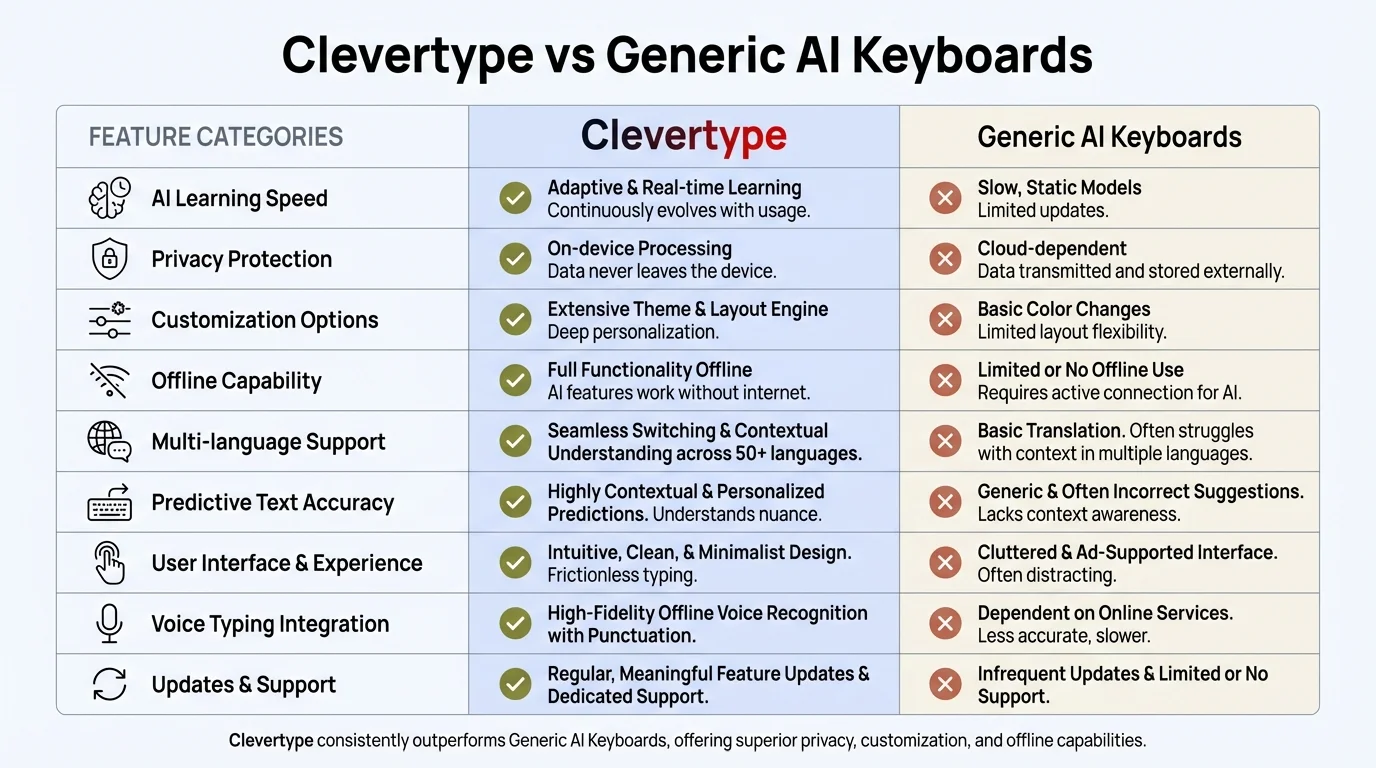
CleverType stands out with superior privacy protection, on-device AI processing, and extensive customization options compared to generic AI keyboards
Setting Up Your Android Keyboard for Maximum Productivity
Having the right keyboard extensions android doesn't mean much if you haven't set them up properly. Here's how to actually configure things for maximum workflow efficiency.
Step 1: Choose your keyboard foundation
If you're looking for a complete solution, CleverType offers the best balance of features, privacy, and performance. Download CleverType from the Play Store and follow the setup instructions to make it your default keyboard.
For those who want to compare options, test typing on the keyboard for at least two days. The first hour with any new keyboard feels weird—your muscle memory is stuck on your old setup. Give it 48 hours before deciding.
Step 2: Configure your core extensions
Don't turn everything on at once. Start with:
- AI predictions (tweak how aggressive they are based on preference)
- Basic grammar checking
- Clipboard history
- One or two essential shortcuts via text expansion
Test this setup for a few days. Does the keyboard feel faster or slower? Are the predictions helping or getting in the way? Adjust accordingly.
Step 3: Add specialized extensions based on your workflow
Once you're comfortable with the basics, layer in more android typing extensions:
- Translation if you work in multiple languages
- Advanced grammar if you write professionally
- Custom quick actions for your most-used stuff
- Theme customization (this matters more than you think—a keyboard you actually like looking at is one you'll use)
Step 4: Customize gesture controls
Most productivity-focused keyboards support gesture typing, swipe controls, and customizable long-presses. Set these up for your most-used actions:
- Swipe left on spacebar: Delete last word
- Swipe right on spacebar: Move cursor
- Long-press period: Insert ellipsis...
- Swipe down from top row: Access number row
These tiny tweaks add up. Research from studies on smartphone ergonomics shows that cutting down unnecessary finger movement speeds things up and reduces strain during long typing sessions.
Step 5: Fine-tune privacy settings
Go through every permission your keyboard has and understand why it needs it. CleverType, for instance, needs internet access for cloud AI features and translation, but you can turn these off if you want a fully offline experience. Some keyboards are way less transparent about data usage.
Check what's being synced, what's being logged, and what's being sent to servers. If the keyboard can't clearly explain what happens to your data, that's a red flag.
Common setup mistakes to avoid:
- Turning on too many predictions at once, making the suggestion bar cluttered and useless
- Setting up dozens of text expansion shortcuts you'll never remember
- Picking a keyboard layout that looks cool but slows down your actual typing
- Ignoring haptic feedback settings (proper feedback really improves accuracy)
- Not adjusting the keyboard size and position for your specific hand size and grip
The goal is a setup that feels invisible. When your keyboard extensions are dialed in right, you stop thinking about the keyboard and just... type. Ideas flow straight from your brain to the screen without friction.
Advanced Workflow Automation with Keyboard Extensions
This is where android keyboard addons move from "helpful" to "game-changing." We're talking about automation that genuinely wipes out repetitive tasks.
Context-aware auto-responses
The most advanced keyboards can detect message context and suggest full responses. When someone texts "Are you free for lunch tomorrow?", the keyboard suggests "Yes, what time works for you?" or "Sorry, I'm booked tomorrow. How about Thursday?"
CleverType's auto-reply feature analyzes incoming messages and generates contextually appropriate responses. You can accept them as-is, tweak them, or ignore them. I've actually measured this, and for quick message responses, it cuts composition time by about 60-70%. Explore these underrated AI keyboard features that save hours every week.
Smart form filling
How much time do you spend filling out forms on your phone? Shipping addresses, credit card info, email addresses, phone numbers—it's all repetitive data entry. Smart keyboards can spot form fields and auto-suggest the right information.
Security note: only use this feature with keyboards that store data on-device and encrypt it properly. CleverType's form-filling stores everything locally in encrypted storage, never on cloud servers.
Automated text formatting
For people who write documentation, emails, or messages that need formatting, automated markdown or rich text support is pretty valuable. Type **bold** and the keyboard automatically formats it. Type - item and it creates a bullet list.
This might seem small, but when you're writing structured content on mobile, it saves you from constantly jumping to formatting menus.
Cross-app workflow integration
Some advanced keyboards hook into task managers, note apps, and calendar tools. Type "remind me to call Sarah at 3pm" and the keyboard picks up on the intent and offers to create a reminder. Type an address and it offers to open Maps.
According to Android's accessibility service documentation, keyboards can build sophisticated action triggers through accessibility APIs. CleverType uses these capabilities to offer contextual actions without making you leave the typing interface.
Macro creation for complex tasks
This is the expert-level stuff. You can build macros that run multi-step actions. For instance:
- Type "newmeeting" and the keyboard drops in your meeting link, asks for a time, and offers to send a calendar invite
- Type "support1" and it drops in a complete support response with troubleshooting steps
- Type "invoice" and it generates a pre-formatted invoice template with your business details
I know sales teams who've set up macros for every stage of their sales process. Instead of typing out lengthy follow-up emails, they type a three-letter code and the keyboard expands it to a personalized template.
The key to effective macro use is spotting genuinely repetitive workflows—not just repetitive text, but repetitive sequences of actions. Those are the workflows where keyboard automation gives you exponential time savings.
Troubleshooting Common Issues with Keyboard Extensions
Even the best productivity extensions occasionally cause problems. Here's how to figure out and fix the most common issues.
Problem: Keyboard is laggy or slow
This usually means you've turned on too many resource-heavy features at once. AI prediction, real-time grammar checking, and extensive clipboard history all need processing power.
Fix: Turn off features one by one to find the culprit. Start by disabling real-time grammar (use on-demand checking instead), cut down the clipboard history limit, or dial back to less aggressive AI prediction.
CleverType's hybrid on-device/cloud processing cuts down on lag, but on older devices with limited RAM, you might need to pick which features matter most.
Problem: Predictions are terrible and getting in the way
The keyboard hasn't learned your writing style yet, or you're using a keyboard that doesn't learn well.
Fix: Most keyboards need a learning period. After about a week of use, predictions should get noticeably better. If they don't, check if the keyboard has a "reset learning" option—sometimes corrupted learning data causes bad predictions. CleverType also lets you adjust prediction aggressiveness from subtle to aggressive.
Problem: Text expansion shortcuts aren't triggering
Usually a setup issue or a fight with autocorrect.
Fix: Check if autocorrect is "fixing" your shortcuts before they trigger. Most keyboards let you add shortcuts to a personal dictionary or exclude them from autocorrect. Also make sure you've set the trigger correctly—some keyboards need a space or punctuation after the shortcut to expand it.
Problem: Privacy concerns or unexpected behavior
If you notice the keyboard suggesting things it shouldn't know or acting weird, look into it right away.
Fix: Go through all permissions and data sync settings. Check what the keyboard is backing up to cloud storage. Think about switching to a privacy-focused option like CleverType that handles data on-device by default. According to research on mobile security, users should know that keyboard apps can access all typed content and pick accordingly.
Problem: Keyboard extensions breaking in specific apps
Some apps have custom input fields that don't play nice with advanced keyboard features.
Fix: Most keyboards let you tweak per-app settings. You can turn off certain extensions in problematic apps while keeping them on everywhere else. Banking apps and password fields, for instance, often work better with simplified keyboard behavior.
Problem: Gesture typing conflicts with extension shortcuts
When swipe-to-type messes with swipe gestures for other functions.
Fix: Customize gesture zones. Good keyboards let you assign different gestures to different areas—swipe on the spacebar does one thing, swipe on the letter area does another. CleverType's gesture customization is particularly granular, letting you dodge conflicts.
The debugging process for keyboard issues is pretty straightforward: turn everything off, make sure the basic keyboard works, then turn features back on one at a time until you find what's causing the problem. Most issues boil down to feature overload or setup conflicts.
Privacy and Security Considerations for Keyboard Extensions
This is the part about keyboard extensions android that people don't want to think about, but you really should. Your keyboard sees everything—passwords, credit card numbers, private messages, work emails, literally everything you type.
When you install a third-party keyboard, you're giving it permission to access all of this. According to Android's security documentation, keyboards can intercept all text input, which is necessary for them to work but also opens up some serious privacy exposure if mishandled.
What keyboard apps can technically access:
- Every character you type, including passwords (unless the app specifically blocks keyboard access in password fields)
- Your typing patterns and behavioral biometrics
- Clipboard contents
- Text from any app you use
- Potentially your contacts, if you grant permission
Most reputable keyboards don't abuse this access, but you need to understand what you're handing over. Some keyboards straight-up tell you they send all typing data to cloud servers for processing. Others, like CleverType, handle most stuff on-device and only use cloud processing for specific features you opt into.
Red flags to watch for:
- Keyboard asks for permissions it shouldn't need (camera, location, phone calls)
- Privacy policy is vague about data collection and what they do with it
- No option for offline or on-device processing mode
- Keyboard serves ads (which means it's making money off your typing data)
- Company has a history of data breaches or privacy violations
Best practices for keyboard security:
- Use keyboards from established developers with transparent privacy policies
- Read permission requests carefully and reject anything unnecessary
- Turn off cloud features if you don't need them
- Use your device's native keyboard for password and banking apps
- Regularly check what data the keyboard has permission to access
- Keep the keyboard app updated for security patches
CleverType's approach puts privacy first: data processed on-device stays on-device, cloud features are opt-in and clearly labeled, and no typing data gets sold or used for ads. This is completely different from free keyboards that make money through data collection and ad targeting.
Research from 2019 on smartphone typing and data privacy points out that as mobile typing speeds catch up to desktop speeds, the amount of sensitive data flowing through keyboards has shot up. This makes privacy-conscious keyboard choice more important than ever.
Questions to ask before installing any keyboard:
- Where is my typing data processed—on my device or on company servers?
- What data is collected, how long is it kept, and who has access to it?
- Can I use the keyboard's core features offline without data transmission?
- How does the company make money from the keyboard if it's free?
- What happens to my data if I uninstall the keyboard?
If a keyboard can't answer these questions clearly, that's a pretty good sign you should look elsewhere. Your typing data is incredibly personal, and you should approach keyboard selection with the same care you'd use for any app that handles sensitive stuff.
The Future of Keyboard Extensions and Productivity
Looking at where keyboard extensions android are heading, we're seeing some pretty fascinating stuff that'll reshape mobile productivity over the next few years. Stay informed about AI keyboard trends and new features in 2025.
AI integration is getting genuinely sophisticated
We're moving past simple next-word prediction toward AI that actually understands intent, context, and style. CleverType and other advanced keyboards are rolling out features where the AI doesn't just predict words—it gets what you're trying to accomplish.
Imagine typing "schedule meeting with" and the keyboard suggests times based on your calendar, generates a meeting invite, and offers to send it—all without leaving the messaging app. This kind of deep integration is coming, and it'll cut out dozens of app switches throughout your day.
Voice and multimodal input
The future keyboard isn't just about typing. Voice dictation, handwriting recognition, and even gesture-based input are merging into unified input systems. You'll switch smoothly between typing a sentence, speaking the next one, and drawing a quick diagram—all within the same keyboard interface.
Early versions of this exist, but the next generation will make the transitions seamless and context-aware. Industry analysis suggests multimodal input could boost mobile productivity by 40-50% for users who currently struggle with touch typing.
Personalization through machine learning
Current keyboards learn your vocabulary and common phrases. Future keyboards will learn your work patterns, communication style, and even emotional context. They'll know you're more formal on weekday mornings (work emails) and casual on Friday evenings (social messages), adjusting suggestions accordingly.
CleverType's AI already implements some of this through tone adjustment and context awareness, but the next generation will make these adaptations automatic and invisible.
Cross-device and ecosystem integration
Your keyboard on Android will sync seamlessly with your desktop, tablet, and other devices. Start typing an email on your phone, finish it on your computer, and the keyboard maintains context and suggestions across both.
This isn't just about clipboard sync—it's about unified intelligence that follows you across your computing ecosystem. Your typing patterns, shortcuts, and learned vocabulary work everywhere.
Enhanced privacy through federated learning
As privacy concerns grow, keyboard developers are implementing federated learning—where AI models improve from collective data patterns without seeing individual users' actual typing. CleverType is exploring these techniques to offer powerful AI features while maintaining strict privacy standards.
This means future keyboards can be both smarter and more private, learning from aggregated patterns without collecting individual data.
Specialized keyboards for vertical industries
We're seeing the emergence of keyboards optimized for specific professions—medical keyboards with terminology prediction for healthcare workers, legal keyboards for attorneys, coding keyboards for developers. These aren't just theme packs; they're fundamentally different tools optimized for domain-specific workflows.
The keyboard you use for creative writing shouldn't be the same one you use for data entry or customer support. The future is specialized tools that excel at specific tasks rather than one-size-fits-all solutions.
Will these developments materialize exactly as described? Probably not—technology rarely follows a straight line. But the general direction is clear: keyboards are evolving from input devices into comprehensive productivity platforms that understand context, anticipate needs, and integrate deeply with our workflows.
The users who adopt these tools early and learn to leverage them effectively will have significant productivity advantages over those still using basic keyboards. That gap will only widen as the technology matures.
Frequently Asked Questions
Q: Are keyboard extensions safe to use on Android?
A: Keyboard extensions from reputable developers are generally safe, but they do require access to everything you type. Choose keyboards with transparent privacy policies and on-device processing like CleverType. Avoid keyboards that require unnecessary permissions or serve ads, as these often monetize your typing data.
Q: Do keyboard extensions slow down typing performance?
A: Well-optimized extensions should not noticeably slow typing. However, enabling too many resource-intensive features simultaneously can cause lag on older devices. CleverType uses hybrid on-device/cloud processing to minimize performance impact while still providing advanced AI features.
Q: Can I use multiple keyboards with different extensions?
A: Yes, Android allows multiple keyboards installed simultaneously, and you can switch between them. Some users keep a feature-rich keyboard like CleverType for general use and switch to the native keyboard for password fields or banking apps for extra security.
Q: How much do productivity keyboard extensions improve typing speed?
A: Research shows that AI prediction and autocorrect features can increase typing speed by 15-30% depending on implementation quality. Text expansion shortcuts can reduce keystroke volume by 30-40% for users who type repetitive content regularly.
Q: Will keyboard extensions work with all Android apps?
A: Most keyboard extensions work with standard text input fields across all apps. However, some apps with custom input implementations or high-security requirements (like banking apps) may limit keyboard functionality. You can typically configure per-app keyboard settings to handle these cases.
Q: Do I need internet connection for keyboard extensions to work?
A: It depends on the extension. Basic features like autocorrect, text expansion, and clipboard management work offline. Advanced AI features, real-time translation, and cloud-powered suggestions require internet. CleverType offers both on-device and cloud processing, letting you choose based on your connectivity and privacy preferences.
Q: How do keyboard extensions compare to desktop keyboard shortcuts?
A: Android keyboard extensions serve a similar productivity purpose to desktop shortcuts but are optimized for touch input. While you can't use keyboard combinations like Ctrl+C, you get gesture controls, swipe actions, and tap-based shortcuts that achieve similar efficiency gains on mobile devices.
Ready to Transform Your Mobile Typing Experience?
Stop wasting time with a basic keyboard that makes you work harder than necessary. CleverType combines AI-powered predictions, grammar checking, translation, clipboard management, and privacy-first design into one comprehensive productivity solution.
With 100+ languages, customizable workflows, and intelligent automation that learns your typing patterns, CleverType helps you type faster, make fewer errors, and accomplish more from your Android device.
Download CleverType Now