Key takeaways
- Wispr Flow for Android is a floating dictation bubble that sits on top of Gboard or whatever keyboard you already use. It doesn't replace your keyboard.
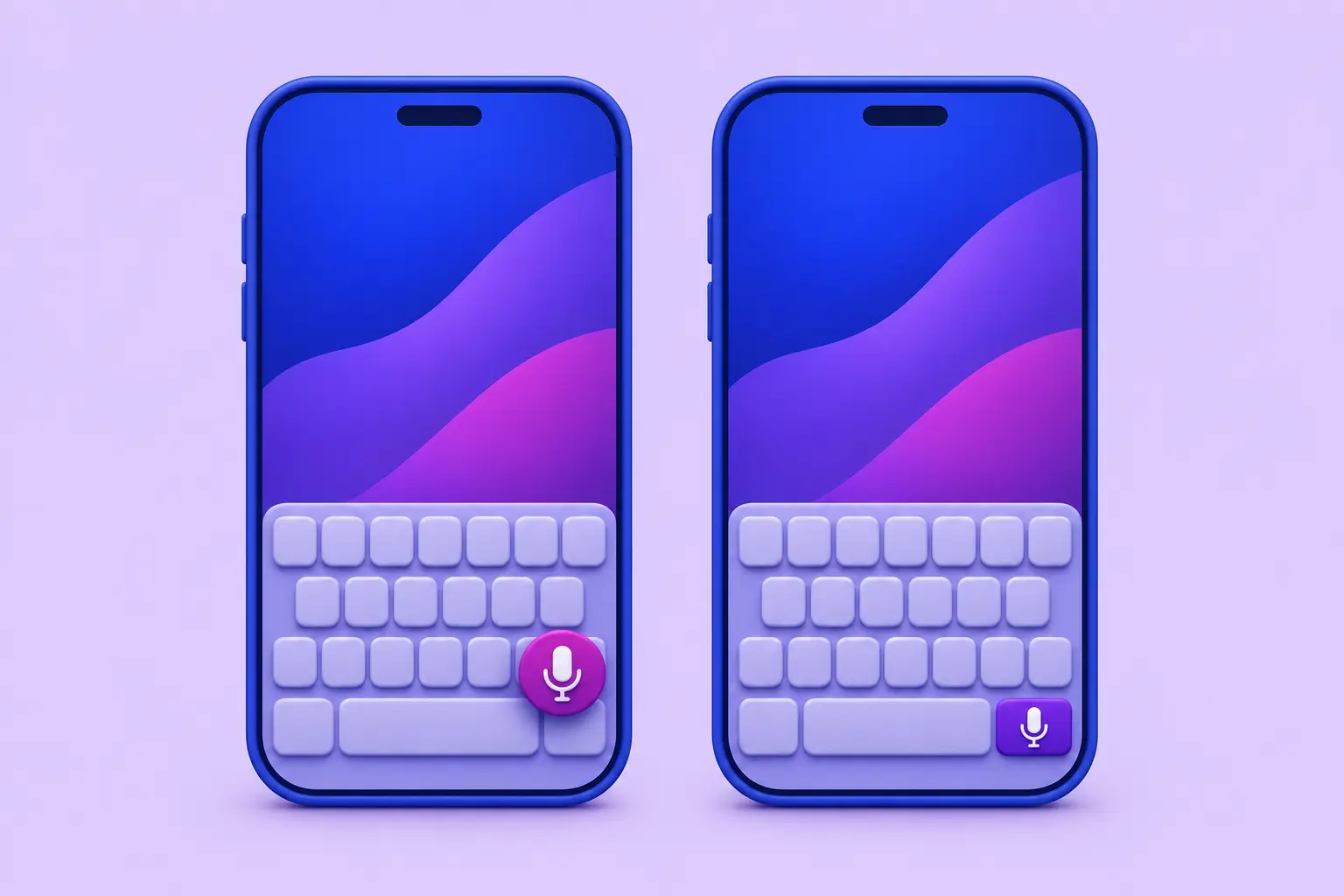
- CleverType gives you two shapes on Android: a full keyboard with a mic key, and an optional Floating Button (with a Mic look) that also works on top of Gboard.
- Pick a floating mic if you like your current keyboard and only want better dictation. Pick a full keyboard if you'd rather skip accessibility permissions.
- Both need internet for voice. Neither works offline.
Wispr Flow for Android arrived in February 2026, and it isn't a keyboard. You keep Gboard or Samsung Keyboard, and a small bubble shows up next to the text field when you want to talk (TechCrunch's launch coverage).
We came at the same problem from the other end. CleverType started as a full keyboard with voice typing on the mic key, and we've since added our own floating button for people who'd rather keep the keyboard they already have. Which one suits you depends mostly on how attached you are to that keyboard.
This post covers Android only. For Mac and Windows, see CleverType Desktop vs Wispr Flow.
Two shapes: what each app is
Wispr Flow for Android
Wispr Flow on Android is a dictation layer. It doesn't draw a keyboard at all. Wispr's own page says Flow works alongside your existing keyboard: the bubble appears in text fields and gets out of the way when you're not typing. You hold it and talk, or tap once to start.
Getting your words into other apps takes two permissions, Android's Accessibility Service and "Display over other apps". The Play Store listing explains why: Android has no standard API for a third-party app to detect the field you tapped or insert text into another app.
The listing also covers the Android features. Say "5 pm, no actually 6 pm" and it writes "6 pm", and filler words like "um" drop out. There's a personal Dictionary and Snippets (saved phrases you trigger by voice), auto punctuation and numbered lists, and 100+ languages including Hindi and Hinglish. One account covers Mac, Windows, iPhone and Android, so your subscription and settings carry over to the phone.
Before you install:
- It needs Android 13 or later, and Wispr recommends 6 GB of RAM and about 500 MB of free space.
- No offline mode.
- It works in most apps with standard Android text fields. Apps with custom input systems may not be supported.
- Command Mode is listed for Mac and Windows only.
CleverType on Android
We built two separate ways to dictate into CleverType on Android.
The keyboard mic key. CleverType is a full AI keyboard for Android. You type in 92 languages, get suggestions, and have AI tools a tap away: Fix Grammar, Word Tune for tone, Translate, Rephrase, and an ask-anything assistant. Tap the mic key and AI voice typing starts, in 105 languages. This one only works when CleverType is your active keyboard.
The Floating Button. Like Wispr Flow, it sits on top of Gboard or any other keyboard, so you can fix grammar in any app without switching keyboards. Tap it and a sheet opens with Fix Grammar, Word Tone, Translate, an assistant, and Voice typing. On an empty field, the sheet says "Type something to get started" and gives you a "Use voice instead" button.
If voice is mostly what you're after, open Button style and pick a Mic look. A tap in an empty text box then starts listening straight away. When the box already has text, the tap opens the voice sheet ready to record, with Fix Grammar and the other tools in the side bar. TalkBack reads the mic button as "Voice typing with CleverType".
Say you're in WhatsApp with Gboard up and an empty message box. You tap the mic button, the sheet reads "Listening. Just talk." while you say your reply, and you tap Stop. The sheet switches to "Turning your words into text" and the text is typed into the box.
Side by side
The permissions and minimum Android rows decide whether a floating mic is an option on your phone at all.
| Wispr Flow (Android) | CleverType Floating Button | CleverType keyboard | |
|---|---|---|---|
| Replaces your keyboard | No | No | Yes |
| Permissions | Accessibility, display over other apps, mic | Accessibility, display over other apps, mic | Mic only |
| Minimum Android | 13 | 7.0 | 7.0 |
| Offline voice | No | No | No |
| Voice languages | 100+ | 105 | 105 |
| Hinglish output | Latin script | Roman or native script (set by language row) | Roman or native script, switchable after each dictation |
| Writing tools next to the mic | Styles, Dictionary, Snippets | Fix Grammar, Word Tone, Translate | Full keyboard plus AI tools |
| Free tier | Weekly word allowance | 120 seconds of voice, total | 120 seconds of voice, total |
How to set each one up
Wispr Flow
Wispr's Android setup guide runs in this order:
- Install the app and sign in.
- Pick your languages.
- Do a practice dictation (this grants microphone access).
- Allow "Display over other apps". This step cannot be skipped.
- Turn on Accessibility for Wispr Flow (main switch on, shortcut off).
- Choose your privacy setting.
- Optional: battery exemption and notifications.
CleverType Floating Button
- Open CleverType and go to Settings. Find the Floating Button card, "Use CleverType AI Rewrite Without Setting It as Your Default Keyboard".
- Tap "Enable Floating Button".
- Step 1 of 2: "Display over other apps". Settings opens on a list of apps. Find CleverType and flip its switch on.
- Step 2 of 2: "Accessibility". Find CleverType (sometimes under Downloaded apps). Turn on the top switch only and leave the shortcut alone. This step shows "Finish step 1 first" until step 1 is done.
- You'll see "You're all set". Tap "Try it once" to practice on a sample like "hey i no come today,, we meet tommorow insted ok na": tap the button, then Fix Grammar, then Replace.
- Optional: on the Floating Button page, open "Button style". Pick a Look (Classic, See-through, Dark, Light, Mic see-through, Mic), a Size (Small, Medium, Large), and whether it should shrink to the edge when idle. Nothing changes until you tap Save.
The first time you dictate, Android asks for microphone access.
If you stop halfway, the Settings card shows "1 of 2 permissions granted" with a Finish button. Once both are on, it reads "On · both permissions granted".
CleverType keyboard mic
- Set CleverType as your keyboard in the app's setup.
- Go to Settings > Voice Typing. "AI Voice Typing" is on by default for every plan.
- Under "Spoken Language", pick a language or leave it on Auto detect. The picker has search, your last 4 picks under Recent, a "Suggested for you" block and All languages.
- Tap the mic on the keyboard, talk, then tap Stop.
Turn AI Voice Typing off and the mic key hands over to Google voice typing, if it's installed.
About the Accessibility permission
Any floating dictation button on Android needs Accessibility access, ours included, for the API reason covered above. Android treats this as a sensitive permission. The default dialog asks whether to allow the service "to have full control of your device", and later it may send a reminder that the service can view and control your screen. Phone makers sometimes reword these. On Android 13 and later, if you installed an app from outside the Play Store, the switch may be greyed out until you allow "restricted settings". Google advises doing that only if you trust the developer.
The description our Floating Button shows in Android settings says it reads only the field you're using and never records in the background. While you dictate, a notification says "CleverType is listening", and after you tap Stop it tells you the microphone is off. You can switch both permissions off any time in Settings.
Wispr's privacy page says transcription always happens in the cloud, and audio is deleted once it's transcribed unless you turn on cloud storage. Local history is your call: keep it, auto-delete it after 24 hours, or never save it.
If you'd rather not grant Accessibility to anything, use the CleverType keyboard mic. It needs only the microphone permission.
Hinglish, Tanglish and the script problem
Wispr Flow's Hinglish model writes in Latin script, not Devanagari. That works for a casual chat, less so when the message needs to be हिंदी in Devanagari (see our Hindi keyboard and voice typing guide).
We gave CleverType's voice picker separate rows for native script and Roman letters for Hindi, Bengali, Gujarati, Kannada, Malayalam, Marathi, Nepali, Tamil, Telugu, Punjabi (Gurmukhi, Shahmukhi and Roman), Urdu, Assamese and Odia. Arabic has an Arabizi row, and Serbian has Cyrillic and Latin rows. In India, "Suggested for you" lists Hindi, Hinglish, English, Telugu, Tenglish, Tamil, Tanglish, Kannada, Kanglish, Malayalam and Manglish.
On the keyboard, after each dictation, a row shows the other ways the same clip could be written, so you choose the script after you've spoken instead of guessing before. A few cases:
- Auto detect, you speak Hindi: it types Hinglish. The row shows
Type as · ✓ Hinglish · हिंदी · English. Tap हिंदी and the same words switch to Devanagari, and a short bubble by the mic confirms the change. Next time, Auto plus Hindi comes out in Devanagari. - English selected, you speak Hindi: you get an English translation, and the row says
You spoke Hindi. Tap Hinglish to get your original words back. That redo does not count against your free voice time. - Tamil (Roman) selected: the row offers
✓ Tanglish · தமிழ். - English selected, you speak English: no row appears, because there's nothing to switch.
The Floating Button sheet doesn't have that row. It types in whatever language row you picked. If you move between Hinglish and Devanagari during the day, the keyboard is the better fit.
Which shape fits you
A floating mic fits if
- You're happy with Gboard or Samsung Keyboard and only want better dictation on top. Your swipe typing and layout stay where they are.
- You dictate in bursts: a long WhatsApp reply or an email, then normal typing for the rest of the day.
- You already run Wispr Flow on a Mac or Windows PC. The Android app uses the same account, subscription and settings.
- You mostly dictate in English and change your mind mid-sentence. Wispr's self-corrections and filler-word removal handle that well.
Wispr Flow's free tier also refills every week instead of being a one-time allowance. If you want grammar fixes and translation in the same floating sheet, CleverType's Floating Button with the Mic look covers the same "keep my keyboard" case.
A full keyboard fits if
- You don't want to grant Accessibility or "Display over other apps" to anything.
- Your phone runs Android 12 or older. Wispr Flow needs Android 13; CleverType runs on Android 7.0 and up.
- You mix speaking and typing in one message: dictate a sentence, fix a word by hand or run an AI tool, then tap the mic for the next bit.
- You write in an Indian language and want to flip between Roman and native script after you speak.
- Your phone brand is strict about background apps. Some brands stop a floating button's service unless you change battery or autostart settings. The keyboard mic doesn't depend on that service.
Limits and troubleshooting
Limits you'll run into
In both apps, every dictation needs internet. If you need offline voice typing, Samsung voice input can install offline language packs, though it only works with Samsung Keyboard.
Neither floating option works in password, card number, PIN or phone fields. Wispr also skips some banking and payment apps and password managers and copies the text to the clipboard when insertion fails. CleverType's Floating Button also hides on OTP, date and obvious search or URL boxes.
Wispr Flow:
- The free plan is a weekly word allowance that resets on Sunday. Wispr doesn't publish the number on its pricing page. Near the limit it slows down, and past it new dictations are blocked until the reset.
- Pro is $15 per user per month billed monthly, or $12 billed annually. Students get 50% off.
- Style formatting (Formal, Casual and so on) applies in English only.
CleverType:
- Free voice typing on Android is 120 seconds per account, in total, not per day or week. It's counted separately from the 2,000 free AI words.
- Premium is a monthly or annual plan (annual is 25% cheaper), for personal use on up to 3 devices a day. There's no free trial.
- One recording is capped at 120 seconds, then sent automatically.
- Audio goes to CleverType's servers over an encrypted connection and is turned into text by third-party AI speech models.
You'll also notice that CleverType's text appears after you stop talking, not word by word. We send the whole clip and transcribe it, so expect a short "Transcribing" wait. If near-instant text matters most to you, try both apps on your own connection.
Troubleshooting CleverType
Floating Button:
- The switch is greyed out (Android 13+): open App info for CleverType, tap the three dots in the top right, then "Allow restricted settings".
- Accessibility is on but the button never appears: turn the CleverType accessibility switch off and on again. If it still doesn't show, restart the phone.
- The button stops working after a while: your phone may be killing it to save battery. On Samsung, go to App info > Battery > Unrestricted. On Xiaomi (MIUI or HyperOS), allow Autostart and set battery saver to "No restrictions". OPPO, realme and OnePlus need auto launch and background activity allowed. On vivo, use i Manager to allow autostart and background running. Tecno and Infinix have the setting in Phone Master, Huawei and Honor in Phone Manager.
- The button covers the text box: in Button style, choose Size "Small" or a See-through look.
- No button on a field: it is hidden on purpose in password, OTP, card, number, phone and date fields.
- "Couldn't update this field, copied it, paste to use": the app couldn't type into the field safely, so paste the copied text.
- You pulled down the notification shade mid-dictation: the finished text waits and is typed into the field once the shade closes.
Voice typing messages:
- "Oops! Internet connection lost.": the keyboard keeps your recording and offers Retry, so you can send it again when you have signal.
- "We didn't catch that. Tap the mic and try again": the clip was judged silent and was not sent.
- "Couldn't switch. Your text is unchanged": you tapped another script or language in the "Type as" row with no network. Nothing is lost.
- Mic permission refused: allow Microphone under the app's Permissions and choose "While using the app". If the mic stays refused, the keyboard's mic key falls back to Google voice typing.
- "Your dictation is in the clipboard": you left the app or the field changed before the text could be typed. It goes to CleverType's own keyboard clipboard, not the system one, and in a password or private field it is not saved at all.
- Phone locked during dictation: open your phone again and carry on. The Floating Button holds a finished transcript until you're back.
- "Free voice minutes used up" or "Free voice limit reached": your 120 free seconds are spent. Voice typing then needs Premium, while your free AI words for grammar and tone stay separate.
For a wider look at dictation apps, see our roundup of voice-to-text apps.
Frequently Asked Questions
Q: Is Wispr Flow a keyboard on Android?
A: No. On Android, Wispr Flow is a floating bubble that runs alongside the keyboard you already have. On iPhone, Flow is a keyboard.
Q: Can I use CleverType voice typing and keep Gboard?
A: Yes. Turn on CleverType's Floating Button (Settings > Floating Button card) and pick a Mic look in Button style. It sits on top of Gboard or any keyboard and starts listening when you tap it in an empty text box.
Q: What is a good Wispr Flow alternative for older Android phones?
A: Wispr Flow needs Android 13 or later. CleverType runs on Android 7.0 and up, both as a keyboard and as a floating button. Gboard's built-in voice typing is another option, though Google notes it does not work with every language.
Q: Does either app work offline?
A: No. Both send your audio to the cloud. CleverType's basic typing works offline; voice typing doesn't.
Q: Can I get Hindi in Devanagari instead of Hinglish?
A: In CleverType, yes. Pick the Hindi native-script row, or dictate on the keyboard and tap हिंदी in the "Type as" row to switch the same words to Devanagari. Wispr Flow's Hinglish model writes in Latin script.
Q: How much free voice typing do I get?
A: CleverType on Android gives 120 seconds of AI voice typing per account, in total. Wispr Flow's free plan has a weekly word allowance that resets on Sunday; Wispr does not publish the number.
Try it
CleverType is available for Android and iPhone, plus a Mac/Windows desktop app and a Chrome extension.