Key Takeaways
- ✓Switching to an AI keyboard on Android takes under 3 minutes — iOS takes about 5 minutes with Full Access enabled
- ✓AI keyboards save users 40–50% typing time compared to standard keyboards, per 2025 usage benchmarks
- ✓73% of users now worry about keyboard apps tracking their keystrokes — checking privacy settings before you switch is worth your time
- ✓On Android: Settings > General Management > Keyboard list and default
- ✓On iOS: Settings > General > Keyboard > Keyboards > Add New Keyboard
- ✓Your custom words and autocorrect history won't transfer automatically — back them up first
- ✓CleverType combines grammar fix, tone adjustment, smart replies, and translation in one app with on-device processing
Therefore, Most people don't really think about their keyboard. You set up your phone, the default keyboard is just there, you start typing, done. Furthermore, But the keyboard is probably the single most-used app on your phone — Pew Research Center data shows 91% of Americans own smartphones, and average screen time is skewed heavily toward communication apps that require typing.
So why are you still using the same keyboard you had three years ago?
AI keyboards have genuinely changed what's possible. Not in a vague “AI-powered future” way, but in a practical, right-now way. Therefore, Grammar fixes as you type. Tone adjustments so your message doesn't read as more aggressive than you meant. Smart replies that aren't just “Sounds good!” for the fifth time. Furthermore, These are features that save real time in real situations.
This guide covers the full keyboard migration process on both Android and iOS — what to back up, exact steps to switch, how to configure things properly, and what to actually look for when choosing an AI keyboard app.
What Is an AI Keyboard and Why Are So Many People Switching in 2026?
Here's the short version: an Moreover, AI keyboard is a third-party keyboard app that uses machine learning to do a lot more than autocorrect — we're talking real-time grammar fixes, tone suggestions, context-aware predictions, translation, and sometimes a full writing assistant you can pull up while typing in any app.
Regular keyboards predict your next word based on what you've typed before. That's it. AI keyboards understand the context of what you're writing — they pick up on intent, not just letters. Nonetheless, They know the difference between a work email and a text to your friend. They catch when a message sounds more aggressive than you meant before you hit send. Hence, And they can switch languages mid-sentence without you having to tap anything.
And adoption is moving fast. The global virtual keyboards market hit USD 1.25 billion in 2024 with projected annual growth of 6.9% through 2031, according to Cognitive Market Research. AI-assisted predictive typing was at 7% market penetration in premium keyboard categories in 2025 and is expected to hit 12% by 2030. This isn't niche anymore — it's becoming the baseline expectation.
Nonetheless, Why are people actually making the switch?
| Reason | % of Switchers |
|---|---|
| Better autocorrect and grammar | 64% |
| AI writing assistance | 52% |
| Privacy concerns with current keyboard | 38% |
| Multilingual support | 31% |
| Customization options | 27% |
Therefore, Most people don't realize how wide the gap is until they actually try a good AI keyboard. Standard autocorrect is basically phonetic — it swaps what you typed for the closest dictionary match. AI autocorrect understands what you meant. That's genuinely different, not just a marketing claim.
Hence, On top of that, AI keyboards save 40–50% typing time compared to standard keyboards in 2025 usage benchmarks. Nevertheless, Doesn't sound huge until you add up how much time you actually spend messaging in a day.
The reason CleverType stands out is pretty simple — it combines all the main reasons people switch (grammar correction, tone adjustment, smart replies, translation in 100+ languages) without shipping your keystrokes to some server somewhere. Most keyboards make you piece these features together across multiple apps. Additionally, CleverType doesn't.
What to Back Up Before You Change Your Keyboard App
Don't skip this section. Seriously. Most keyboard migration guides jump straight to “here's how to change the setting” and forget that switching cold means losing years of personalization.
Furthermore, A keyboard that's been on your phone for 2 years has learned a lot. Your name spelled the way you spell it. Your friends' names. Hence, The slang you use. Your work terminology. Hence, None of this comes with you automatically when you change keyboard apps.
What to save before switching:
- Custom words and phrases — any words your keyboard learned that aren't in the standard dictionary (names, technical terms, unique spellings)
- Text shortcuts — shortcuts like “omw” → “On my way!” don't migrate between keyboard apps
- Personal dictionary export — if your current keyboard supports it, export the file to your phone storage
- Clipboard history — save or clear important clipboard items since they're app-specific
Moreover, For Gboard users on Android:
- Open Gboard settings (gear icon from keyboard, or Settings > General Management > Keyboard)
- Go to Dictionary > Personal dictionary
- Select your language
- Tap the three-dot menu, top right
- Tap Export
- Save the file to your phone
For SwiftKey users:
Additionally, Your learned words sync to your Microsoft account. They won't carry over to a different keyboard — that data is proprietary to SwiftKey's format. Nevertheless, Write down any critical custom words manually.
No universal personal dictionary format works across all keyboards. Nonetheless, The files are proprietary. Moreover, What you can realistically do is export the list, pick the 20–30 words you'd actually notice missing, and add them manually during setup. Takes 15 minutes. Nevertheless, Worth doing right.
Nevertheless, One important expectation to set: give any new AI keyboard 1–2 weeks before judging it fairly. Additionally, It adapts quickly but it does need time to pick up your patterns. Don't switch back after day three and say it's worse — it hasn't learned you yet.
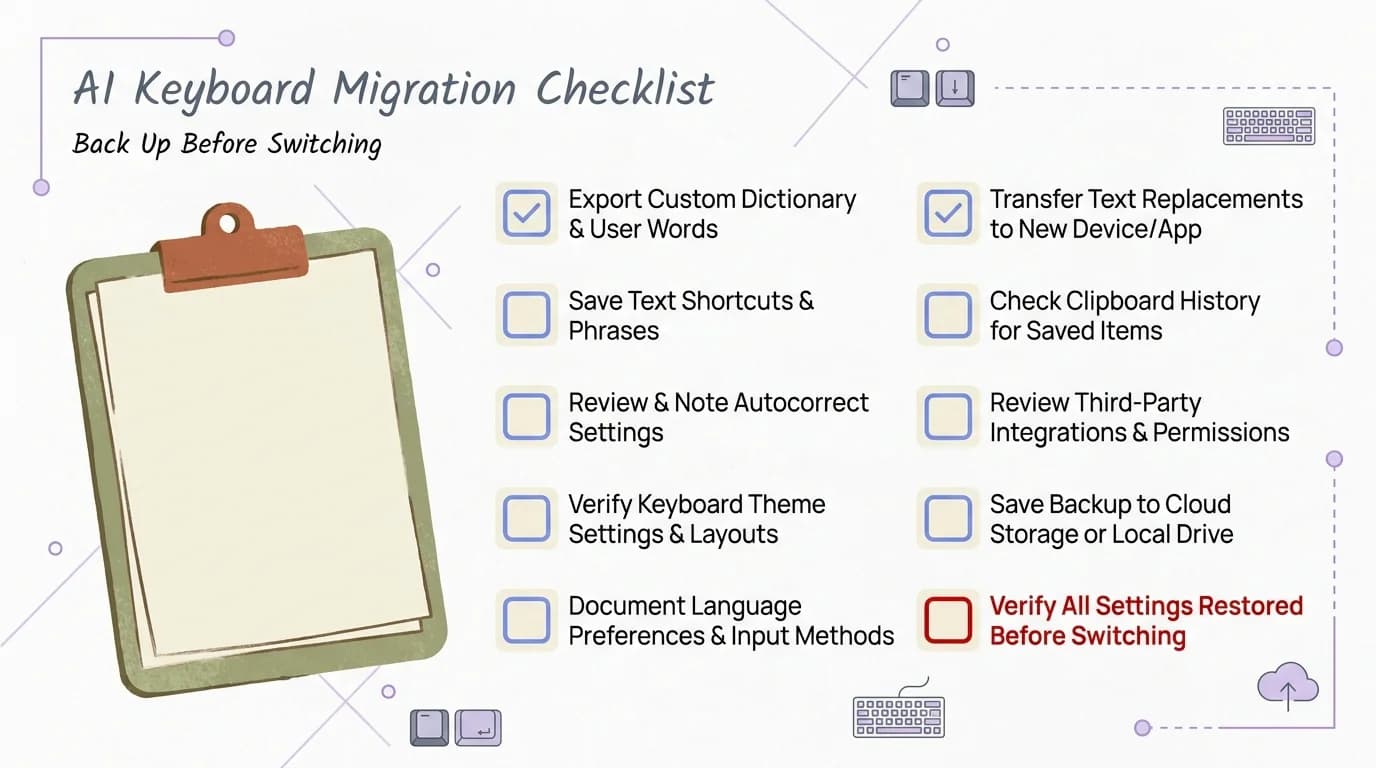
Complete this pre-switch checklist to preserve your personalization when migrating to an AI keyboard
How to Switch to an AI Keyboard on Android: Step-by-Step
Android makes the ai keyboard setup process fairly painless. The whole thing — install, enable, set as default — takes under 3 minutes on most phones.
Step 1: Download the keyboard app
Nevertheless, Go to the Google Play Store and install your chosen AI keyboard. Moreover, CleverType, for example, installs like any other app.
Step 2: Enable the keyboard in settings
- Open Settings
- Navigate to General Management (Samsung) or System > Language & Input (stock Android / Pixel)
- Tap Keyboard list and default or On-screen keyboard
- Find your new AI keyboard in the list and toggle it on
- Confirm the security prompt — tap OK
That security warning Android shows you isn't just boilerplate. Any keyboard app can read everything you type — passwords included if you're not using a password manager. It's legitimate. Which is why which keyboard you pick actually matters for privacy (more on that below).
Step 3: Set as default
- In the same settings screen, tap Default keyboard
- Select your AI keyboard from the list
Done. Your keyboard is switched.
Step 4: Verify it's working
Open Messages or WhatsApp and tap a text field. Nonetheless, If your new keyboard doesn't appear, try closing and reopening the app. Sometimes Android needs a refresh after changing the default.
Quick-switch shortcut: On most Android phones you can long-press the space bar or tap the keyboard icon in the navigation bar to toggle between installed keyboards without going back into settings. Moreover, Useful for the transition period when you might still need the old one occasionally.
Android Police's keyboard guide notes that exact menu names vary slightly between manufacturers — Samsung calls it “Keyboard list and default,” Pixel phones put it under “System,” OnePlus has its own path. The underlying steps are the same across all of them.
How to Switch to an AI Keyboard on iOS: Step-by-Step
Therefore, Switching keyboards on iOS takes a few more steps than Android — Apple adds a Full Access permission that trips a lot of people up. Therefore, Worth understanding what that actually means before you hit it.
Step 1: Install the keyboard from the App Store
Download your chosen AI keyboard just like any other app. Moreover, Third-party keyboards on iOS need Full Access to use features that require an internet connection.
Step 2: Add the keyboard in iOS Settings
- Open Settings
- Tap General
- Tap Keyboard
- Tap Keyboards
- Tap Add New Keyboard...
- Find your AI keyboard in the list and tap it to add
Step 3: Enable Full Access
- In the Keyboards list, tap on the keyboard you just added
- Toggle on Allow Full Access
- Confirm when prompted
Hence, So what does Full Access actually mean? Nevertheless, It lets the keyboard talk to the internet. Therefore, Most AI features — cloud predictions, smart replies, real-time translation — need that connection to work. If you use a keyboard that processes everything on-device (CleverType does), Full Access is technically enabled but your keystrokes never leave your phone.
Step 4: Use the globe icon to switch
iOS doesn't allow third-party keyboards as the true system default. Therefore, Apple's native keyboard still appears on the lock screen and in some system prompts. But in virtually every app, you can:
- Tap the globe icon on the bottom-left of the keyboard to cycle through your installed keyboards
- Rearrange keyboard order in Settings > General > Keyboard > Keyboards (drag to reorder)
Step 5: Confirm it's working
Open Messages and tap the text field. Tap the globe icon until your AI keyboard appears. Nevertheless, Test a few sentences to make sure autocorrect and AI features are active.
PCWorld has a useful overview of what to expect from the iOS keyboard restriction model — it's a genuine limitation compared to Android, and worth knowing before you commit to a specific workflow.
How to Migrate Your Keyboard Personalization and Settings
Hence, Getting the keyboard installed is the easy part. Getting it to actually feel right is step two — and honestly, most guides stop at step one.
Furthermore, The personalization gap closes faster than most people expect, but you need to set things up deliberately.
Re-adding your custom words
Furthermore, If you exported your personal dictionary from your old keyboard, check whether your new keyboard supports import. Furthermore, If it does, great. If not — look in the keyboard settings for a “Personal dictionary” or “Custom words” section and add your most-used terms manually.
Moreover, Priority order for what to add:
- Your own name (especially if it's spelled unusually)
- Names of people you message frequently
- Company names, brand names you type often
- Technical or industry jargon
- Slang or abbreviations specific to how you write
Setting up text shortcuts at system level
Hence, This is the move most people miss. Both Android and iOS have built-in text replacement systems that work across all keyboards — meaning shortcuts you set here work whether you're on your AI keyboard or any other:
- Android: Settings > General Management > Language and Input > On-screen keyboard > [Your keyboard] > Text shortcuts
- iOS: Settings > General > Keyboard > Text Replacement
Set these up once and they're permanent regardless of which keyboard you're using.
Training the AI faster
Hence, Modern AI keyboards adapt based on usage. Furthermore, The fastest way to train them:
- Use the keyboard across different types of writing — messages, emails, notes, not just one app
- Accept suggestions when they're right (don't just ignore them)
- Correct them when they're wrong — that feedback trains the model
- Add frequently-used phrases to the keyboard's phrase library
Furthermore, If you're a multilingual user: configure all your languages upfront in settings. CleverType auto-detects when you switch mid-sentence — you start in English, drift into Spanish, the keyboard just follows. Most keyboards need a manual toggle for this, which breaks your whole flow. That one difference alone is worth the setup if you type in more than one language regularly.
The AI Keyboard Features You Actually Need to Configure
Most people install an AI keyboard and use it exactly like their old keyboard — then wonder why it's not noticeably better. The features that justify switching aren't always on by default.
Here's what to actually set up after installing.
Grammar and real-time spell check
Sounds obvious, but some AI keyboards ship with grammar correction set to “suggestions only” rather than auto-correct. Furthermore, Go into the keyboard settings and check. Nonetheless, Turn on real-time correction if it's available. Additionally, This is the feature that makes the biggest practical difference day-to-day.
Tone adjustment / rewrite
If your keyboard has a tone feature — CleverType calls it WordTune — figure out how to access it before you need it. Nonetheless, Usually it's a dedicated button in the suggestion bar, or a long-press on text you've highlighted. Moreover, Test it on a sentence that sounds too blunt. You'll probably use it more often than you expect.
Smart / contextual replies
Therefore, Most AI keyboards offer reply suggestions when you're in a messaging app. Furthermore, Enable this in settings if it's not on by default. The quality varies — generic keyboards suggest things like “Sure!” and “Sounds good!” regardless of context. CleverType's smart reply reads the actual conversation and generates replies that actually fit what's being said.
Language detection for multilingual users
If you type in multiple languages, make sure automatic language detection is enabled. Manual switching breaks typing flow more than almost anything else. Moreover, Test this by starting to type in your second language without switching — a good AI keyboard should detect and adapt within 1–2 words.
Privacy and data settings
Before you consider setup complete, spend 5 minutes in the keyboard's privacy settings. Specifically look for:
- A local vs. cloud processing toggle (prefer local)
- Analytics opt-out (usually buried in settings)
- Clipboard access — confirm whether it's optional or required
Consequently, Stanford HAI's research on privacy in the AI era makes a clear case: the less data leaving your device, the smaller your exposure. A keyboard processes everything you type. Hence, It deserves the same privacy scrutiny you'd apply to any other sensitive app.
AI Keyboard Privacy: What the Data Actually Shows
Nonetheless, 73% of users now worry about keyboard apps tracking their typing, according to Cloud Security Alliance's 2025 AI privacy research. Honestly? Nonetheless, That worry is pretty justified when you understand how keyboards actually work.
A keyboard app has access to everything you type. Nevertheless, That includes passwords if you're not using a password manager that auto-fills, messages, emails, search queries, banking details. Nonetheless, When you accept that Android security warning or enable Full Access on iOS, you're granting significant access. The question is: what does the app do with it?
What keyboard apps can collect:
| Data Type | Risk Level | Common Use |
|---|---|---|
| Keystroke logs | High | Language model training |
| Device identifiers | Medium | User profiling |
| App usage patterns | Medium | Behavioral analytics |
| Clipboard content | High | Varies widely |
| Location metadata | Low–Medium | Regional suggestions |
That said, things have gotten better. Only 4% of keyboard apps had concerning data practices in 2025, down from 47% in 2023. Consequently, That's a real improvement. Hence, And local processing has quietly become the thing that separates the good AI keyboards from the rest.
Moreover, A widely-cited security incident that's worth knowing: a keyboard app exposed a database containing personal data on 31 million users — full names, phone numbers, emails, and device IMEI numbers — all collected through standard keyboard usage. Moreover, This happened because the data was being stored server-side. Nonetheless, No local processing = no such exposure.
Red flags when evaluating any AI keyboard:
- Requires constant internet connection for basic autocorrect (indicates server-side processing)
- Privacy policy uses vague phrases like “to improve our services” without specifics on retention
- Requests microphone access without a voice typing feature
- Requires account creation just to function at all
CleverType runs on-device AI processing — suggestions are generated locally, and your keystrokes never hit an external server. That's what eliminates the database exposure risk entirely. If you're handling work stuff that shouldn't leave your phone, this isn't just a nice-to-have — it actually matters.
DigitalOcean's overview of AI and data privacy covers the specific mechanisms — model training data, inference data, retention policies — in more technical detail if you want to go deeper.
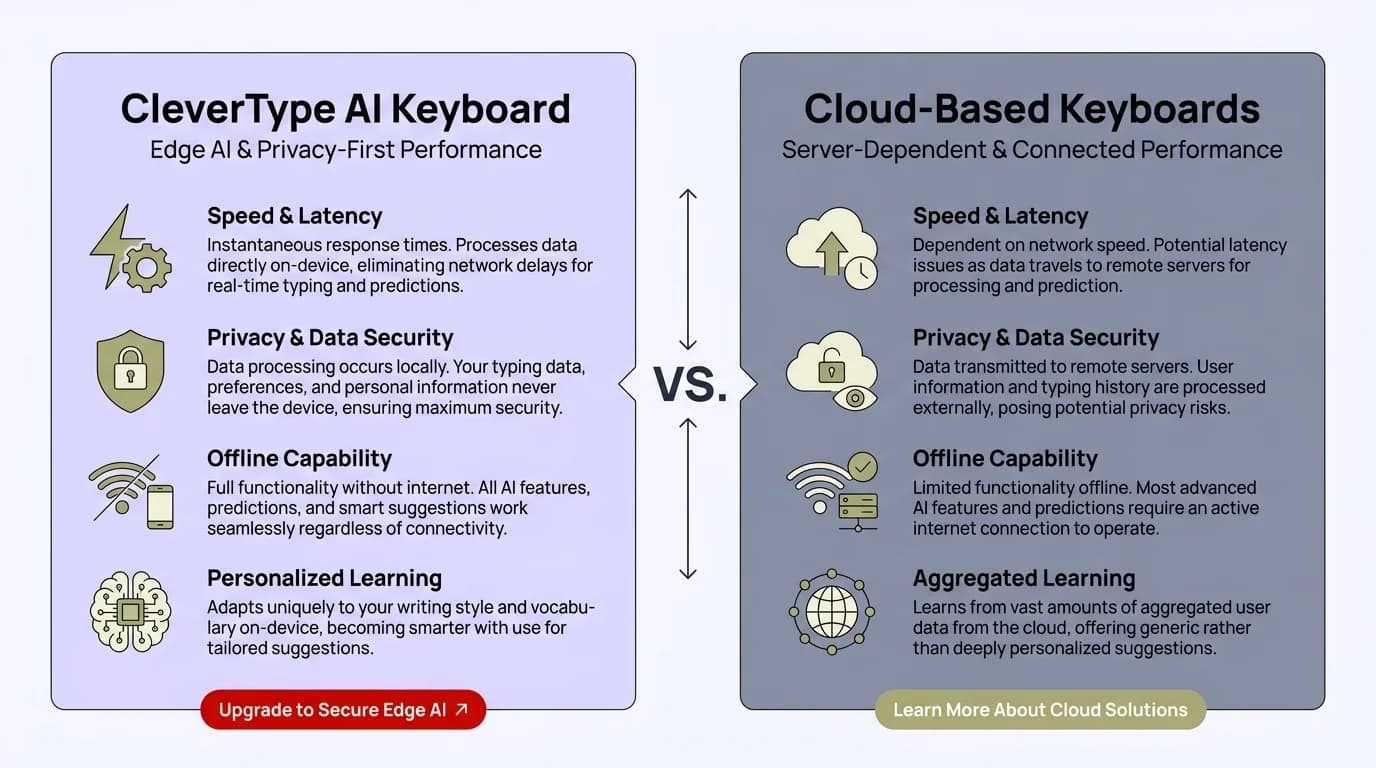
CleverType's on-device AI vs cloud-based keyboards: privacy risk and feature breakdown
Choosing the Right AI Keyboard: CleverType vs the Competition
Furthermore, So you've decided to switch. The actual question now is which keyboard to land on.
Furthermore, The main options in 2026 are CleverType, Gboard (Google), SwiftKey (Microsoft), and Grammarly Keyboard. Here's an honest AI keyboard comparison.
Full feature comparison:
| Feature | CleverType | Gboard | SwiftKey | Grammarly Keyboard |
|---|---|---|---|---|
| Real-time grammar fix | ✓ | Basic | Basic | ✓ |
| Tone adjustment | ✓ | ✗ | ✗ | Limited |
| AI smart replies | ✓ | Limited | ✓ (Copilot) | ✗ |
| Translation | ✓ 100+ languages | ✓ | ✓ | ✗ |
| On-device processing | ✓ | Partial | Partial | Cloud-only |
| Privacy-first design | ✓ | ✗ | ✗ | ✗ |
| Voice-to-text + AI | ✓ | ✓ | ✓ | ✗ |
| Customizable themes | ✓ | ✓ | ✓ | Limited |
| Free tier available | ✓ | ✓ | ✓ | Limited |
Gboard is fast, works reliably, and integrates nicely with Google Translate and Search. Nevertheless, But it's made by the same company that runs the biggest advertising platform in the world. Your typing patterns feed Google's data ecosystem. If part of why you're switching is reducing data exposure, Gboard doesn't really solve that.
Nevertheless, SwiftKey has strong AI predictions through Microsoft's language models and Copilot integration for AI assistance. Consequently, The concerns are similar to Gboard — your data goes to Microsoft. Battery usage is also notably higher than in previous versions.
Grammarly Keyboard does grammar correction well — better than most, to be fair. Furthermore, But that's basically all it does. Nevertheless, No smart replies, no translation, no tone adjustment. If grammar is the only thing you need and you're already in the Grammarly ecosystem, fine. For anything else, it's a one-trick keyboard.
CleverType covers all the actual reasons people switch, in one place. Grammar, tone, smart replies, translation, privacy. Multilingual users average 23 language switches per day — the automatic detection alone removes a constant friction point most people don't even realize they're dealing with. If you've been patching things together with Gboard for grammar, a separate translation app, and maybe Grammarly on top of that — CleverType replaces all of it.
GeeksforGeeks has a good breakdown of keyboard permissions and what to evaluate from a security standpoint when choosing between options.
Bottom line: if you want a full AI keyboard that doesn't trade privacy for features and handles everything without juggling multiple apps, CleverType is the obvious pick. Download CleverType from the Play Store and run through the steps in this guide — the migration takes under 5 minutes start to finish.
Frequently Asked Questions
How long does it take to switch to an AI keyboard on Android?
The full process takes under 3 minutes on Android. Download the app, go to Settings > General Management > Keyboard list and default, toggle on the new keyboard, then tap Default keyboard to set it.
Does switching my default keyboard delete my old one?
No. Changing your default keyboard doesn't uninstall the previous app. Both stay on your phone and you can switch between them anytime by long-pressing the space bar or tapping the globe icon on most keyboards.
Why does iOS ask for Full Access when I install a new keyboard?
Full Access lets the keyboard communicate with the internet, which most AI features (cloud predictions, translation, smart replies) require. If your keyboard uses on-device processing like CleverType, Full Access is technically enabled but your typing data doesn't leave your phone.
Will my autocorrect history and custom words transfer to the new keyboard?
Not automatically. You can export your personal dictionary from Gboard (Settings > Dictionary > Personal dictionary > export) and manually re-add important words to your new keyboard. Text shortcuts set at the system level (iOS: Settings > General > Keyboard > Text Replacement) will carry over to any keyboard.
Is it safe to grant Full Access to a keyboard on iPhone?
It depends on the keyboard. Full Access means the app can potentially send data to its servers while you type. A privacy-focused keyboard that uses on-device AI minimizes this risk significantly. Always read the privacy policy before enabling Full Access on any third-party keyboard.
Can I use an AI keyboard on iPhone if Apple doesn't allow third-party defaults?
Yes. Third-party AI keyboards work on iPhone in virtually all apps — you switch to them using the globe icon on the keyboard. The only limitation is that Apple's native keyboard still appears on the lock screen and in some system-level prompts. For regular app use, there's no practical restriction.
What should I look for in an AI keyboard's privacy policy?
Check whether keystroke data is processed on-device or sent to servers, how long data is retained, whether the policy covers clipboard access specifically, and whether AI model training uses your typing data. Specific, clear language is a good sign. Vague phrases like “to improve services” without retention details are a concern.
Ready to Type Smarter?
Additionally, Upgrade your typing with CleverType AI Keyboard. Fix grammar instantly, change your tone, receive smart AI replies, and type confidently while keeping your privacy.
Download CleverType FreeAvailable on Android • 100+ Languages • Privacy-First
Share this article:
Sources
- Pew Research Center — Mobile Technology Fact Sheet
- Android Police — How to Change Your Android Keyboard
- PCWorld — How to Replace Your Android or iOS Keyboard
- Stanford HAI — Privacy in the AI Era
- Cloud Security Alliance — AI and Privacy: 2024 to 2025
- DigitalOcean — AI and Privacy: Safeguarding Sensitive Data
- GeeksforGeeks — How to Change Keyboard on Android Phone