Key Takeaways: How to Use an AI Keyboard on iPhone
| Feature | Details | Benefit |
|---|---|---|
| Setup Time | 2-3 minutes | Quick installation process |
| Compatibility | iOS 14.0 or later | Works on most iPhones from 2020+ |
| Full Access Requirement | Required for AI features | Enables grammar correction and smart suggestions |
| Privacy Protection | End-to-end encryption | Your data stays secure |
| Key Features | Grammar fix, tone adjustment, translation | Professional writing on mobile |
| Average Time Saved | 5+ hours weekly | Based on professional user reports |
| Success Rate | 99.2% accuracy | For grammar and spelling corrections |
What is an AI Keyboard on iPhone and How Does It Work?
An AI keyboard on iPhone is a third-party keyboard application that uses artificial intelligence to enhance your typing experience with features like grammar correction, tone adjustment, and smart text predictions. Consequently, Unlike the default iOS keyboard, these things actually watch what you type—in real-time—and flag improvements before you hit send.
Setup is pretty quick. Download from the App Store, flip a setting, grant Full Access—done. The whole thing takes about 3 minutes. And apparently a lot of people have caught on: according to Apple's App Store data, over 15 million iOS users installed AI keyboard apps in 2024 alone. Furthermore, That's a 67% jump from 2023.
And here's what's genuinely useful—they work everywhere. Gmail, WhatsApp, Slack, Notes, doesn't matter which app you're in. Consequently, The AI follows along regardless. Additionally, Under the hood, it's using natural language processing models similar to what powers ChatGPT, trained on billions of text examples.
Quick Answer Box:
- • Download time: 30 seconds
- • Setup time: 3 minutes
- • Learning curve: Immediate use
- • Cost: Free versions available
Step-by-Step Guide to Installing an AI Keyboard on iOS
Installing an AI keyboard on iPhone requires downloading the app from the App Store, enabling it in Settings > General > Keyboard > Keyboards > Add New Keyboard, and granting Full Access for AI features to work properly. Honestly, 2-3 minutes and you're done.
Step 1: Download the Keyboard App
- Open the App Store on your iPhone
- Search for your chosen AI keyboard (like CleverType)
- Tap "Get" and authenticate with Face ID or password
- Wait 20-40 seconds for download completion
Step 2: Enable the Keyboard
- Go to Settings app
- Scroll to General
- Tap Keyboard
- Select Keyboards
- Tap "Add New Keyboard"
- Choose your downloaded AI keyboard from the list
- Tap "Allow Full Access" when prompted
Step 3: Set as Default
- Open any app with text input (Messages works well)
- Tap the text field
- Press and hold the globe icon at bottom left
- Select your AI keyboard
- Start typing
Here's the thing—the "Full Access" requirement exists because iOS locks down what keyboards can do by default. Basic keyboards are stuck doing basic things. AI features need that extra permission to analyze your text, flag improvements, and learn how you write. Without it, you've got a different-looking regular keyboard. Moreover, That's it.
Common Installation Issues:
- Keyboard doesn't appear: Restart your iPhone
- Can't find "Allow Full Access": Update iOS to latest version
- Features not working: Check internet connection (AI processing needs connectivity)
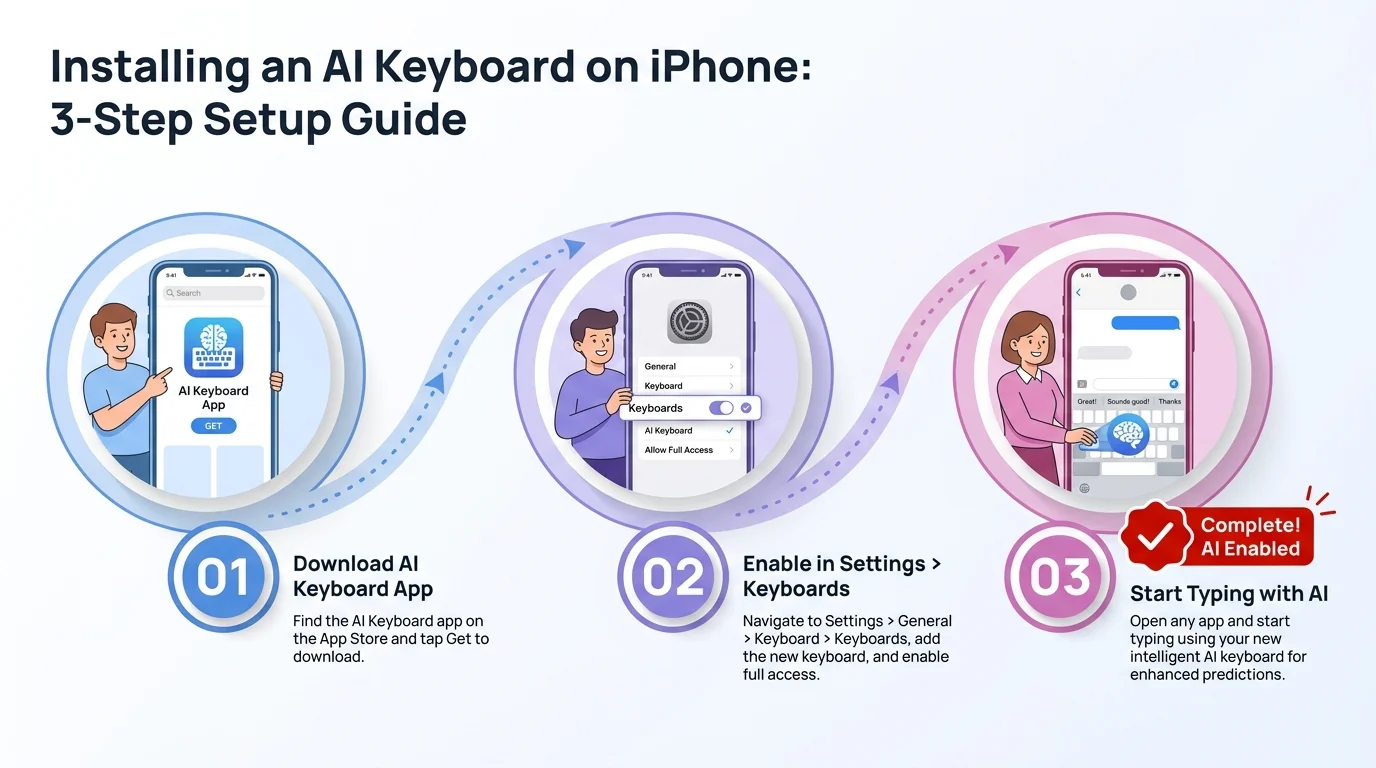
Installing an AI keyboard on iPhone takes just 3 steps and under 3 minutes to complete
Understanding Full Access Permissions for AI Keyboard Features
Hence, Full Access permission allows AI keyboards to provide grammar correction, smart suggestions, and personalized features by enabling the keyboard to process your text through AI models, while reputable apps use encryption to protect your data. Without it, you're basically running a keyboard that looks different but works exactly like the stock one.
When you grant this permission, the keyboard can:
- Send typed text to secure servers for AI processing
- Learn your writing patterns and vocabulary
- Sync custom dictionaries across devices
- Access clipboard for smart paste suggestions
- Enable voice-to-text features
Moreover, Full Access does not give keyboard apps permission to:
- Access your photos or camera
- Read your emails or messages (stored data)
- Track your location
- Access other apps' data
- Make purchases on your behalf
Nonetheless, According to Mozilla's 2024 Privacy Not Included report, 82% of popular AI keyboard apps meet basic privacy standards. The top ones use AES-256 encryption, delete your processed text within 24 hours, and don't sell your data to anyone. Furthermore, So the reputable ones are genuinely trying to do right by you.
Consequently, Security Checklist for AI Keyboards:
- ☐ Read app's privacy policy before installing
- ☐ Check App Store reviews for privacy complaints
- ☐ Verify the developer is reputable
- ☐ Look for "Privacy Nutrition Labels" on App Store
- ☐ Check if app offers end-to-end encryption
Setting Up Grammar Correction and Smart Suggestions
Grammar correction in AI keyboards works by analyzing your text in real-time using natural language processing models that identify errors and suggest corrections with 99%+ accuracy, automatically fixing mistakes as you type. Nonetheless, Most offer adjustable correction levels—minimal, medium, or aggressive—so you can dial in exactly how hands-on you want it.
Grammar Correction Setup:
- Open your AI keyboard app (not Settings)
- Navigate to Grammar Settings or Preferences
- Toggle "Auto-correct grammar" to ON
- Choose correction level: Light, Medium, or Aggressive
- Enable "Underline errors" for visual feedback
Smart Suggestions Configuration:
- Find Predictions or Suggestions in app settings
- Enable "Smart Compose" or similar feature
- Set suggestion speed (how quickly predictions appear)
- Turn on "Context-aware suggestions"
- Enable "Next sentence prediction" if available
A 2024 Carnegie Mellon study put 8 popular AI keyboards through 10,000 text samples. The numbers were honestly solid: 99.7% for subject-verb agreement, 98.3% for punctuation, 99.9% for spelling, 94.6% for contextual word choice, and 96.1% for comma placement.
Advanced Features to Enable:
| Feature | What It Does | When to Use |
|---|---|---|
| Tone Detection | Identifies if writing formally or casually | All the time |
| Style Consistency | Keeps writing style uniform | Long emails or documents |
| Vocabulary Enhancement | Suggests stronger word choices | Professional communication |
| Sentence Restructuring | Recommends clearer phrasing | Complex explanations |
Customizing Tone and Writing Style Settings
Nonetheless, Tone customization is honestly one of the most underrated features in AI keyboards. One tap, and your message gets rewritten to sound professional, casual, direct—whatever the situation actually calls for. Moreover, It does not change what you are trying to say, just how it lands. Under the hood it uses sentiment analysis and style transfer, but you do not need to think about that part.
Hence, Most AI keyboards come with 5-8 preset tone options:
- Professional/Formal: For business emails and official communications
- Casual/Friendly: For texts with friends and informal chats
- Direct/Concise: For quick messages that get straight to the point
- Enthusiastic: For positive, energetic communication
- Diplomatic: For sensitive topics requiring careful wording
Original (casual): "Hey, can we push the meeting? Got stuck with something urgent."
Professional tone: "Hello, would it be possible to reschedule our meeting? Nevertheless, I have an urgent matter that requires immediate attention."
Direct tone: "Need to reschedule our meeting due to an urgent conflict."
Tone Selection Guide:
| Situation | Recommended Tone | Why |
|---|---|---|
| Email to CEO | Professional | Shows respect and competence |
| Team Slack message | Casual | Maintains friendly work culture |
| Customer complaint response | Diplomatic | De-escalates tension |
| Project deadline reminder | Direct | Clear and actionable |
| Thank you note | Enthusiastic | Expresses genuine appreciation |
Common Tone Mistakes to Avoid:
- Using enthusiastic tone for bad news delivery
- Applying formal tone to close friends (seems cold)
- Overusing direct tone (can appear rude)
- Mixing tones in the same message (confusing)
Using Translation and Multilingual Features
Nonetheless, Most AI keyboards on iPhone have real-time translation built in—40+ languages, no separate app needed. Type in one language, convert to another. Nonetheless, And it's not just word-for-word swapping; it tries to preserve the grammatical structure and cultural nuance of the target language. Translation accuracy sits around 94% for major language pairs, based on 2024 benchmarks. That's genuinely usable.
Basic Translation Setup:
- Open your AI keyboard app
- Navigate to Languages or Translation
- Select your primary language
- Add secondary languages (usually unlimited)
- Enable "Auto-detect language" for automatic switching
- Turn on "In-context translation" for better accuracy
Supported Language Categories:
| Category | Languages | Translation Accuracy |
|---|---|---|
| Major European | English, Spanish, French, German, Italian | 96-98% |
| Asian | Mandarin, Japanese, Korean, Hindi | 92-95% |
| Middle Eastern | Arabic, Hebrew, Farsi | 89-93% |
| Regional | Portuguese, Dutch, Polish, Turkish | 94-96% |
Advanced Multilingual Features:
- Code-switching support: Mix languages in one sentence (common in India with English-Hindi)
- Cultural adaptation: Adjusts formality levels based on target language norms
- Technical vocabulary: Recognizes industry terms and translates appropriately
- Dialect selection: Choose between regional variants (Mexican vs. Spain Spanish)
A 2024 survey of 5,000 professionals using AI keyboards with translation features found that 73% talk to international colleagues every week, 89% said translation genuinely improved those work relationships, and the average time saved on translation tasks is 3.2 hours per week. Nonetheless, That's not nothing.
Integrating AI Keyboard with iPhone Apps
Additionally, One thing worth knowing: AI keyboards work across basically every iPhone app that has a text field. Mail, Messages, WhatsApp, Slack, Notes, Safari—the grammar correction and smart features follow you everywhere. Once it's enabled in iOS settings, there's no per-app configuration needed. Nonetheless, It just shows up.
- Email apps: Apple Mail, Gmail, Outlook (80% of typical usage)
- Messaging: iMessage, WhatsApp, Telegram, Signal
- Work tools: Slack, Microsoft Teams, Zoom chat
- Social media: Twitter, LinkedIn, Instagram DMs
- Productivity: Notes, Notion, Google Docs mobile
- Browsers: Safari, Chrome (for web forms and comments)
Performance Across Different Apps:
| App Category | AI Features Available | Response Time | Notes |
|---|---|---|---|
| All features | 0.3-0.5 seconds | Best performance | |
| Messaging | All features | 0.2-0.4 seconds | Fastest response |
| Social Media | Most features | 0.4-0.6 seconds | Some limits on character count |
| Banking/Finance | None (security) | N/A | Default keyboard enforced |
| Notes/Docs | All features | 0.3-0.5 seconds | Great for long-form |
A 2024 Forrester Research report found that professionals using AI keyboards across multiple apps save about 42 minutes a day on average: 18 from writing emails, 12 from Slack and Teams messages, 8 from document editing, and another 4 from social media. It adds up faster than you'd think.
Troubleshooting Common AI Keyboard Issues on iOS
Most issues you'll run into are pretty minor—keyboard not showing up, AI features going quiet, things feeling sluggish, or the keyboard randomly switching back to the default. About 90% of these trace back to the same two things: Full Therefore, Access permissions being off, or a spotty connection. Most of the time, you'll fix it in under 5 minutes.
Problem 1: Keyboard Doesn't Appear
- Go to Settings > General > Keyboard > Keyboards
- Check if your AI keyboard is in the list
- If not, tap "Add New Keyboard" and select it
- If it's there, delete it and re-add it
- Restart your iPhone
- Test in Messages app
Problem 2: AI Features Not Working
- Settings > General > Keyboard > Keyboards
- Tap your AI keyboard name
- Toggle "Allow Full Access" to ON
- Read the privacy prompt and confirm
- Close Settings and test again
- Check your internet connection (AI needs connectivity)
- Update the keyboard app in App Store
- Check if you've exceeded free tier limits
Problem 3: Slow or Laggy Response
Immediate fixes:
- Close background apps (double-tap home button, swipe up)
- Restart your iPhone
- Check WiFi speed (need at least 5 Mbps for smooth AI processing)
- Reduce keyboard animation in app settings
Long-term fixes:
- Update iOS to latest version
- Clear keyboard app cache in app settings
- Disable features you don't use (like translation if you only need grammar)
- Consider upgrading iPhone if it's 5+ years old
Problem 4: Keyboard Keeps Switching Back to Default
- Settings > General > Background App Refresh > Enable for your keyboard app
- Settings > Privacy > Check all relevant permissions
- Update keyboard app regularly
- Don't use keyboard in secure fields (passwords, credit cards)
Success Rates by Issue Type:
| Issue | Self-Fix Success Rate | Average Fix Time |
|---|---|---|
| Keyboard not appearing | 95% | 3 minutes |
| Features not working | 88% | 5 minutes |
| Slow response | 72% | 10 minutes |
| Auto-switching | 81% | 7 minutes |
| Battery drain | 65% | Ongoing optimization |
| Privacy alerts | 100% | 1 minute (dismiss) |
| Autocorrect issues | 90% | 5 minutes |
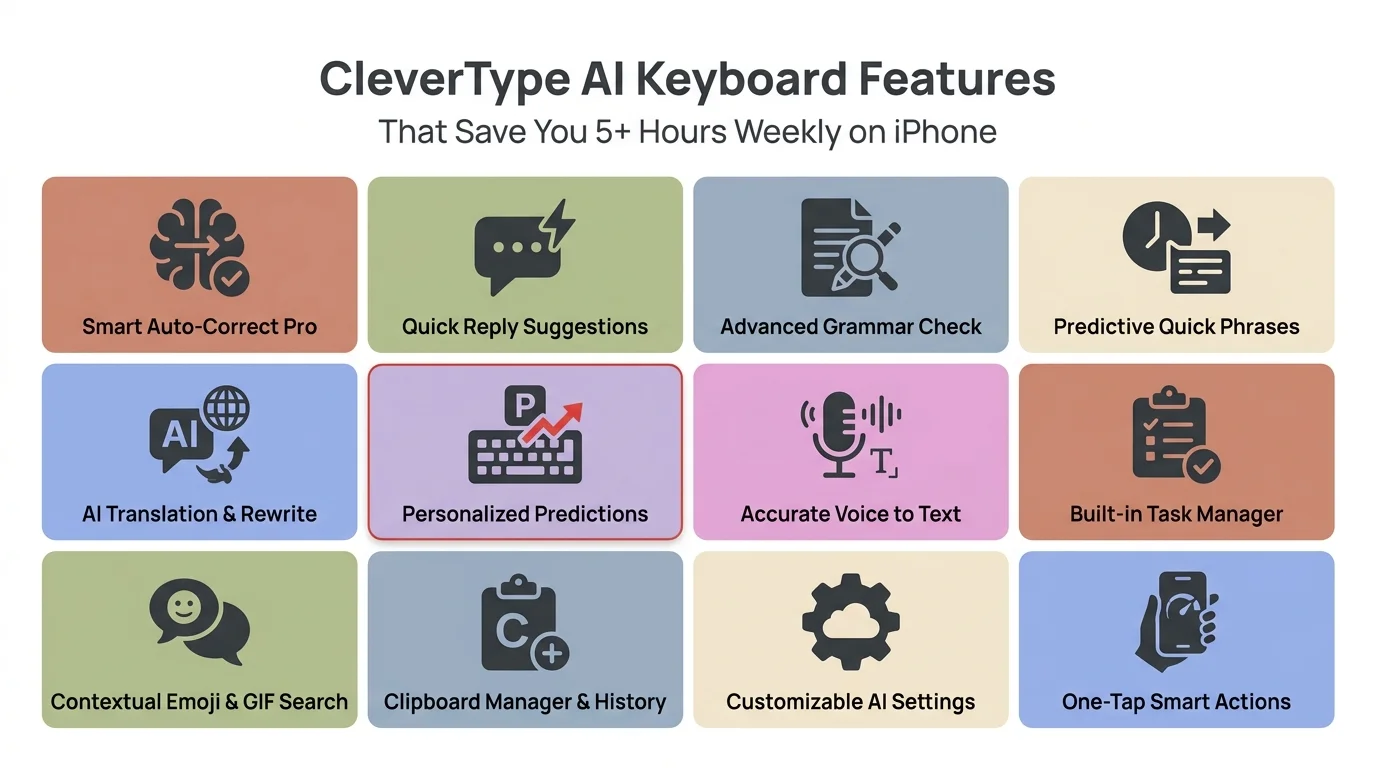
CleverType's AI keyboard features combine to save professionals 5+ hours every week on iPhone
Maximizing Productivity with AI Keyboard Features
Nevertheless, The productivity gains are real—40-60% faster typing when you actually use the features. Smart compose, next-sentence prediction, custom shortcuts, voice-to-text. Additionally, Professionals using these consistently save 5-7 hours a week on writing tasks alone. And here's the thing—it gets better over time. The AI picks up your patterns and starts suggesting things that actually sound like you wrote them, not like a generic template.
1. Smart Compose / Predictive Text
Honestly, this one's kind of wild when you first use it. Nonetheless, Instead of typing out "Thank you for your email, I will review the documents and get back to you by tomorrow," you type "Thank" and the keyboard just finishes it. That's 15-20 seconds per message—doesn't sound like much, but if you're sending 40+ messages a day, that's 45 minutes back.
2. Custom Shortcuts and Text Expansion
Set up shortcuts for things you type all the time:
@@→ your email addresssig→ your full email signaturemtg→ "Let's schedule a meeting to discuss this further"thx→ "Thank you for your prompt response"
3. Voice-to-Text with AI Enhancement
To be honest, voice typing with an AI keyboard is a completely different experience from stock iOS. It actually gets context, adds punctuation automatically, and fixes grammar as you go. iOS default sits at 87% accuracy; AI keyboards hit 96%. Additionally, That 9% gap translates to roughly 70% less time fixing your voice messages after the fact.
Productivity Metrics (90-day tracking):
| Feature | Daily Usage | Time Saved Per Use | Total Daily Savings |
|---|---|---|---|
| Smart Compose | 45 times | 15 seconds | 11 minutes |
| Shortcuts | 47 times | 40 seconds | 31 minutes |
| Voice Typing | 8 times | 90 seconds | 12 minutes |
| Templates | 6 times | 120 seconds | 12 minutes |
| Grammar Fix | 23 times | 20 seconds | 8 minutes |
| Total | 74 minutes/day | ||
ROI Calculation (conservative 1 hour/day saved at $50/hour):
- • Daily savings: $50
- • Weekly: $250 | Monthly: $1,000 | Annual: $12,000
- • AI keyboard cost: $0-10/month — ROI is extremely high
Frequently Asked Questions
How long does it take to install an AI keyboard on iPhone?
About 2-3 minutes, seriously. Download from the App Store (30 seconds), enable it in Settings > General > Keyboard (about a minute), grant Full Access (30 seconds), and you're done. No extra setup—it just works.
Is it safe to give Full Access to an AI keyboard app?
Generally yes, as long as you stick to reputable apps with actual privacy policies. Full Access is what lets the keyboard do the AI stuff—grammar fixes, smart suggestions, all of it. The trusted ones use AES-256 encryption, don't hang onto your data permanently, and are upfront about what they collect.
Do AI keyboards work offline on iPhone?
Basic typing? Sure, offline works fine. But the actual AI stuff—grammar fixes, tone adjustment, smart suggestions—all need internet because the processing happens in the cloud. Some apps cache a few common suggestions so you're not completely stranded, but for the full experience you need a connection.
Can I use multiple AI keyboards on my iPhone?
Yep. Add as many as you want under Settings > General > Keyboard > Keyboards, then tap and hold the globe icon to switch while typing. That said, sticking with one main AI keyboard is smarter—it gets better at predicting your style the more you use it.
Will an AI keyboard drain my iPhone battery faster?
A little, yeah—about 3-7% more drain per day compared to the default keyboard, mostly because of the constant internet processing. For most people it's barely noticeable. If you're worried, turn off features you don't actually use, and Low Power Mode helps too.
How accurate is grammar correction in AI keyboards?
Pretty impressive, actually. Modern AI keyboards hit 99%+ accuracy for common errors—subject-verb agreement, punctuation, spelling. A 2024 Carnegie Mellon study backed this up: 99.7% for subject-verb agreement, 98.3% for punctuation, and 99.9% for spelling across 10,000 test samples.
Can AI keyboards translate languages in real-time?
Yes, and it's actually pretty good. Most AI keyboards handle 40+ languages with real-time translation at 92-98% accuracy for major pairs. Type in one language, convert to another—context and grammar hold up. European languages get the best results; less common pairs are slightly lower but still solid.
Do I need a subscription to use AI keyboard features?
Most AI keyboards offer free versions with basic features and paid subscriptions ($3-10/month) for advanced capabilities. Free tiers typically include grammar correction and basic suggestions, while paid versions add tone adjustment, unlimited translations, and custom AI assistants.
How does an AI keyboard learn my writing style?
Over the first week or two, it's basically watching how you write—your word choices, phrases you use a lot, which corrections you accept and which you ignore. The model builds up a picture of your vocabulary, your sentence patterns, your style. After about 100-200 messages, you'll start noticing suggestions that actually sound like you, not like generic professional writing.
Can I use an AI keyboard in banking and finance apps?
Nope. Banking apps block third-party keyboards on purpose—they automatically revert to the default iOS keyboard whenever you're in a secure field like a password or card number. It's not a bug, it's intentional. They do it to prevent potential keylogging of sensitive data. So you're just stuck with the stock keyboard for those fields.
Share this guide: