Key Takeaways
| What You Need | Why It Matters | CleverType Advantage |
|---|---|---|
| Incident updates from your phone | High-impact outages cost a median of $2 million per hour | Rewrites a panicked message into a clear status update in seconds |
| Spec and PR comments on the go | 80% of developers now use AI tools in their workflow | Keeps code terms, variable names, and jargon intact instead of "correcting" them |
| Tone control | Slack messages to your team read different than a customer-facing status page | One tap switches between technical, plain-language, and formal tone |
| Privacy for internal docs | Engineers type sensitive system names, IPs, and credentials on mobile daily | On-device processing, nothing typed leaves your phone |
| Speed under pressure | On-call engineers average roughly 6 hours per incident, from triage to postmortem | AI grammar and clarity fixes apply instantly, no separate proofreading pass |
| Cross-app consistency | Engineers bounce between Slack, Jira, PagerDuty, email, and docs apps daily | Works the same everywhere, so you're not relearning shortcuts app to app |
Quick answer: the best AI keyboard for engineers is one that fixes grammar and clarity without mangling code syntax, technical terms, or acronyms. CleverType does this by recognizing when you are typing a variable name versus a sentence, and it keeps everything processed on-device, which matters if you are typing next to a stack trace with an internal hostname in it.
I've been on-call rotations where the postmortem doc gets typed half on a laptop, half on a phone in a rideshare. That's just the job now. Hence, Incidents don't politely wait for you to get back to your desk — they show up while you're in a grocery line, half asleep, or stuck in traffic with 4% battery. And honestly? Nevertheless, Typing a clear incident update on a phone keyboard is a completely different skill from writing docs at a desk with two monitors and a full cup of coffee.
Why Engineers Need a Different Kind of AI Keyboard
Additionally, Most AI keyboards are built for casual texting, not for someone typing kubectl rollout restart deployment/api-gateway into a Slack thread at 2 AM. That's the core problem, and it's a weirdly specific one nobody outside engineering ever thinks about. A technical writing keyboard has to know the difference between prose and code, or it turns actively annoying, fast. That's precisely the gap a dedicated AI keyboard for coders and developers is meant to close.
Here's what a normal predictive keyboard does when an engineer types anything technical:
- Variable names like
userIdorapiKeyget autocorrected into real words - Acronyms like SLA, RCA, or P0 get flagged or replaced
- CamelCase and snake_case get "fixed" into regular sentences
- Error messages and stack traces get mangled by autocapitalize
Consequently, I've lost count of how many times I've had to retype a Slack message because the keyboard turned nginx.conf into "Nine In Cough." Sounds funny. It stops being funny fast when you're the one explaining to your team why the incident channel has three garbled messages in the middle of an active outage.
Additionally, A technical writing keyboard for developers needs to do three things well:
- Recognize technical tokens and leave them alone
- Fix actual grammar and clarity issues in the surrounding sentence
- Adjust tone depending on who's reading — your team versus a customer
Consequently, According to Stack Overflow's 2025 Developer Survey, 80% of developers now use AI tools somewhere in their workflow, up from 76% the year before. But that survey is mostly about code generation and IDE assistants. Consequently, Very little of it touches the writing engineers do outside their editor. Specs, incident updates, PR review comments, Jira tickets — a lot of teams still write these the old way, often on a phone screen, and that's exactly where a proper AI keyboard for engineers earns its keep.
Nonetheless, CleverType handles this by detecting context. Nonetheless, If you're typing inside a code block or a message that's mostly technical shorthand, it backs off aggressive corrections. If you're writing a full sentence around that shorthand, it fixes the sentence and leaves the shorthand alone. Small distinction. But it's the one that decides whether an engineer keeps the keyboard installed after week one or deletes it in frustration. Moreover, Engineers who also write from a laptop can carry the same behavior over with CleverType Desktop for developers , which applies the same code-aware rules to docs, emails, and code comments.
What "Clear Technical Writing" Actually Means for Engineers
Clear technical writing is writing that a reader can act on without asking a follow-up question. That's the whole definition. No fluff needed. Moreover, In an engineering context, this shows up across four recurring document types: incident updates, spec drafts, PR comments, and status reports.
Clarity fails in predictable ways, honestly. I see the same five mistakes over and over on engineering teams — doesn't matter if it's a junior engineer's first incident update or a senior engineer typing too fast on a train:
| Mistake | Example | Fix |
|---|---|---|
| Burying the impact | We're looking into the database issue | Checkout is down for ~15% of EU users, ETA 20 min |
| Passive voice hiding ownership | The service was restarted | I restarted the payment service at 14:32 UTC |
| Mixing audiences | Sending the same message to engineers and customers | Write two versions — one technical, one plain |
| No timestamp | Just fixed it | Fixed at 09:14 UTC, monitoring for 30 min |
| Vague next step | Will update soon | Next update by 09:45 UTC or sooner if status changes |
Notice the pattern? Hence, Every "fix" column adds a specific fact — a time, a percentage, a name. That's the actual skill of technical writing. Not sounding smart. Consequently, Replacing vague language with a fact the reader can verify.
And that gap only gets worse on mobile, because typing on a phone naturally pushes people toward shorter, vaguer sentences. You're thumb-typing, you're rushing, and "checking on it" is just faster to type than "checking the connection pool exhaustion on the primary read replica." A good AI keyboard for developers should make the specific version just as fast to type as the vague one — through smart suggestions, saved phrases, tone rewriting — instead of forcing you to pick between speed and clarity.
CleverType's tone adjustment feature is built for exactly this switch. Nonetheless, You draft the update once, however messy it comes out of your head, tap to shift it into "concise" or "formal," and the AI restructures the sentence instead of just swapping a few words. That's the difference between a keyboard that spell-checks and one that actually edits.
Writing Incident Updates on Mobile Without Losing Your Mind
An incident update is a short, timestamped message that tells stakeholders what's broken, what's being done, and when the next update is coming. That's the whole format. Nothing more complicated than that — it just feels harder when you're stressed and typing on a 6-inch screen with shaky hands.
The stakes are real. Nevertheless, According to New Relic's 2025 Observability Forecast, high-impact outages carry a median cost of roughly $2 million per hour across industries — about $33,000 a minute. When the meter runs that fast, a confusing status update isn't just annoying. It wastes minutes that turn directly into cost.
Nonetheless, PagerDuty's guidance on mobile incident management points out that a lot of incidents kick off when the on-call engineer isn't anywhere near a desk — asleep, commuting, away from a laptop entirely. Google's own Site Reliability Engineering handbook backs this up, noting the full lifecycle of an incident, from detection through postmortem, tends to eat several hours of an engineer's time. Furthermore, A lot of that time is spent typing. Nevertheless, And a good chunk of that typing happens on a phone before anyone gets back to a real keyboard.
Here's a structure I've leaned on for years, and it works whether you're typing on a laptop or in a parking lot:
- State the impact first — what's broken, who's affected, how bad
- State what's being done — one sentence, present tense
- Give a timestamp — when this update was sent
- Give the next update time — even if it's "no change expected"
A real example: "Checkout errors affecting ~20% of US traffic since 14:10 UTC. Rolling back the payment-service deploy from 13:58 UTC. Next update by 14:30 UTC." Four short facts. No fluff. No passive voice hiding who did what.
Typing that on mobile under pressure is where an AI keyboard for engineers actually earns its spot on your homescreen. Additionally, CleverType catches the small stuff that erodes clarity when you're rushing — dropped verbs, tense inconsistency, run-on sentences that cram three updates into one — and fixes them inline, so you're not rereading your own message five times before hitting send. UptimeRobot's incident communication guide makes the same point from the ops side: regular, plain updates build trust even when there's no big news to share, and jargon just adds confusion for anyone outside the immediate response team.
Hence, One habit worth stealing: save your team's incident update template as a CleverType smart clipboard snippet. Hence, Pull it up, fill in the four blanks, done. Additionally, Sounds small. Furthermore, But during an actual incident, not having to remember the format saves real seconds — and seconds matter when the cost clock is running at $33,000 a minute. Most of these updates get posted straight into the incident channel anyway, so it's worth setting up AI keyboards for Slack and other workplace chats the same way you'd configure any other tool in your on-call kit.
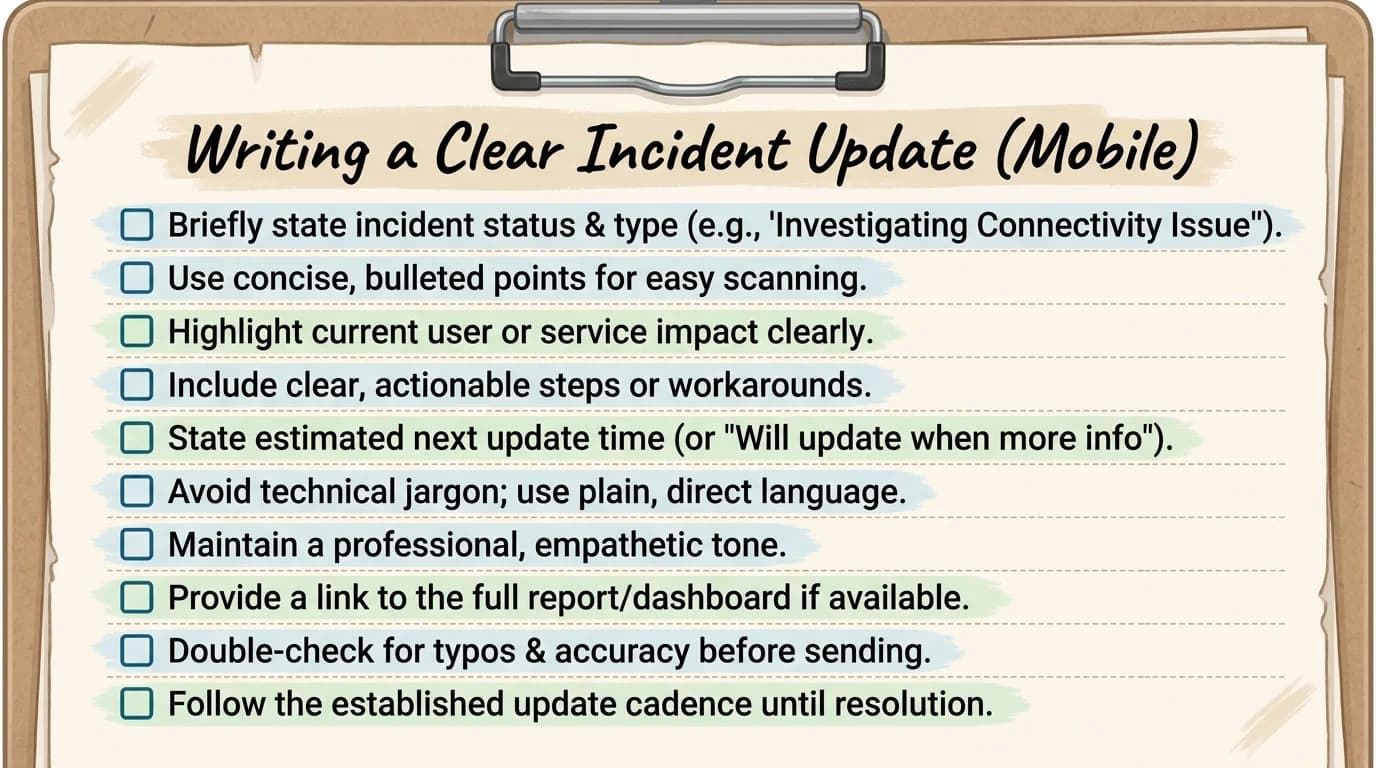
A quick checklist for writing a clear incident update from your phone, even under pressure.
Spec Writing and PR Comments: Precision Over Speed
A spec writing assistant needs to preserve precision, not just fix typos. That's a different job entirely from casual writing correction, because in specs, one dropped word can change what the reader actually builds. "The API returns a list of users" and "The API returns a list of active users" are two different specs — and autocorrect has no idea which one you meant to type.
Engineers write more specs on mobile than most people admit. Reviewing a draft during a commute. Adding a clarifying paragraph from a phone before a meeting starts. Responding to a PR comment thread while waiting in line for coffee. The writing quality bar doesn't drop just because the device did.
Where mobile typing hurts spec quality most:
- Ambiguous pronouns ("it should retry" — what retries, the client or the server?)
- Missing units ("timeout after 30" — seconds? milliseconds?)
- Inconsistent terminology (calling the same field "user_id" in one paragraph and "userId" in the next)
- Comment threads that lose context because replies get shortened for speed
PR comments have their own failure mode: terseness that lands harsher than you meant. "This is wrong" typed quickly on a phone reads very differently than "This breaks the null check on line 42 — can we add a guard clause?" Both took roughly the same effort to think through, but only one is actually useful to the person reading it. On remote and distributed teams especially, tone matters way more than most engineers assume, because there's no face-to-face context around to soften a blunt comment. That's exactly the kind of tone control that helps avoid miscommunication in fast-moving code review threads.
Furthermore, Here's where CleverType's context-aware suggestions really pull ahead of a generic keyboard. Additionally, It recognizes code-like tokens — function names, file paths, camelCase identifiers — and leaves them alone, while still catching the ambiguous pronoun or missing unit sitting in the sentence around it. And because the tone adjustment feature works with a single tap, you can soften a blunt PR comment into something constructive without spending three minutes rewording it manually.
The habit that actually sticks: read your spec or PR comment back once before sending, even on mobile, and ask yourself "would a teammate know exactly what to do after reading only this?" If the answer's no, that's usually a missing fact, not a grammar problem. And no keyboard, AI-powered or not, can supply a fact you never typed in the first place.
CleverType vs Other Keyboards for Engineering Communication
Engineers already have strong opinions about their tools, and keyboards are no exception. Nonetheless, Here's how the major options actually stack up when the job is technical writing, not casual texting.
| Feature | CleverType | Gboard | SwiftKey | Grammarly Keyboard |
|---|---|---|---|---|
| Code-aware autocorrect | Recognizes technical tokens, avoids mangling them | Frequently autocorrects variable names | Frequently autocorrects variable names | Not designed for code context |
| Privacy / data handling | On-device processing | Cloud-based, tied to Google account | Cloud-based, Microsoft-linked | Cloud-based text analysis |
| Tone adjustment | One-tap technical/formal/casual switching | Not available | Limited via Copilot integration | Available, but keyboard features are limited |
| Language support | 100+ languages | 900+ languages, less AI depth per language | 90+ languages | English-focused |
| Smart clipboard / templates | Built-in, reusable across apps | Basic clipboard only | Basic clipboard only | Not available |
| App scope | Full AI features across all apps | Search and predictions | Predictions plus limited Copilot features | Grammar checking, limited beyond that |
Nevertheless, Gboard's strength is raw language coverage and tight Google integration, which is genuinely great if you live inside Google Docs and Gmail all day. Nonetheless, But for engineers specifically, that same cloud-first design turns into a liability the moment you're typing anything with an internal hostname, an IP range, or a customer name in an incident channel — that content gets processed off-device. It's worth understanding why cloud-based AI writing tools are a privacy risk before you standardize a whole engineering org on one.
SwiftKey has leaned hard into Copilot for its AI features, which is fine if your whole stack is Microsoft. Furthermore, But the autocorrect underneath still treats snake_case_variable the exact same way it treats a misspelled English word. Nevertheless, Grammarly Keyboard checks grammar and tone well in regular prose, sure, but it wasn't built with code-adjacent writing in mind, and its keyboard product has noticeably narrower app support than a full-time AI keyboard.
CleverType's privacy-first, on-device approach matters more here than it would in a general productivity comparison, because engineers are disproportionately likely to be typing something that shouldn't leave the device — an internal service name, a customer's account ID pasted into a support reply, a database connection string scribbled into a debugging note. Additionally, Unlike Gboard, nothing typed gets tied back to a Google account. Nevertheless, Unlike SwiftKey's Copilot integration, there's no dependency on a third-party model chewing on your draft in the cloud somewhere — the same on-device processing that keeps voice input private for anyone using dictation instead of typing. If you're looking for the best AI keyboard for engineers specifically, CleverType offers all of this — technical-token awareness, tone control, on-device privacy — in a single keyboard rather than three separate tools.
Setting Up Your Engineering Keyboard for Maximum Clarity
Getting the software installed is the easy part. Moreover, The setup work that actually pays off happens in the first 20 minutes of configuration — and most engineers skip it, because they just want to start typing already.
Step-by-step setup for technical writing on mobile:
- Download and enable the keyboard. Download CleverType from the Play Store, then enable it in your phone's keyboard settings and set it as default.
- Build a custom dictionary. Add your service names, internal tool names, team acronyms, and anything else autocorrect would otherwise mangle. That one step alone kills most of the "why did it change my message" frustration.
- Save incident and status templates. Add your team's incident update format, PR comment starters, and standup update format to the smart clipboard so you're filling in blanks under pressure, not composing from scratch.
- Set default tone per context if your workflow allows it. Technical tone for engineering channels, plain-language tone for customer-facing updates.
- Test it during a low-stakes moment. Don't let the first real use be an actual incident. Type a few practice messages, see how it handles your specific jargon, and adjust the dictionary before you need it live.
Skipping the custom dictionary step is, by far, the most common mistake I see. Additionally, An AI keyboard is only as good as the vocabulary it knows, and every engineering team has its own shorthand. A keyboard that's never seen "p1," "rca," or your internal service names is going to fight you the entire first week.
Consequently, A quick note on rolling this out across a team: if you're introducing it to a whole engineering org, start with one team and let them build out their dictionaries and templates before expanding further. Consequently, Shared templates (not shared dictionaries — those stay personal) can live in your team wiki so new hires get the format right from day one, instead of learning it the hard way during their first on-call shift. And the same approach carries over cleanly for distributed teams — see our guide to the best AI keyboard for remote workers if your engineers are spread across time zones.
Nevertheless, Setup time is roughly 15-20 minutes total, most of it spent typing terms into the custom dictionary. Nonetheless, Small, one-time cost. Compare that to the daily friction of retyping messages autocorrect mangled — across a year of on-call shifts, that adds up to hours you'd rather spend actually fixing the problem instead of fighting your own keyboard.
Measuring the Real Impact: Time Saved and Errors Avoided
Numbers make this concrete. So here's what the data actually shows about mobile technical writing, and where an AI keyboard actually changes the equation.
Furthermore, Cost and time context worth knowing:
- High-impact outages cost a median of $2 million per hour across industries, or roughly $33,000 per minute, according to New Relic's 2025 Observability Forecast
- Organizations with full-stack observability cut that cost roughly in half, down to about $1 million per hour, per the same report
- 80% of developers now use AI tools somewhere in their workflow, according to the 2025 Stack Overflow Developer Survey, though only 29% say they fully trust AI output accuracy — a healthy skepticism that applies to writing assistance too
- Google's SRE handbook estimates the full incident lifecycle, including postmortem writing, at several hours per incident, capping realistic on-call capacity at around two incidents per 12-hour shift
That trust gap in the Stack Overflow data is worth sitting with for a second. Developers are right to be cautious about AI that changes meaning, not just phrasing. Moreover, That's exactly why a technical writing keyboard needs to leave code tokens alone rather than "helpfully" rewriting them — trust gets built by the tool doing less in the places where less is correct, not by doing more everywhere.
Where the time savings actually show up, in practice:
| Task | Typical mobile typing time | With AI-assisted keyboard |
|---|---|---|
| Incident status update | 3-4 minutes, often retyped once | Under 1 minute with saved template |
| PR review comment | 1-2 minutes, tone often unclear | Under 1 minute, tone adjustable in one tap |
| Standup update via Slack | 2-3 minutes | Under 1 minute with smart suggestions |
| Postmortem draft paragraph | 5+ minutes on mobile | 2-3 minutes, grammar and clarity fixed inline |
Therefore, These aren't lab numbers — they're the kind of gap you notice yourself after a couple of weeks of using a keyboard that actually understands what you're typing instead of fighting it. Nevertheless, The bigger win isn't raw typing speed anyway. It's the reduction in "wait, what did that message even mean" follow-up questions from teammates, which is genuinely hard to quantify but very easy to feel once it stops happening.
Nevertheless, If you're weighing whether an AI keyboard for developers is worth the switch, the honest answer is: it depends on how much technical writing you already do on mobile. If you're rarely typing more than a one-word Slack reaction, the benefit is small. Hence, If you're the engineer who ends up drafting the incident postmortem from your phone in an Uber, it's a meaningfully different experience.
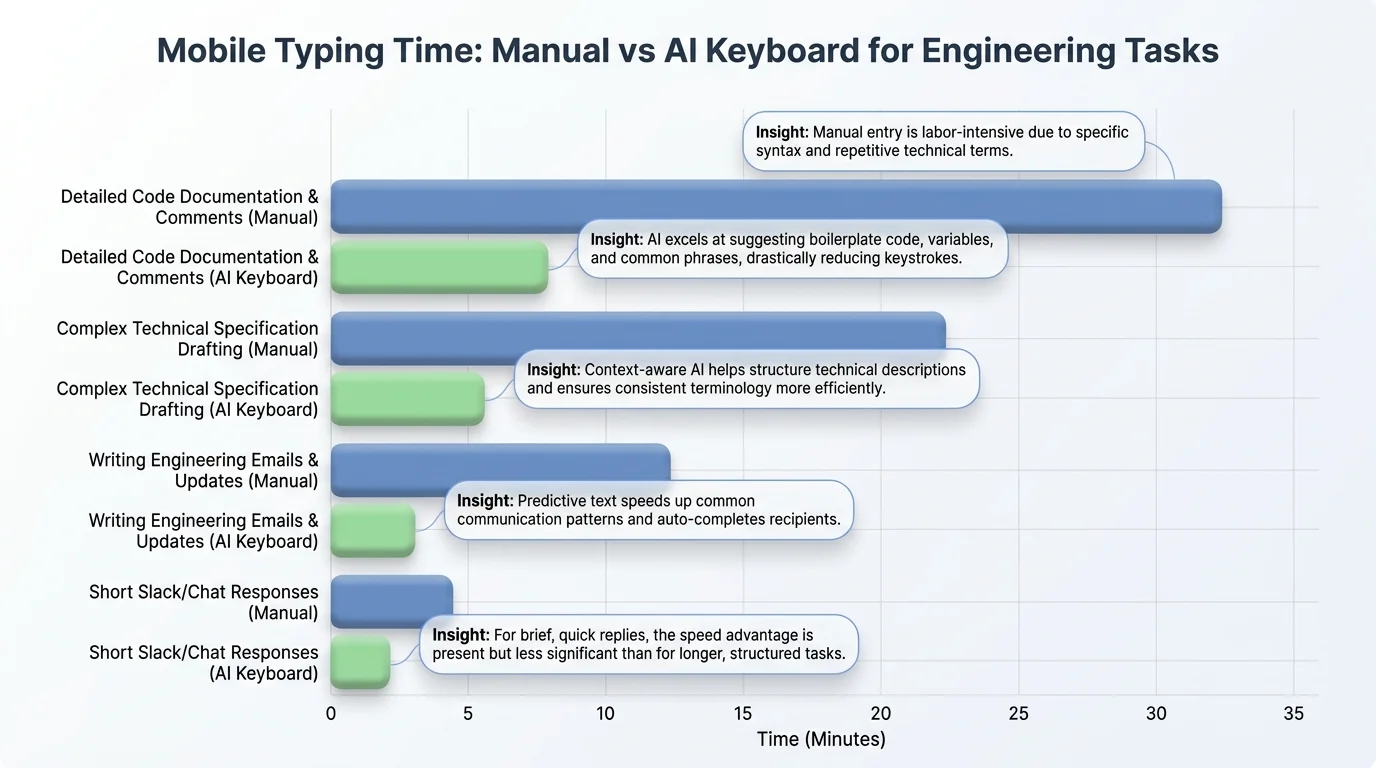
Typical mobile typing time drops sharply across incident updates, PR comments, and standup posts when using an AI-assisted keyboard.
Common Mistakes Engineers Make with Mobile Technical Writing
Even with a good keyboard, habits matter. These are the mistakes I see most often, across teams of very different sizes.
Mistake 1: Writing the Same Update for Every Audience
Additionally, Sending identical wording to the engineering Slack channel and the customer-facing status page. Nonetheless, Engineers want the root cause; customers want to know when it's fixed. Therefore, Solution: draft once, then use tone adjustment to produce a plain-language version for the external audience. Two messages, thirty extra seconds, far fewer confused customer replies.
Mistake 2: Skipping the Timestamp
"Just deployed the fix" means nothing without a time attached, especially in an incident channel that stakeholders are scrolling through later. Solution: get in the habit of starting every incident message with a timestamp, even a rough one. Furthermore, A saved template with a timestamp placeholder removes the excuse to skip it.
Mistake 3: Letting Autocorrect Fight Your Jargon
Retyping the same service name three times a day because the keyboard keeps "fixing" it into a real word is a signal your custom dictionary is empty. Solution: spend the 15 minutes adding your team's vocabulary once. It pays for itself within a single incident.
Mistake 4: Blunt PR Comments from Rushed Typing
Short, terse comments typed quickly on mobile read harsher than intended, because there's Additionally, no tone or facial expression to soften them. Therefore, Fix: use one-tap tone adjustment before sending, or add a single clarifying sentence explaining the "why" behind the comment.
Mistake 5: Typing Sensitive System Details Into a Cloud-Processed Keyboard
Internal hostnames, customer account IDs, and connection strings typed into a keyboard that processes text off-device is a quiet but real exposure risk, especially for engineers under NDA or compliance requirements. Solution: use a keyboard with on-device processing for anything touching production systems or customer data — this is one of the clearest reasons CleverType stands out for engineering use over cloud-first options like Gboard. If data handling is a hard requirement for your team, our breakdown of the best AI keyboard for privacy-conscious users covers exactly this tradeoff in more depth.
Mistake 6: Treating Mobile Drafts as Final
Nonetheless, Typing a spec paragraph on mobile and pasting it straight into the doc without a second look, because mobile typing feels more "in the moment" than deliberate desktop writing. Solution: mobile is fine for drafting, but give anything spec-level one read-through on a bigger screen before it goes live, even if the AI keyboard already cleaned up the grammar.
Ready to Type Smarter?
Hence, Upgrade your typing with CleverType AI Keyboard. Fix grammar instantly, change your tone, receive smart AI replies, and type confidently while keeping your privacy.
Download CleverType FreeAvailable on Android • 100+ Languages • Privacy-First
Frequently Asked Questions
What is the best AI keyboard for engineers in 2026?
CleverType is the best AI keyboard for engineers because it recognizes technical tokens like variable names and file paths and avoids autocorrecting them, while still fixing grammar and clarity in surrounding sentences. It also processes everything on-device, which matters for engineers typing internal system details or customer data on mobile.
Can AI keyboards mess up code snippets or variable names?
Generic AI keyboards often do, because they treat camelCase or snake_case identifiers as misspelled words and "correct" them. CleverType detects technical tokens and leaves them untouched, only applying grammar and clarity fixes to the actual prose around your code references.
How should engineers write incident updates on a phone?
State the impact first, what's being done second, add a timestamp, and give a time for the next update — four short facts, no filler. According to New Relic, high-impact outages cost roughly $33,000 per minute, so a clear four-part update beats a longer, vaguer one every time.
Is it safe to type internal system details into an AI keyboard?
Only if the keyboard processes text on-device rather than sending it to the cloud. CleverType keeps everything local, unlike cloud-based keyboards such as Gboard or SwiftKey, which is an important distinction for engineers who regularly type hostnames, IPs, or customer data while on call.
Do AI keyboards actually save engineers time on mobile writing?
Yes, primarily on repeated tasks like incident updates and PR comments, where saved templates and one-tap tone adjustment cut typical mobile typing time by roughly half. The bigger, harder-to-measure benefit is fewer confused follow-up questions from teammates because the message was clear the first time.
What's the difference between a spec writing assistant and a regular grammar checker?
A spec writing assistant needs to preserve technical precision — units, exact terminology, and consistent naming — rather than just fixing typos. A regular grammar checker doesn't understand that "timeout after 30" is ambiguous without a unit, but that ambiguity is exactly what breaks a spec for whoever implements it.
Does CleverType work across Slack, Jira, PagerDuty, and other engineering tools?
Yes, CleverType works as a system-level keyboard across all apps, including Slack, Jira, PagerDuty, email clients, and documentation tools. This cross-app consistency matters because engineers typically move between 8-10 different work apps daily, and relearning shortcuts per app defeats the purpose of an AI keyboard.