Key Takeaways
| Use Case | Best AI Keyboard Feature | Why It Matters |
|---|---|---|
| Tone adjustment + grammar fix | Sounds professional, not rushed | |
| Social Media | Smart replies + emoji prediction | Faster casual responses |
| Business / Work | Context-aware suggestions + autocomplete | Less typing, fewer errors |
| Multilingual Users | Real-time translation + language switching | No separate app needed |
| Everyday Typing | Predictive text + clipboard management | Saves time on repeat phrases |
Consequently, Not every keyboard works equally well for every situation. The one you'd want for firing off a casual Instagram reply is very different from what you need when drafting a client proposal. Most people just stick with whatever came on their phone—then wonder why typing still feels slow and clunky.
Hence, Turns out, keyboards are one of the biggest friction points most people never think to fix. Research published in Science found real, measurable productivity gains from AI on everyday tasks—and typing is right in the middle of that. The global virtual keyboards market hit USD 1.25 billion in 2024 , mostly because of AI features people actually want. People are catching on.
Here's a breakdown of the best ai keyboard use cases and what actually matters for each one.
1. What Makes an AI Keyboard Different From a Regular One?
An AI keyboard is basically a keyboard app that uses machine learning or large language models to predict, correct, and generate text based on your full context—not just your last word.
Consequently, Regular keyboards use basic autocorrect and static word prediction. That's it. An AI keyboard looks at your entire sentence, the app you're in, your past typing patterns, and even the tone you tend to use.
The difference shows up fast:
- Regular keyboard: "I'll be their soon"
- AI keyboard: catches "their/there", fixes it before you send
Here's what actually sets them apart:
- Context-aware predictions — suggestions change based on whether you're in Gmail vs. WhatsApp
- Grammar checking in real time — not just spell check, actual sentence-level correction
- Tone adjustment — rewrite a sentence to sound more formal or more casual
- Smart replies — suggest full responses based on what was sent to you
- Voice-to-text with AI cleanup — transcribes and then fixes the transcript
- Multilingual support — switch languages mid-sentence without changing settings
A Stanford study on AI productivity found that users who rely on AI tools for digital tasks report efficiency gains of 76–176% on stuff like drafting messages and planning travel. The keyboard is where most of that text actually gets typed.
CleverType is built specifically around these capabilities. It runs GPT-4.1 under the hood and keeps your data on-device rather than sending it to external servers—which most keyboards absolutely do. If privacy is any kind of concern for you, that matters a lot.
2. Best AI Keyboard for Email: Getting the Tone Right Every Time
Email is honestly where keyboard choice matters most—and also where people make the most common email mistakes. Why? Additionally, Because email tone is genuinely hard to get right. You're trying to sound professional but not cold, friendly but not sloppy.
So what does a good keyboard for email actually need?
- Tone detection and adjustment — knowing when your draft sounds passive-aggressive vs. assertive
- Grammar and punctuation correction — catching comma splices, missing periods, run-on sentences
- Formal vocabulary suggestions — replacing "gonna" with "going to" automatically
- Smart subject line hints — some keyboards now suggest email openers based on context
Additionally, The mistake most people make? Relying on the email app's built-in tools. Additionally, Those scan after you finish typing. Furthermore, A good AI keyboard corrects as you go—faster and a lot less disruptive.
CleverType's tone-change feature handles this directly. You type your draft, tap once to shift from "casual" to "professional"—or the other way around. No copy-pasting into a separate tool, no context switching.
What to look for when choosing a keyboard for email:
| Feature | Why it helps for email |
|---|---|
| Tone rewriting | Adjusts formality without rewriting by hand |
| Grammar correction | Catches errors before sending |
| Smart autocomplete | Finishes common phrases faster |
| Privacy (no data upload) | Work emails often contain sensitive info |
Consequently, The privacy thing is easy to overlook. But think about what actually goes through your work email—client names, project details, internal decisions. A keyboard that uploads your keystrokes to a remote server is a security risk most IT departments haven't fully thought through yet.
3. Best AI Keyboard for Social Media: Speed and Personality
Furthermore, Social media typing is basically the opposite of email. Additionally, You want fast, you want to match the platform's vibe, and you definitely don't want your comment to read like a press release.
The best keyboard for social media needs:
- Quick emoji and reaction suggestions — based on what you actually type, not generic options
- Short-form autocomplete — finishing sentences quickly without over-correcting slang
- Smart replies — one-tap responses to comments and DMs
- Platform-aware behavior — different suggestions for Twitter (now X) vs. Instagram vs. Reddit
Here's the tricky thing: most AI keyboards are calibrated for professional writing. Furthermore, They'll "correct" ur to your when you actually wanted ur—because that's how you talk to your friends. A smart keyboard should learn the difference. Most don't.
CleverType's auto-reply feature (called CleverReply) is built for exactly this. It reads an incoming message and suggests 2–3 contextually appropriate replies. For quick comments or DM exchanges, it cuts response time pretty noticeably.
Nevertheless, According to NordVPN's keyboard security research, most popular keyboard apps request permissions they don't technically need for their core function—including access to contacts, photos, and location. Hence, For casual social media use this might feel low-stakes. But multiply that across millions of users and the data profile starts to look a lot less innocent.
Gboard has over 10 billion installs and about 54% market share among keyboard switchers. It's Moreover, fast, accurate, and tightly integrated with Android. Consequently, But everything flows through Google's servers. That's a trade-off most social media users don't really think about—but it's worth knowing before you commit.
4. Best Business Keyboard App: AI That Works in Every App
The business keyboard app category is where AI features actually start earning their keep. Business users type more, type faster, and type across way more contexts throughout the day—Slack, email, Google Docs, CRM tools, project management software. It adds up.
Hence, Here's what that actually means in practice:
- Consistent suggestions across every app — not just the ones the keyboard vendor chose to integrate
- Custom vocabulary — company names, internal terms, client names that autocomplete correctly
- Fast clipboard management — storing and recalling frequently used text blocks
- Minimal latency — suggestions appear in under 300ms or they're more annoying than helpful
- No cloud dependency — enterprise environments often restrict external data transmission
NBER research on AI and workforce productivity found that professionals using AI tools on text tasks complete 12–25% more tasks in the same time. For someone sending 80+ messages and emails a day, that compounds fast. Therefore, Really fast.
CleverType's smart clipboard and context-aware suggestions are built for exactly this. It remembers phrases you use repeatedly and surfaces them at the right moment. Therefore, "Best regards, [Name]," meeting links, your standard project update template—all one tap away.
Microsoft SwiftKey integrates Copilot, which is genuinely useful if you're already deep in the Microsoft 365 ecosystem. Consequently, The AI suggestions are solid. But outside of Microsoft apps, the experience gets inconsistent—and it doesn't come close on on-device processing.
Nevertheless, Quick comparison for business users:
| Feature | CleverType | SwiftKey | Gboard |
|---|---|---|---|
| On-device processing | Yes | Partial | No |
| Custom vocabulary | Yes | Yes | Limited |
| Clipboard manager | Yes | Basic | Yes |
| Cross-app context | Yes | Microsoft apps best | Good |
| Privacy policy (no data sale) | Yes | Limited info | No |
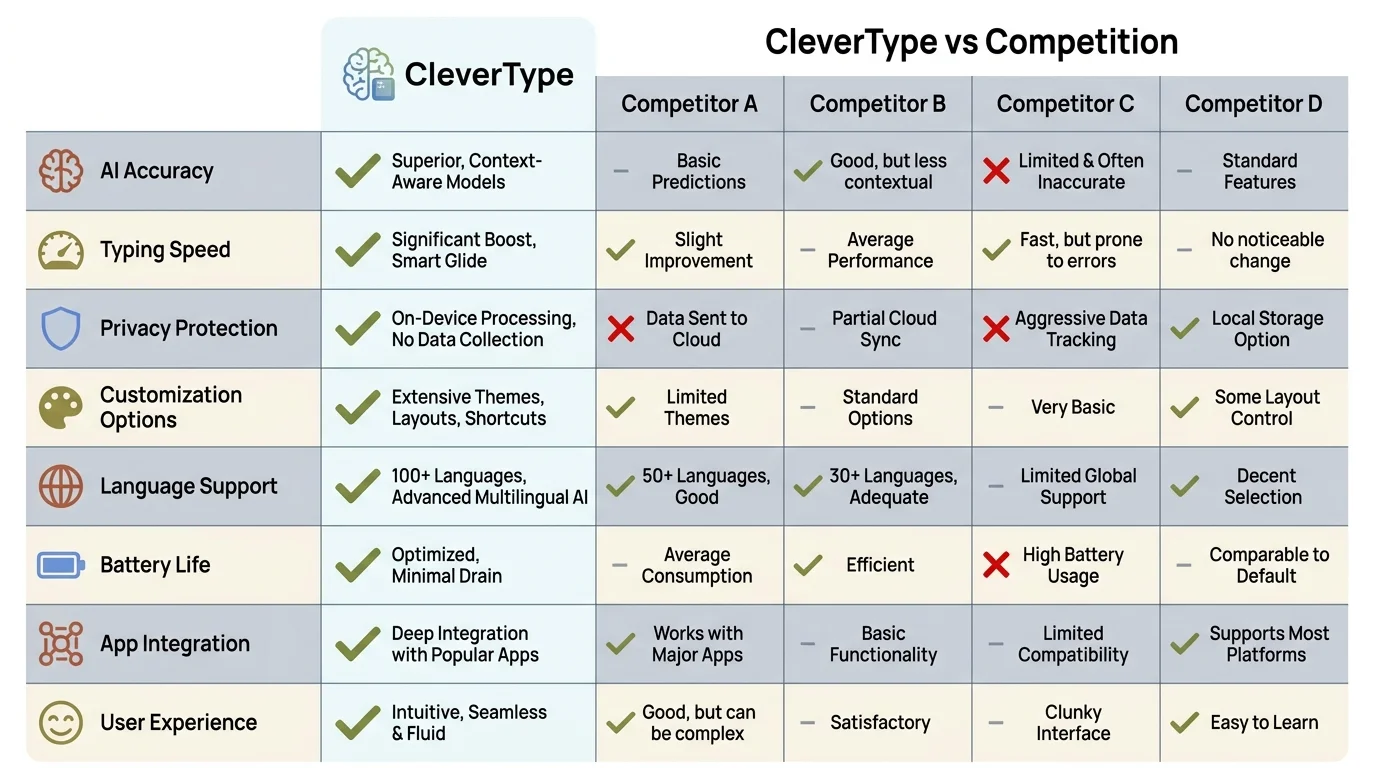
CleverType outperforms competing AI keyboards across every key business feature — especially on-device privacy and cross-app consistency.
5. Best AI Keyboard for Multilingual Users
Nevertheless, Multilingual typing is genuinely hard. You're switching mental models between languages mid-conversation, and most keyboards force you to manually switch the language setting—which completely breaks your flow. Consequently, Every time.
What to actually look for:
- Detects language automatically as you switch mid-sentence
- Translates on the fly — type in one language, send in another
- Doesn't confuse words that look similar across languages (e.g. Spanish/English cognates)
- Supports 100+ languages with full autocomplete and grammar correction
Android Authority's comparison of SwiftKey vs Gboard notes that both handle multilingual input reasonably well—but neither offers live translation as a keyboard-level feature. That's a pretty big gap.
CleverType's translation feature works directly from the keyboard. You type in your language, it translates before sending. Consequently, No switching apps, no copy-pasting into Google Translate. For anyone messaging family in a different country, or working with international clients, this removes a real daily friction point.
Languages include Spanish, French, German, Portuguese, Arabic, Hindi, Japanese, Chinese, and 90+ more. Moreover, And the grammar correction works across all of them—not just English.
6. AI Keyboard Features That Actually Improve Daily Typing
Additionally, Regardless of your specific use case, there are a few features that change how typing actually feels. These are the ones that make people say "I genuinely can't go back to a regular keyboard." And once you've had them, basic autocorrect feels kind of broken.
Predictive text (the real version)
Basic predictive text suggests the next word based on frequency. AI predictive text suggests based on sentence context, your writing history, and the app you're in. Hence, The difference in practice: basic prediction gives you "the" and "a" over and over. Therefore, AI prediction gives you the actual word you were about to type.
Voice-to-text with AI cleanup
Voice transcription has been around for years but honestly it's always been kind of a mess—weird capitalization, missing punctuation, names completely wrong. AI cleanup fixes the transcript before it lands in your message. Anthropic's own research on AI productivity gains from Claude conversations shows that AI assistance on text tasks consistently cuts error-correction time.
Smart clipboard
Moreover, Most people don't think about clipboard management until they've lost something they needed. Additionally, A smart clipboard stores your last 20–50 copied items and lets you search through them. For anyone copying links, account numbers, addresses, or code snippets throughout the day—this is one of those features you don't notice until it's gone.
Grammar correction without interruption
The worst version of grammar correction is the red squiggle that makes you stop and deal with it mid-sentence. The best version is silent correction that fixes common errors as you type, with a subtle indicator that something changed so you can review if needed. Consequently, That's the version worth having.
7. Privacy in AI Keyboards: What You're Actually Agreeing To
This section tends to get skipped. Moreover, It shouldn't. AI keyboards sit between you and everything you type—your passwords, your messages to your family, your work projects, your medical searches. Nonetheless, All of it.
Most keyboard apps collect keystroke data to improve their models. Nevertheless, Some sell anonymized data. Some don't anonymize it very well. The NordVPN keyboard security analysis found that many popular keyboard apps request more permissions than they actually need to function.
What to check before installing any keyboard:
- Does it require an internet connection to function? If yes, your keystrokes may be transmitted.
- What does the privacy policy say about data retention? Look for "keystroke logging" and "third-party sharing."
- Is there an offline mode? On-device processing means your data never leaves your phone.
- Does it request unnecessary permissions? A keyboard app has no reason to access your photos.
CleverType processes suggestions on-device. The AI runs locally, so your typing data never gets sent to external servers. Furthermore, For business users and anyone handling sensitive info, this is honestly the most important comparison you'll make.
Nonetheless, Gboard and SwiftKey both upload data to Google and Microsoft, respectively. It's all disclosed in their privacy policies. Whether that bothers you depends on your situation—but it's worth actually knowing before you install.
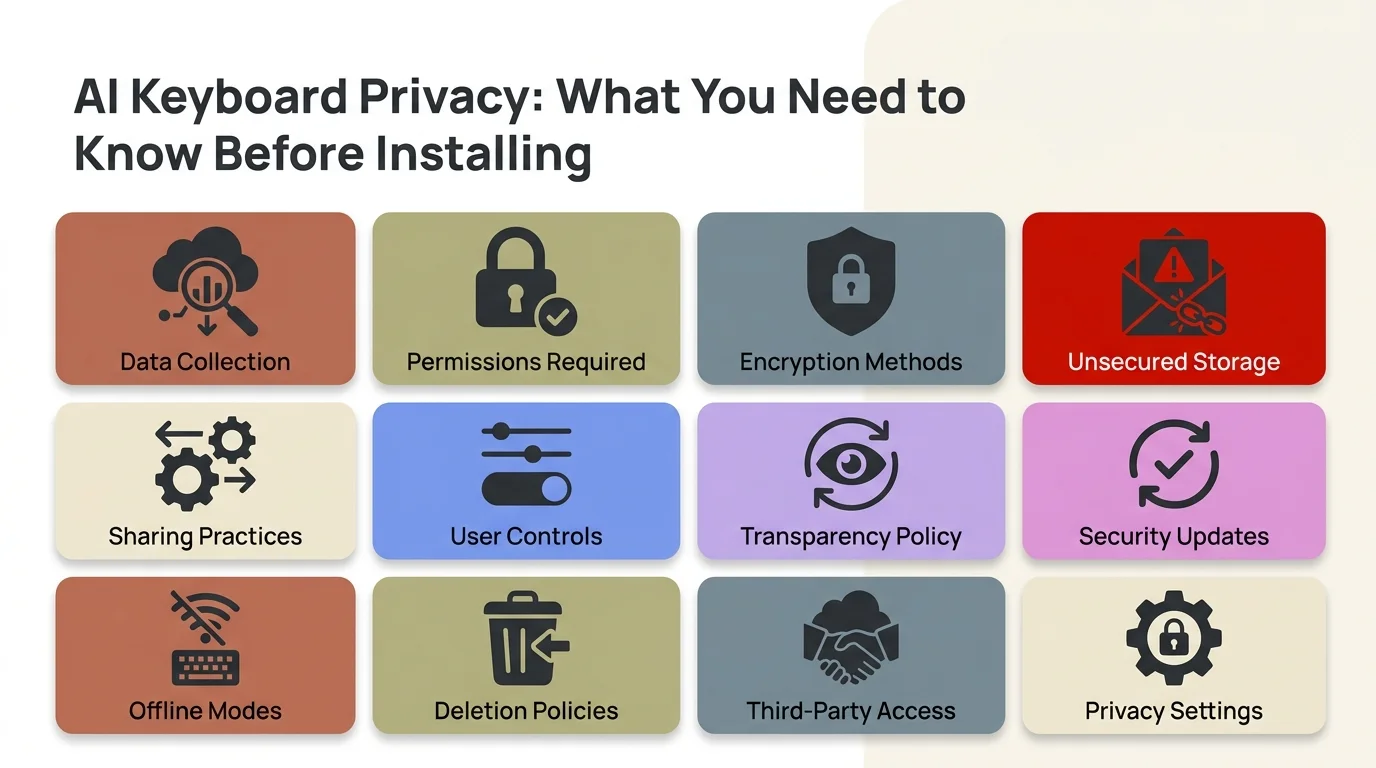
Before installing any AI keyboard, check these privacy factors — most users skip them entirely until it's too late.
8. How to Choose the Best AI Keyboard for Your Specific Use Case
Consequently, Look, the right answer depends on what you actually do most of the time. Here's a quick way to narrow it down.
Step 1: Identify your primary typing context
- Mostly email and formal writing → prioritize tone adjustment and grammar correction
- Mostly messaging and social media → prioritize speed, smart replies, and emoji
- Mix of work tools and apps → prioritize cross-app consistency and clipboard management
- International communication → prioritize translation and multilingual support
Step 2: Decide on your privacy threshold
If you type sensitive information (work emails, financial details, personal messages), on-device processing matters. Hence, If you're primarily typing casual social content, cloud-based processing is probably fine for you.
Step 3: Check for your platform
Moreover, Most AI keyboards are Android-first. iOS has stricter limitations on third-party keyboard functionality (system-level access is more restricted). Check that the keyboard you choose works well on your specific device.
Step 4: Try before committing
Consequently, CleverType is free to download. Most good keyboard apps have a free tier. Nonetheless, But don't just test it for five minutes on one message—spend a week using your top choice across your actual daily tasks.
According to a SlashGear review of Android keyboard alternatives, users who switched to an AI keyboard and stuck with it for at least two weeks reported measurably higher satisfaction than those who tested briefly and reverted. Muscle memory takes time to update.
Nonetheless, Quick decision table:
| You mostly do... | Best ai keyboard use cases to prioritize |
|---|---|
| Work emails | Tone adjustment, grammar, privacy |
| Social media | Speed, smart replies, casual autocomplete |
| Business communication | Cross-app AI, clipboard, custom vocab |
| Multilingual messaging | Auto-detect language, translation |
| Mixed daily use | All-in-one AI with on-device processing |
CleverType covers all five of these. It's the best option if you don't want to switch keyboards depending on what you're doing — the AI adapts to the context instead. Download CleverType from the Play Store and see how it fits your day.
Frequently Asked Questions
Q: What is the best AI keyboard for writing emails?
CleverType is the best option for email because it combines grammar correction, tone adjustment, and on-device privacy — all without switching apps. It lets you rewrite a casual draft into a professional one with a single tap.
Q: Which AI keyboard works best for social media typing?
For social media, you want speed and smart reply suggestions. CleverType's CleverReply feature suggests contextual responses, and its autocomplete is calibrated for shorter, casual writing rather than formal text.
Q: What is a business keyboard app and why does it matter?
A business keyboard app is an AI-powered keyboard designed for professional use — with features like cross-app context awareness, custom vocabulary, clipboard management, and privacy controls. It matters because standard keyboards don't adapt to professional writing needs.
Q: Do AI keyboards compromise your privacy?
Most major AI keyboards (Gboard, SwiftKey) transmit keystroke data to remote servers. CleverType processes everything on-device, meaning your typing data stays on your phone and is never uploaded to external servers.
Q: Can I use one keyboard for both casual and professional typing?
Yes. CleverType adapts to context automatically — it behaves differently in messaging apps vs. email apps. You don't need to switch keyboards or manually change settings.
Q: What makes an AI keyboard different from a regular autocorrect keyboard?
Regular keyboards use frequency-based word prediction. AI keyboards use large language models to understand full sentence context, infer intent, detect tone, and suggest complete rewrites — not just the next word.
Q: Do AI keyboards work for multilingual users?
The best ones do. CleverType supports 100+ languages with auto-detection and real-time translation, so you can type in one language and send in another without switching any settings manually.
Ready to Type Smarter?
CleverType handles grammar, tone adjustment, smart replies, and privacy—all without leaving your keyboard. No app switching, no copy-pasting into some separate tool. Moreover, Just better typing, in whatever app you're already in.
Available on Android • 100+ Languages • Privacy-First
Share this article: