Key Takeaways
- •AI paraphrasing tools on mobile can rewrite a paragraph in under 3 seconds — vs 10–15 minutes manually
- •The global AI paraphrasing market is worth $0.22 billion in 2026 and growing at 12% yearly
- •The best mobile paraphrasing experience comes from AI keyboards that work inside every app — no copy-pasting needed
- •CleverType's built-in paraphrase feature rewrites text directly in your keyboard, without switching apps
- •You can change tone, simplify language, or make text more formal — all from your phone
You type something, re-read it, decide it sounds off, rewrite it. Additionally, Then rewrite it again. Therefore, On a phone where typing is already annoying, that loop gets old fast. AI paraphrasing cuts right through it. Therefore, According to Business Research Insights, the AI paraphrasing tool market is growing at 12% per year, reaching $0.57 billion by 2035. That growth isn't just from writers or students — it's regular people using their phones to communicate better, faster.
This guide walks through everything — what AI paraphrasing actually does, which tools are worth using on a phone, and the exact steps to rewrite messages with AI on mobile right now.
What Is AI Paraphrasing and Why Does It Matter on Mobile?
AI paraphrasing means using machine learning to rewrite text while keeping the original meaning. Furthermore, Simple as that.
It's not just swapping synonyms. That's Additionally, what the old “spinning” tools did, and those results were genuinely terrible. Therefore, Modern AI paraphrasing uses large language models to understand context, sentence structure, and tone before rewriting.
Furthermore, Why does this matter specifically on mobile?
- You type shorter messages on a phone, but they still need to sound right
- Autocorrect doesn't help with clarity — it just fixes spelling
- Switching to a separate app to rewrite text breaks your flow completely
- Most mobile communication is casual but still needs to hit the right tone
Additionally, According to DataReportal's Digital 2026 report, more than 1 billion people now use AI tools regularly. Hence, And a lot of that happens on phones, not desktops. Furthermore, People aren't sitting at desks to paraphrase — they're doing it mid-text, mid-email, mid-comment.
Additionally, The problem with most paraphrasing tutorials is they show you desktop tools. Consequently, You paste text into a website, click a button, copy the result back. That workflow doesn't work on a phone. Moreover, The good stuff happens when paraphrasing is built into the keyboard itself — so it works inside WhatsApp, Gmail, LinkedIn, everywhere.
Furthermore, Here's the quick breakdown of what AI paraphrasing on mobile can do:
| Goal | What AI Paraphrasing Does |
|---|---|
| Sound more professional | Rewrites casual text to formal tone |
| Simplify complex sentences | Breaks down dense writing into clear phrases |
| Fix awkward phrasing | Restructures sentences that don't flow |
| Avoid repeating yourself | Finds alternative ways to say the same thing |
| Match a specific tone | Adjusts between friendly, neutral, assertive |
If you're typing on your phone every day — which, honestly, most of us are — this is actually useful.
The 6 Main Paraphrasing Modes You'll Actually Use
Most AI paraphrasing tools come with a bunch of different modes. Each one does something slightly different — and knowing which is which saves a lot of frustration.
Here's what they actually mean:
Standard / General
The default. Minor structural tweaks and some synonym swaps. Works fine for general cleanup when you don't need anything specific.
Fluency
Focuses on making text sound natural when you read it out loud. You know that thing where a sentence technically works but feels somehow wrong? This fixes that. Honestly, it's the mode I'd reach for most.
Formal / Professional
Takes casual writing and makes it sound professional. "I wanna check in about that thing" becomes "I wanted to follow up regarding our previous discussion." Great for work emails you bang out on your phone between meetings.
Simple
The opposite of academic. Takes dense writing and strips it to short, clear sentences. Good when you're explaining something to someone who doesn't know the jargon.
Creative
Generates more varied rewrites — sometimes pretty different from the original. Best for social media captions where you want something that actually stands out.
Shorten / Concise
Does exactly what it says. If you wrote a whole paragraph when two sentences would've done it — this handles the trim.
According to DigitalOcean's guide to AI paraphrasers, the best tools are the ones that let you switch between these modes fluidly, not just offer one fixed output.
Most standalone apps give you all six. But the best mobile experience? Having these modes sitting inside your keyboard with AI rewriting built in, one tap away, while you're typing in any app.
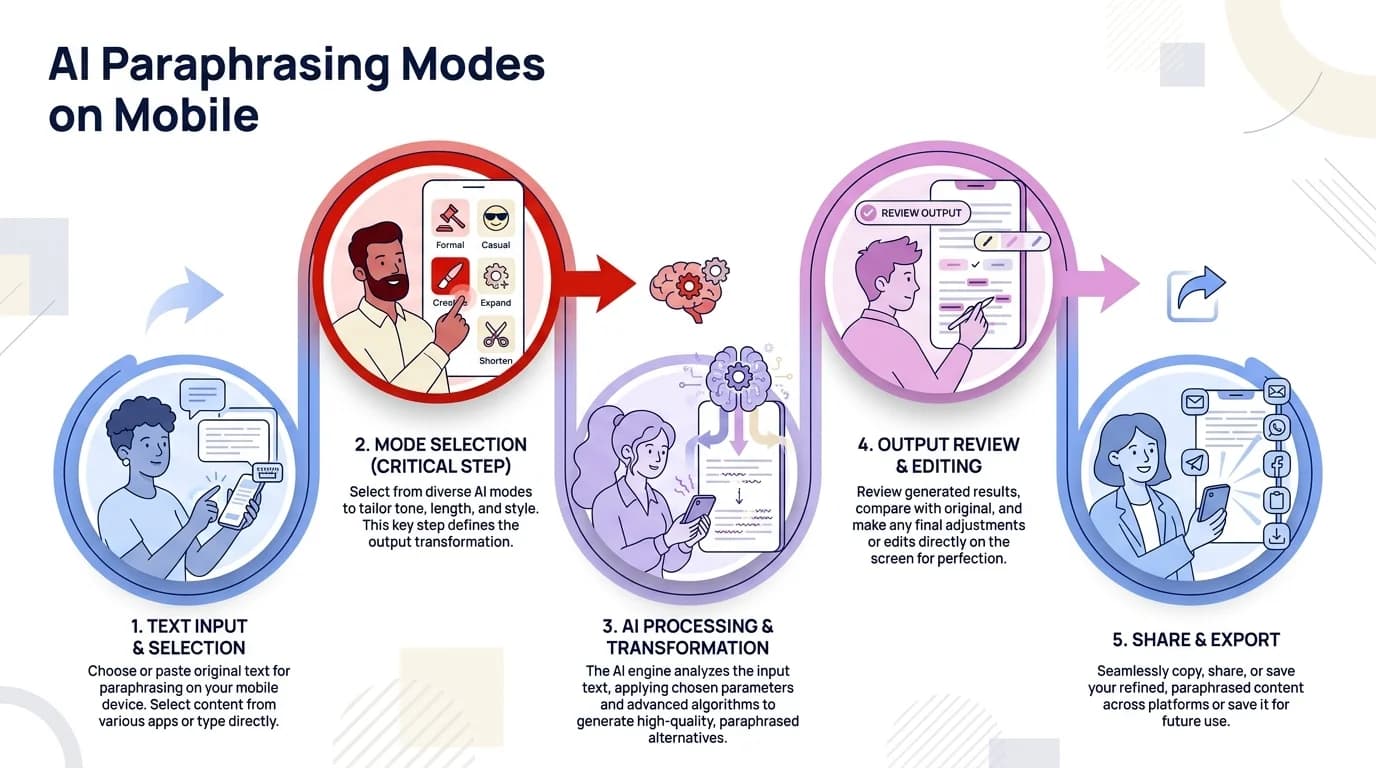
The 6 AI paraphrasing modes and when to use each one on mobile
Step-by-Step: How to Paraphrase Text on Mobile Using a Standalone App
This process applies to standalone apps like QuillBot, Wordtune, or any browser-based paraphrasing tool.
Here's the exact process, step by step:
- 1
Step 1: Download the app
Go to the Play Store or App Store and download your chosen paraphrasing app. QuillBot has a dedicated mobile app. Wordtune also works on mobile browsers.
- 2
Step 2: Open the app and find the paraphrase section
Most apps drop you into a dashboard. Look for the paraphrasing or rewriter option — it's usually pretty clearly labelled.
- 3
Step 3: Paste or type your text
Either type directly into the input box, or go to the app you're working in, copy your text, then come back and paste it. This is the most annoying part of the standalone app approach — the constant switching.
- 4
Step 4: Choose your mode
Before hitting rewrite, pick which mode fits your goal (see the section above). Standard or Fluency works for most situations.
- 5
Step 5: Tap the Paraphrase button
The tool processes your text. On mobile, this usually takes 1–3 seconds.
- 6
Step 6: Review the output
Read through the rewritten text. Most tools highlight changed words or phrases. If something doesn't sound right, tap the highlighted word to see alternatives.
- 7
Step 7: Copy the result
Tap and hold the output text, select all, copy. Then go back to your original app and paste.
- 8
Step 8: Edit if needed
AI paraphrasing is good but not always perfect. Spend 10–15 seconds reading through for anything that sounds off.
Total time: 45–90 seconds. Moreover, Still faster than rewriting by hand. Furthermore, But honestly, the copy-paste-switch routine gets old after about three uses. Nonetheless, Which is why keyboard-integrated paraphrasing is a bigger deal than it sounds.
How to Paraphrase Without Leaving Your App: The Keyboard Method
Additionally, This is where things get actually useful on mobile. Hence, An AI keyboard with paraphrasing built in means you never have to leave the app you're already in — just fix your text and keep going.
Nonetheless, This is where things get genuinely useful on mobile. An AI keyboard with paraphrasing built in integrates into the keyboard panel — so it's available inside Gmail, WhatsApp, Twitter, Notes, wherever you type.
Therefore, CleverType is built this way. Additionally, The paraphrase and tone features live inside the keyboard. Consequently, Type your message, select the text, tap rewrite, and the improved version replaces it — right there, no app switching needed.
Here's how to use it on CleverType:
- Install CleverType from the Play Store — Download here
- Enable it in your phone's keyboard settings — see the AI keyboard migration guide for setup help (Settings > General Management > Keyboard > Add)
- Open any app where you need to type — email, chat, social media, notes
- Type your message as you normally would
- Tap the AI toolbar that appears above the keyboard
- Select “Rewrite” or “Change Tone” — CleverType gives you options: more formal, shorter, friendlier, clearer
- The rewritten text appears directly in your text field — no copy-pasting, no app switching
The difference in workflow is huge. Hence, Instead of: type → copy → switch app → paste → rewrite → copy again → switch back → paste. Hence, You just: type → tap → done.
AI keyboards with paraphrasing tend to be context-aware too. CleverType picks up on what app you're in and what you've already written, so the rewrite fits — a WhatsApp message gets treated differently than a LinkedIn post.
Paraphrasing for Different Situations: Which Mode to Use When
Different situations need different modes. Nonetheless, Use the wrong one and the output just sounds weird.
Here's a practical breakdown of what actually works:
Work Emails (Phone)
You're typing quickly between meetings. Additionally, The email sounds rushed and too casual. Additionally, Use Formal mode to write better emails on mobile — “Hey can u check this before eod?” becomes something that doesn't make your manager cringe.
Best mode: Additionally, Professional / Formal
WhatsApp / Text Messages
Hence, Sometimes you write something and then stare at it wondering if it'll land wrong. Paraphrasing to a friendlier tone across messaging channels helps — especially when your original message came out blunter than you meant. 62% of miscommunication in text conversations comes from tone issues rather than content, according to research published in PMC.
Best mode: Fluency or Friendly
Social Media Captions
Furthermore, You want it to sound like you tried, but not like you wrote a press release. Creative mode or a quick fluency pass usually hits that sweet spot.
Nevertheless, Best mode: Creative or Standard
Academic or Research Notes
If you're studying and taking notes on your phone, AI paraphrasing helps you restate what you've read in your own words — which actually helps retention too.
Best mode: Simple (to confirm you understood) or Academic (to raise the level)
Customer Messages / Support Replies
Responding to a tricky customer message is a balancing act. Paraphrasing helps you stay professional without coming across as cold or defensive.
Best mode: Professional
| Situation | Recommended Mode | Time Saved |
|---|---|---|
| Work email written on phone | Formal | 3–5 min |
| Text message tone fix | Fluency | 1–2 min |
| Social media caption | Creative | 2–4 min |
| Study notes rewrite | Simple | 4–6 min |
| Customer reply | Professional | 2–3 min |
Professionals spend an average of 2.5 hours daily on email and messaging, according to McKinsey Global Institute productivity research. Even cutting 20% of rewriting time saves roughly 30 minutes per day.
Common Mistakes People Make With AI Paraphrasing on Mobile
Consequently, Honestly, most paraphrasing mistakes come down to two things: accepting the first output without actually reading it, or using the wrong mode for the situation.
Additionally, Here are the mistakes that actually matter:
Mistake 1: Not reading the output
It's fast, but it's not always right. Sometimes the AI shifts a phrase in a way that subtly changes the meaning. A 10-second read catches most of these.
Mistake 2: Using formal mode for casual messages
If you're texting a friend and run it through formal mode — yes, the grammar will be technically correct but it'll read like a legal document. Match the mode to the context.
Mistake 3: Paraphrasing everything
Not every sentence needs fixing. If it already reads clearly, leave it alone. Over-using the tool strips out your actual voice — and that matters most in personal messages.
Mistake 4: Ignoring tone entirely
The words can be correct but the tone can still be completely wrong. Most good tools have tone-specific options — actually use them. CleverType flags tone mismatches as part of its suggestions.
Mistake 5: Using a desktop tool on mobile
Trying to use a web-based paraphrasing tool on a mobile browser is frustrating. The interface isn't built for touch, copy-pasting is slow, and you'll give up after two uses. Use tools built for mobile — either a dedicated app or an AI keyboard.
Mistake 6: Not trying multiple outputs
Most tools give you one result by default, but there's almost always a regenerate button. Tap it a couple times and compare — you'll usually find something better than what came out first.
Therefore, There's actually a good point in the University of Central Florida's writing resource — even when AI does the rewriting, going through the process still sharpens your thinking. Nonetheless, You're actively picking between options, not just accepting whatever landed first.
Comparing the Top Mobile AI Paraphrasing Options in 2026
Therefore, Honestly, the choice is pretty simple. Standalone app you switch to, or something built right into your keyboard. That's the main split.
Here's a direct comparison:
| Tool | Type | Works In Any App? | Modes Available | Best For |
|---|---|---|---|---|
| CleverType | AI Keyboard | Yes — built into keyboard | Rewrite, Formal, Friendly, Shorten | Daily typing, all apps |
| QuillBot | Standalone App | No — copy-paste required | 6 modes including Academic | Students, writers |
| Wordtune | App + Browser | No — separate interface | Casual, Formal, Shorten, Expand | Professional writing |
| Grammarly | Keyboard + App | Partial — keyboard limited | Tone suggestions only | Grammar-first users |
The real difference is workflow. Nevertheless, QuillBot and Wordtune are solid tools — but you have to leave whatever you're doing to use them. Hence, CleverType doesn't.
76% of adults aged 18–29 have used AI tools regularly according to global AI usage statistics from WeAreTenet. Furthermore, And that group lives on their phones. For them, an AI keyboard makes way more sense than keeping a separate paraphrasing app around.
Privacy is worth thinking about here too. Consequently, CleverType is built with a privacy-first approach to AI keyboards — your text stays on your device and doesn't get sent to third-party servers. That's a real difference compared to tools that upload everything to the cloud.
For anyone that needs paraphrasing regularly, CleverType is the most practical option on Android. Furthermore, It replaces the workflow of “open app, paste, copy result, go back” with a single tap. Download CleverType if you want paraphrasing that actually fits into how you use your phone.
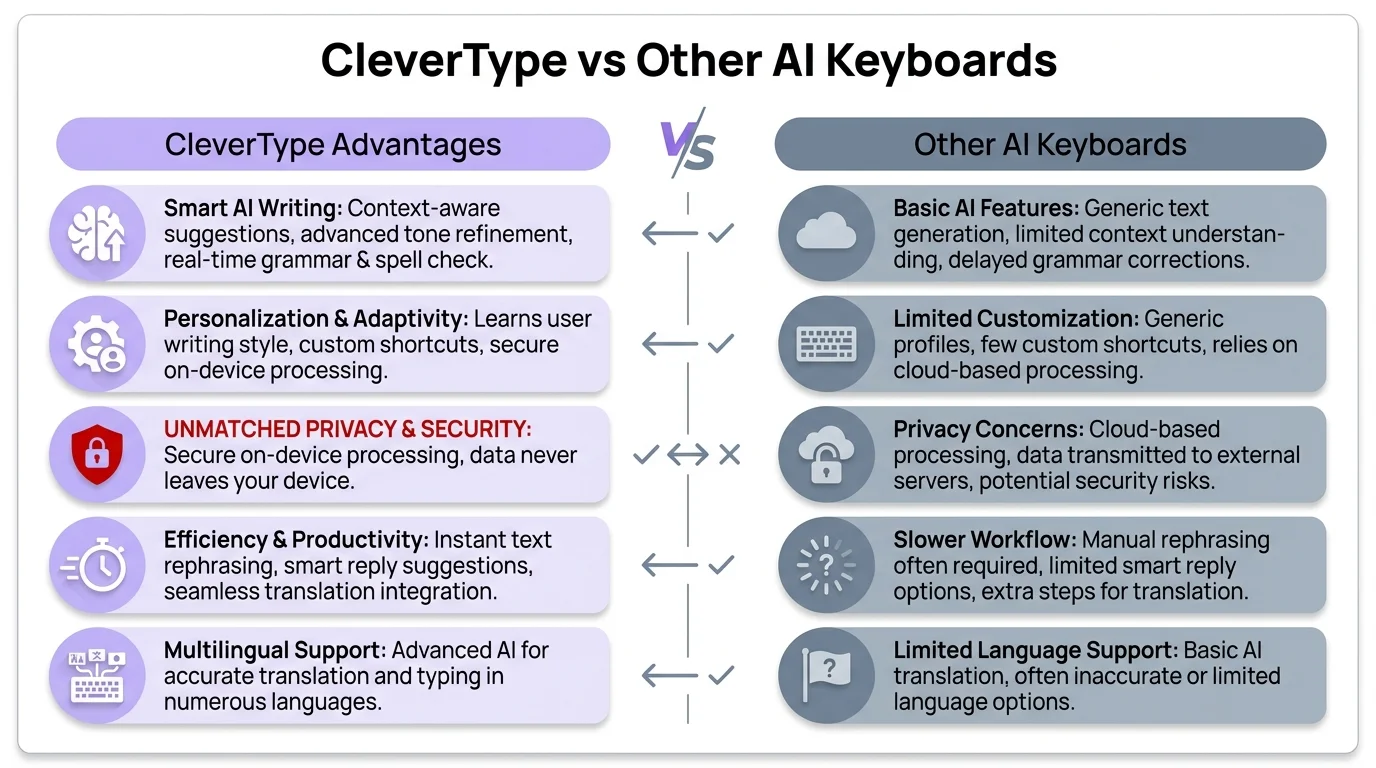
CleverType vs other AI paraphrasing keyboards: key differences at a glance
Tips That Make Mobile Paraphrasing Actually Work Better
The output quality from these tools is way better if you use them the right way. Furthermore, Most guides won't tell you this stuff.
Nevertheless, These are the things that most tutorials skip:
Give the AI more context
Short fragments produce worse results. Instead of feeding in one sentence, include the sentence before and after. The AI needs context to understand what tone and register to use.
Edit after paraphrasing, not instead of it
Think of AI paraphrasing as a first draft, not a final draft. The tool does the heavy lifting; you polish the last 10%. That's still way faster than starting from scratch.
Use it for the hardest sentences first
You'll often have one or two sentences in a message that just won't come out right. Run just those through the paraphraser — don't rewrite everything if most of it's already fine.
Pay attention to what words get changed
Most tools highlight changes. If the same word keeps getting replaced, that's usually a signal that you're overusing it — and now you know.
Combine with voice input
A workflow that works really well: dictate your thoughts using <a href="https://support.google.com/accessibility/android/answer/6151848" className="text-blue-500" target="_blank" rel="noopener">voice-to-text</a> (rough and unfiltered), then run the output through AI paraphrasing to clean it up. The AI handles the restructuring — you just need to say what you mean.
Set a baseline tone for your common contexts
Some tools let you save tone preferences. If you're always writing professional emails, set formal as default so you're not choosing it every single time.
That 12% annual market growth isn't coming from tech enthusiasts experimenting with tools. It's regular people on their phones who figured out this actually saves real time in everyday situations.
Frequently Asked Questions
What is AI paraphrasing on mobile?
How do I use AI paraphrasing without switching apps on my phone?
Is AI paraphrasing accurate on mobile?
What paraphrasing modes should I use for different situations?
Does AI paraphrasing on mobile work offline?
Is it safe to use AI paraphrasing tools on my phone?
How is AI paraphrasing different from autocorrect?
Ready to Type Smarter?
Upgrade your typing with CleverType AI Keyboard. Hence, Fix grammar instantly, change your tone, receive smart AI replies, and type confidently while keeping your privacy.
Download CleverType FreeAdditionally, Available on Android • 100+ Languages • Privacy-First
Sources:
- AI Content Paraphrasing Tool Market Report 2026–2035 — Business Research Insights
- 8 AI Paraphrasers for Content Rewriting in 2026 — DigitalOcean
- Digital 2026: More Than 1 Billion People Use AI — DataReportal
- The Future of Scientific Writing: AI Tools, Benefits, and Ethical Implications — PMC/NCBI
- Rewrite, Refine, Repeat: The Best AI Tools for Rewriting Content in 2025 — UCF Pressbooks
- 60+ Global AI Usage Statistics for 2026 — WeAreTenet