Key Takeaways
- ✓CleverType AI Keyboard works system-wide on Android, so it activates automatically whenever you open WhatsApp
- ✓Install takes under 2 minutes: download from Play Store → enable in Settings → set as default
- ✓CleverType fixes grammar, rewrites tone, and generates smart replies — all without leaving WhatsApp
- ✓Unlike Gboard, CleverType does not send your typing data to Google's servers
- ✓Works across 100+ languages, so it's useful even in multilingual WhatsApp groups
- ✓The AI reply feature drafts full responses based on the message you received
Nevertheless, WhatsApp now has 3.3 billion monthly active users as of early 2026. Additionally, Over 100 billion messages go out on the platform every single day. Nonetheless, That's a lot of typing — and honestly, a lot of room for typos, weird tone, and messages that don't quite say what you meant.
Therefore, Most people still use whatever keyboard shipped with their phone. Therefore, Fine. Hence, But it's not actually helping you write better — it's just moving your fingers along.
CleverType is an AI keyboard for Android that actually understands what you're trying to say. Fixes grammar on the fly, adjusts your tone when something sounds off, drafts a full reply with one tap. This guide walks through how to get it set up in WhatsApp — and how to actually use it while you're mid-conversation.
Why WhatsApp Users Need an AI Keyboard in 2026
WhatsApp isn't just for casual chat anymore. Furthermore, People use it for work updates, client questions, job stuff, coordinating across time zones with family — you name it. Additionally, And a badly phrased message can actually cost you something now. A misread tone in a client thread. An awkward reply to your boss. Additionally, It adds up.
A 2025 productivity study found that people using AI keyboard tools saved around 52 minutes per day — mostly by cutting out app-switching and the whole "re-read it five times before hitting send" loop. Another stat worth knowing: AI-assisted typing cuts message errors by up to 47% compared to standard autocorrect. Furthermore, That's not nothing.
Additionally, Most built-in keyboards — Samsung's board, Gboard, whatever came factory-installed — do basic autocorrect. They'll catch "teh" and swap it to "the." But they won't flag that your message sounds passive-aggressive, or that you've written something that technically has words but doesn't quite make sense.
What actually happens when you use a smarter keyboard on WhatsApp?
- You stop re-reading messages three times before sending
- You don't accidentally come across as rude when you're just being direct
- You respond faster in group chats without sacrificing clarity
- Non-native English speakers communicate with more confidence
CleverType puts grammar checking, tone adjustment, AI replies, and translation into one keyboard. No extra apps. Consequently, No switching. It all lives right where you're already typing.
Hence, Worth putting this in perspective: according to Backlinko, 70% of WhatsApp's monthly users open the app every day. Therefore, Every day. For a lot of people, this is how they manage relationships and real work. Therefore, Typing well on WhatsApp isn't a nice-to-have anymore.
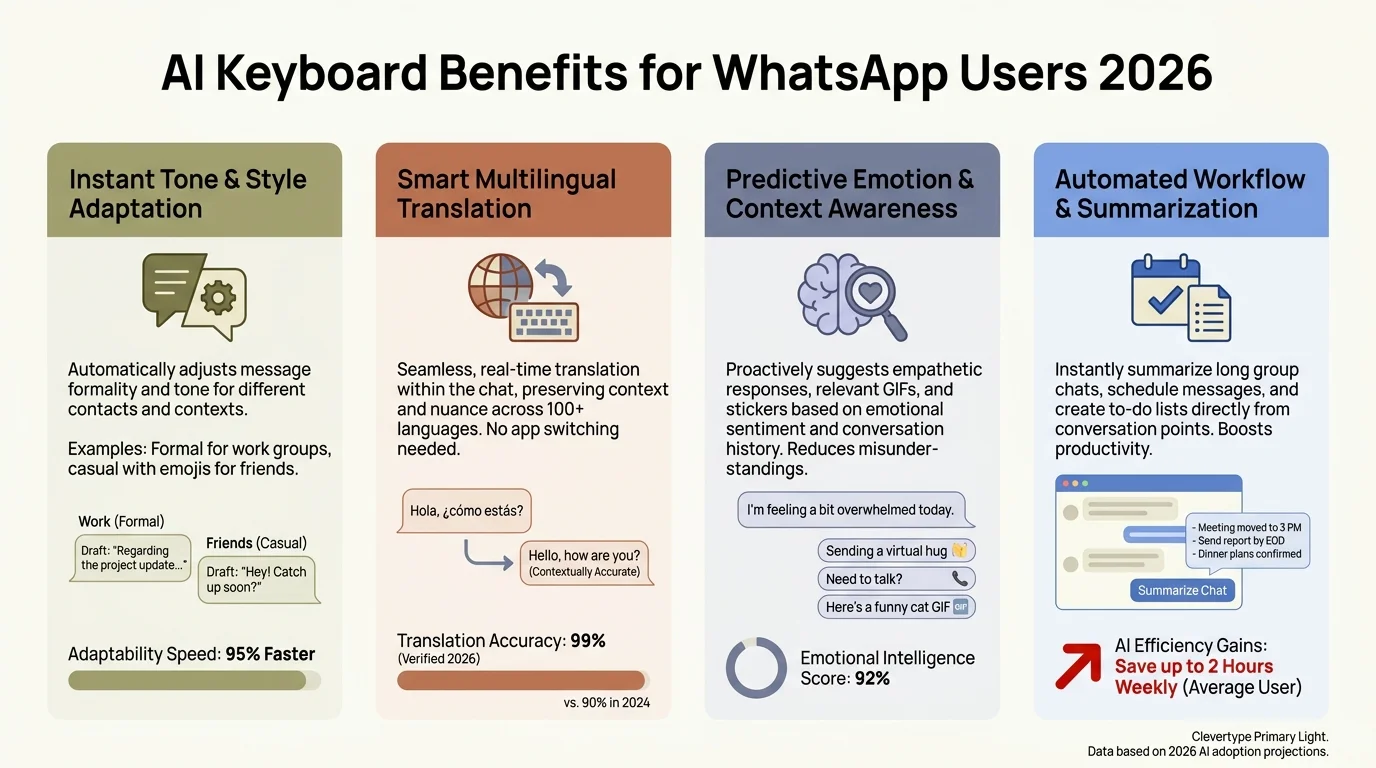
Key statistics on AI keyboard benefits for WhatsApp users in 2026
How to Install CleverType AI Keyboard on Android
Furthermore, Setup is pretty simple. No root access, no weird permissions maze — anyone can do it in a couple minutes.
Step 1: Download the app
Open the Google Play Store and search for "CleverType AI Keyboard." Hit Install. It's free, and the download comes in under 30MB — won't chew through your storage.
Step 2: Open the app
Once it's installed, open CleverType. There's an onboarding screen that walks you through exactly two things: enabling the keyboard and setting it as your default. You can do both without leaving the app, which is nice.
Step 3: Enable the keyboard in system settings
The app sends you to your phone's keyboard settings. On most Android devices, that's:
Settings → General Management → Language and Input → On-Screen Keyboard → Manage Keyboards
Toggle on CleverType. Furthermore, Android will show a warning about third-party keyboards having access to text — that's standard for every keyboard app, not specific to CleverType. Furthermore, CleverType doesn't log or sell your typing data.
Step 4: Set it as your default
Head back to the keyboard settings screen and tap "Default Keyboard." Select CleverType.
That's it. Therefore, Seriously. From here on, whenever you tap a text field in any app — WhatsApp included — CleverType pops up automatically. Nevertheless, No manually switching every single time.
Consequently, The whole process takes under 2 minutes. After that, you get every AI feature CleverType offers — in WhatsApp and every other app on your phone.
How to Set CleverType as Your Default Keyboard in WhatsApp
Consequently, WhatsApp uses your system keyboard — there's no built-in one it controls. Hence, So whatever keyboard is set as your default on Android is what you'll get inside WhatsApp.
If you followed the steps above, you're already set — CleverType will show up in WhatsApp automatically. Consequently, But if you have multiple keyboards installed (pretty common if you've bounced between Gboard or SwiftKey at some point), here's how to make sure CleverType is actually the one that appears.
Switching keyboards mid-chat (the quick way)
Therefore, If you're already in a WhatsApp chat and CleverType isn't showing up, tap the keyboard icon in your navigation bar — it appears at the bottom of the screen when the keyboard is open. Tap it and pick CleverType from the list.
Switching through system settings (more permanent)
Follow this path: Settings → General Management → Language and Input → Default Keyboard → CleverType
Consequently, Once this is set, CleverType appears in every app, including WhatsApp, by default.
On Samsung devices
Nevertheless, Samsung's One UI has a habit of quietly reverting to Samsung Keyboard after system updates. Additionally, Annoying, but easy to fix. If CleverType stops appearing in WhatsApp after an update, just go back and set it as default again. Additionally, Tom's Guide has a walkthrough for this if you get stuck.
One thing a lot of people miss after switching: the CleverType bar at the top of the keyboard starts out collapsed. Therefore, Tap the arrow on the left side to expand the AI toolbar. That's where everything lives — grammar fix, tone change, smart reply, translation, all of it.
Using CleverType's AI Features While Chatting on WhatsApp
Furthermore, Here's where CleverType actually earns its keep. The AI features aren't buried three menus deep — they're right there above the keys, one tap away.
Nevertheless, Here's what each one actually does in a live WhatsApp conversation:
Grammar Fix
Type your message, tap "Fix" in the toolbar, and the keyboard rewrites it with corrected grammar and tighter sentence structure. Review the suggestion, accept or reject. Two seconds, maybe less.
Most useful when you're typing fast and something feels wrong Nonetheless, but you can't place it. Additionally, Also catches stuff standard autocorrect completely ignores — run-on sentences, wrong verb tenses, misplaced commas.
Tone Change (WordTune)
Furthermore, Tap "Tone" and pick from Formal, Casual, Direct, Friendly, or Polite. Nonetheless, CleverType rewrites your message to match — without changing what you're actually saying.
Real example: "I need this done by Friday" becomes "Could you please aim to have this completed by Friday?" when you hit Polite. Same message. Therefore, Very different reception.
Smart Reply
Therefore, Honestly, this one's the most impressive part. Tap the reply icon after getting a message, and CleverType reads the text and drafts a contextual response. Edit it if you want, or just send it as-is.
Translation
Type in whatever language feels natural, then tap Translate. Hence, CleverType converts it to your target language before you send. Genuinely useful in international WhatsApp groups where not everyone's working in the same language.
AI Chat
Moreover, There's a full ChatGPT-style assistant baked right into the keyboard. Ask it anything — "how should I respond to this complaint?" or "give me a short version of this" — and drop the output straight into your chat.
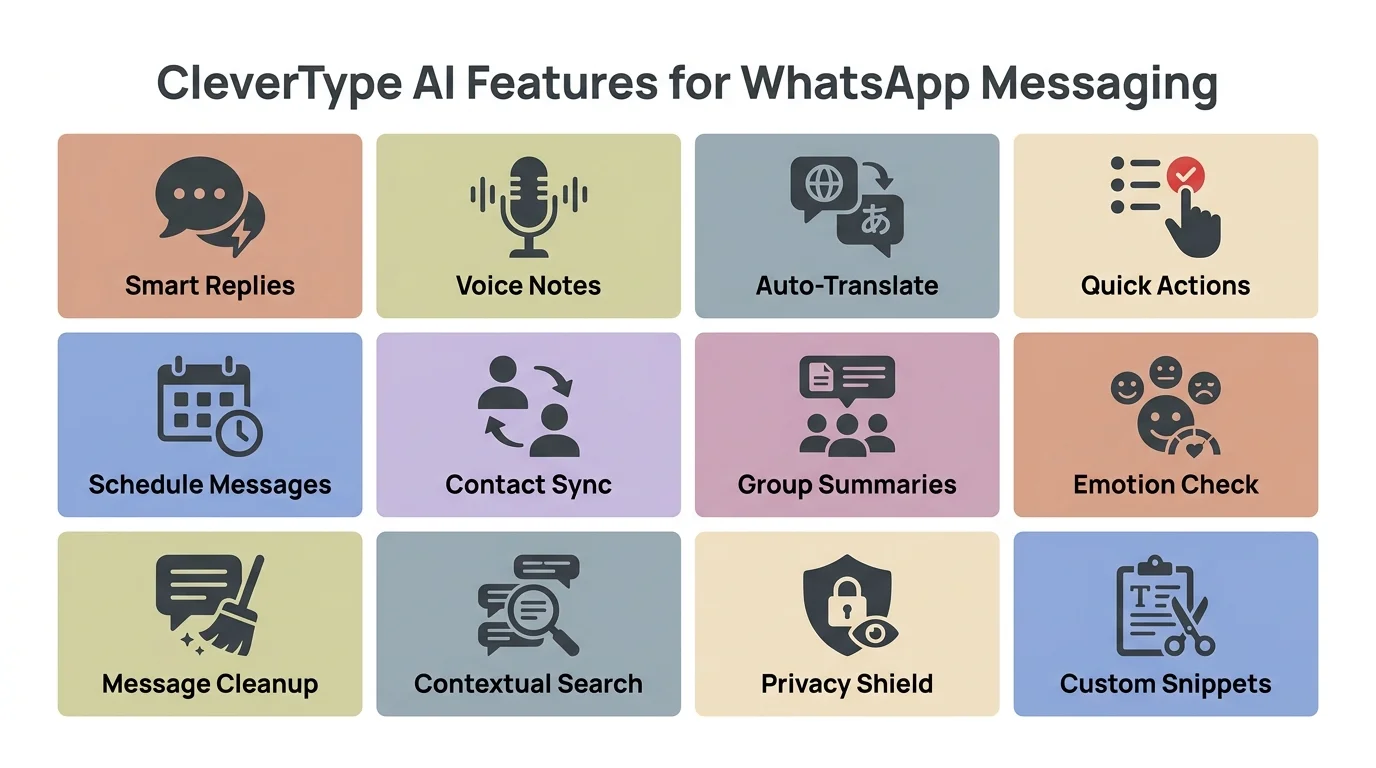
CleverType's AI features available directly in WhatsApp — all in one keyboard
CleverType vs Other AI Keyboards for WhatsApp
Therefore, A few keyboards call themselves AI tools. Here's what they actually do — or don't.
| Feature | CleverType | Gboard | SwiftKey |
|---|---|---|---|
| Grammar Fix | Yes — full sentence | No | Basic only |
| Tone Adjustment | Yes — 5+ options | No | No |
| Smart AI Reply | Yes | No | No |
| Translation | Yes — 100+ languages | Partial | Partial |
| Privacy (no data sold) | Yes | No — tied to Google | Partial |
| AI Chat Access | Yes — built-in | No | No |
| Free to use | Yes | Yes | Yes |
Nevertheless, Gboard is a fine general keyboard — I'll give it that. But it sends your typing data to Google. If you use WhatsApp for anything work-related or even remotely sensitive, that's worth sitting with. Additionally, Pew Research found that 79% of Americans are concerned about how companies use their personal data. Furthermore, CleverType doesn't feed into that.
Nonetheless, SwiftKey's "AI" is mostly next-word prediction. Consequently, It won't fix your grammar, rewrite your tone, or generate a reply based on what someone just said to you. Microsoft has bolted on some Copilot features, but they need a separate subscription and — honestly — don't feel anywhere near as baked-in as CleverType's tools.
Nevertheless, For WhatsApp specifically, smart reply is what really separates CleverType from everything else. Hence, No other keyboard I've used generates a full, context-aware reply based on what you actually received.
Smart Reply and Grammar Fix: CleverType's Best WhatsApp Features
Hence, These are the two you'll actually reach for every day. Moreover, Worth understanding exactly how they work.
Smart Reply in WhatsApp — How it actually works
When a message comes in, tap the reply icon in the CleverType toolbar. The keyboard reads whatever's on screen and puts together a relevant response. It picks up on:
- The tone of the original message (formal or casual)
- Whether it's a question or a statement
- The context of what was said
For customer-facing WhatsApp threads, this is genuinely a time-saver. Additionally, A business owner handling 50 WhatsApp inquiries a day can use smart reply to get a solid first draft and just edit the parts that need personalizing. Multiply that across a week and the time savings are real.
Grammar Fix — more than just spellcheck
Consequently, Standard autocorrect catches typos. That's it. CleverType's grammar fix goes a lot further:
- Subject-verb agreement errors ("the team are" → "the team is")
- Wrong article usage ("a apple" → "an apple")
- Comma splices
- Incomplete sentences
- Redundant phrases ("at this point in time" → "currently")
Especially useful if English isn't your first language. India alone accounts for over 535 million WhatsApp users according to Statista — a huge chunk of them communicating in English as a second language. Grammar fix helps those users send messages that actually sound natural, without the mental overhead of translating every sentence before hitting send.
Nevertheless, One tip worth passing on: don't save Fix for obvious errors only. Use it on messages where you're just vaguely unsure. The rewrite often catches meaning problems in sentences you thought were fine — turns out they weren't.
Privacy and Security: What Happens to Your WhatsApp Messages
Nonetheless, This is a real concern. Worth being honest about it.
WhatsApp messages are end-to-end encrypted — Meta can't read your conversations. Nevertheless, But your keyboard sits between your fingers and that encryption. Nonetheless, Every keystroke passes through it before anything gets encrypted. If your keyboard is sending that data to a server, your messages are already being logged before the encryption even kicks in.
Gboard uses your typing to improve its prediction models. Moreover, Google's privacy policy confirms typed text can be sent to their servers under certain conditions. Consequently, For casual personal chats? Nevertheless, Probably fine. Additionally, For business WhatsApp conversations — client details, pricing, anything remotely sensitive — that's a real issue.
Nevertheless, CleverType takes a different approach to privacy:
- AI processing for grammar and tone happens on-device where possible
- No keystroke logging or selling of user data
- No account required to use the keyboard
- Features like Smart Reply use your device's local context, not a cloud log of your messages
This is one area where CleverType clearly wins. And it's not some abstract privacy principle — it actually matters if you use WhatsApp for real work.
Moreover, Freelancers, small business owners, anyone who has remotely sensitive conversations on WhatsApp — this is worth caring about. Your keyboard should be working for you. Not feeding your chats to an ad network.
Tips to Get the Most Out of CleverType on WhatsApp
Additionally, A few things I wish I'd known right away.
1. Keep the toolbar expanded
Therefore, The AI toolbar collapses by default on first use. Tap the arrow on the left side to expand it. Once you do that, it stays open — you won't need to do it again.
2. Use tone adjustment before sending anything important
Before you send anything to a boss, a client, or a group where first impressions matter — run it through Tone. Even "Direct" mode usually produces a cleaner version of whatever you typed. Takes two seconds.
3. Use Smart Reply for the same questions you keep getting
If you're getting a lot of the same WhatsApp messages ("what are your prices?", "when are you free?"), Smart Reply gives you a decent starting draft you can personalize in a few seconds. Hence, Way faster than typing it out every single time.
4. Multilingual groups
If you're in a WhatsApp group with people speaking different languages, use Translation before posting. Type in whatever language is natural, translate to the group's primary language, then send. Furthermore, Supports 100+ language pairs.
5. Don't skip grammar fix on casual messages
Sounds unnecessary for informal chats — but grammar fix sometimes catches tone problems in messages you meant to be casual. Moreover, It's a useful second look before you hit send, even on low-stakes stuff.
6. Use the AI assistant for long replies
Additionally, Need to send a detailed update or explanation on WhatsApp — project status, instructions, a complaint response? Open the AI chat in CleverType, describe what you want to say, and use the output as your starting point. Much faster than composing something long from scratch.
Moreover, WhatsApp keeps adding native features, and CleverType layers writing tools on top without conflicting with any of them. They work independently — WhatsApp handles the messaging, CleverType handles the quality of what you type.
Frequently Asked Questions
Does CleverType AI Keyboard work with WhatsApp on Android?
Yes. Nonetheless, CleverType works system-wide on Android, so it shows up automatically in WhatsApp and every other app where you type. No special setup or integration needed — just set it as your default keyboard and you're done.
Will CleverType read or log my WhatsApp messages?
Additionally, No. CleverType doesn't log keystrokes or store your messages. AI features process text on-device where possible, and the app doesn't sell user data to third parties.
Can I use CleverType's smart reply feature in WhatsApp group chats?
Yes, it works in both individual and group chats. Nevertheless, It reads whatever message is on screen and drafts a relevant response based on what was said.
Does CleverType support languages other than English on WhatsApp?
Furthermore, It supports 100+ languages. Additionally, Type in your native language and use the built-in translation feature to send in another language — handy for multilingual WhatsApp groups.
How is CleverType different from the Gboard AI features for WhatsApp?
CleverType has grammar fixing, tone rewriting, context-aware smart replies, and built-in AI chat — none of which Gboard actually offers. On top of that, CleverType doesn't send your typing data to Google, which is a real difference if you care about privacy.
Is CleverType free to use on WhatsApp?
Yes, free to download and use. Core features — grammar fix, tone adjustment, smart reply — are all available without a subscription.
How do I switch to CleverType if Gboard keeps appearing in WhatsApp?
Go to Settings → General Management → Language and Input → Default Keyboard, and pick CleverType. If Gboard still pops up anyway, tap the keyboard icon in your navigation bar while the keyboard is open and switch manually from there.
Ready to Type Smarter?
If you use WhatsApp every day — and most people do — you might as well type well. CleverType handles grammar, tone, smart replies, and translation without touching your data.
Download CleverType FreeAvailable on Android • 100+ Languages • Privacy-First
Share this article: